How do I bulk schedule posts from a CSV?
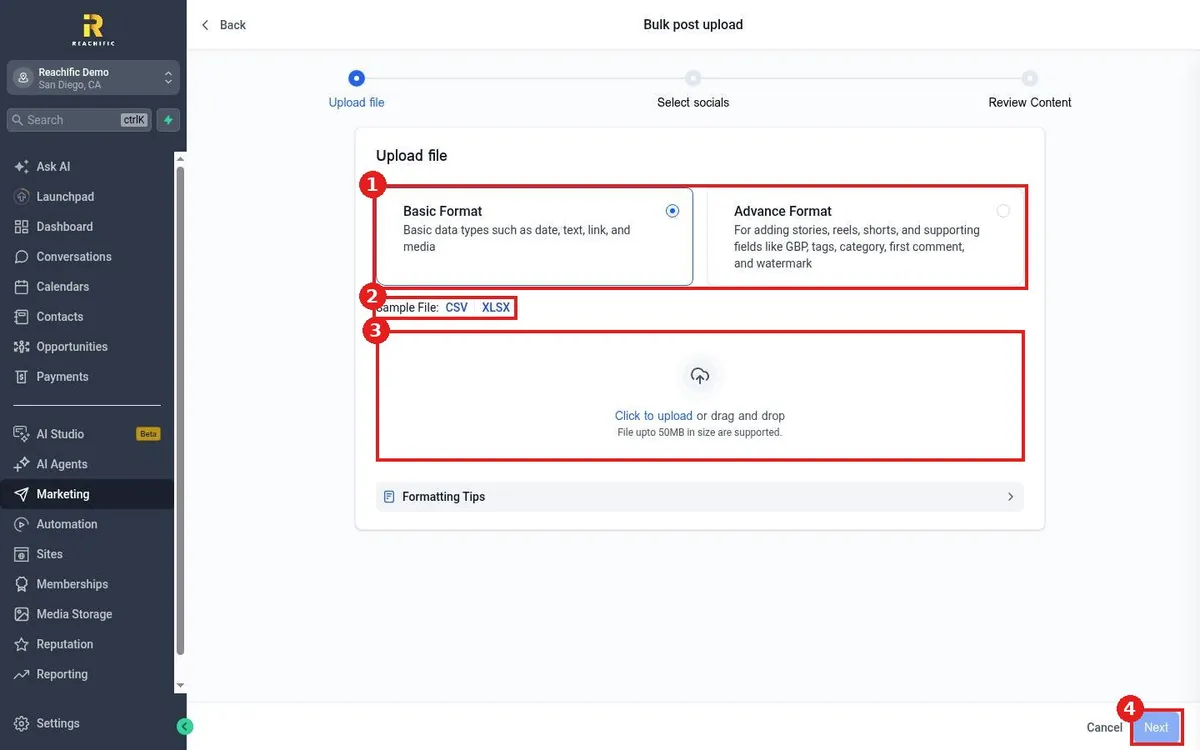
Bulk schedule social posts in Reachific: open Social Planner, choose Bulk Scheduling with CSV, pick Basic or Advance format, download the sample file, upload your CSV, select socials and review.
Reachific™ Support
Step by step answers for every part of your Reachific account, with screenshots that show you exactly where to click.
No article on this page matches that yet. Try another word, or submit a ticket.

Bulk schedule social posts in Reachific: open Social Planner, choose Bulk Scheduling with CSV, pick Basic or Advance format, download the sample file, upload your CSV, select socials and review.

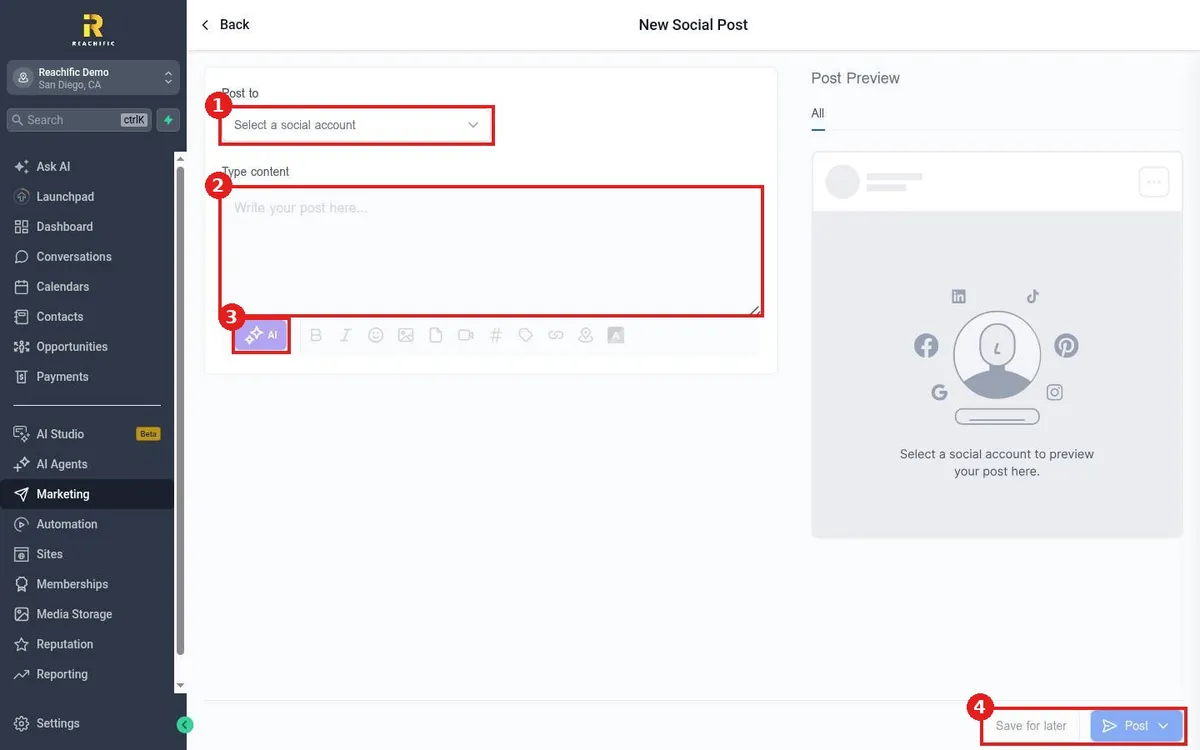
Schedule a social post in Reachific: open Marketing, Social Planner, create a post, pick the social accounts, write or generate the content, add media, then choose a time to post or save it for later.

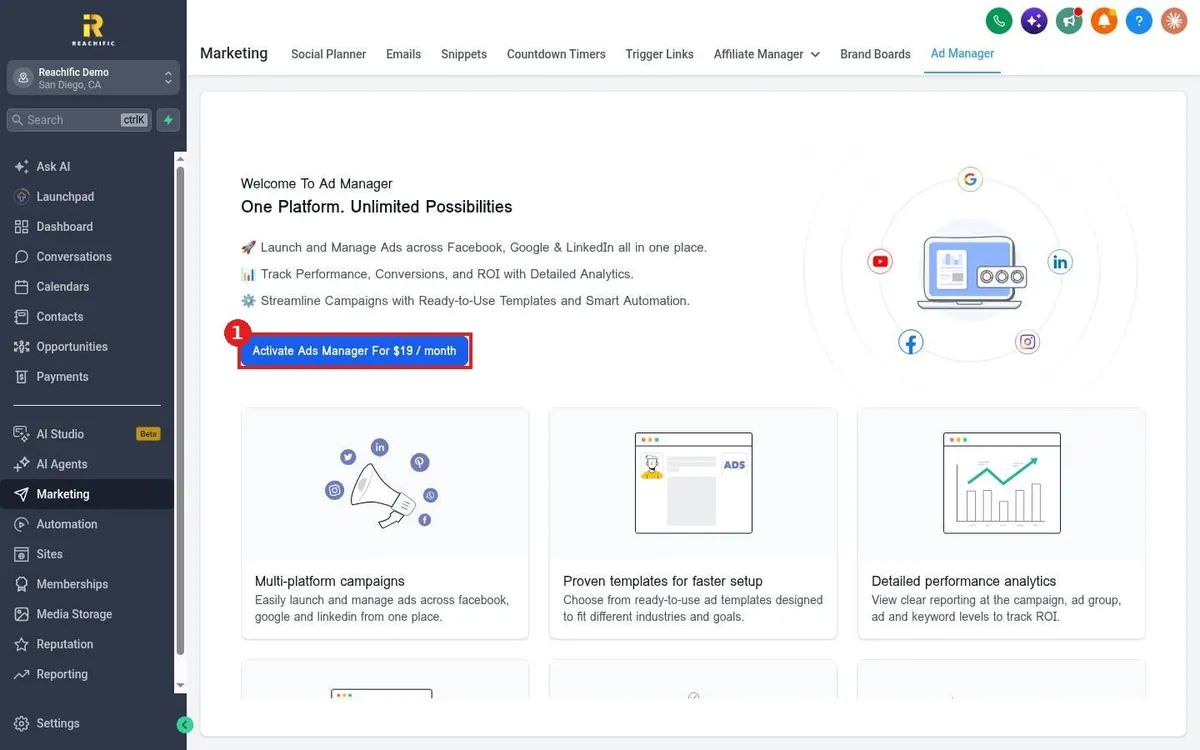
Run ads from Reachific Ad Manager: open Marketing, Ad Manager, activate it, connect your Facebook, Google or LinkedIn ad accounts, then launch campaigns from templates and track results.

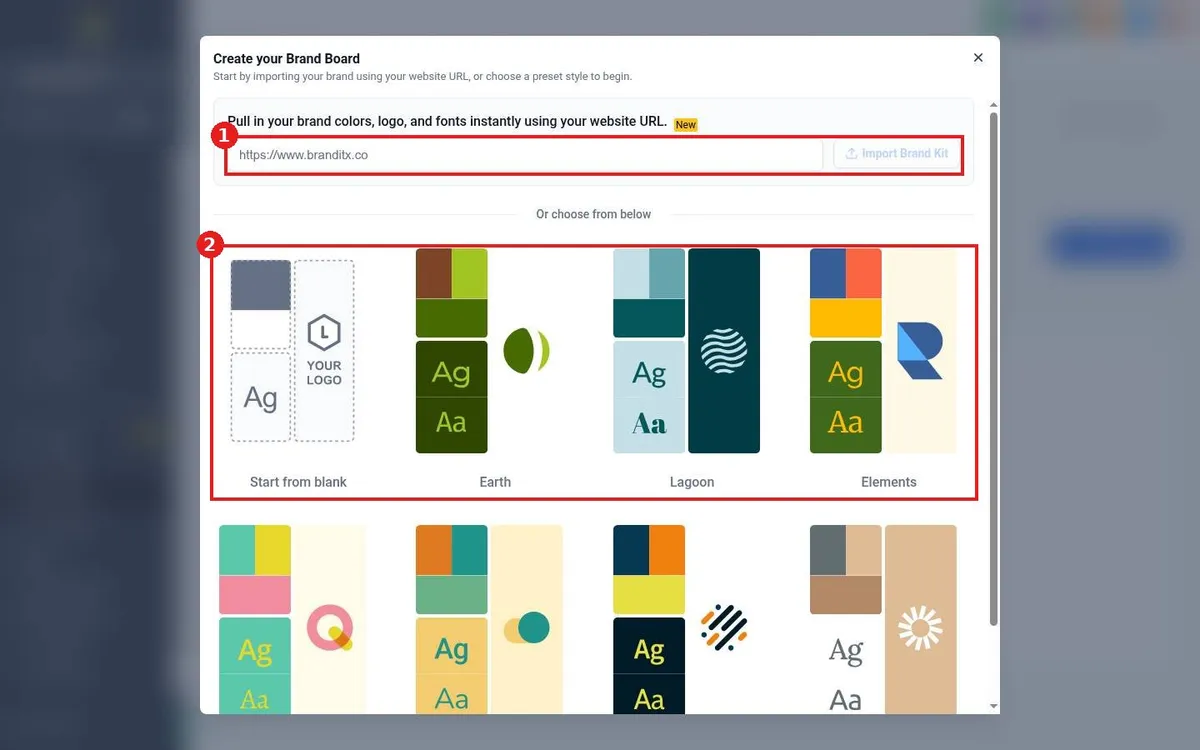
Create a brand board in Reachific: open Marketing, Brand Boards, click Add Design Kit, import your brand from your website URL or pick a preset, then set your logo, colors and fonts.

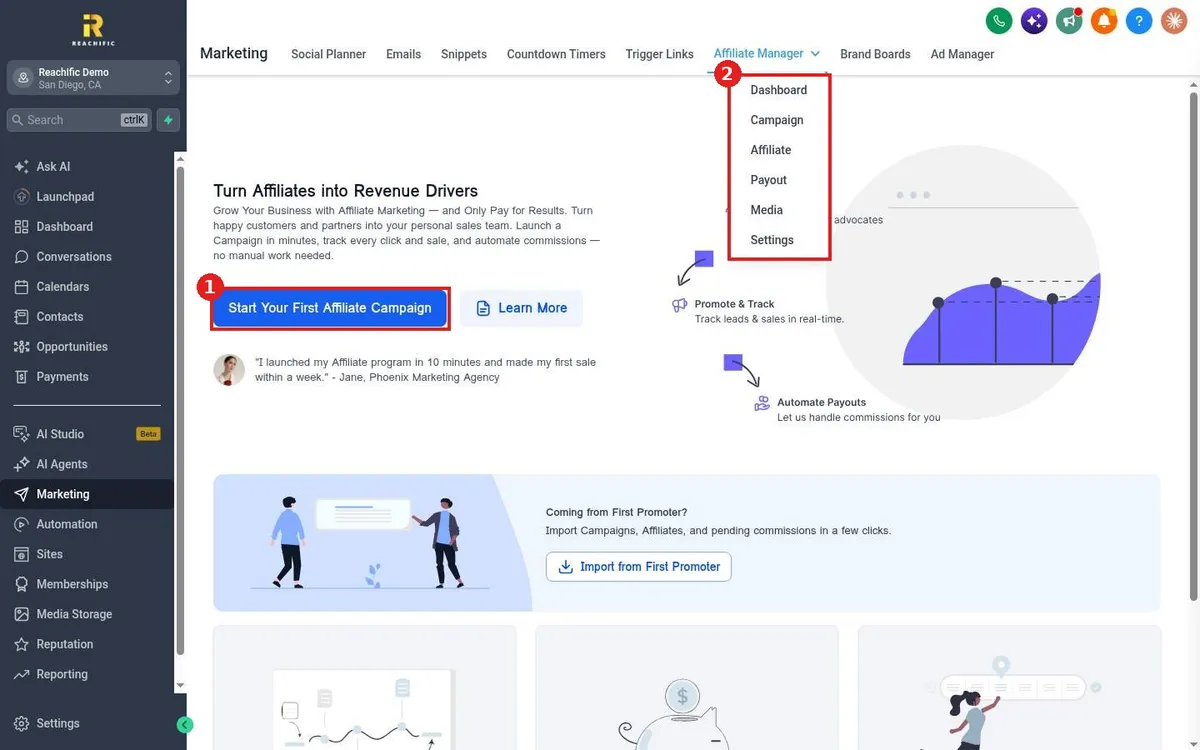
Set up an affiliate program in Reachific: open Marketing, Affiliate Manager, click Start Your First Affiliate Campaign, connect a payment gateway, then add affiliates and set commissions.

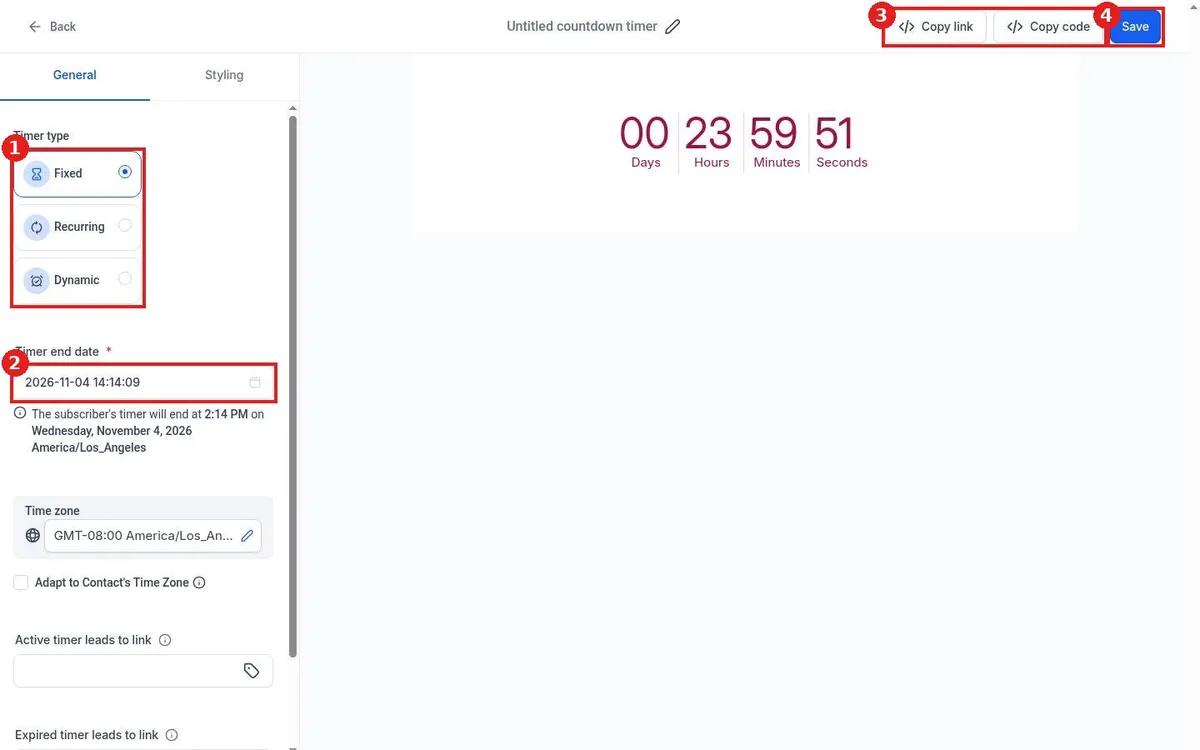
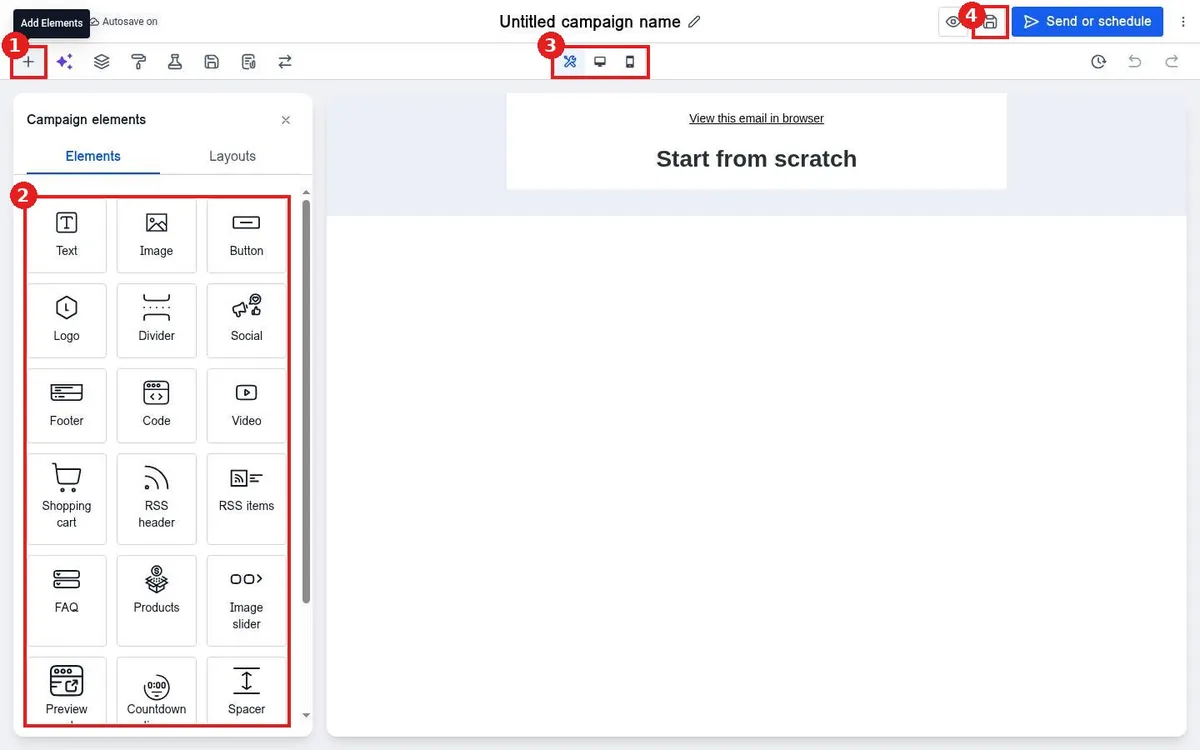
Add a countdown timer to a Reachific email: open Marketing, Countdown Timers, click New, pick a template, set Fixed, Recurring or Dynamic and the end date, save, then add it with the Countdown element.

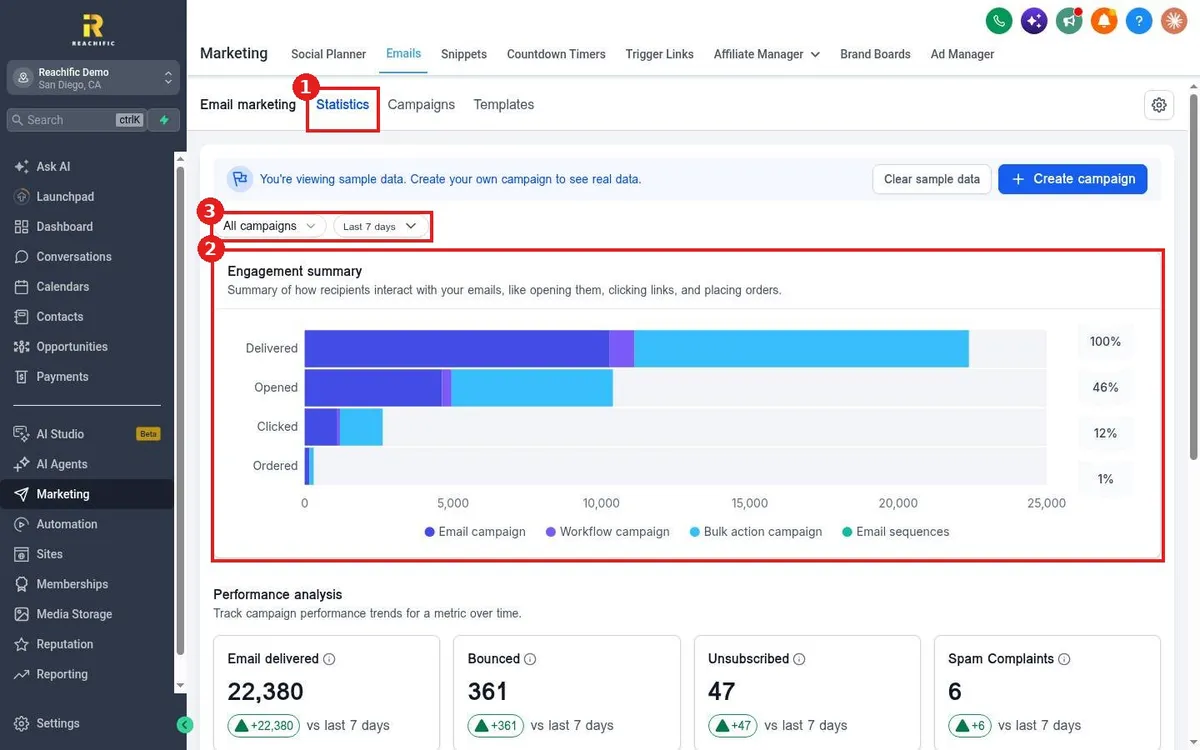
See email results in Reachific: open Marketing, Emails, Statistics, pick a campaign and date range, and read delivered, opened, clicked, ordered, bounced, unsubscribed and spam numbers.

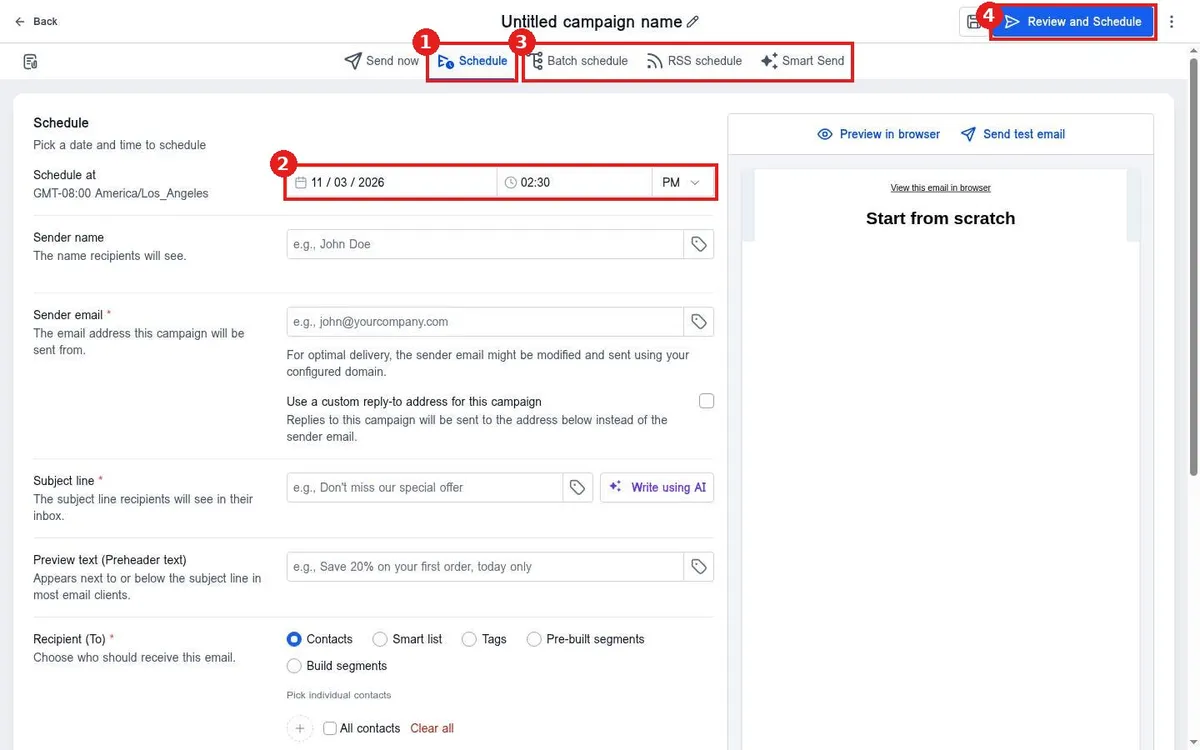
Schedule an email campaign in Reachific: in the campaign click Send or schedule, open the Schedule tab, pick the date and time, finish sender, subject and recipients and click Review and Schedule.

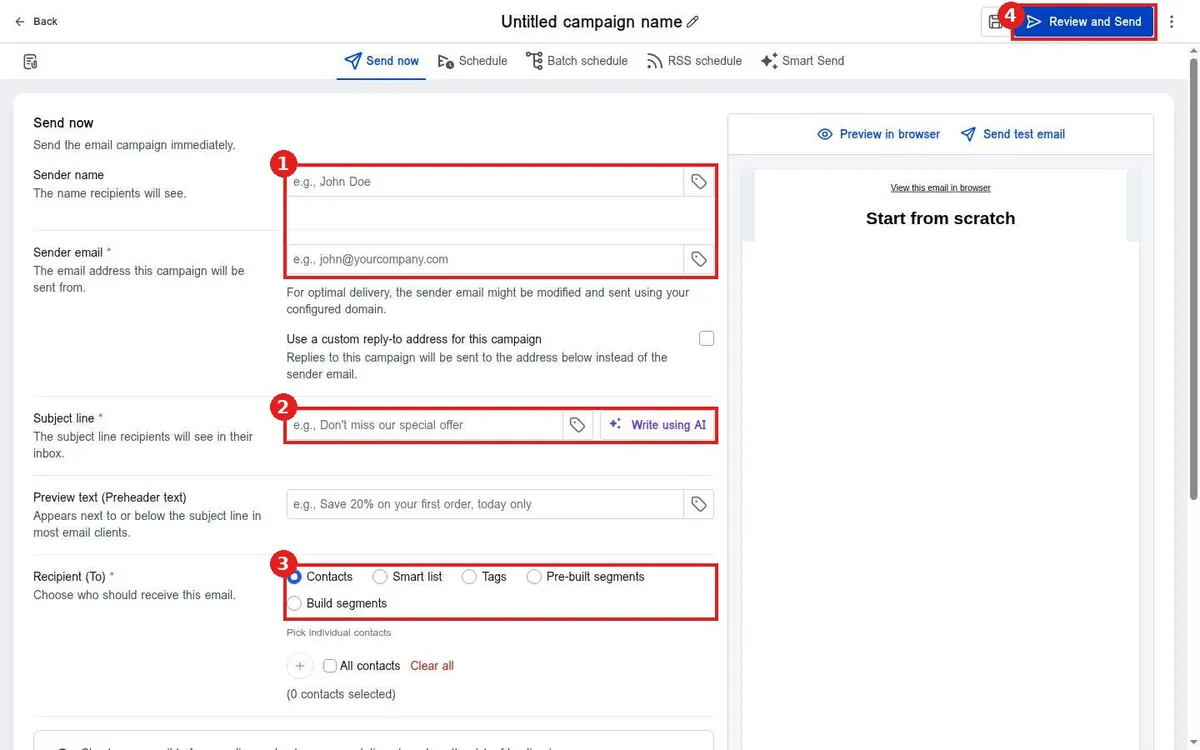
Send an email campaign in Reachific: open Marketing, Emails, Campaigns, click Create campaign, build the email, click Send or schedule, fill in sender and subject, pick recipients and click Review and Send.

Build a reusable email template in Reachific: open Marketing, Emails, Templates, click New, choose a blank or ready made template, pick the design editor and drag in your elements.

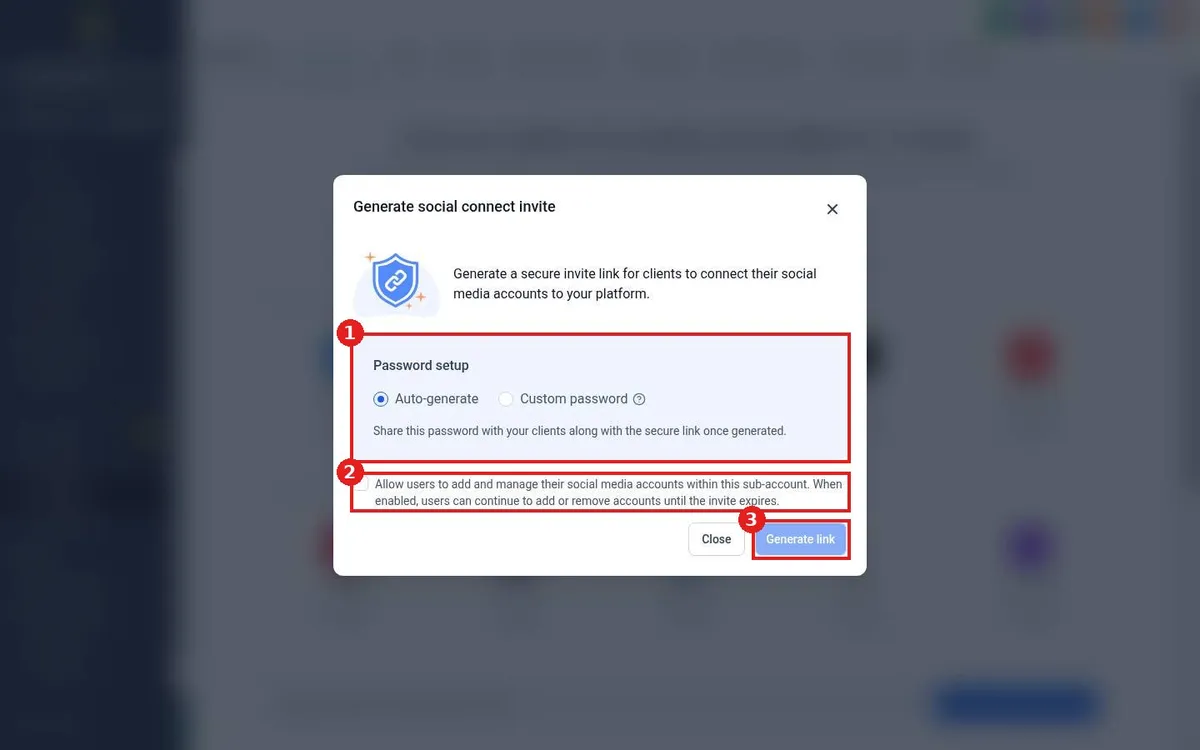
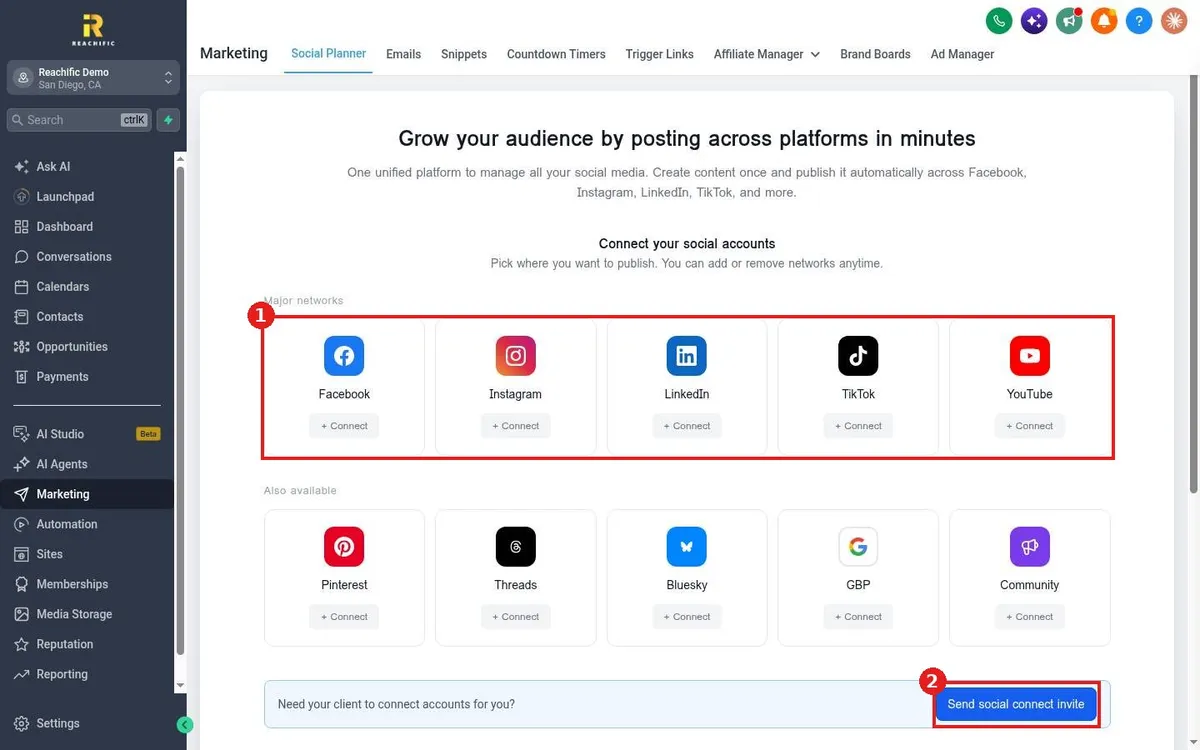
Let a client connect their own social accounts: in Reachific Social Planner click Send social connect invite, choose an auto or custom password, click Generate link and share the link and password.

Connect your social accounts in Reachific: open Marketing, Social Planner, click Connect on Facebook, Instagram, LinkedIn, TikTok, YouTube, Google Business Profile or others and approve access.
We are here to help
Send our support team a ticket and we will walk you through it, or pick a support plan for hands on help.