
How do I schedule a social media post?
Quick answer: Go to Marketing > Social Planner and start a new post. Under Post to, pick your connected accounts, write the post or click AI to draft it, add images or video, then use the arrow next to Post to choose when it goes out, or click Save for later.
Before you start
- Connect at least one social account. See How do I connect my social media accounts?
Step 1: Start a new post
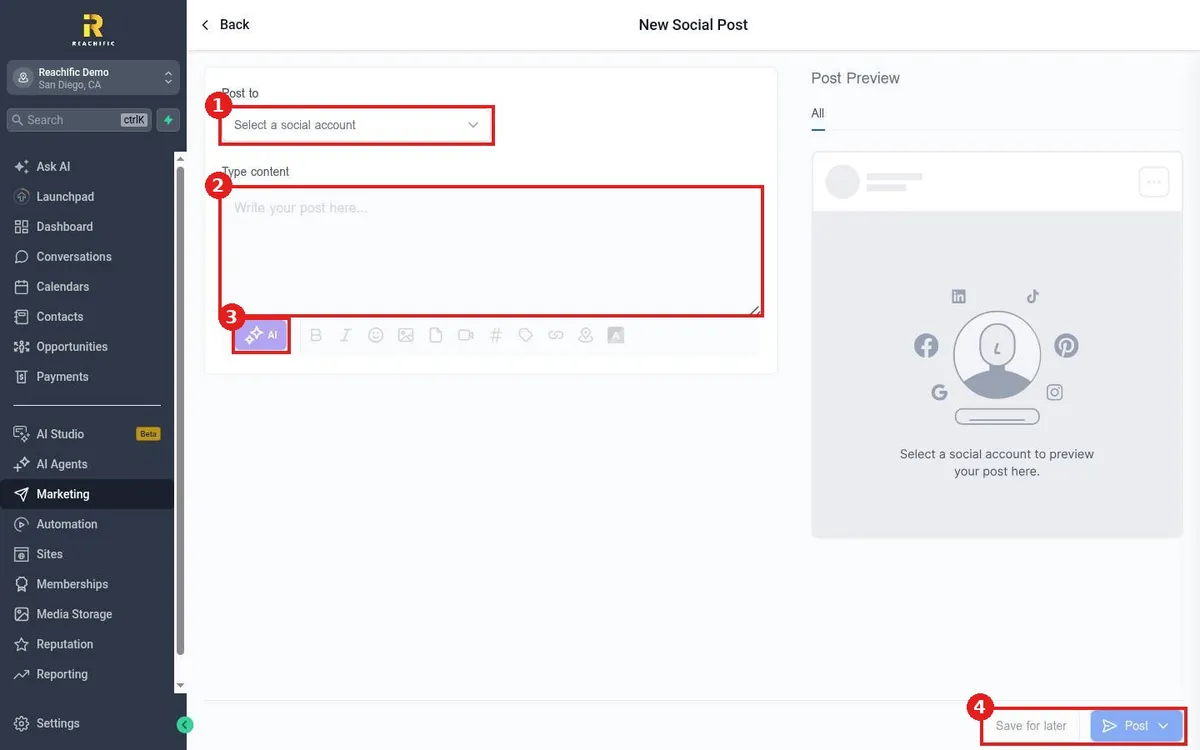
Click Marketing, then Social Planner, and start a new post. The New Social Post editor opens with a live Post Preview on the right.
Step 2: Write the post
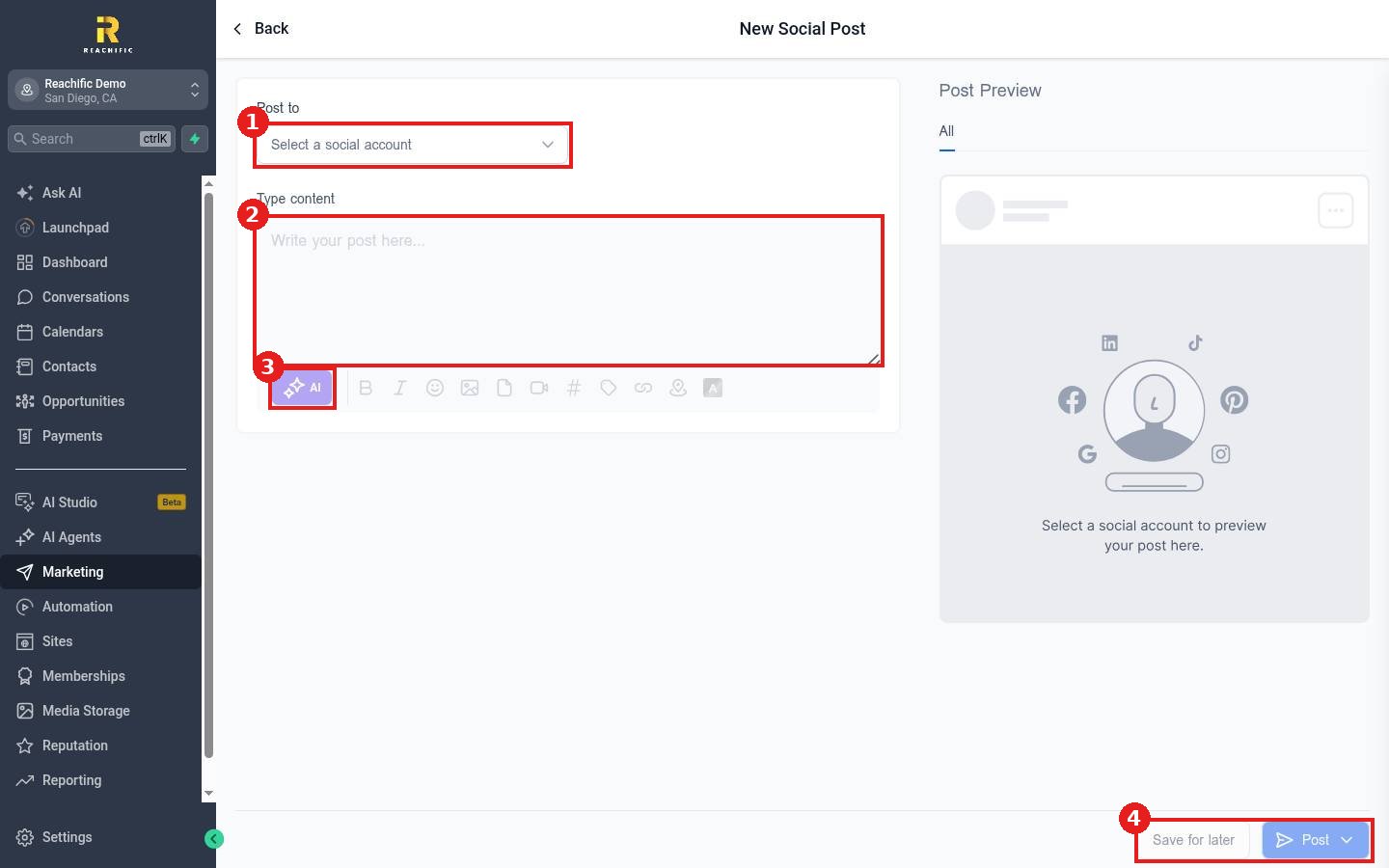
- Under Post to (1), pick one or more connected accounts. If none show, click Connect Social Account.
- Type your post in the content box (2).
- Click AI (3) to draft or improve the text. The toolbar also adds emojis, images, files, video, hashtags, links and a location.
Step 3: Post or schedule
Use the arrow next to Post (4) to pick when it goes out, or click Save for later to keep it as a draft.
FAQ
Can I post the same thing everywhere at once?
Yes. Select several accounts under Post to and check each preview tab before posting.
Can I schedule many posts at once?
Yes. See How do I bulk schedule posts from a CSV?
Want us to handle it? Our team can create and schedule a month of social posts for you. Book a free strategy call and get a free quote.
Related articles
- How do I connect my social media accounts?
- How do I bulk schedule posts from a CSV?
- How do I use Content AI to write emails, posts and pages?
Still stuck? Submit a ticket and our team will help. Need faster answers? See our support plans.
