
How do I send an email campaign to a list?
Quick answer: Go to Marketing > Emails > Campaigns and click Create campaign. Build the email, click Send or schedule, enter the sender, subject and preview text, choose recipients by contacts, smart list or tags, then click Review and Send.
Before you start
- Set up a dedicated sending domain for best delivery.
- Build a smart list or tag for the people you want to reach. See How do I create a smart list with filters?
Step 1: Create the campaign
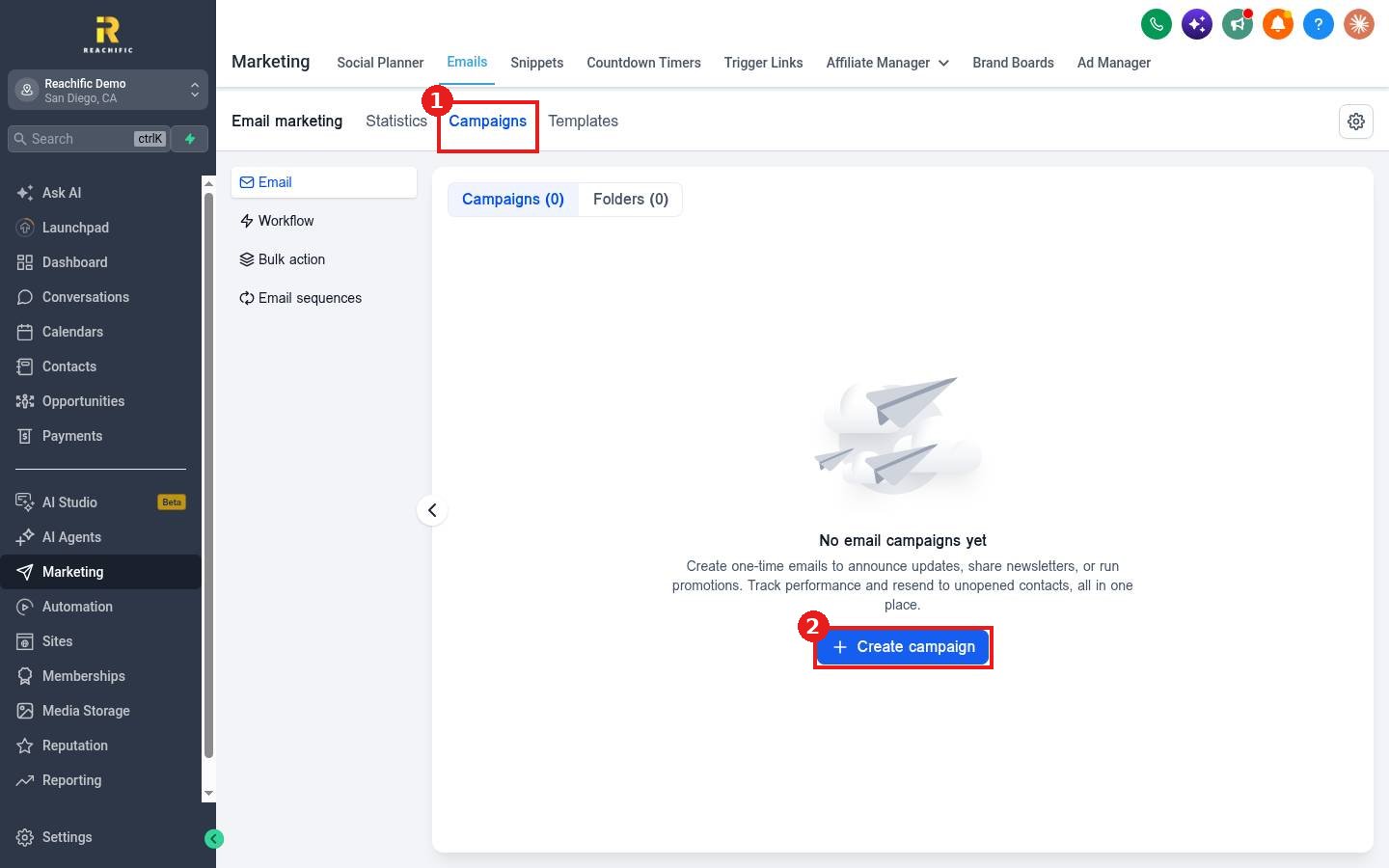
- Click Marketing, then Emails, then the Campaigns tab (1).
- Click Create campaign (2).
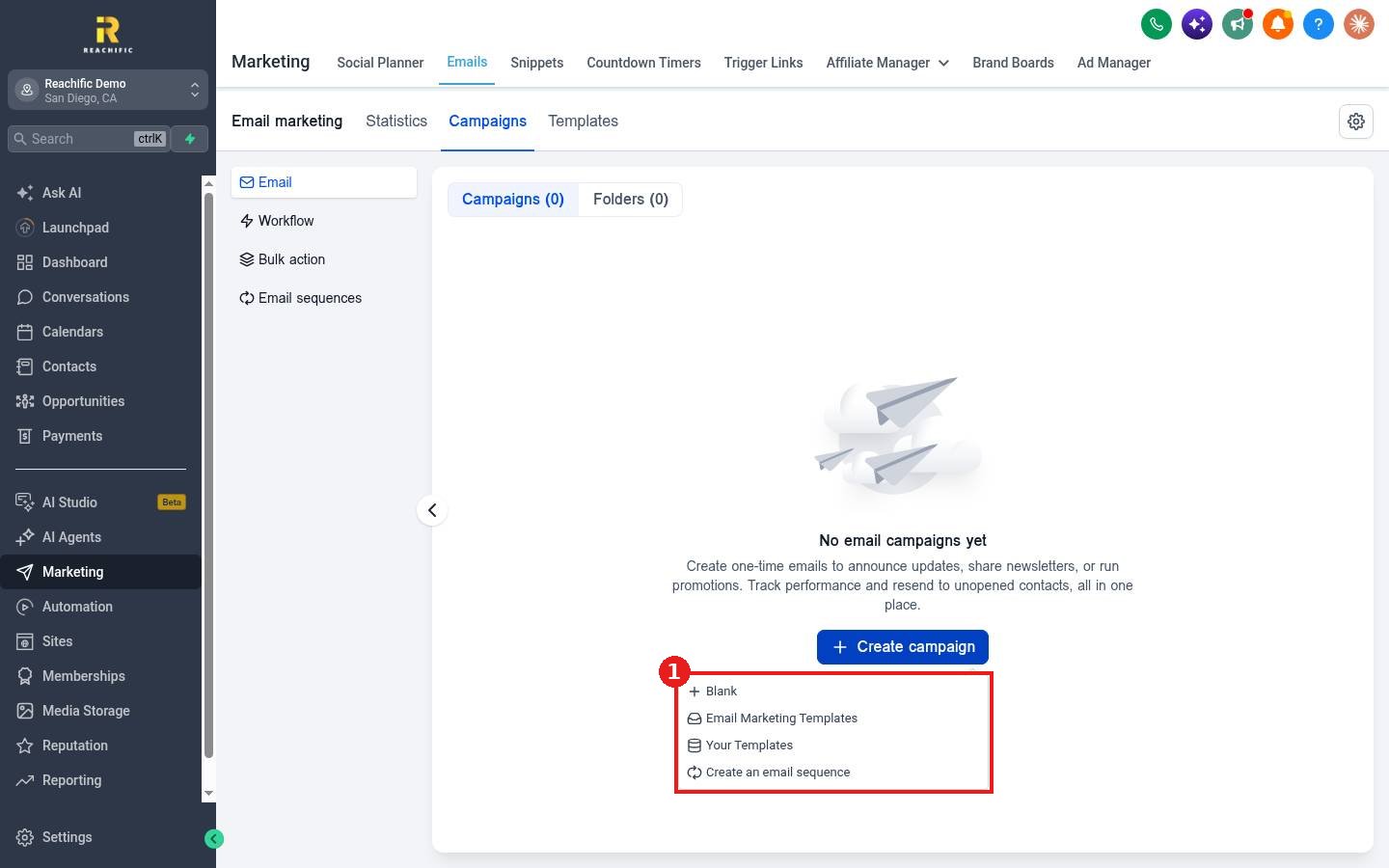
Choose Blank, Email Marketing Templates, Your Templates or Create an email sequence (1), then build the email. See How do I build an email template?
Step 2: Fill in the send settings
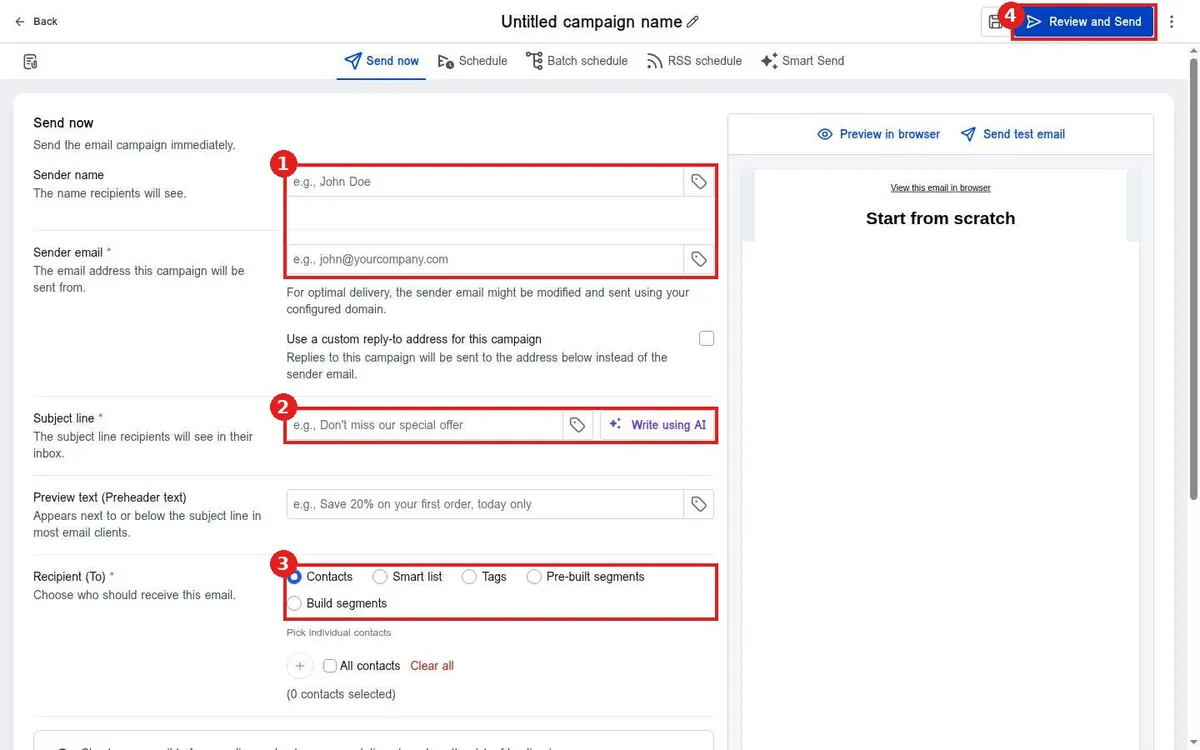
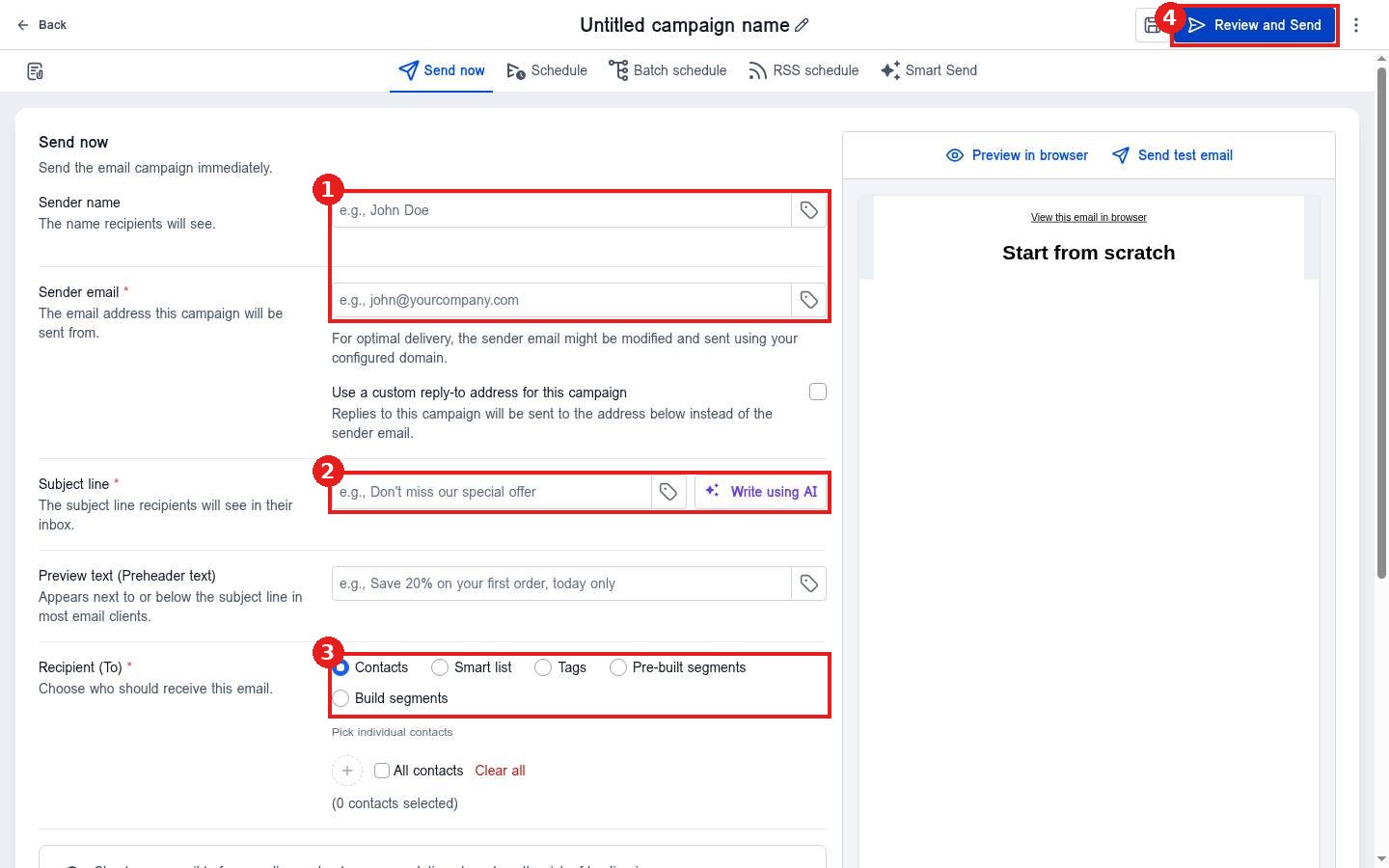
- Click Send or schedule at the top right of the builder.
- Enter the Sender name and Sender email (1).
- Enter the Subject line (2). Write using AI can suggest one.
- Choose recipients (3): Contacts, Smart list, Tags, Pre-built segments or Build segments.
- Click Send test email on the right to check it, then Review and Send (4).
FAQ
Can I send it later?
Yes. See How do I schedule an email campaign?
Where do I see results?
See How do I see email open and click stats?
Want us to handle it? Our team can write and send your monthly email campaigns. Book a free strategy call and get a free quote.
Related articles
- How do I schedule an email campaign?
- How do I build an email template?
- How do I send a bulk text or email to a list?
Still stuck? Submit a ticket and our team will help. Need faster answers? See our support plans.
