Home > Help Center

Reachific™ Support

Reachific Help Center

Step by step answers for every part of your Reachific account, with screenshots that show you exactly where to click.

No article on this page matches that yet. Try another word, or submit a ticket.

Newest articles

How do I see all trigger links and triggers?

How do I see all trigger links and triggers?

Sayo Tadashi
Published on: 03/11/2026

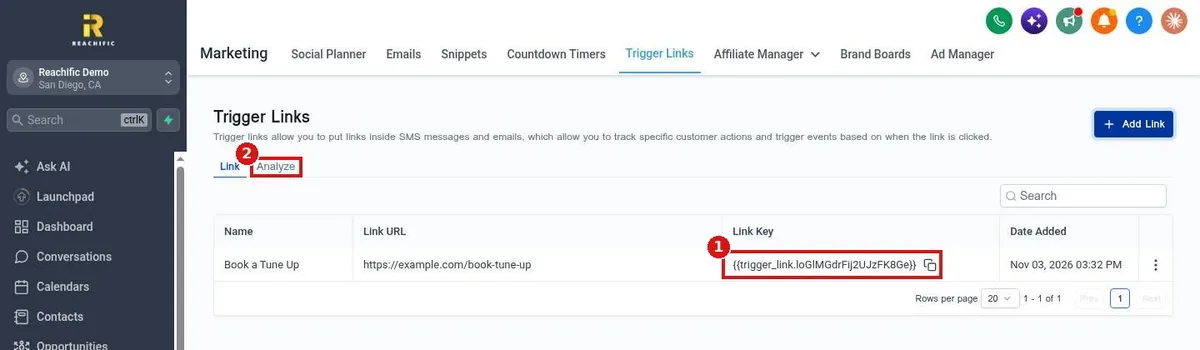
See your Reachific trigger links under Marketing, Trigger Links: each link shows its URL and a Link Key to paste into texts and emails, and Analyze shows clicks. Start a workflow from a click with the Trigger link clicked trigger.

trigger linkslink trackingworkflow triggershelp center
How do I set global workflow settings like quiet hours?

How do I set global workflow settings like quiet hours?

Sayo Tadashi
Published on: 03/11/2026

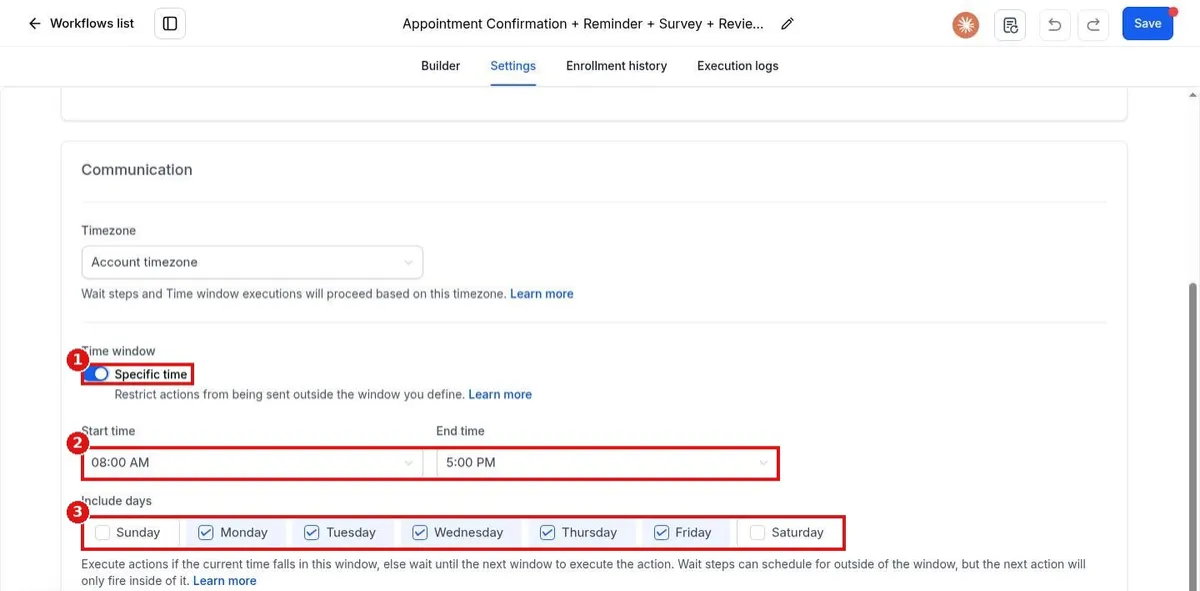
Reachific workflow settings: Global Workflow Settings controls error emails, auto save and pause dates for all workflows. Quiet hours are set per workflow in its Settings tab under Time window, Specific time.

global workflow settingsquiet hourstime windowhelp center
How do I send an automatic review request after a job?

How do I send an automatic review request after a job?

Sayo Tadashi
Published on: 03/11/2026

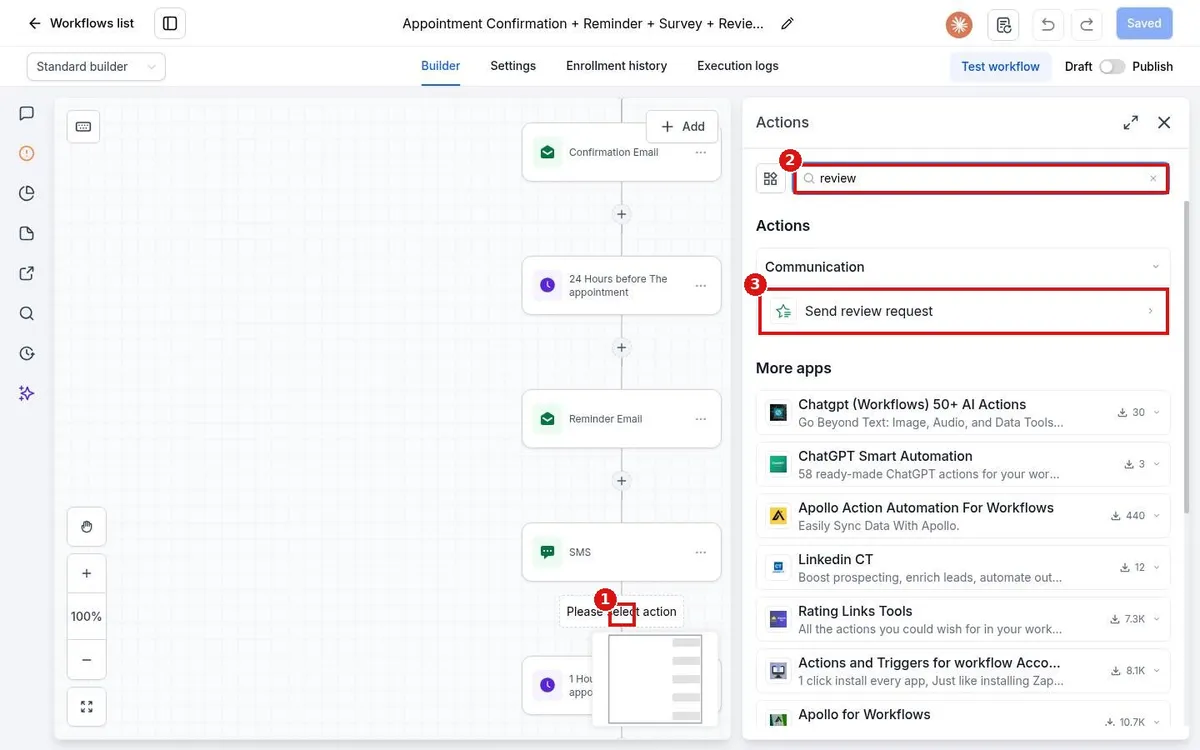
Send review requests automatically in Reachific: build a workflow that starts when a job is marked done, such as Pipeline stage changed, then add the Send review request action, pick SMS or email and publish.

review request automationautomatic reviewsworkflowhelp center
How do I see who is enrolled in a workflow?

How do I see who is enrolled in a workflow?

Sayo Tadashi
Published on: 03/11/2026

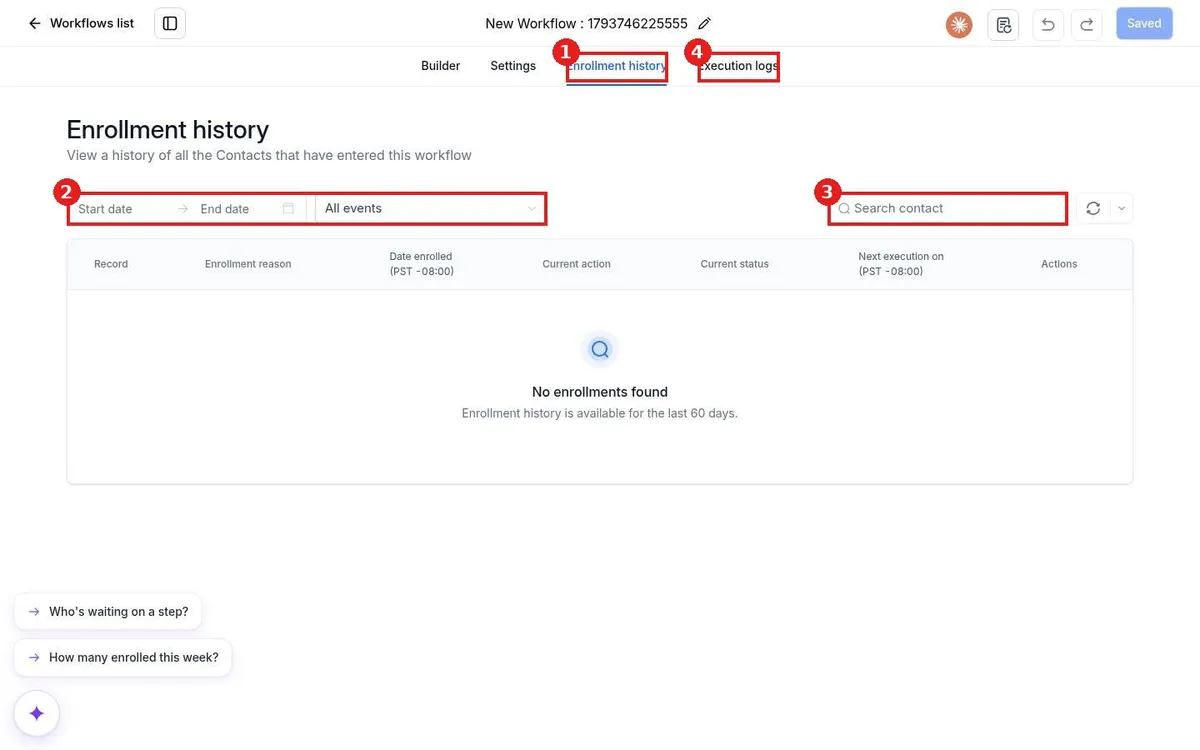
See workflow enrollments in Reachific: open the workflow and click Enrollment history to list every contact who entered, with the reason, current step and status. Filter by date or event, search a contact, and use Execution logs for step details.

enrollment historyworkflow statsexecution logshelp center
How do I restore a deleted workflow?

How do I restore a deleted workflow?

Sayo Tadashi
Published on: 03/11/2026

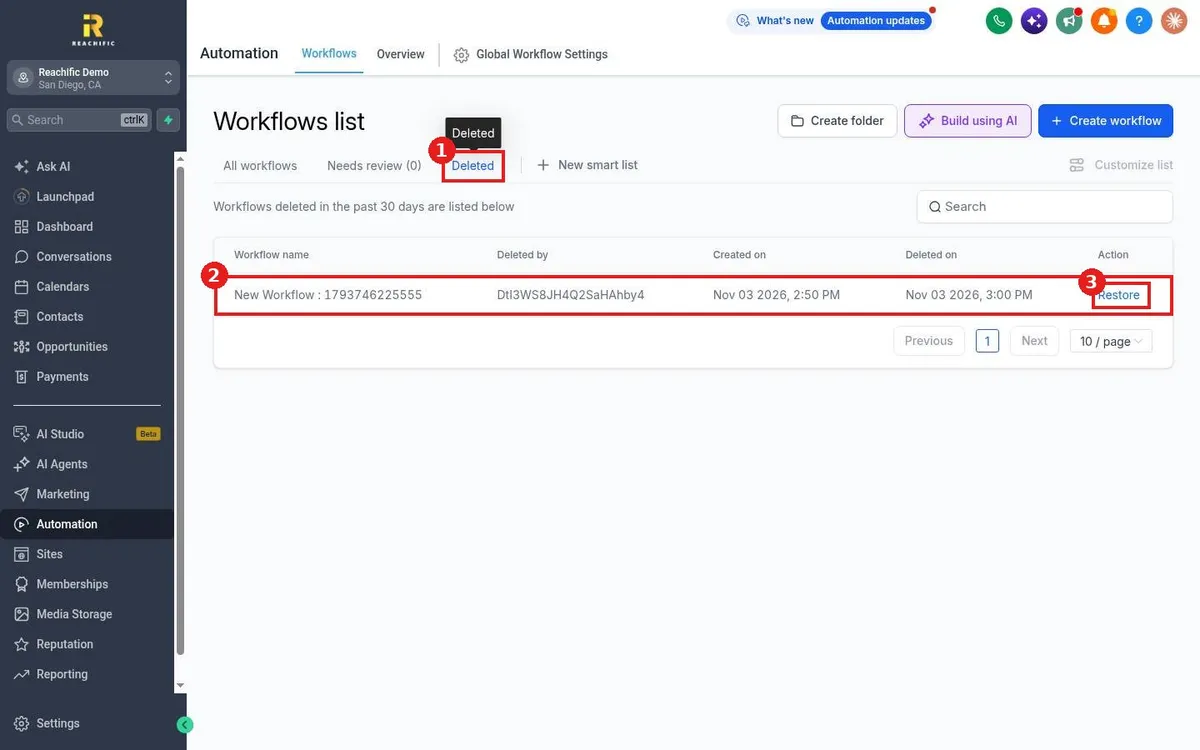
Restore a deleted Reachific workflow: open Automation, Workflows, click the Deleted tab, find the workflow and click Restore. Deleted workflows stay there for 30 days, and restore opens about 30 minutes after the delete.

deleted workflowsrestore workflowhelp center
How do I organize workflows into folders?

How do I organize workflows into folders?

Sayo Tadashi
Published on: 03/11/2026

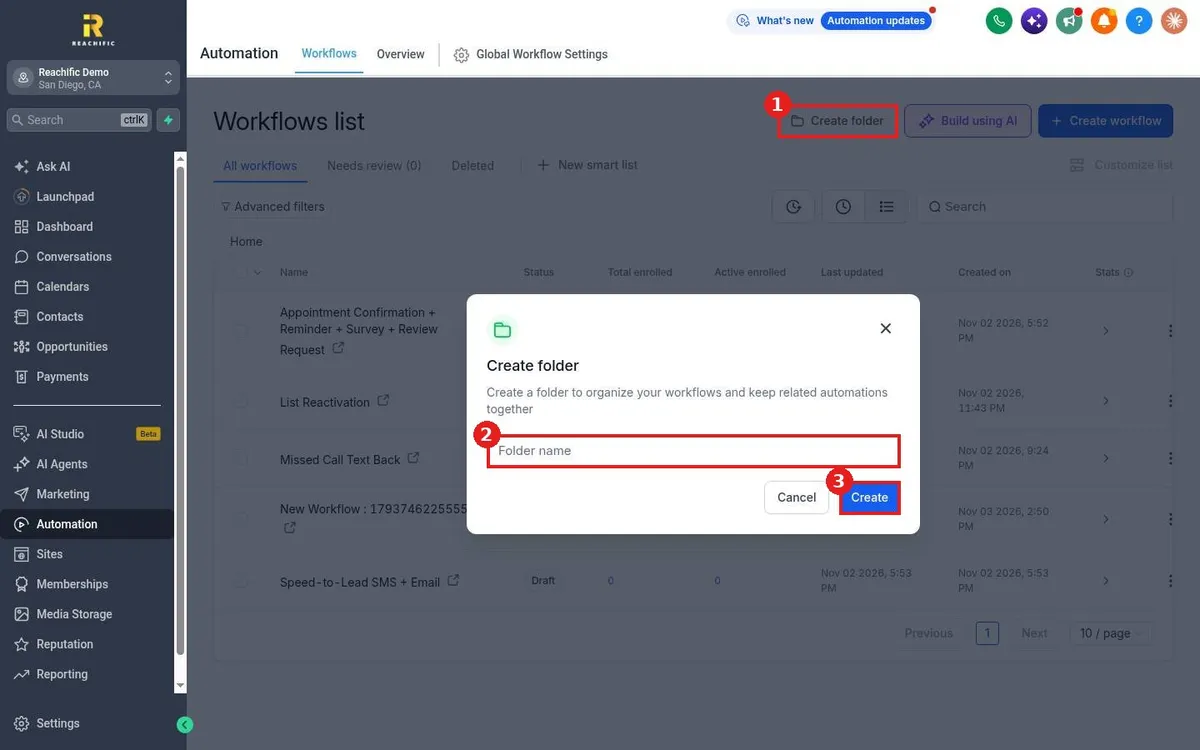
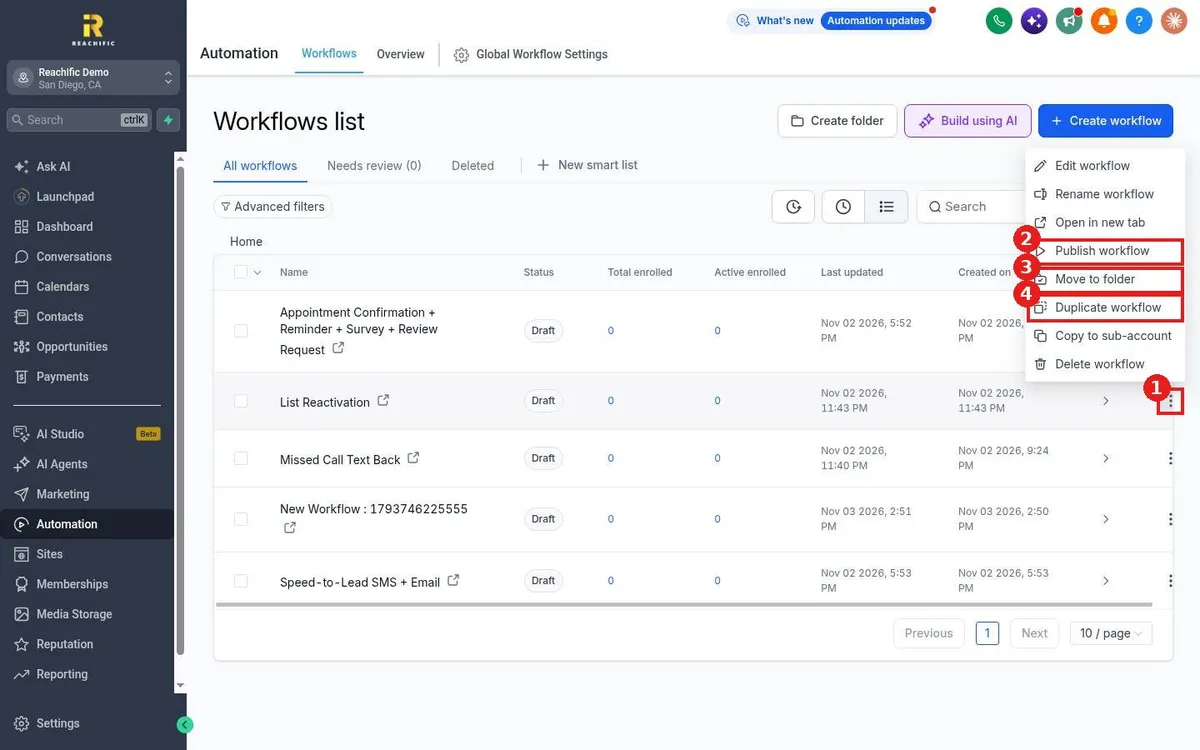
Organize Reachific workflows into folders: on Automation, Workflows click Create folder, name it and click Create, then move workflows into it from the three dot row menu with Move to folder.

workflow foldersorganize workflowshelp center
How do I copy a workflow?

How do I copy a workflow?

Sayo Tadashi
Published on: 03/11/2026

Copy a workflow in Reachific: open Automation, Workflows, click the three dot menu on the workflow row and choose Duplicate workflow. Rename the copy, edit it and publish it when ready.

clone workflowduplicate workflowcopy workflowhelp center
How do I publish and test a workflow?

How do I publish and test a workflow?

Sayo Tadashi
Published on: 03/11/2026

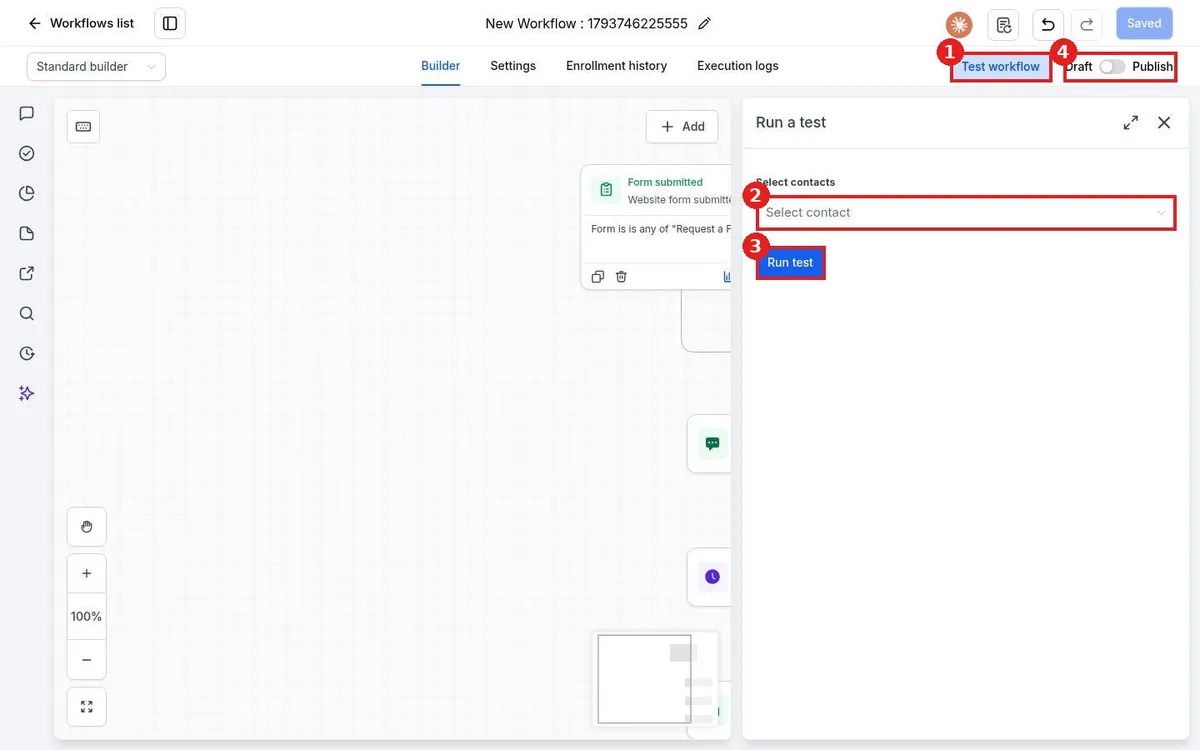
Test and publish a Reachific workflow: click Test workflow, pick a test contact such as yourself, click Run test and check each step, then switch the toggle at the top right from Draft to Publish and save.

publish workflowtest workflowworkflowhelp center
How do I use if/else branches in a workflow?

How do I use if/else branches in a workflow?

Sayo Tadashi
Published on: 03/11/2026

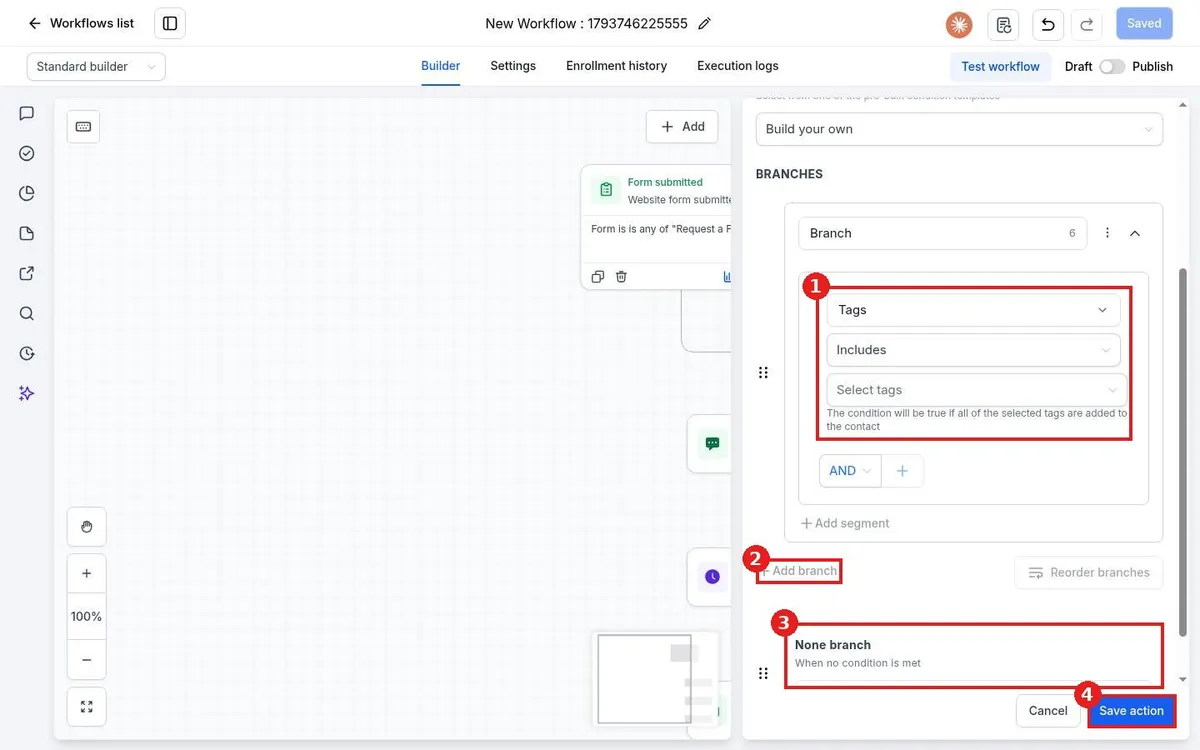
Use if/else in a Reachific workflow: click the plus, search the Actions panel for If / else, set a condition such as Tags includes a tag, add more branches if needed, and the None branch catches everyone else. Save the action and add steps to each path.

if elseconditionbranchworkflowhelp center
How do I add actions like send text, send email and wait?

How do I add actions like send text, send email and wait?

Sayo Tadashi
Published on: 03/11/2026

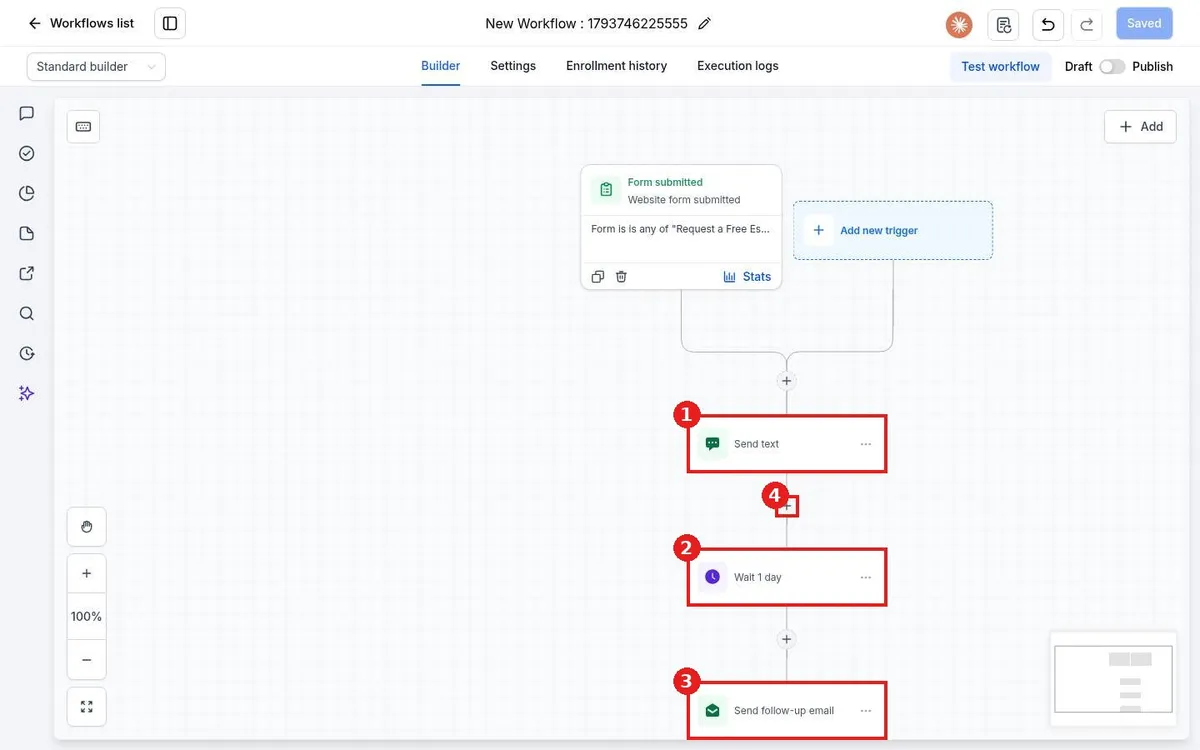
Add workflow actions in Reachific: open the workflow, click the plus under the trigger or a step, search the Actions panel for Send SMS, Send Email or Wait, fill in the action and save it, then repeat for the next step.

workflow actionswait stepsend SMSsend emailhelp center
How do I add a trigger to a workflow?

How do I add a trigger to a workflow?

Sayo Tadashi
Published on: 03/11/2026

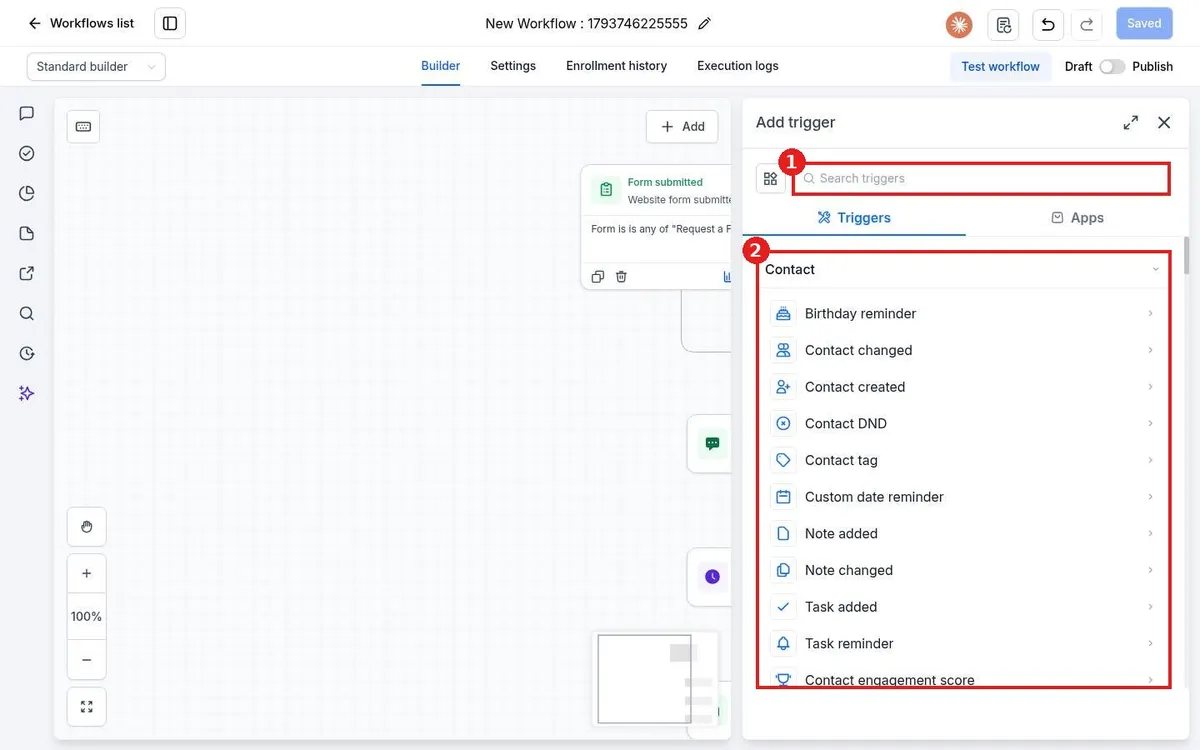
Add a workflow trigger in Reachific: open the workflow, click Add new trigger, pick the event such as Contact tag or Form submitted, add filters so only the right contacts enter, then click Save trigger.

workflow triggerstart automationworkflowhelp center
How do I build a workflow with AI?

How do I build a workflow with AI?

Sayo Tadashi
Published on: 03/11/2026

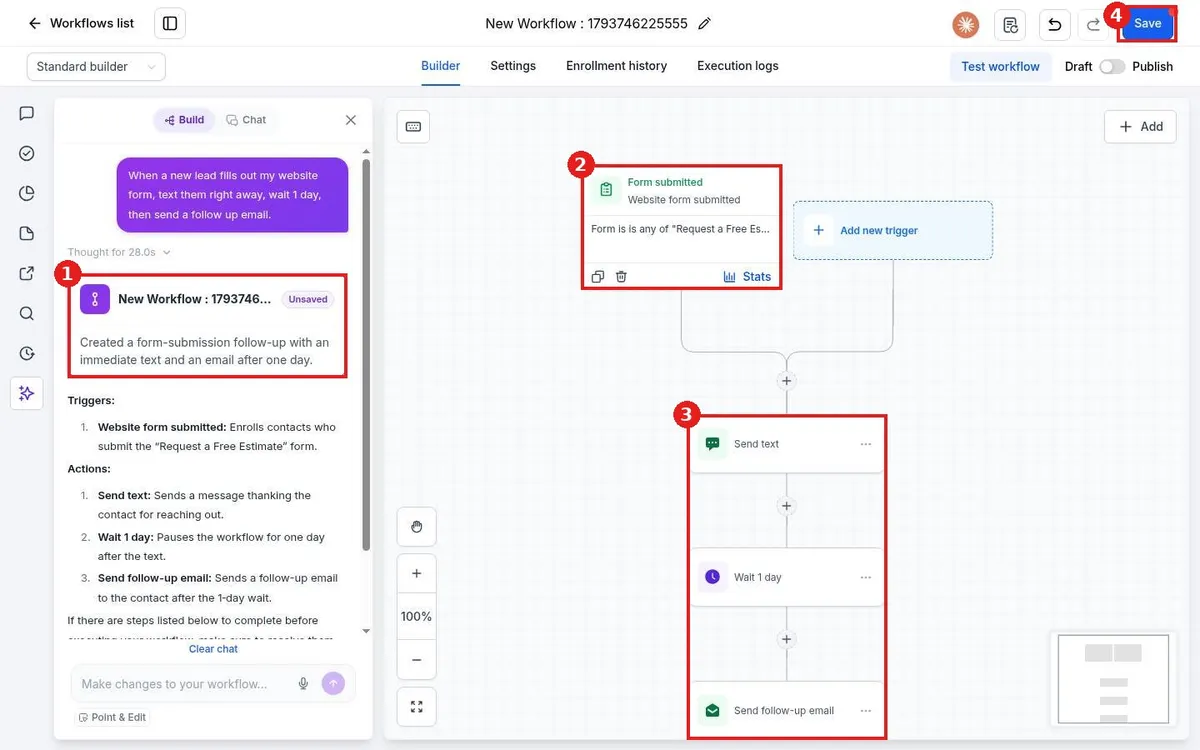
Build a Reachific workflow with AI: open Automation, Workflows, click Build using AI, describe what you want in plain words, review the trigger and steps it creates, then save and test before you publish.

build using AIAI workflowworkflowhelp center

We are here to help

Still stuck?

Send our support team a ticket and we will walk you through it, or pick a support plan for hands on help.