
How do I connect my social media accounts?
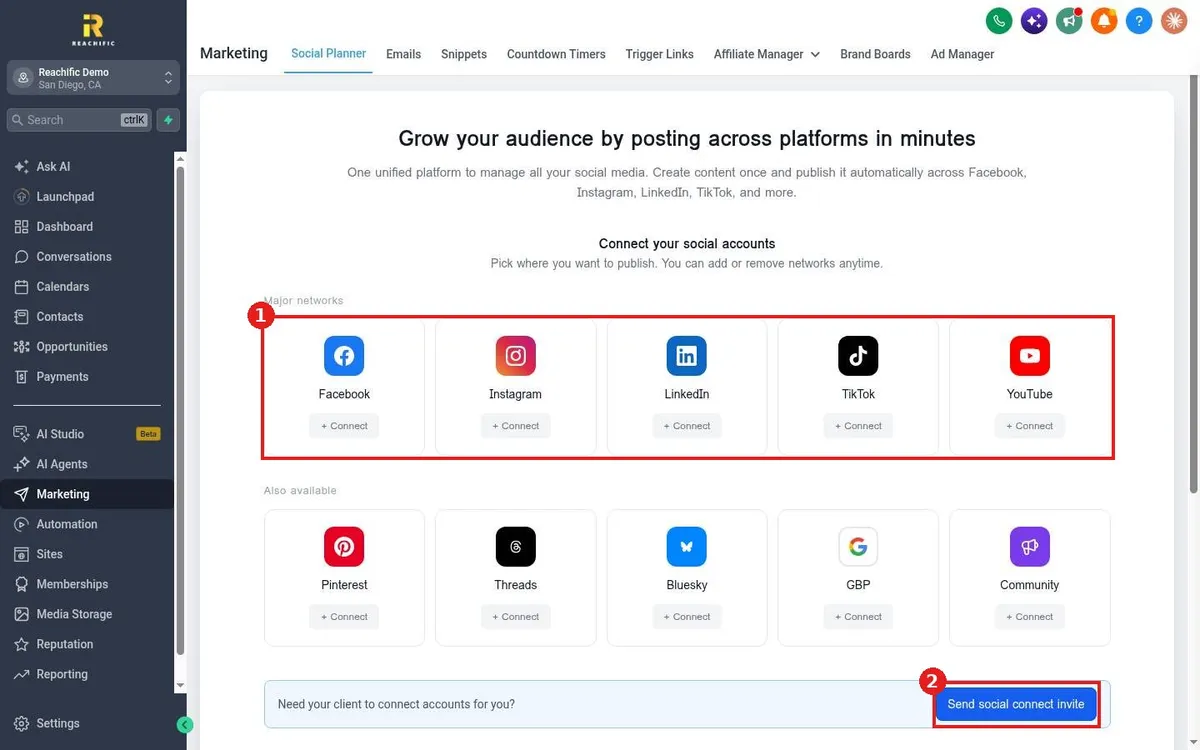
Quick answer: Go to Marketing > Social Planner. Under Connect your social accounts, click Connect on each network you use, sign in to that network and approve access. Connected accounts are then ready for posting.
Before you start
- Have the login for each social account, with admin rights on business pages.
- If a client owns the accounts, send them a connect invite instead. See How do I send a social connect invite to a client?
Step 1: Open Social Planner
Click Marketing in the left menu. Social Planner opens first.
Step 2: Connect each network
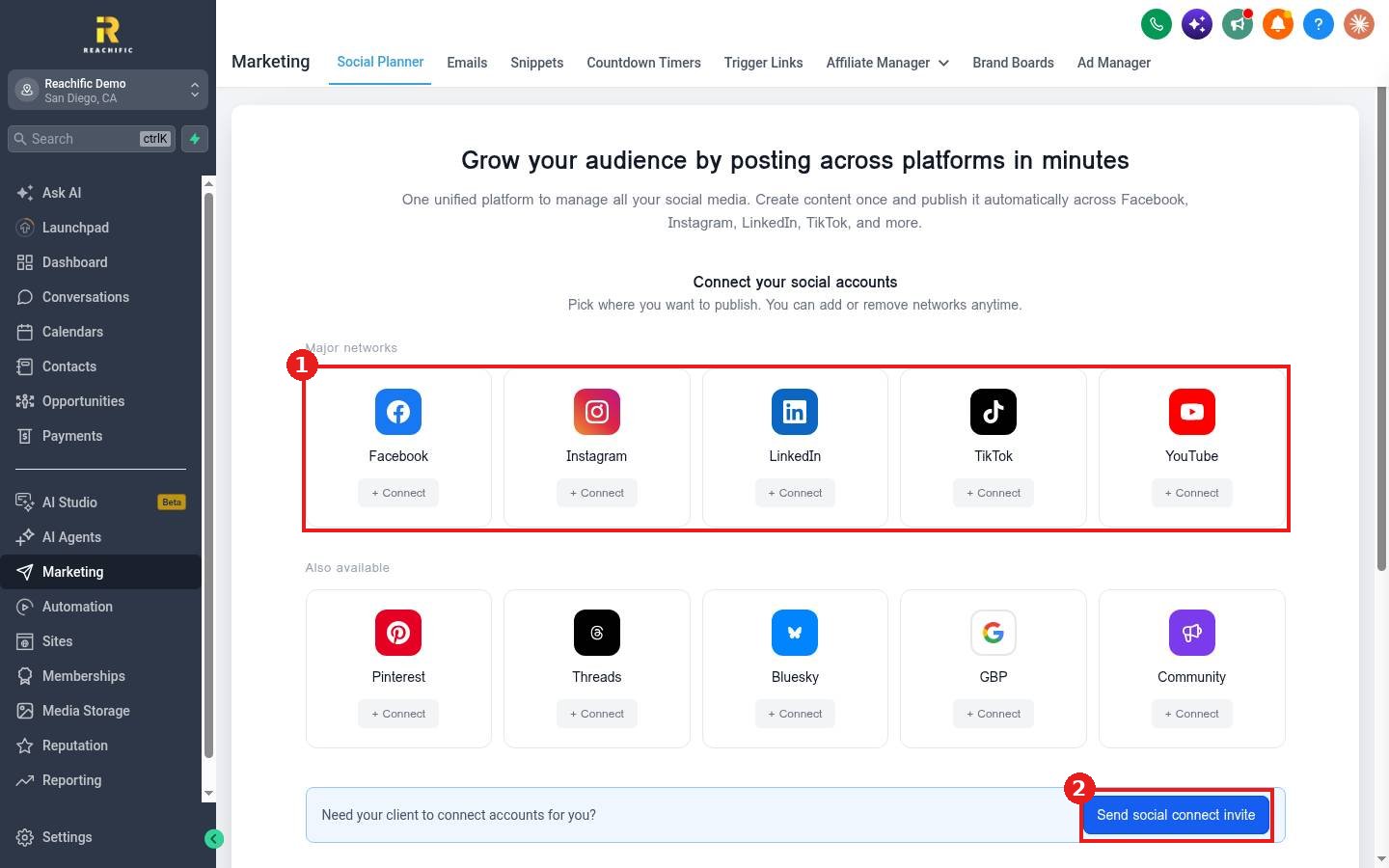
- Under Major networks (1), click Connect on Facebook, Instagram, LinkedIn, TikTok or YouTube.
- Under Also available, connect Pinterest, Threads, Bluesky, GBP (Google Business Profile) or Community.
- Sign in and approve access in the window that opens. Pick the exact pages or profiles to connect.
Step 3: Start posting
Once connected, you can schedule posts, bulk upload, set up recurring posts and pull in RSS feeds. See How do I schedule a social media post?
FAQ
Why did a connection drop?
Networks expire access when a password changes or permissions are removed. Click Connect again to refresh it.
Can I add or remove networks later?
Yes. You can add or remove networks any time from the same screen.
Want us to handle it? Our team can connect your accounts and run a steady posting calendar for you. Book a free strategy call and get a free quote.
Related articles
- How do I schedule a social media post?
- How do I send a social connect invite to a client?
- How do I connect my Google Business Profile for reviews?
Still stuck? Submit a ticket and our team will help. Need faster answers? See our support plans.
