
How do I add a countdown timer to an email?
Quick answer: Go to Marketing > Countdown Timers, click New, pick a template and click Continue with this template. Choose Fixed, Recurring or Dynamic, set the end date and time zone, then click Save. Add it to an email with the Countdown element, or use Copy code.
Before you start
- Decide what the deadline is, such as the end of a sale or an event start time.
Step 1: Pick a timer style
- Click Marketing, then Countdown Timers, then New.
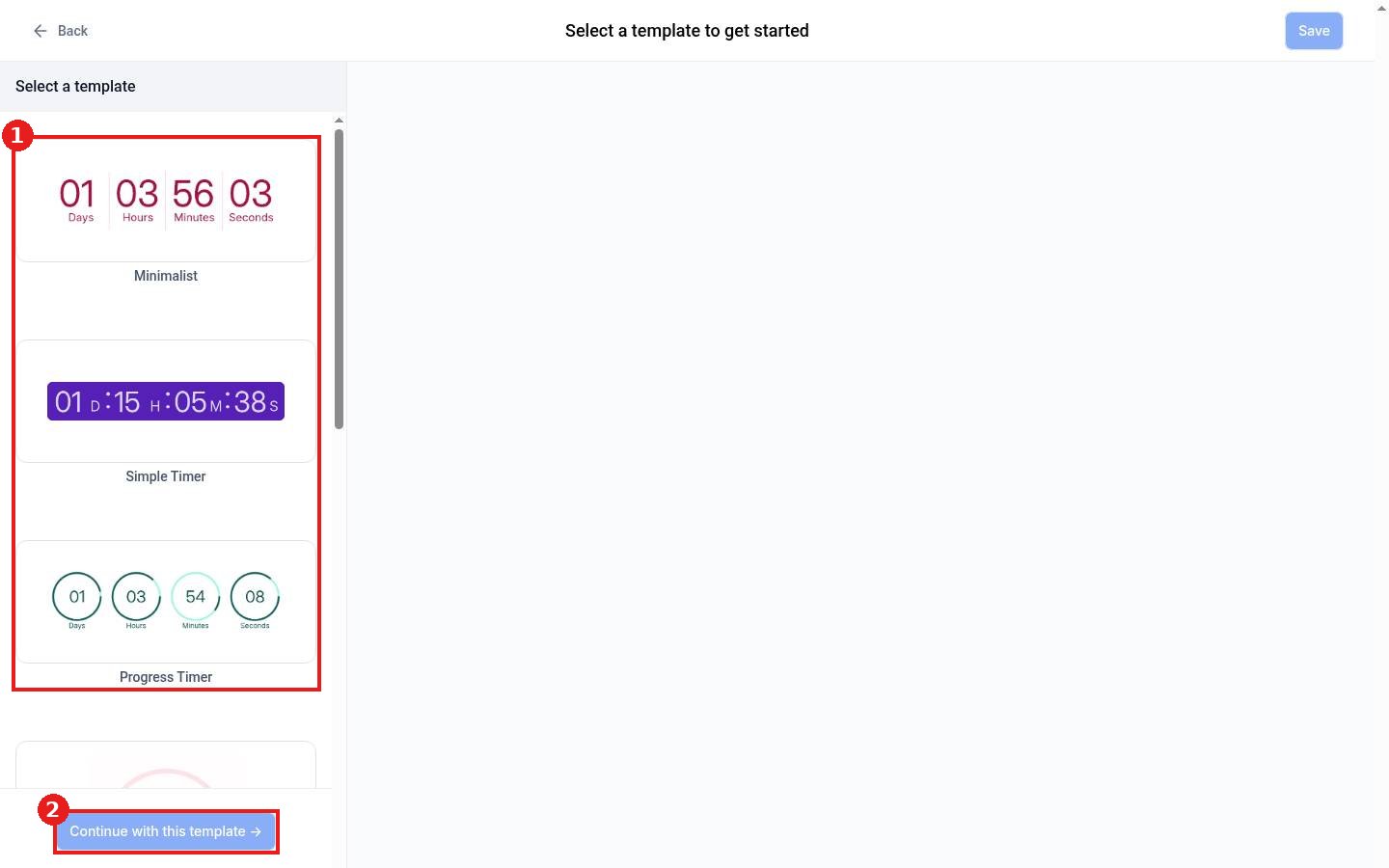
- Choose a template (1) such as Minimalist, Simple Timer or Progress Timer.
- Click Continue with this template (2).
Step 2: Set the timer
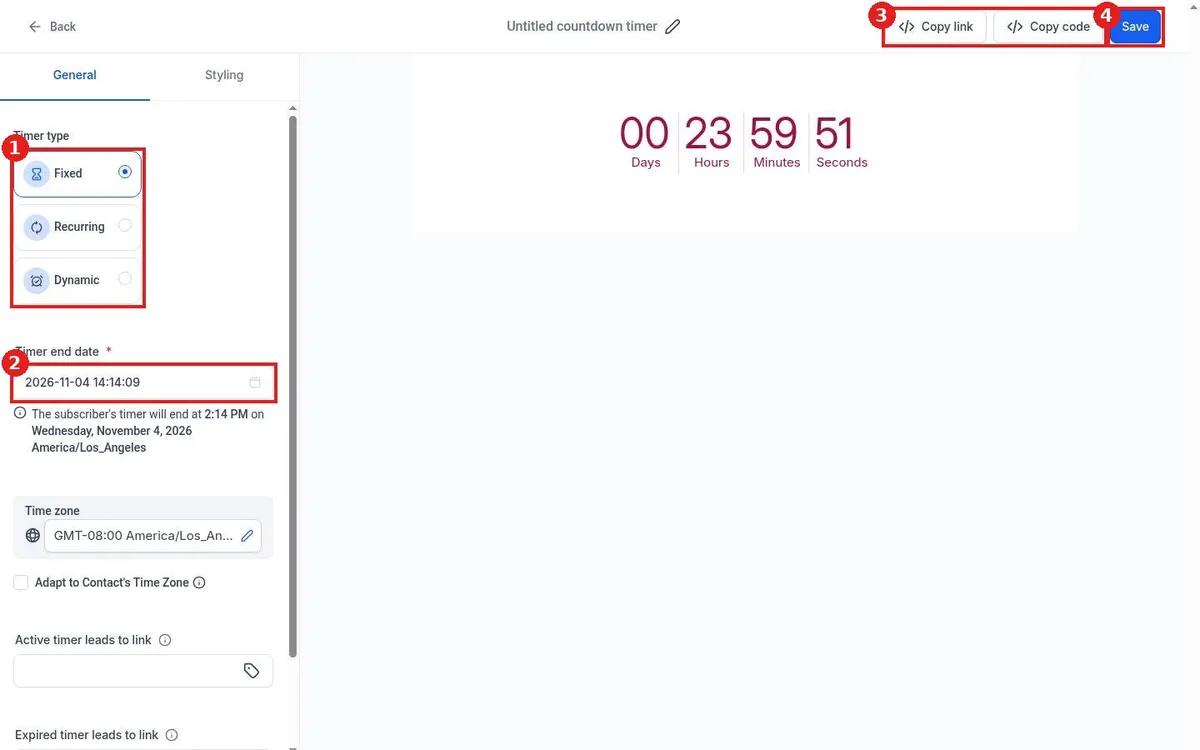
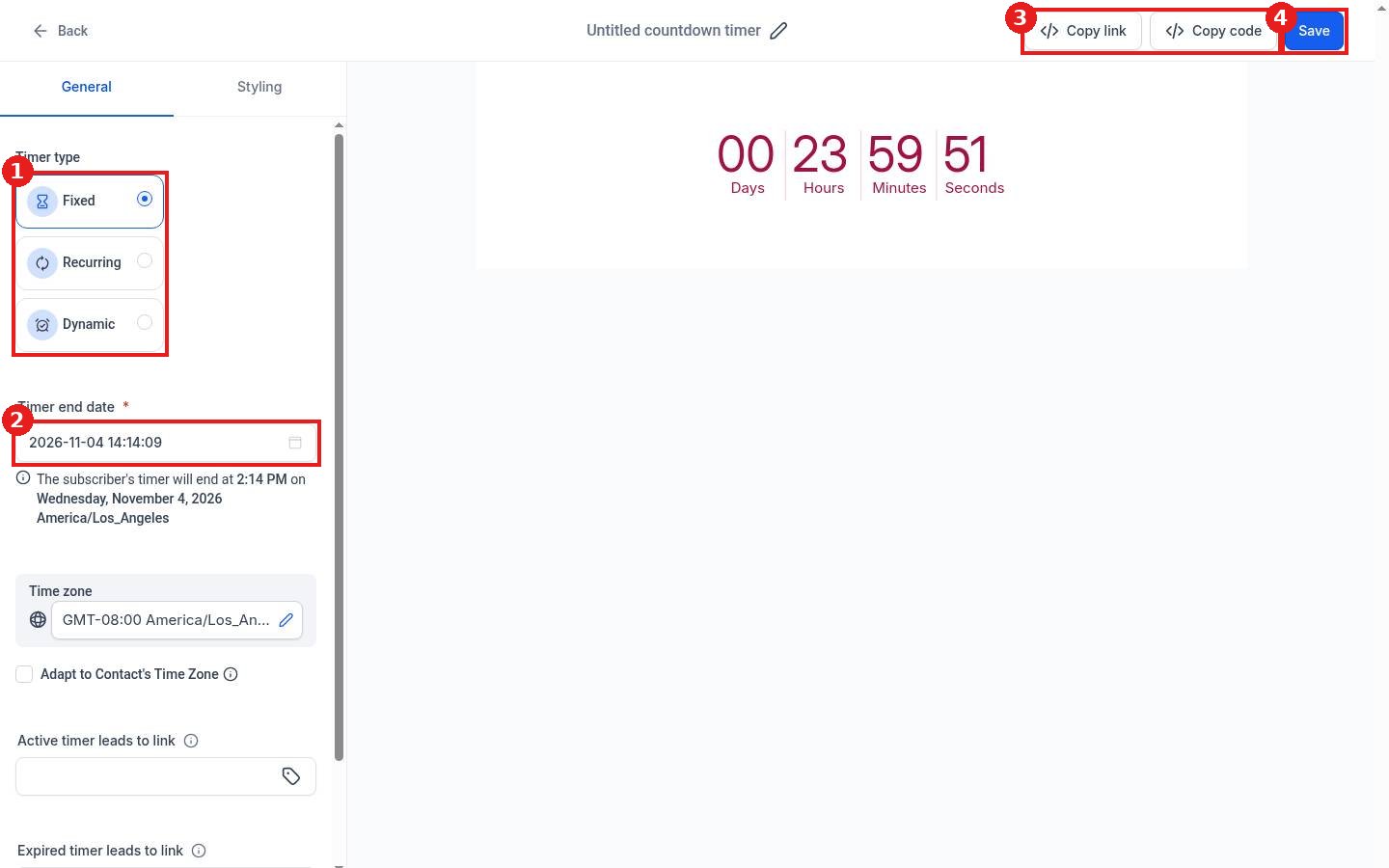
- Pick the Timer type (1): Fixed ends at one date for everyone, Recurring repeats on a schedule, Dynamic starts counting when each person opens it.
- Set the Timer end date (2) and check the time zone. Tick Adapt to Contact's Time Zone if needed.
- Optionally add links for the active and expired timer, and change colors on the Styling tab.
- Click Save (4). Copy link and Copy code (3) let you use it elsewhere.
Step 3: Add it to your email
In the email builder, click + and drag the Countdown element into the email, then choose your saved timer. See How do I build an email template?
FAQ
Does the timer update live in the inbox?
Yes. It shows the time left when the email is opened.
What happens when it runs out?
It shows zero, and clicks go to the expired timer link if you set one.
Want us to handle it? Our team can build urgency driven promotions that fill your schedule. Book a free strategy call and get a free quote.
Related articles
- How do I build an email template?
- How do I send an email campaign to a list?
- How do I create a coupon code?
Still stuck? Submit a ticket and our team will help. Need faster answers? See our support plans.
