
How do I add actions like send text, send email and wait?
Quick answer: In the workflow builder, click the + under the trigger or under any step. In the Actions panel, search for the action you want, such as Send SMS, Send Email or Wait, fill it in and click Save action. Steps run from top to bottom.
Before you start
- Texts need a Reachific phone number. Emails need a sending email set up.
- Write your message text first so you can paste it in.
Step 1: Click the plus where the step should go
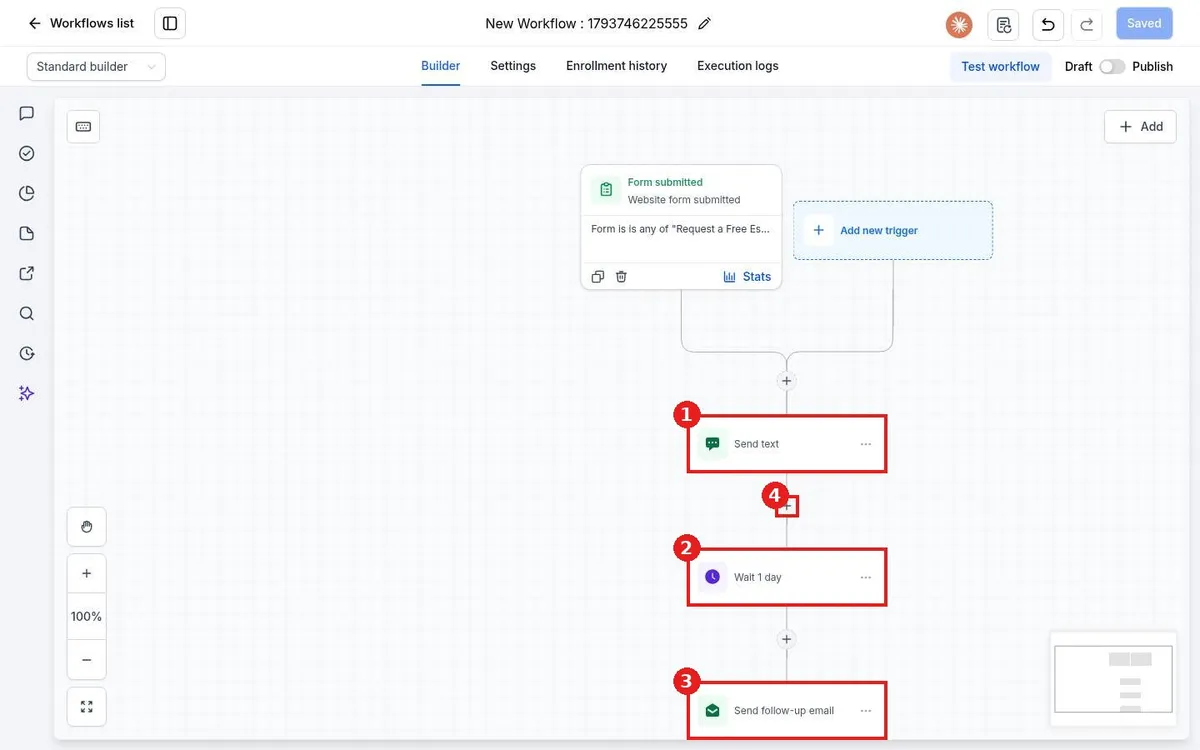
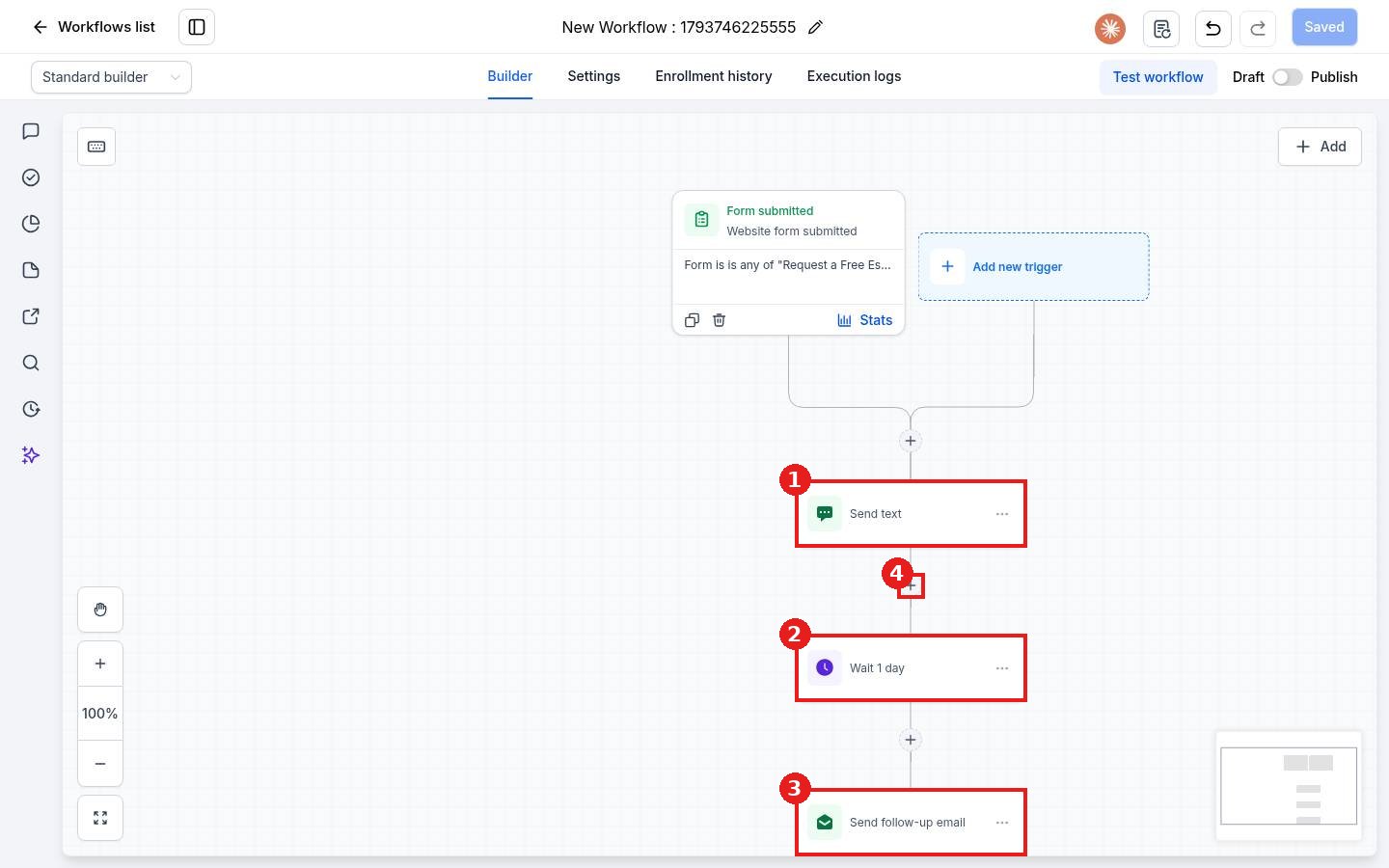
Each step sits on the line under the trigger. Here a text (1), a 1 day wait (2) and an email (3) run in order. Click the + (4) between two steps to add a new one there, or the last + to add one at the end.
Step 2: Pick the action
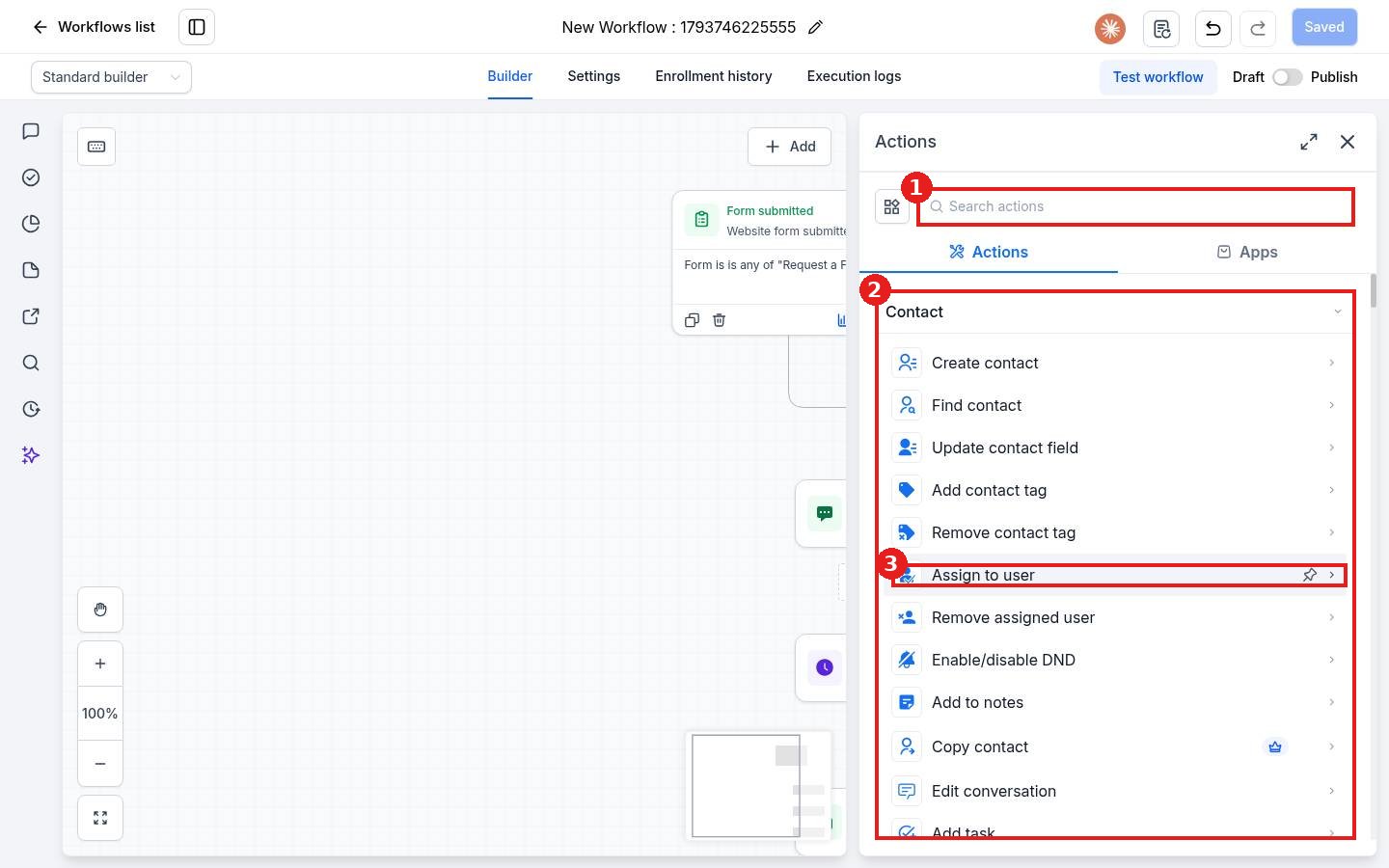
The Actions panel opens. Type in the search box (1), for example SMS, email or wait, or scroll the groups (2). Hover an action to pin it (3) so it stays near the top next time.
Step 3: Fill it in and save
- Send SMS: type the message. Use custom values like the first name to personalize it.
- Send Email: add the subject and body, or pick a saved template.
- Wait: set a time delay such as 1 day, or wait for an event like a reply.
Click Save action. Then save the workflow, test it and publish.
FAQ
Can I add a step in the middle?
Yes. Click the plus between the two steps where the new one should go.
How do I stop the workflow if the contact replies?
Add a Wait step set to wait for a reply, or use an if/else branch that checks for a reply.
Want us to handle it? Our team builds and tests the automations that matter most, like missed call text back, speed to lead and review requests, so they run correctly from day one. Book a free strategy call and get a free quote.
Related articles
- How do I add a trigger to a workflow?
- How do I use if/else branches in a workflow?
- How do I publish and test a workflow?
Still stuck? Submit a ticket and our team will help. Need faster answers? See our support plans.
