
How do I restore a deleted workflow?
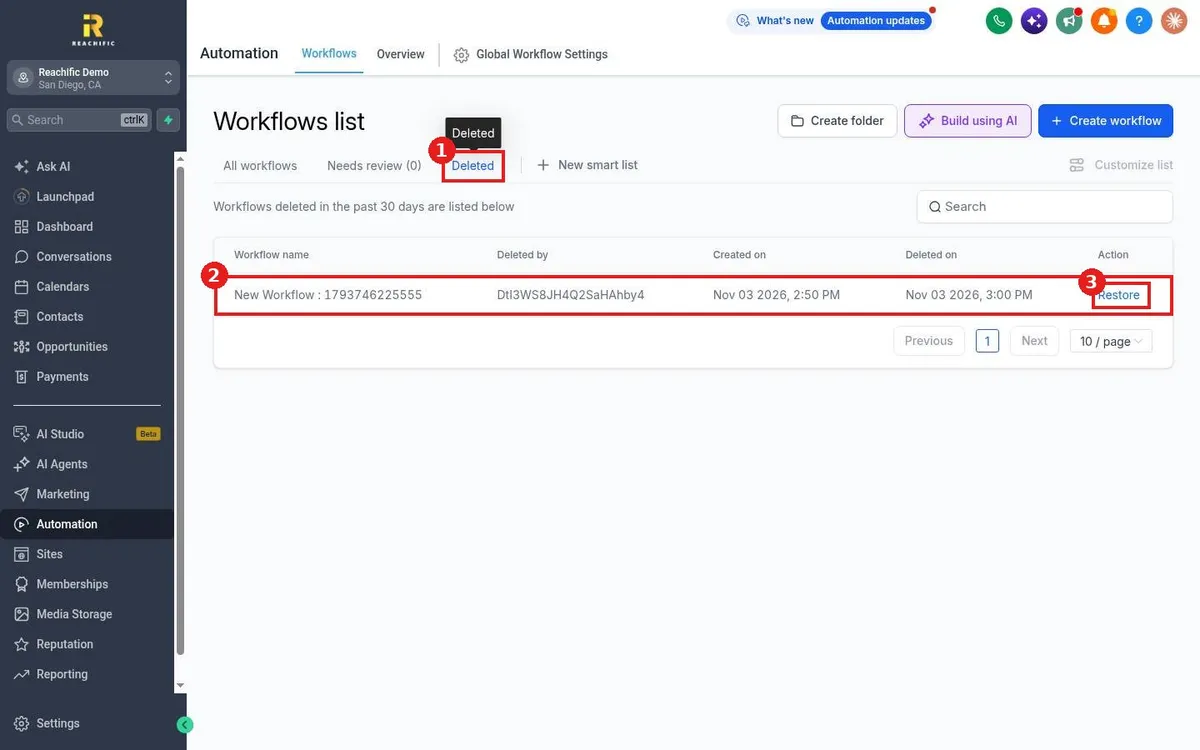
Quick answer: Go to Automation > Workflows and click the Deleted tab. Find the workflow and click Restore in the Action column. Workflows deleted in the past 30 days are listed there. Right after a delete, restore is blocked for about 30 minutes while the delete finishes processing.
How delete works
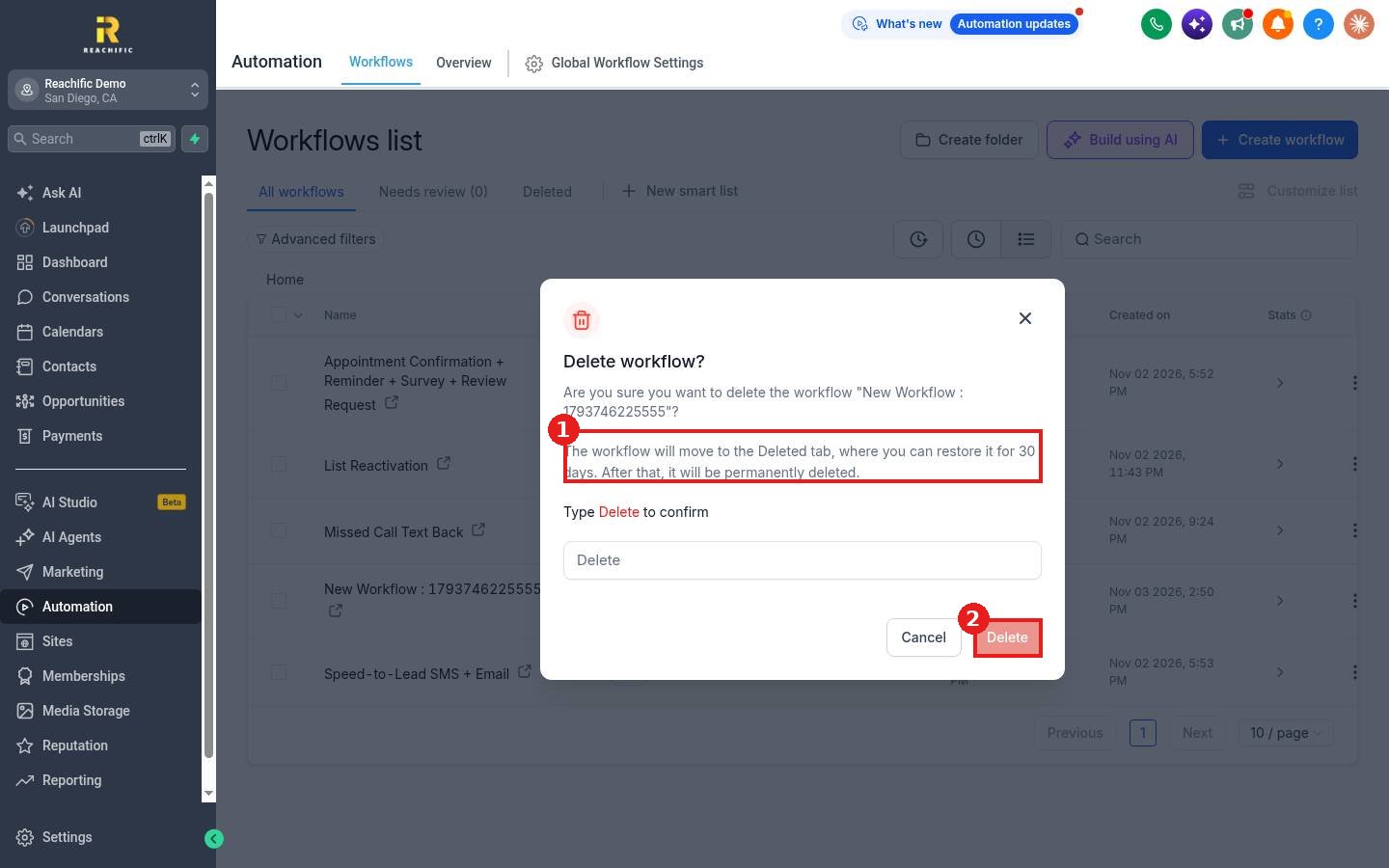
When you delete a workflow you must type Delete to confirm (1). The dialog explains that the workflow moves to the Deleted tab, where you can restore it for 30 days, and after that it is permanently deleted. Click Delete (2) only when you are sure.
Step 1: Open the Deleted tab
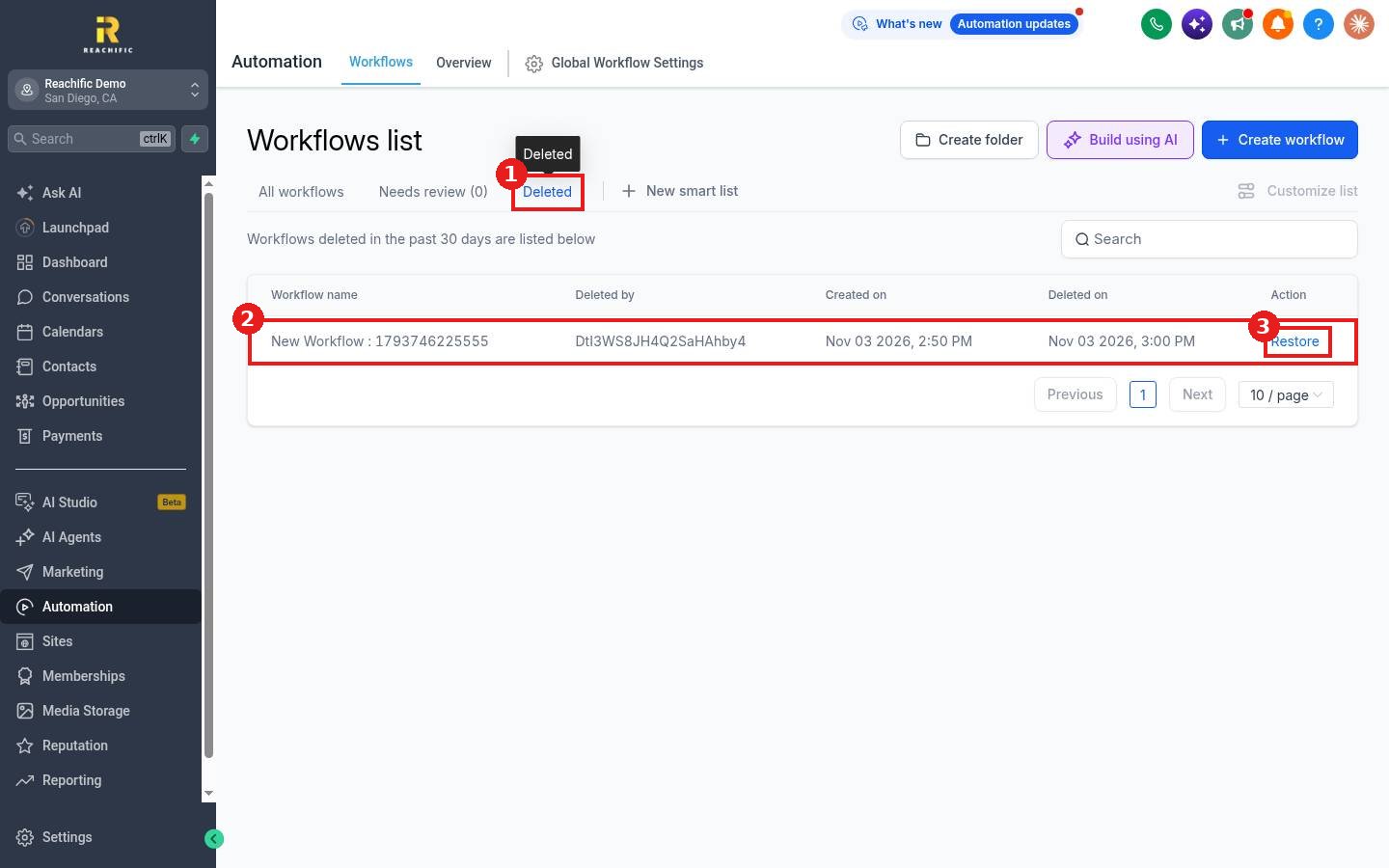
On the Workflows list, click Deleted (1). Each row (2) shows the workflow name, who deleted it, and when it was created and deleted.
Step 2: Click Restore
Click Restore (3) on the workflow row. It goes back to your workflows list. Open it, check the steps, and publish it again if it should run.
If you see Action blocked: recently restored workflow, the delete is still processing. Wait 30 minutes and click Restore again.
FAQ
How long can I restore a workflow?
Workflows deleted in the past 30 days are listed in the Deleted tab. After that they are permanently deleted.
Why can I not restore a workflow I just deleted?
Restore opens about 30 minutes after the delete, while the delete request is processed.
Will a restored workflow start running again?
Check its status after restore and publish it if it should run.
Want us to handle it? Our team builds and tests the automations that matter most, like missed call text back, speed to lead and review requests, so they run correctly from day one. Book a free strategy call and get a free quote.
Related articles
- How do I copy a workflow?
- How do I organize workflows into folders?
- How do I publish and test a workflow?
Still stuck? Submit a ticket and our team will help. Need faster answers? See our support plans.
