
How do I organize workflows into folders?
Quick answer: Go to Automation > Workflows and click Create folder. Type a name such as Lead follow up and click Create. Then open the three dot menu on any workflow row and choose Move to folder.
Before you start
- Pick names by job or stage, for example New leads, Appointments, Reviews, Past customers.
- Moving a workflow into a folder does not change how it runs.
Step 1: Create the folder
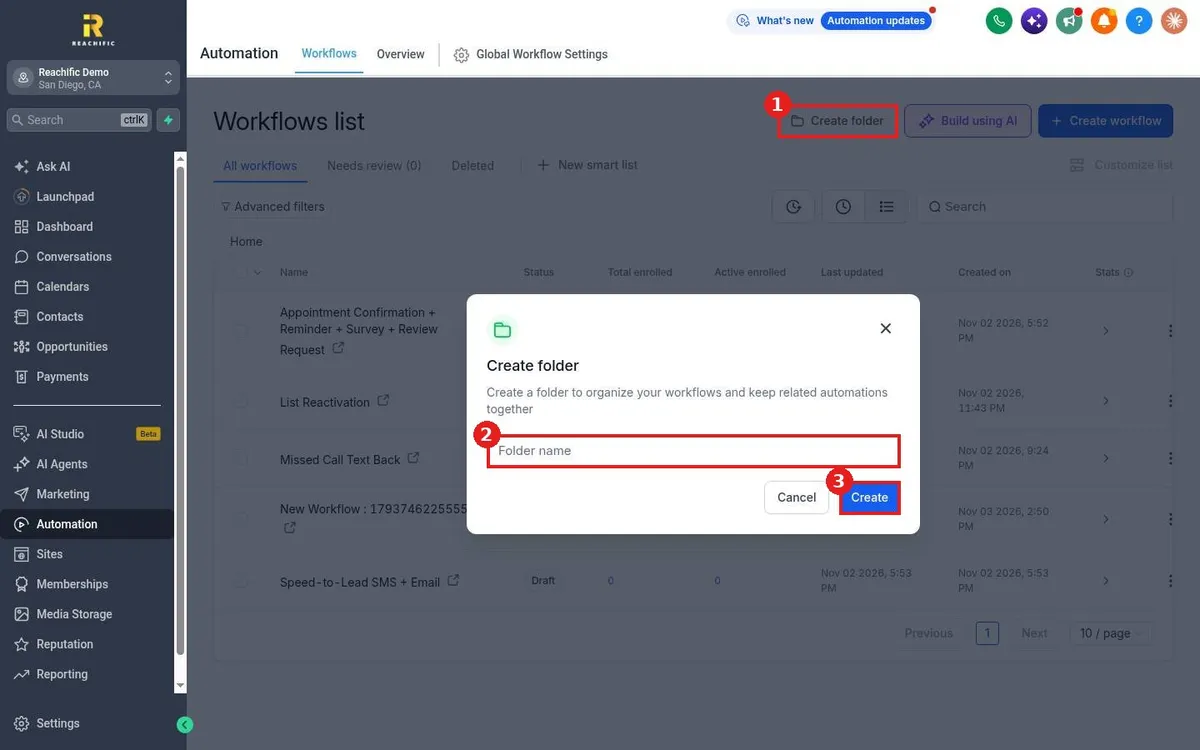
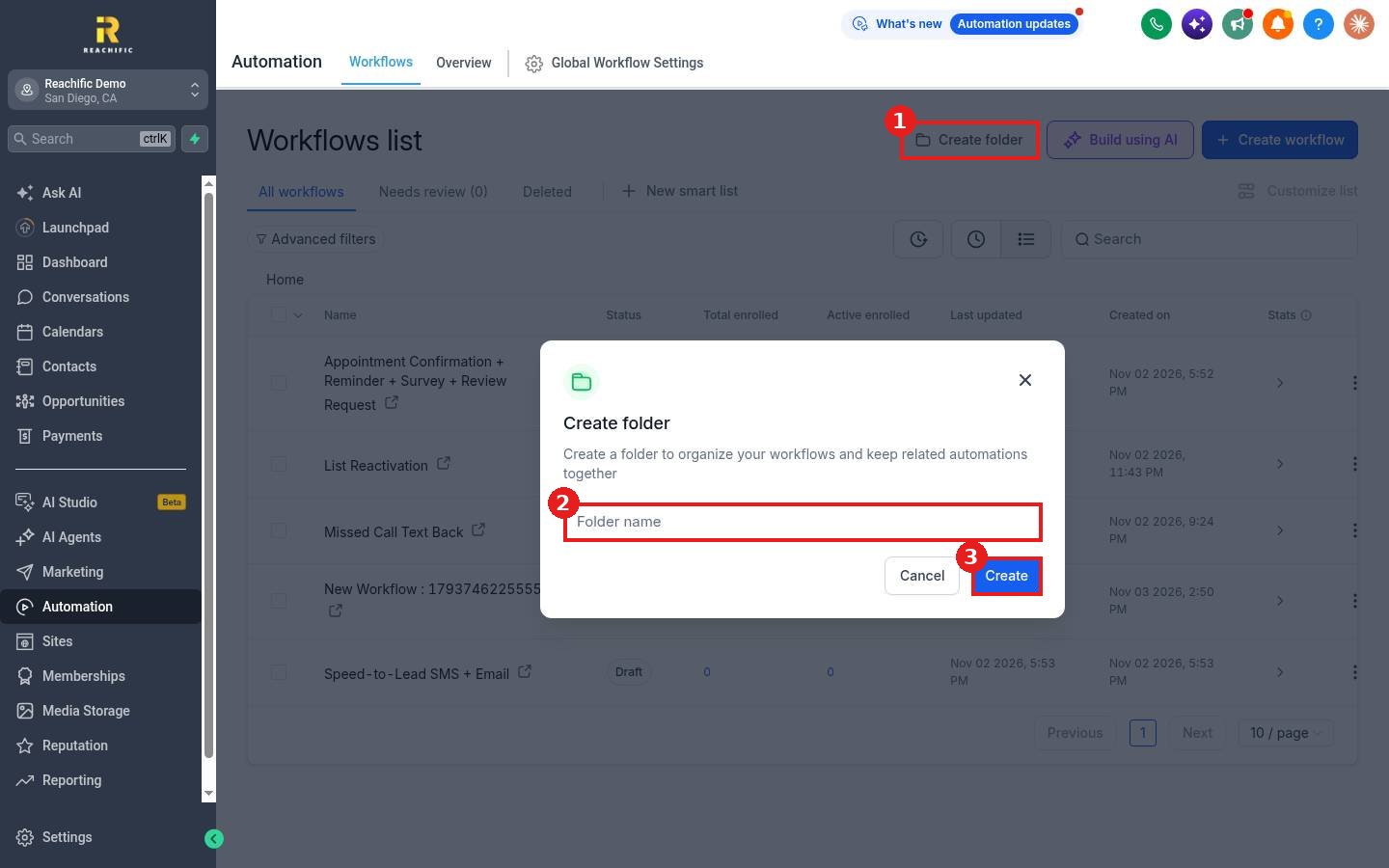
Click Create folder (1) at the top of the Workflows list. Enter the folder name (2) and click Create (3).
Step 2: Move workflows into it
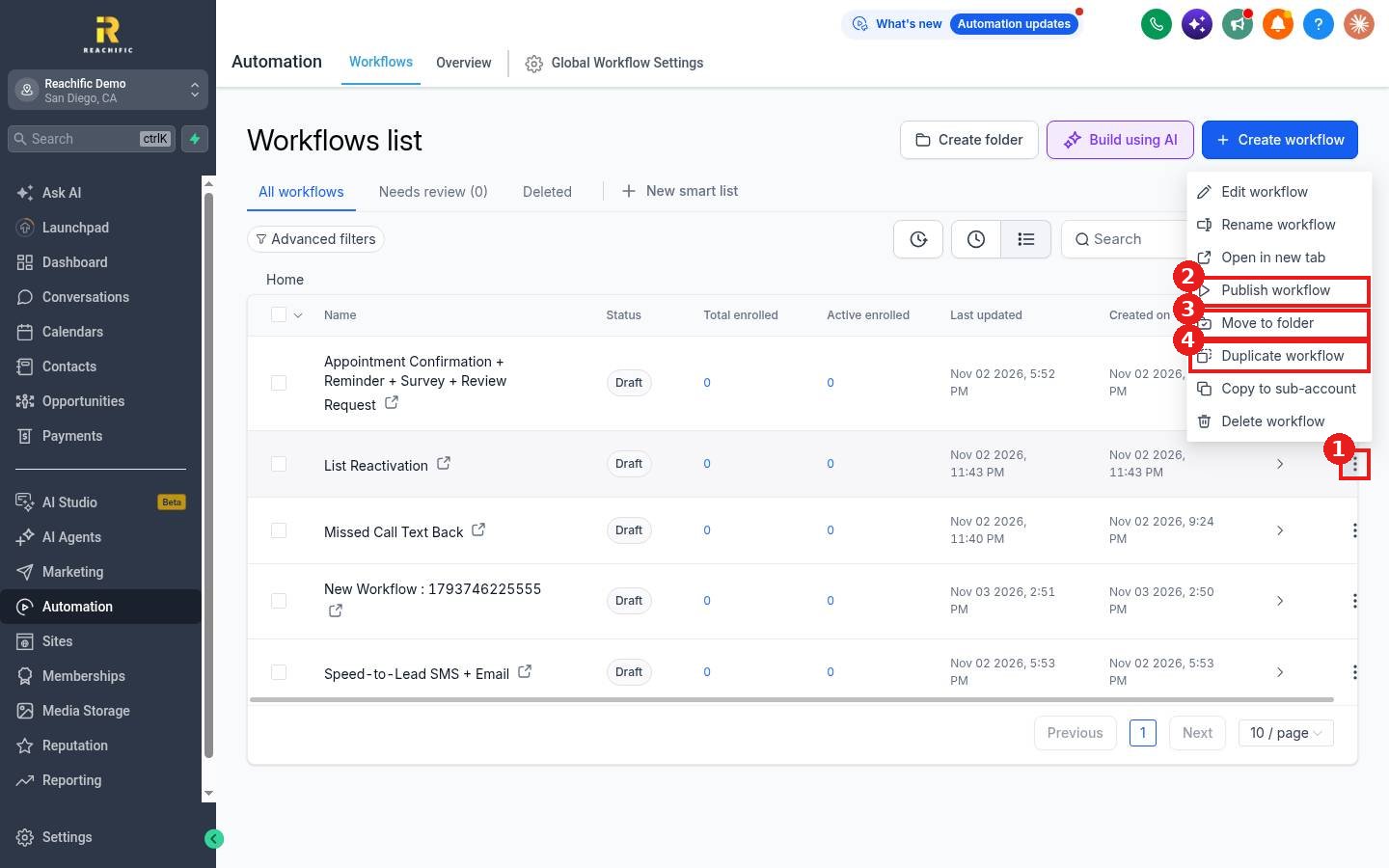
Click the three dots on a workflow row (1) and choose Move to folder (3). Pick the folder and confirm.
Step 3: Find workflows fast
Click a folder name to open it, and use Home above the list to go back. Use the Search box to find a workflow by name.
FAQ
Does a folder change how a workflow runs?
No. Folders are only for keeping the list tidy.
Can I filter the list instead of using folders?
Yes. Use Advanced filters or New smart list on the Workflows list to save a filtered view.
Want us to handle it? Our team builds and tests the automations that matter most, like missed call text back, speed to lead and review requests, so they run correctly from day one. Book a free strategy call and get a free quote.
Related articles
Still stuck? Submit a ticket and our team will help. Need faster answers? See our support plans.
