
How do I set global workflow settings like quiet hours?
Quick answer: Go to Automation and click Global Workflow Settings to set error email alerts, auto save and pause dates for all workflows. Quiet hours are set inside each workflow: open it, click the Settings tab, turn on Time window > Specific time, pick the start time, end time and days, then click Save.
Before you start
- Global settings apply to every workflow in your account. Time window applies only to the workflow you set it on.
- Check that your account timezone is right. Wait steps and the time window follow it.
Step 1: Open Global Workflow Settings
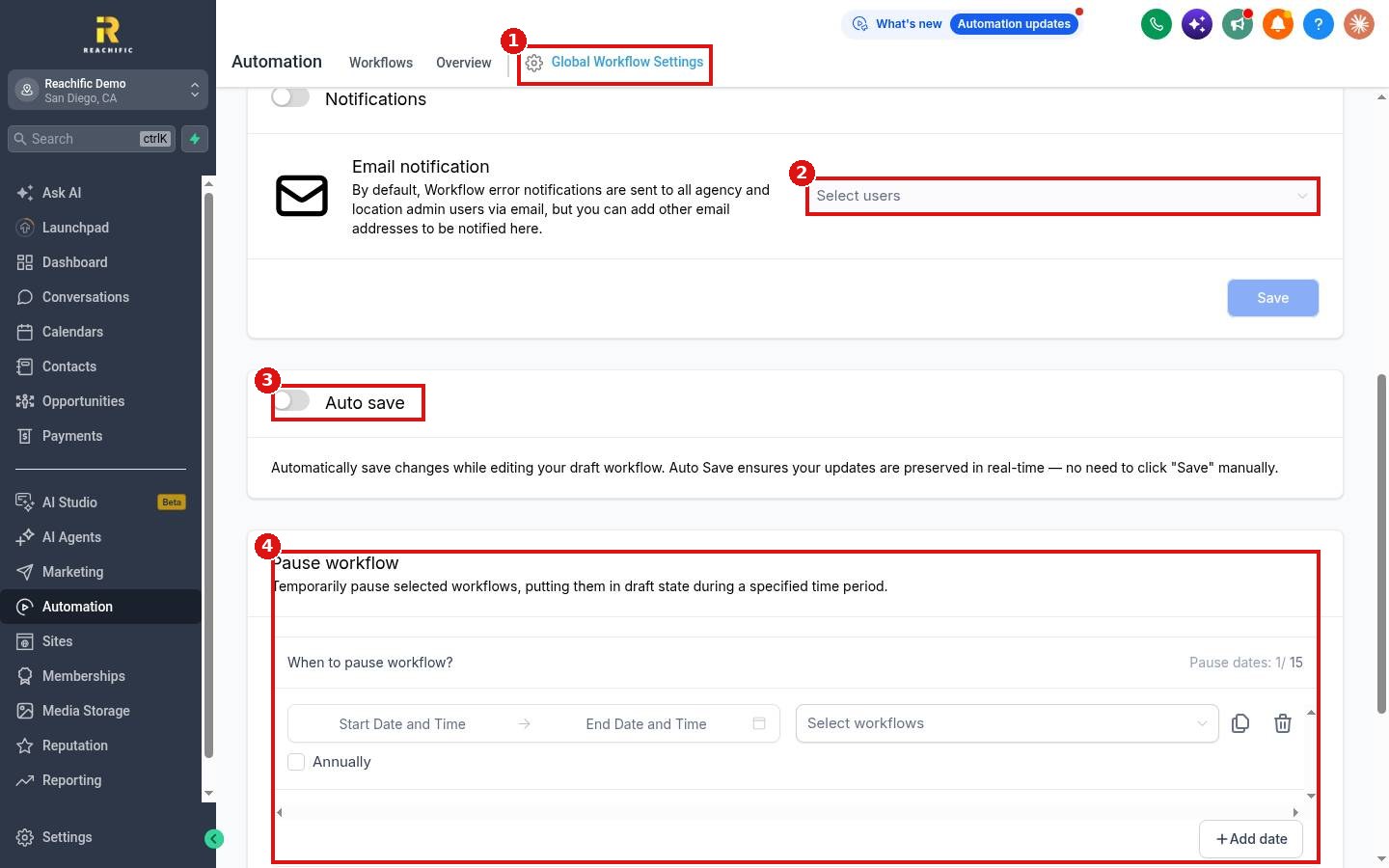
Go to Automation and click Global Workflow Settings (1). Under Email notification, add anyone else who should get workflow error emails (2) and click Save. Turn on Auto save (3) so draft changes save as you work. Use Pause workflow (4) to put chosen workflows on hold between two dates, for example over a holiday. Tick Annually to repeat it every year.
Step 2: Set quiet hours on a workflow
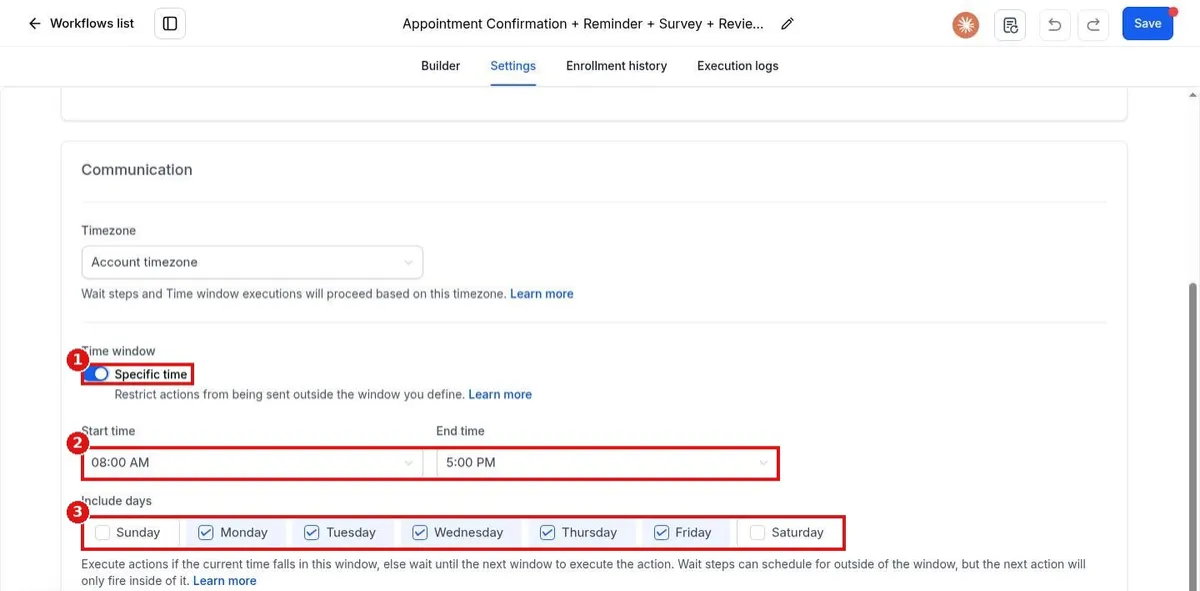
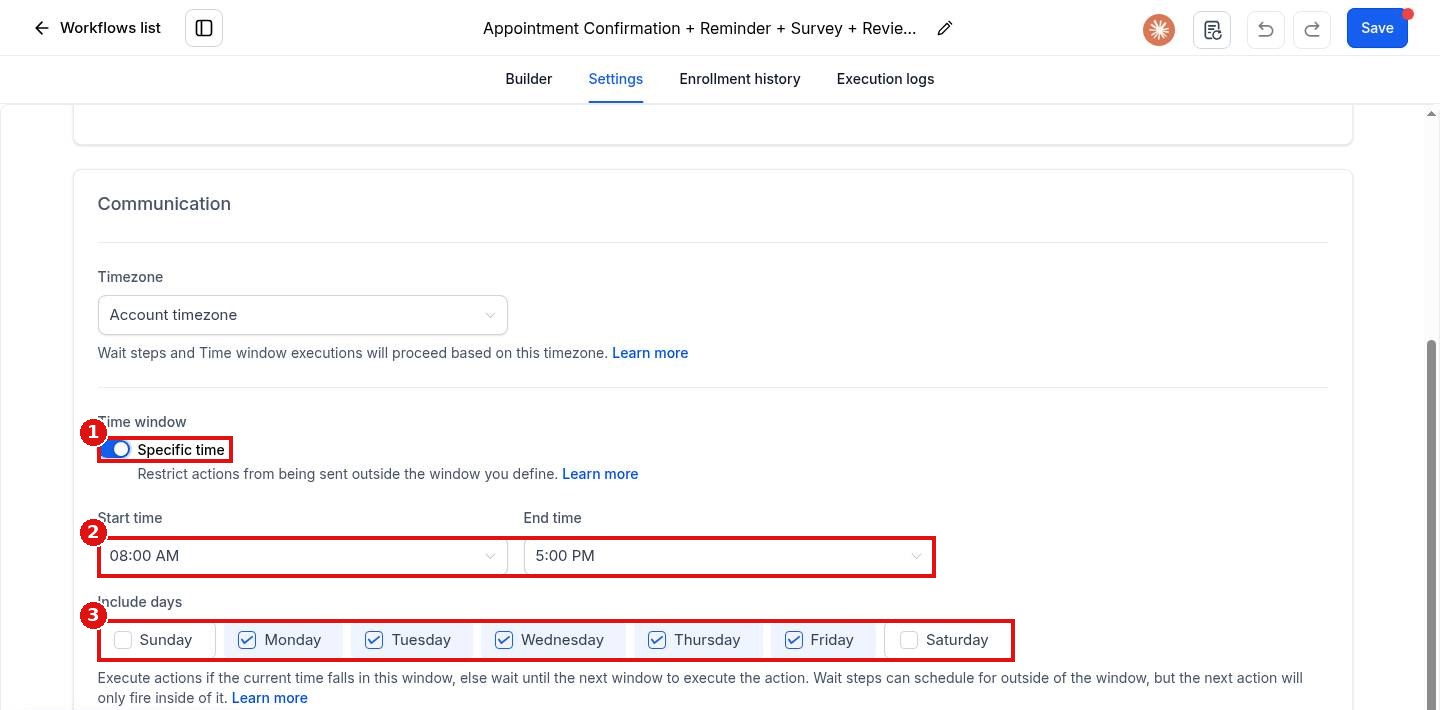
Open the workflow and click the Settings tab. Under Time window, turn on Specific time (1). Pick the Start time and End time (2), then tick the days to include (3). Actions only fire inside this window. If a contact reaches a step outside it, the step waits for the next window. Click Save.
Step 3: Set the contact rules
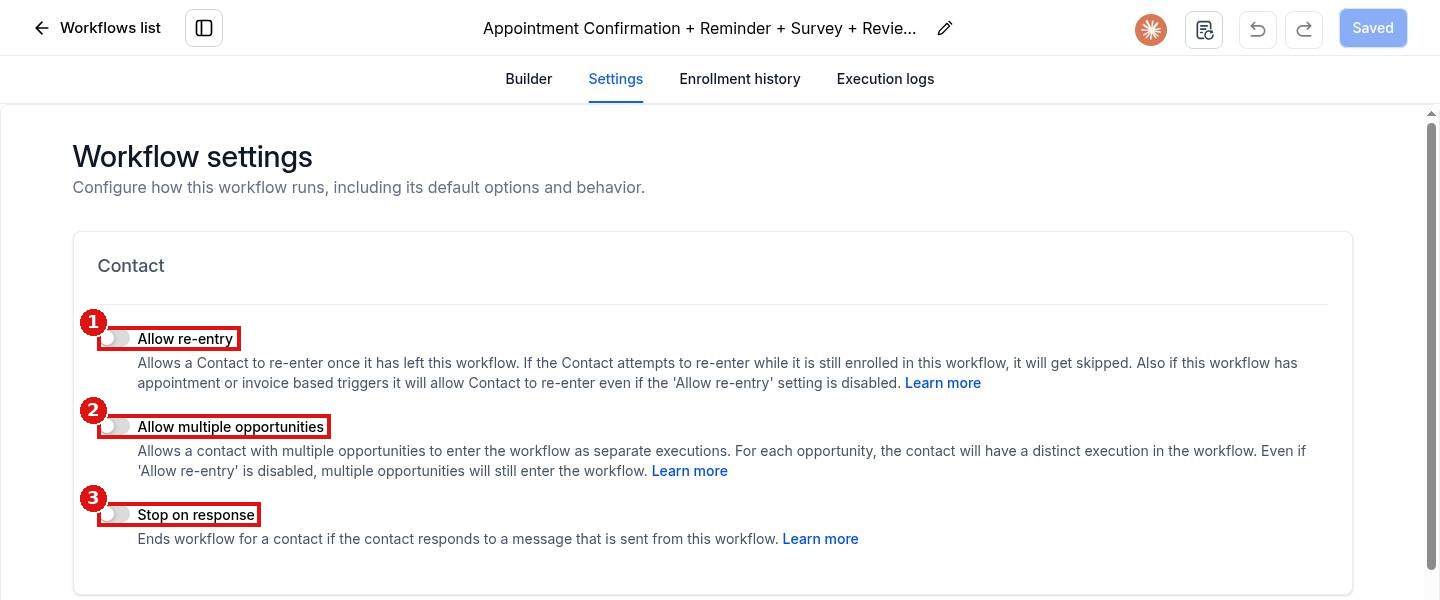
On the same Settings tab, the Contact section sets who can enter and when they stop. Allow re-entry (1) lets a contact go through the workflow again after leaving it. Allow multiple opportunities (2) runs a separate path for each opportunity. Stop on response (3) ends the workflow for a contact who replies to one of its messages.
FAQ
Is there one quiet hours setting for all workflows?
No. Set the Time window on each workflow that sends texts or emails. Global settings cover alerts, auto save and pause dates.
How long can I pause a workflow?
Up to 15 days per pause date. A workflow can not be in two overlapping date ranges.
Do wait steps follow the time window?
Wait steps can end outside the window, but the next action only fires inside it.
Want us to handle it? Our team builds and tests the automations that matter most, like missed call text back, speed to lead and review requests, so they run correctly from day one. Book a free strategy call and get a free quote.
Related articles
- How do I create my first workflow?
- How do I publish and test a workflow?
- How do I add actions like send text, send email and wait?
Still stuck? Submit a ticket and our team will help. Need faster answers? See our support plans.
