
How do I copy a workflow?
Quick answer: Go to Automation > Workflows, click the three dots at the end of the workflow row and choose Duplicate workflow. A copy appears in the list. Rename it, change what you need and publish it.
Before you start
- A copy does not carry over who was enrolled in the original. It starts empty.
- Copy first when you want to try changes on a live workflow without risk.
Step 1: Open the row menu
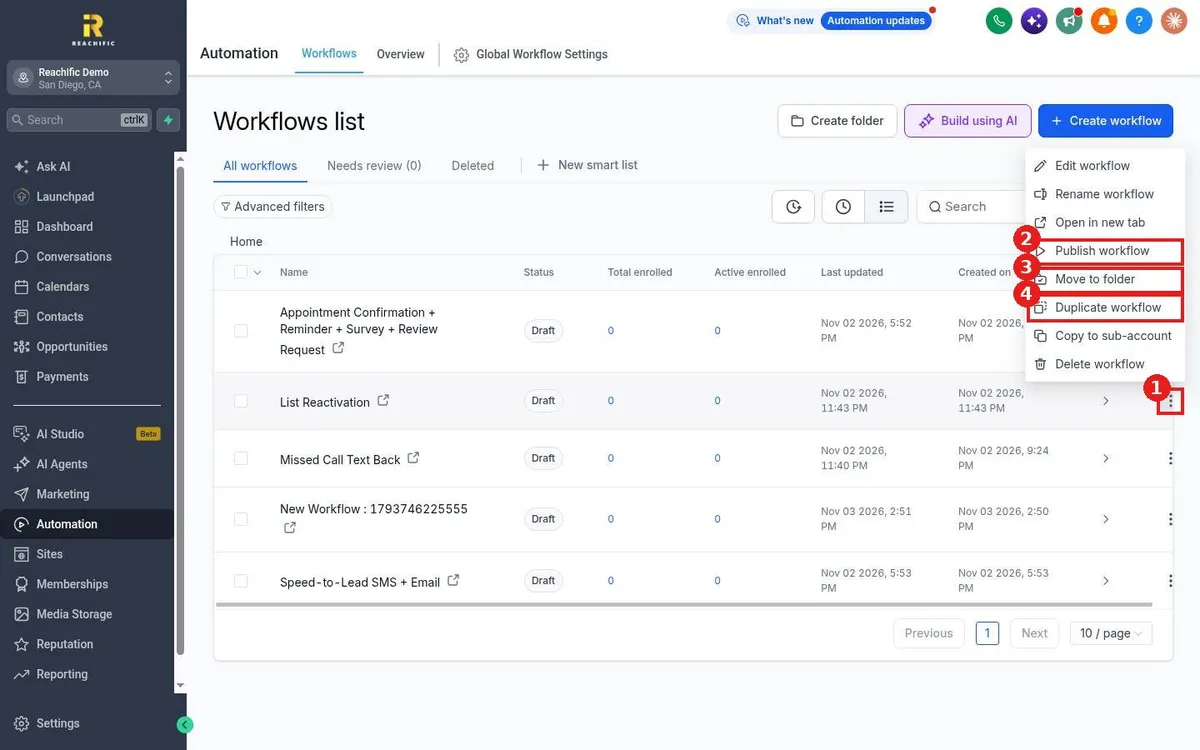
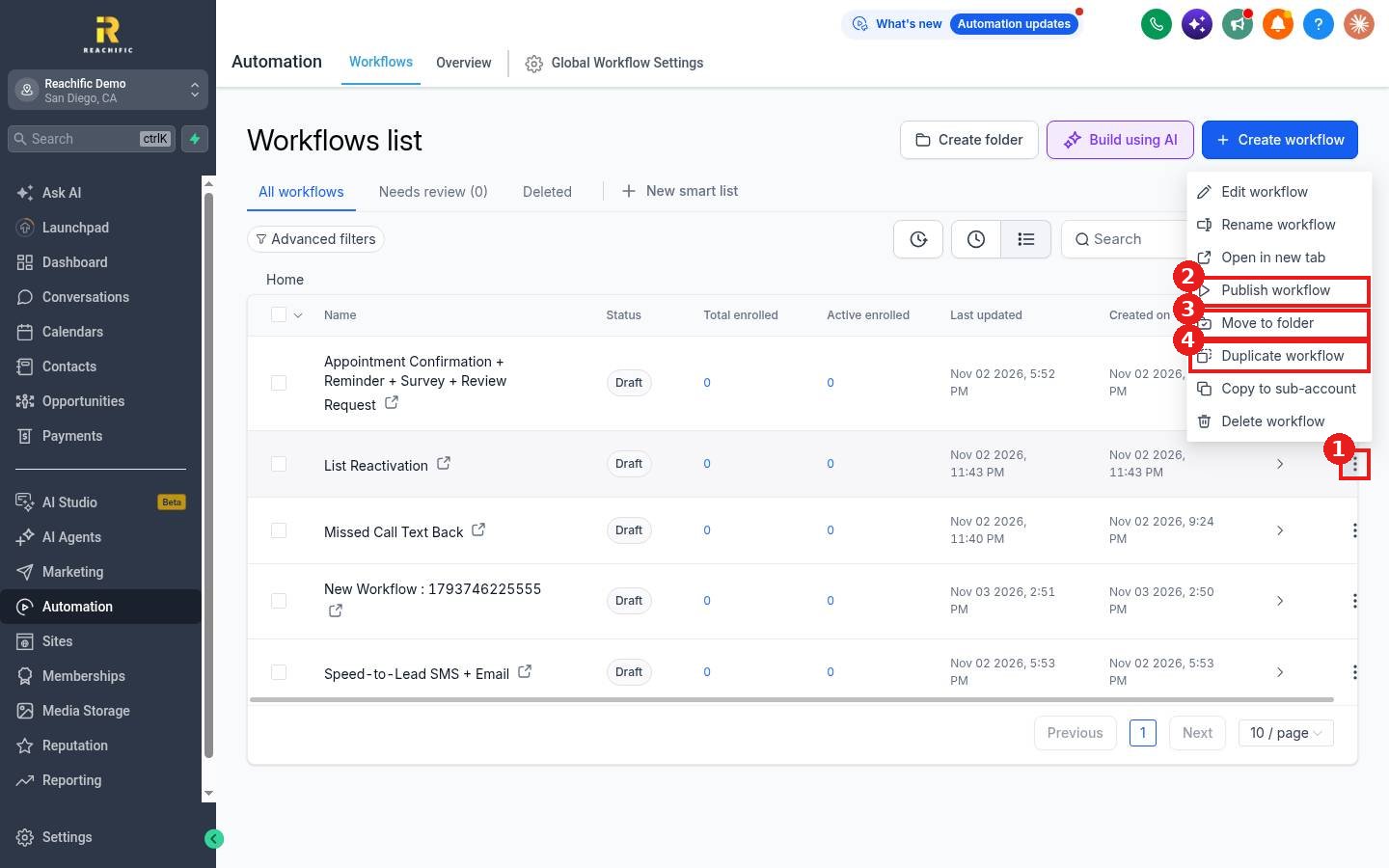
On the Workflows list, click the three dots (1) at the right end of the workflow you want to copy.
Step 2: Duplicate it
Click Duplicate workflow (4). The same menu also has Publish workflow (2) and Move to folder (3).
Step 3: Rename and edit the copy
Open the copy, click the pencil next to its name at the top of the builder and give it a clear name. Make your changes, test it and publish when ready. If both versions should not run at once, switch the old one back to Draft.
FAQ
Does the copy start running right away?
Check the Status column on the Workflows list. Keep the copy in Draft until you have tested it, then publish it.
Can I copy a workflow to another Reachific account?
The row menu has a Copy to sub-account option for agency users who manage more than one account.
Are the messages and wait times copied too?
Yes. The triggers and steps are copied. Check sender details and links before you publish.
Want us to handle it? Our team builds and tests the automations that matter most, like missed call text back, speed to lead and review requests, so they run correctly from day one. Book a free strategy call and get a free quote.
Related articles
- How do I create my first workflow?
- How do I organize workflows into folders?
- How do I publish and test a workflow?
Still stuck? Submit a ticket and our team will help. Need faster answers? See our support plans.
