
How do I send a bulk text or email to a list?
Quick answer: Open Contacts, check the people you want to reach (or click Select all), then click More > Send SMS or Send email. Name the action, pick your sending number or email, write the message, choose whether to send now, at a set time or in drip mode, check the consent box and click send. Track progress under Contacts > Bulk Actions.
Before you start
- For texts you need a Reachific phone number, and in the US it must be registered for business texting (A2P 10DLC) before bulk texts will deliver.
- For email you need a sending email set up in your email settings.
- Only message people who agreed to hear from you. Every text should say who it is from and include a way to opt out, such as Reply STOP to opt out.
- Tip: build a smart list first (for example everyone tagged lead) so you can select the right group in one click.
Step 1: Select your contacts
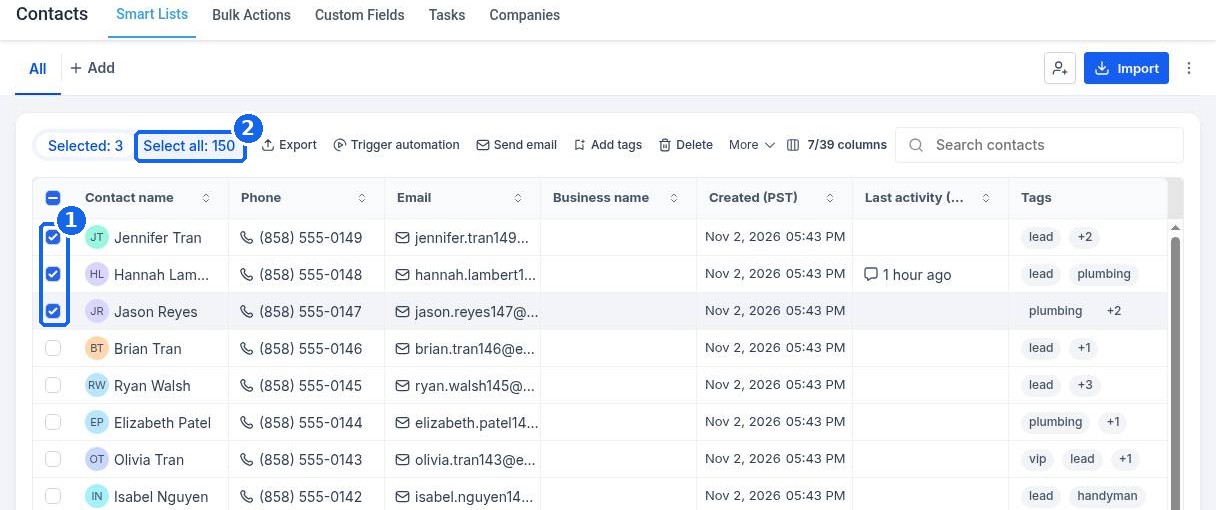
Go to Contacts and open the list or smart list you want. Check the box next to each person (1). To message everyone in the list, click Select all (2).
Step 2: Choose text or email
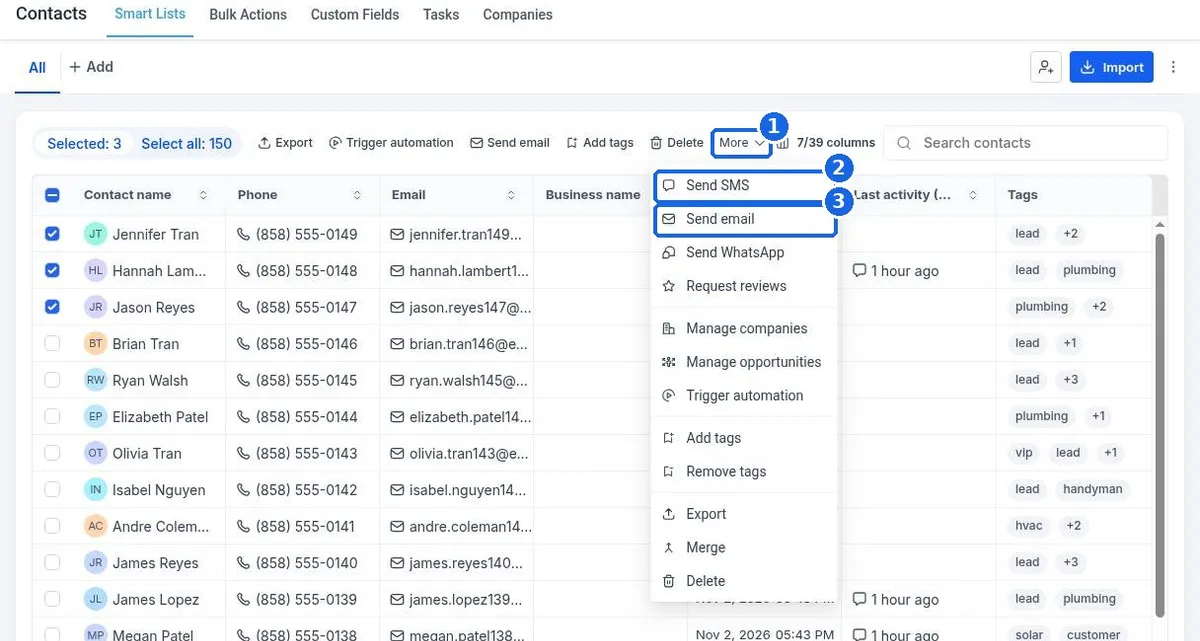
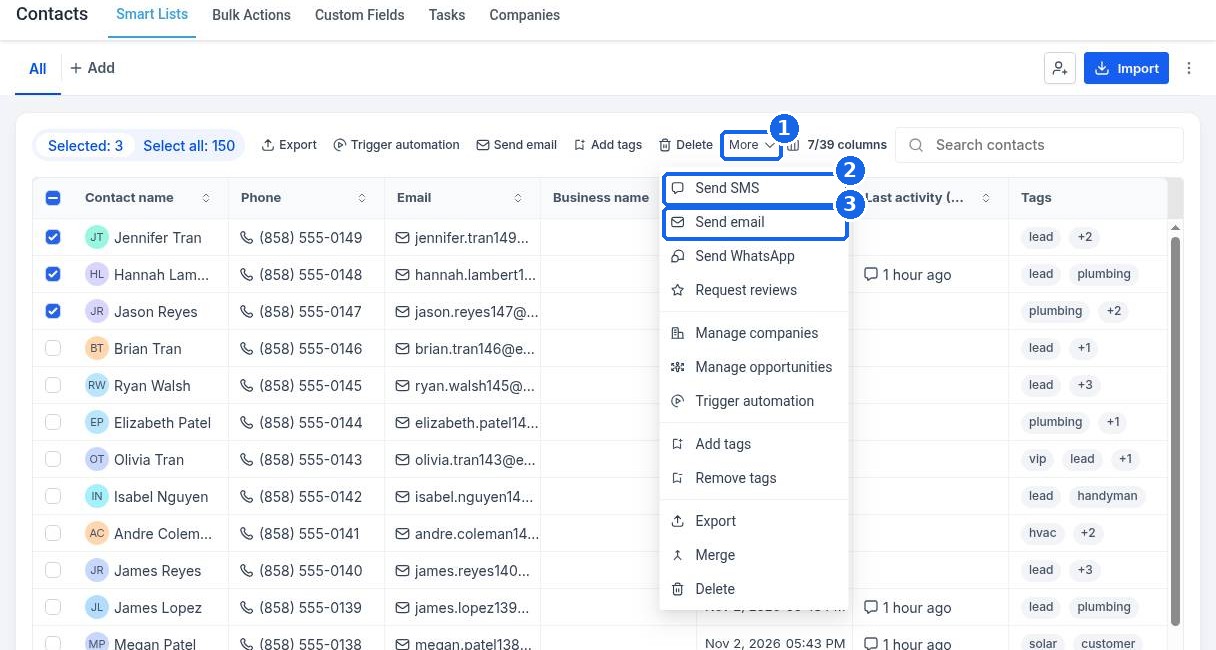
A toolbar appears above the list. Click More (1), then Send SMS (2) for a text or Send email (3) for an email. The same menu also lets you send WhatsApp messages, request reviews, add tags or start an automation for the selected people.
Step 3: Write your message
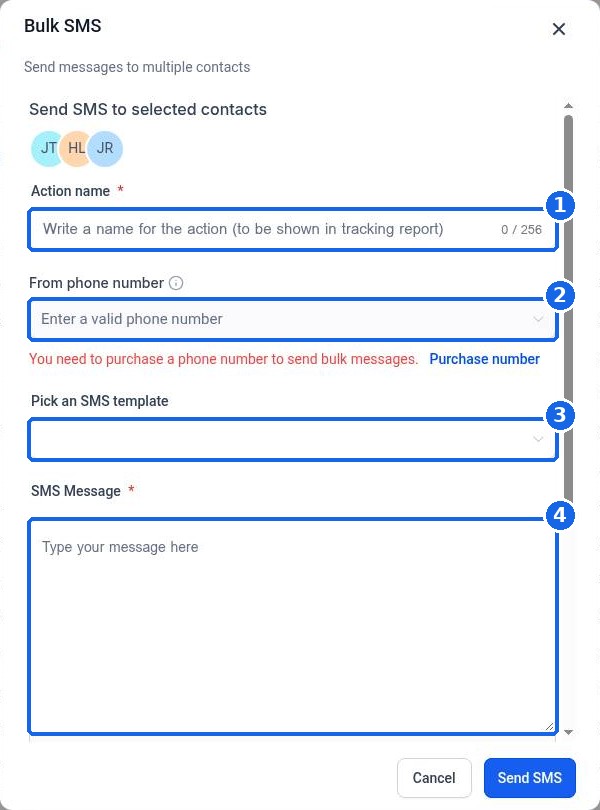
In the Bulk SMS window:
- Give the send an Action name (1), such as November tune up offer. You will see this name in your tracking report.
- Pick the From phone number (2). If you see a message that you need to purchase a number, get one in Settings > Phone System first.
- Optional: choose a saved SMS template (3).
- Type your SMS Message (4). Use the tag icon under the box to add personal details like the contact's first name, and the image icon to attach a picture.
The Send email window works the same way, with a subject line, a from name and address, and an email body or template.
Step 4: Choose when it sends and confirm
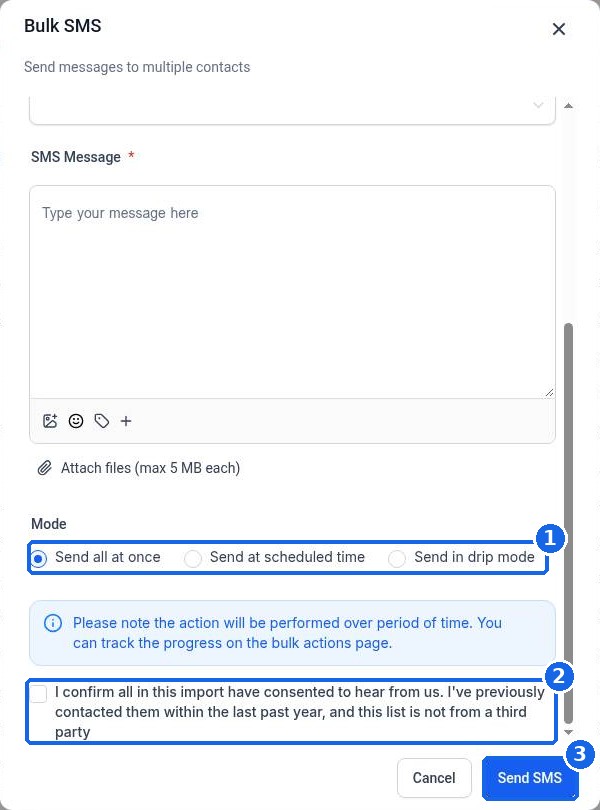
Under Mode (1), pick one:
- Send all at once starts sending right away.
- Send at scheduled time lets you pick a date and time.
- Send in drip mode sends in small batches over time. This is the safest choice for large lists, because it protects your number and your sender reputation and spreads out replies so your team can keep up.
Check the consent box (2) to confirm these contacts agreed to hear from you, then click Send SMS (3).
Step 5: Track your send
Click Contacts > Bulk Actions at the top of the Contacts page. Your send is listed by its action name with its progress, and you can open it to see who received it and any errors. Replies land in Conversations.
FAQ
Why does it say I need to purchase a phone number?
Bulk texts must come from a Reachific number. Buy a local number in Settings > Phone System, register it for business texting, then come back to this window.
How much does a bulk text cost?
Texts are usage based and are billed to your wallet per message segment, so check your wallet balance before a large send. Long messages and pictures use more segments.
Can I cancel a bulk send after I start it?
Yes, while it is still running. Open Contacts > Bulk Actions, find the send and pause or cancel the rest. Messages already sent cannot be pulled back.
How do I make the message personal?
Click the tag icon under the message box and insert fields such as first name. Each person sees their own details.
What happens when someone replies STOP?
Reachific marks that contact as opted out of texts, and they will not get future text messages from you.
Want us to handle it? Our team writes and runs reactivation campaigns that turn your old list into booked jobs, with compliant copy and drip timing. Book a free strategy call and get a free quote.
Related articles
Still stuck? Submit a ticket and our team will help. Need faster answers? See our support plans.
