
How do I create a smart list with filters?
Quick answer: In Contacts, click Filters. Search for a field such as Tag, pick a condition like Is and a value, then click Apply. Click Unsaved changes and choose Save as new smartlist to keep it as its own tab.
Before you start
- A smart list updates itself. When a contact matches the filter later, they show up in the list automatically.
- Tags make great filters. See How do I add or remove tags on contacts?
Step 1: Open Filters
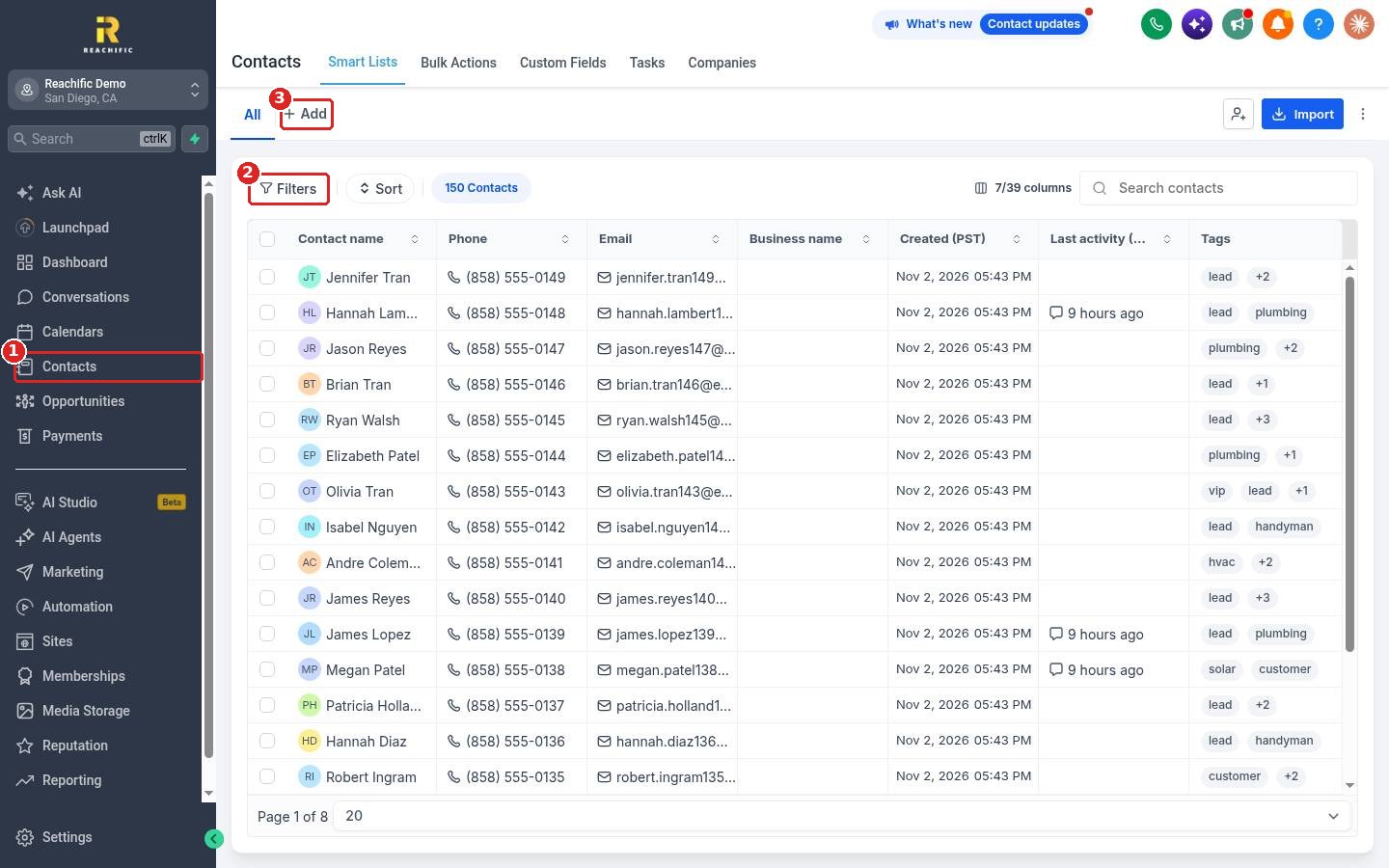
Click Contacts (1), then Filters (2). Your saved smart lists show as tabs next to All, and + Add (3) adds another tab.
Step 2: Set the filter and apply
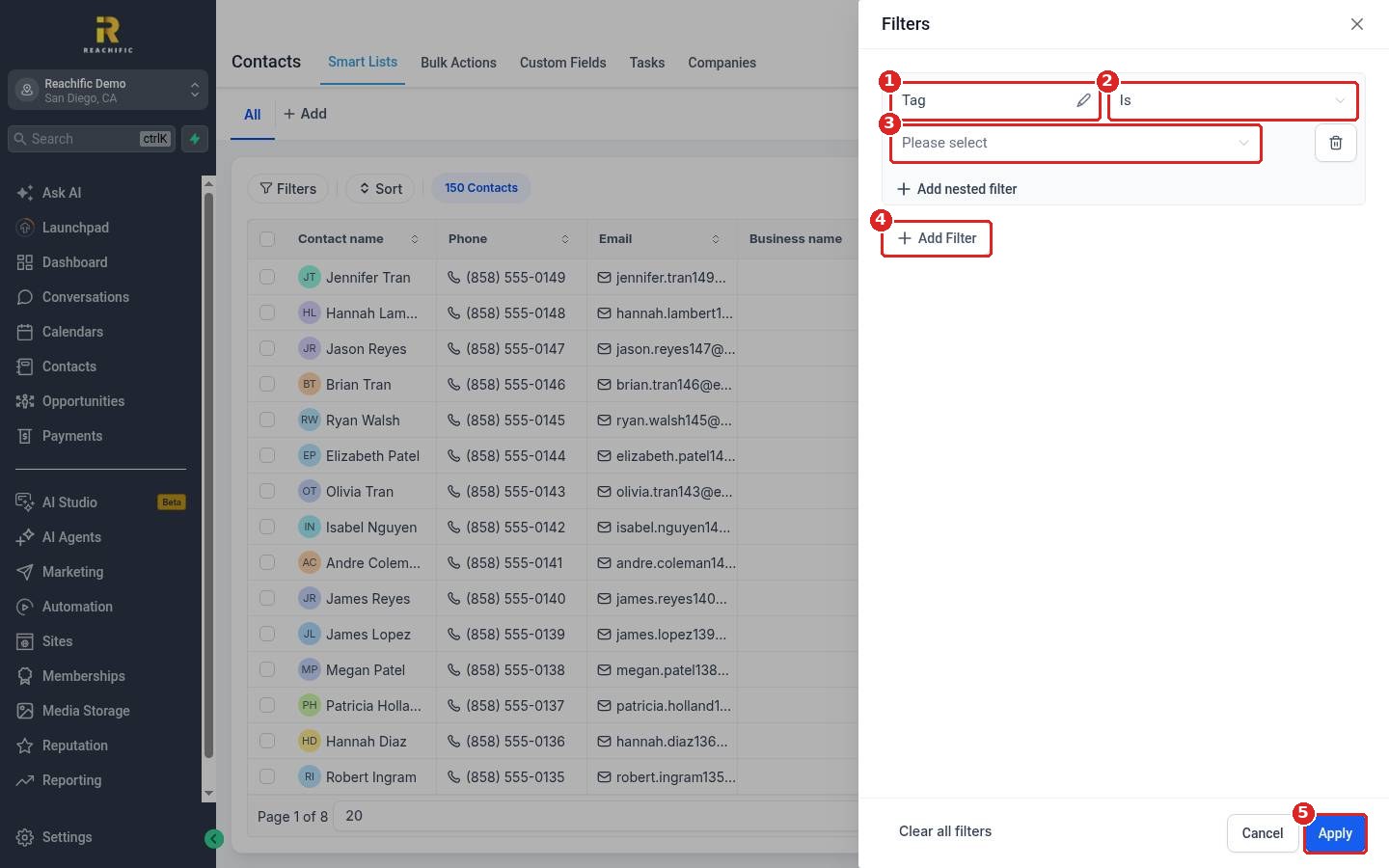
Search for and pick a field (1), such as Tag. Choose the condition (2), like Is, and pick the value (3), like hvac. Click Add Filter (4) to stack more conditions. Click Apply (5).
Step 3: Save it as a smart list
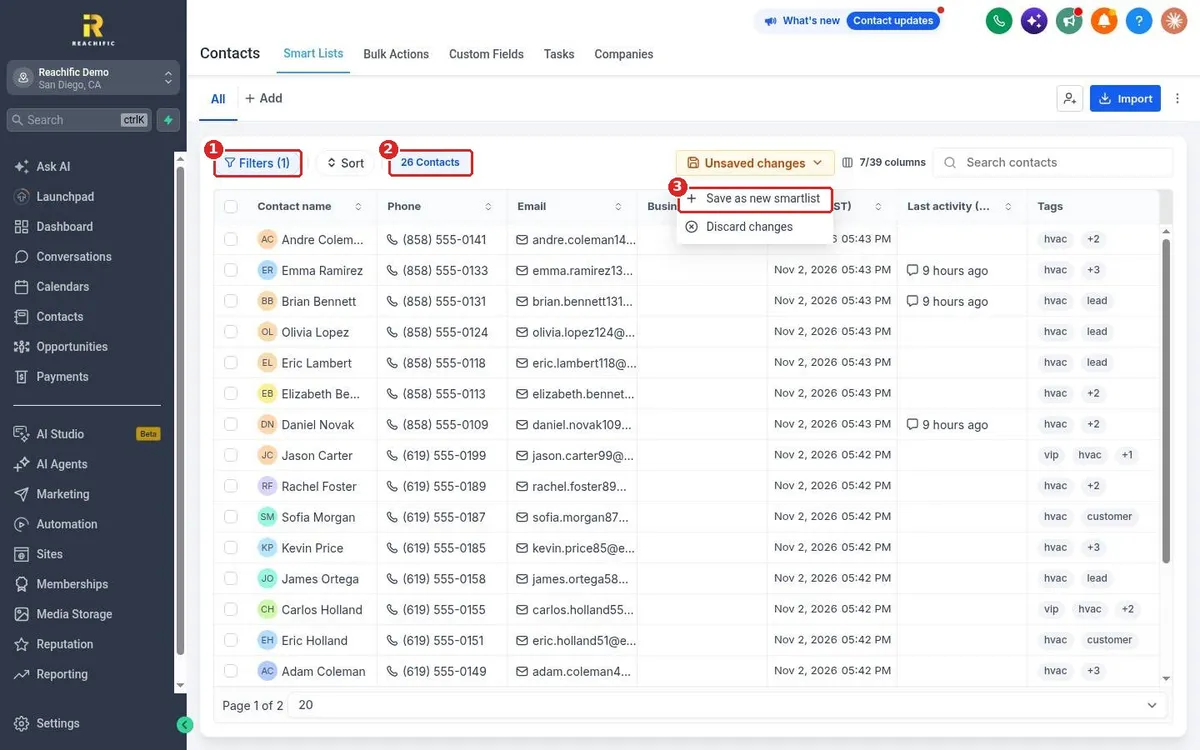
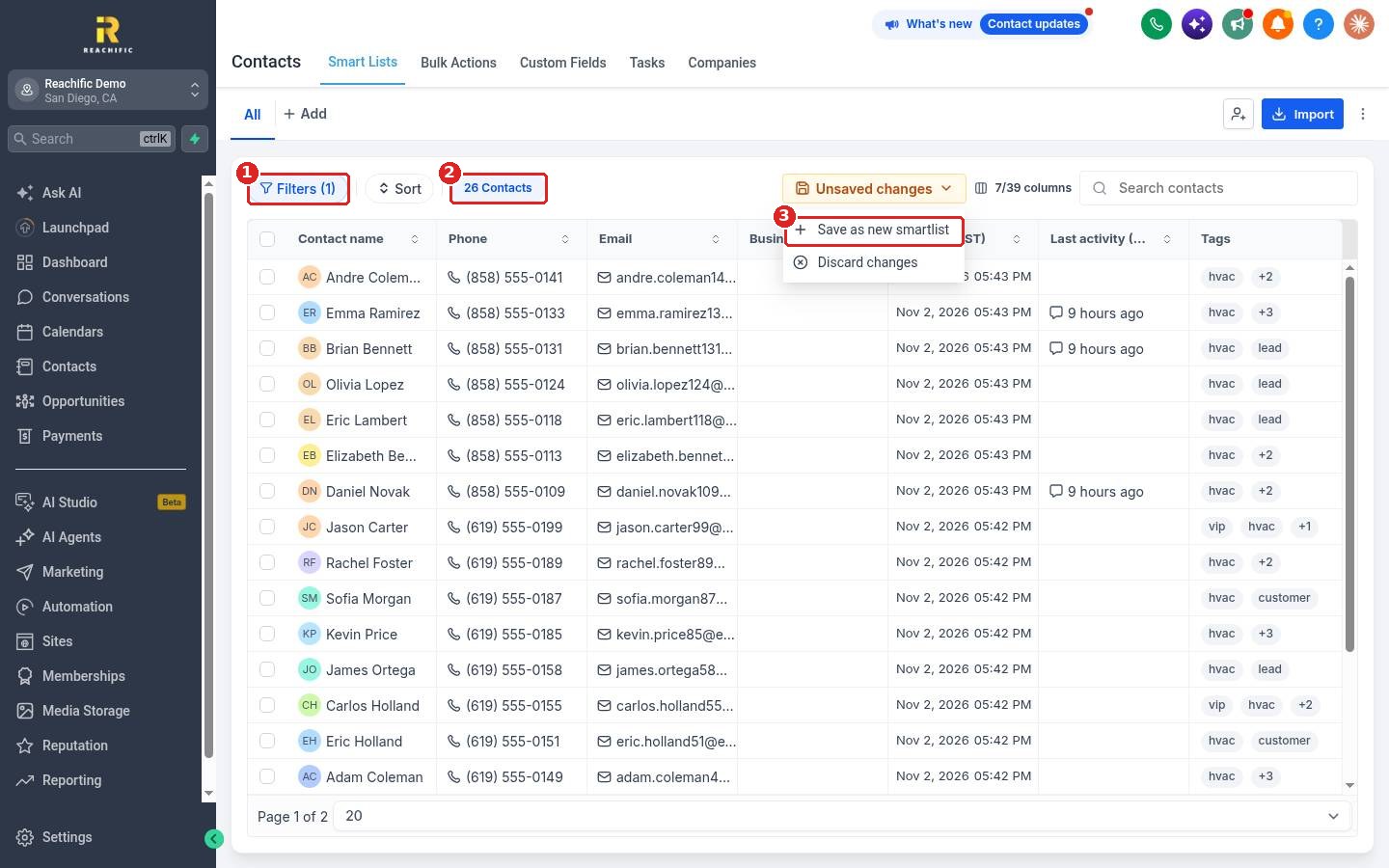
Filters (1) (1) shows how many filters are on, and the count (2) shows how many contacts match. Click Unsaved changes and choose Save as new smartlist (3). Name it and save.
FAQ
Can I use AND and OR?
Yes. Use Add Filter for more conditions and Add nested filter for grouped rules.
How do I undo a filter without saving?
Open Unsaved changes and choose Discard changes, or click Clear all filters in the Filters panel.
Can I message everyone in a smart list?
Yes. Select all contacts in the list and use a bulk action. See How do I send a bulk text or email to a list?
Want us to handle it? Our team can build smart lists for your leads, customers and past clients so every campaign hits the right people. Book a free strategy call and get a free quote.
Related articles
- How do I add or remove tags on contacts?
- How do I export my contacts?
- How do I set up a reactivation campaign for old leads?
Still stuck? Submit a ticket and our team will help. Need faster answers? See our support plans.
