
How do I send a contract for e-signature?
Quick answer: Go to Payments > Documents & Contracts, click New and choose New Document. Add your text, drop in a Signature field, pick the client under Recipients, then click Send. The client signs online and the document moves to Completed.
Before you start
- The person who signs must be a contact in your account. You can add a new one from the Recipients panel.
- Have your contract wording ready, or a PDF you already use.
Step 1: Start a new document
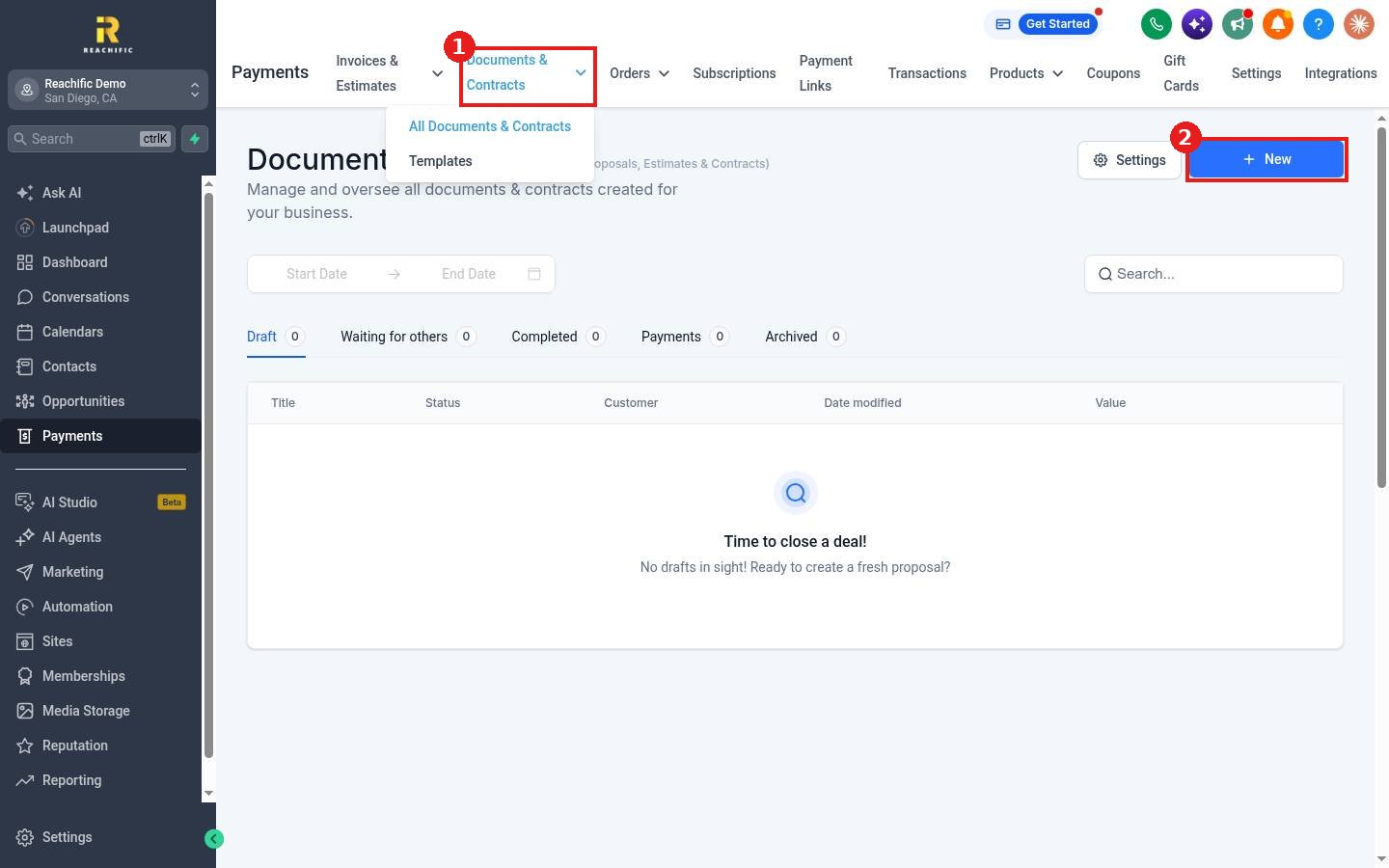
- Click Payments in the left menu, then Documents & Contracts (1) in the top menu.
- Click New (2) at the top right.
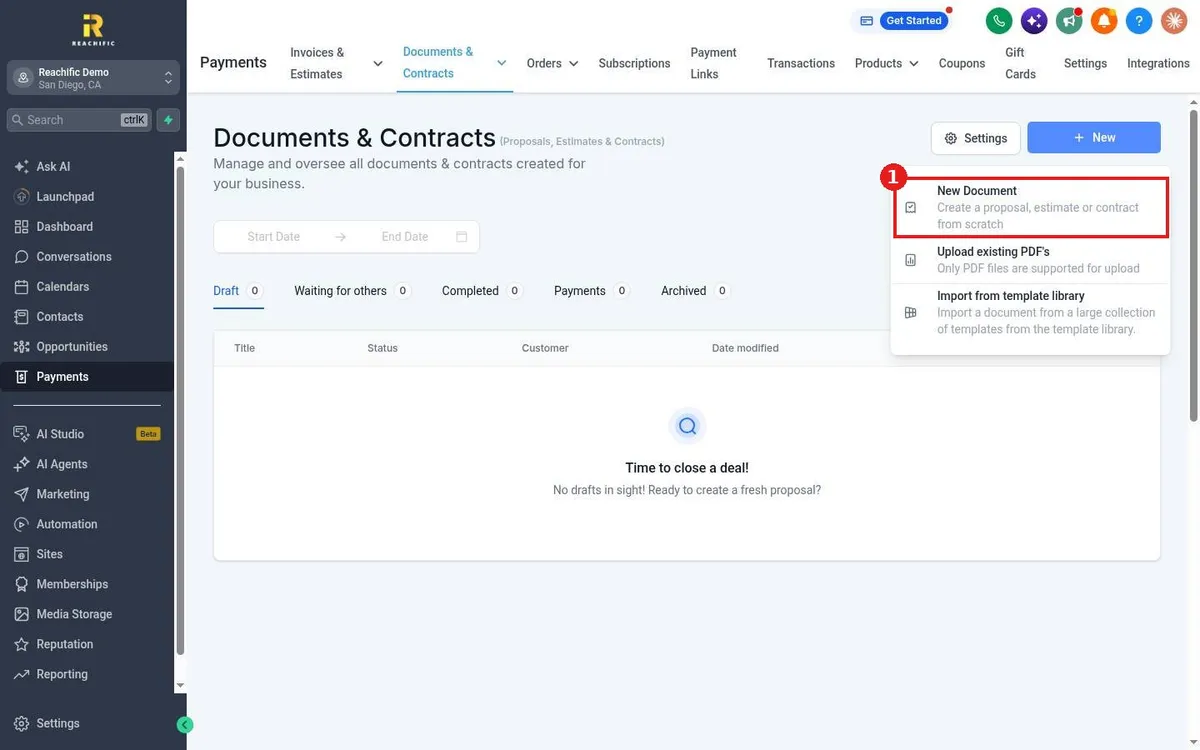
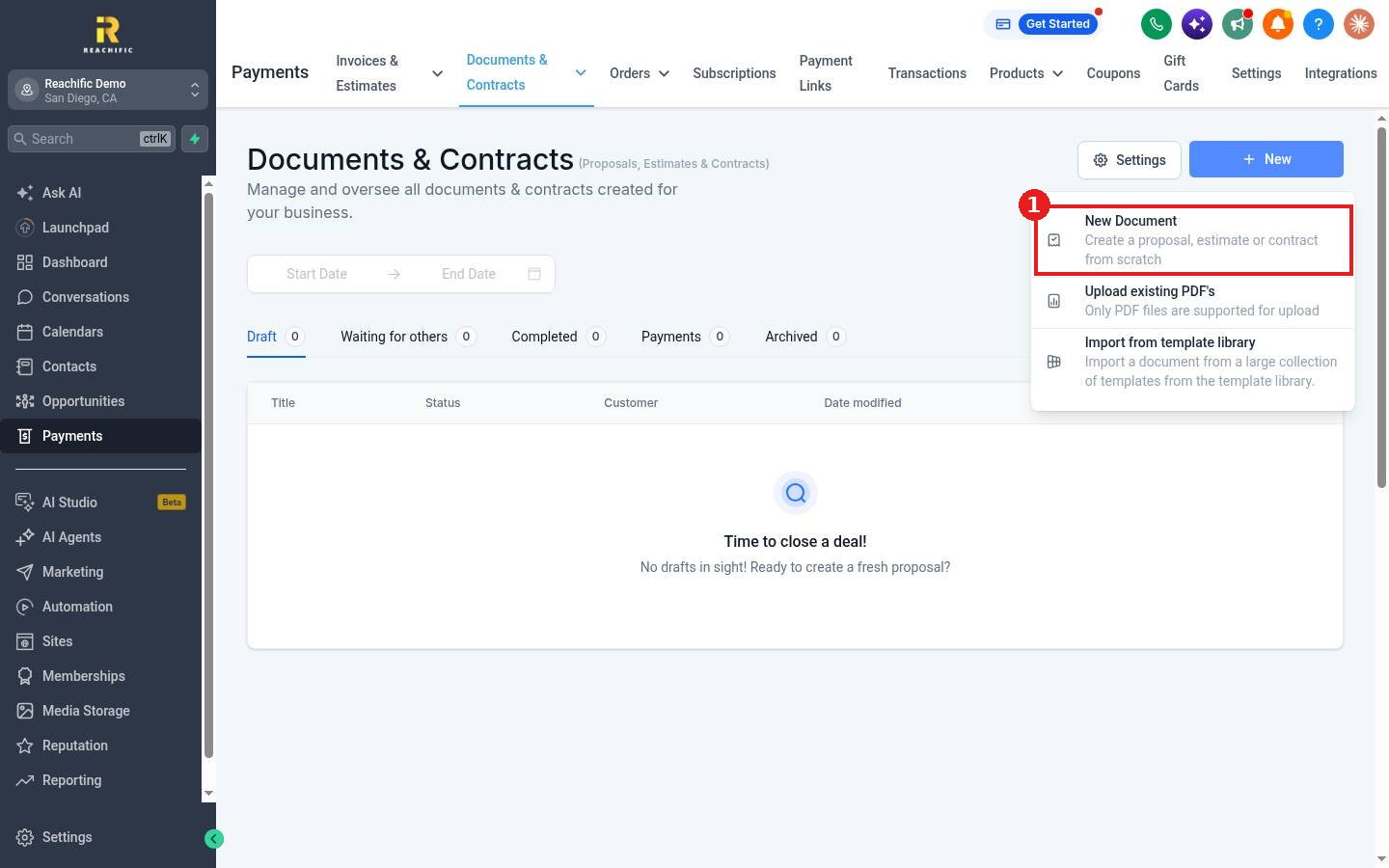
Choose New Document (1) to build from scratch. You can also upload an existing PDF or import a template from the template library.
Step 2: Add your content and a signature field
- Click the document title at the top and give it a clear name, for example the client and service.
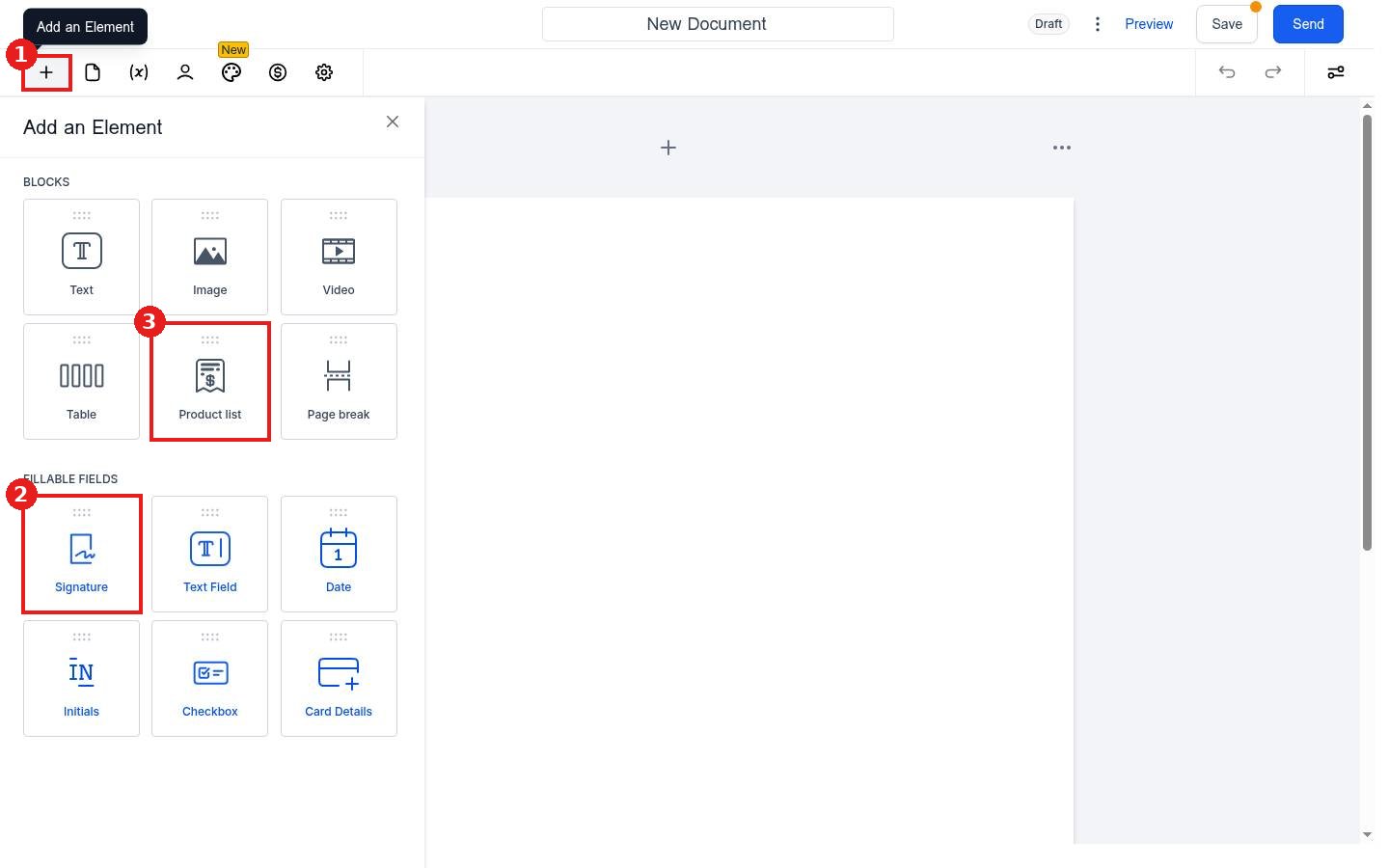
- Click the + icon (1) to open Add an Element.
- Drag Text blocks onto the page for your terms. Use Product list (3) if you want prices on the contract.
- Under Fillable fields, drag a Signature field (2) to where the client should sign. Add Date or Initials if you need them.
Step 3: Choose who signs and send
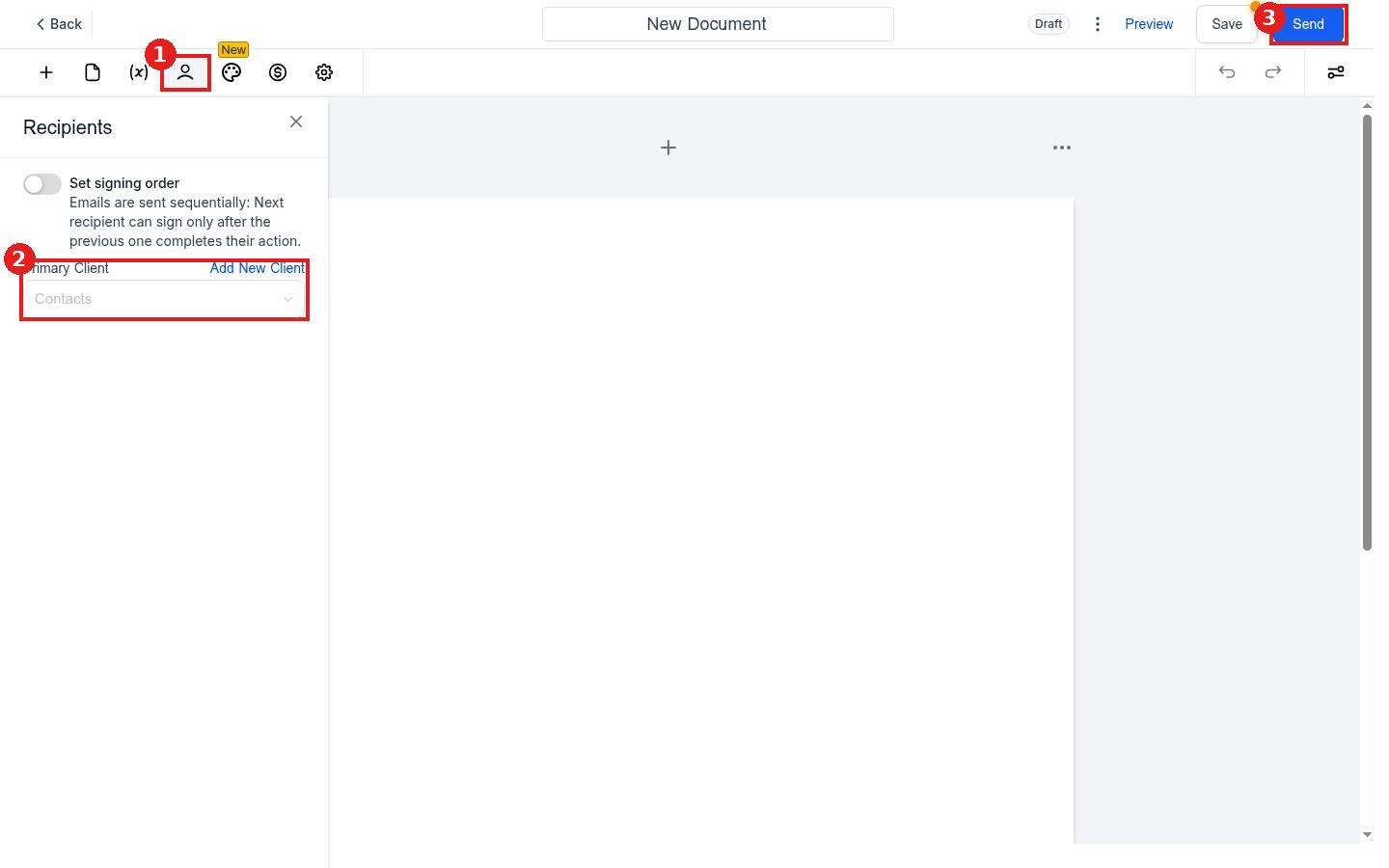
- Click the Recipients icon (1) in the toolbar.
- Under Primary Client (2), pick the contact, or click Add New Client.
- Turn on Set signing order if more than one person signs and they must sign one after another.
- Click Send (3). Use Preview first to check how it looks.
Step 4: Track the signature
Back on the Documents & Contracts page, use the tabs: Draft, Waiting for others, Completed, Payments and Archived. A sent contract sits in Waiting for others until it is signed.
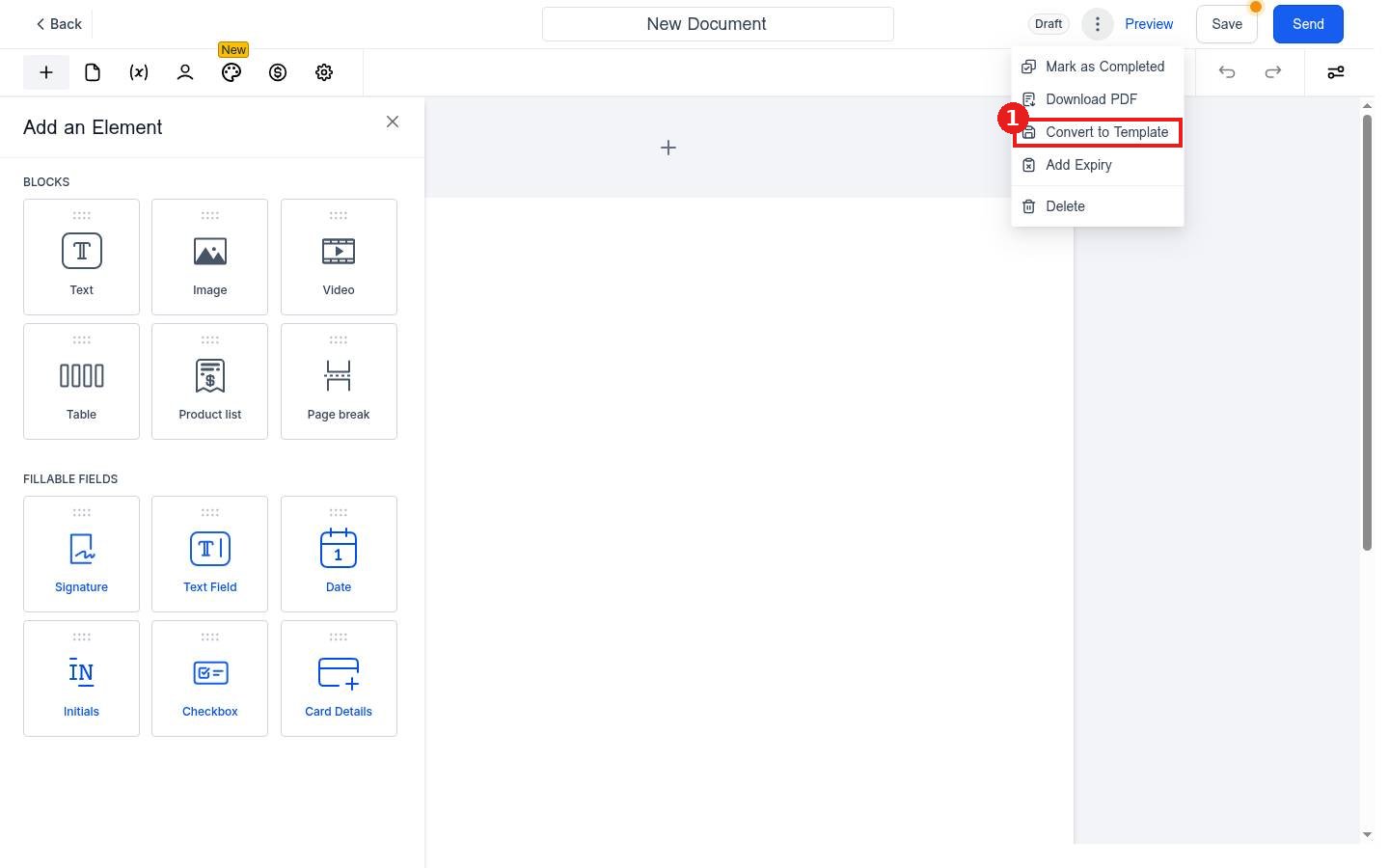
The three dots menu in the editor also lets you Download PDF, Add Expiry, Mark as Completed or Convert to Template.
FAQ
Can I send a PDF I already have?
Yes. Click New, choose Upload existing PDF, then add Signature and other fillable fields on top of it.
Can I reuse the same contract?
Yes. Use Convert to Template, or build one under Templates. See How do I build a reusable proposal template?
Can the client pay when they sign?
Add a Product list to the document and connect a payment provider first. See How do I connect Stripe to take payments?
Want us to handle it? Our team can build your contract and proposal templates so every deal goes out signed and paid faster. Book a free strategy call and get a free quote.
Related articles
- How do I create and send an estimate?
- How do I create and send an invoice?
- How do I add a contact by hand?
Still stuck? Submit a ticket and our team will help. Need faster answers? See our support plans.
