
How do I create and send an estimate?
Quick answer: Go to Payments > Invoices & Estimates > Estimates and click New Estimate. Add the customer, check the estimate number, issue date and expiry date, add your products, then click Send. Pick email, text or both, choose Live and click Send. Your customer gets a link to view the estimate.
Before you start
- Add the services you quote as products in Payments > Products so you can add them in one click. You can also create a product while you build the estimate.
- The customer must be a contact with an email address or phone number.
- Charge tax? Set your rates first. See How do I set my payment and tax settings?
Step 1: Open Estimates
Click Payments in the left menu, then open the Invoices & Estimates menu at the top (1) and choose Estimates (2). Click New Estimate (3).
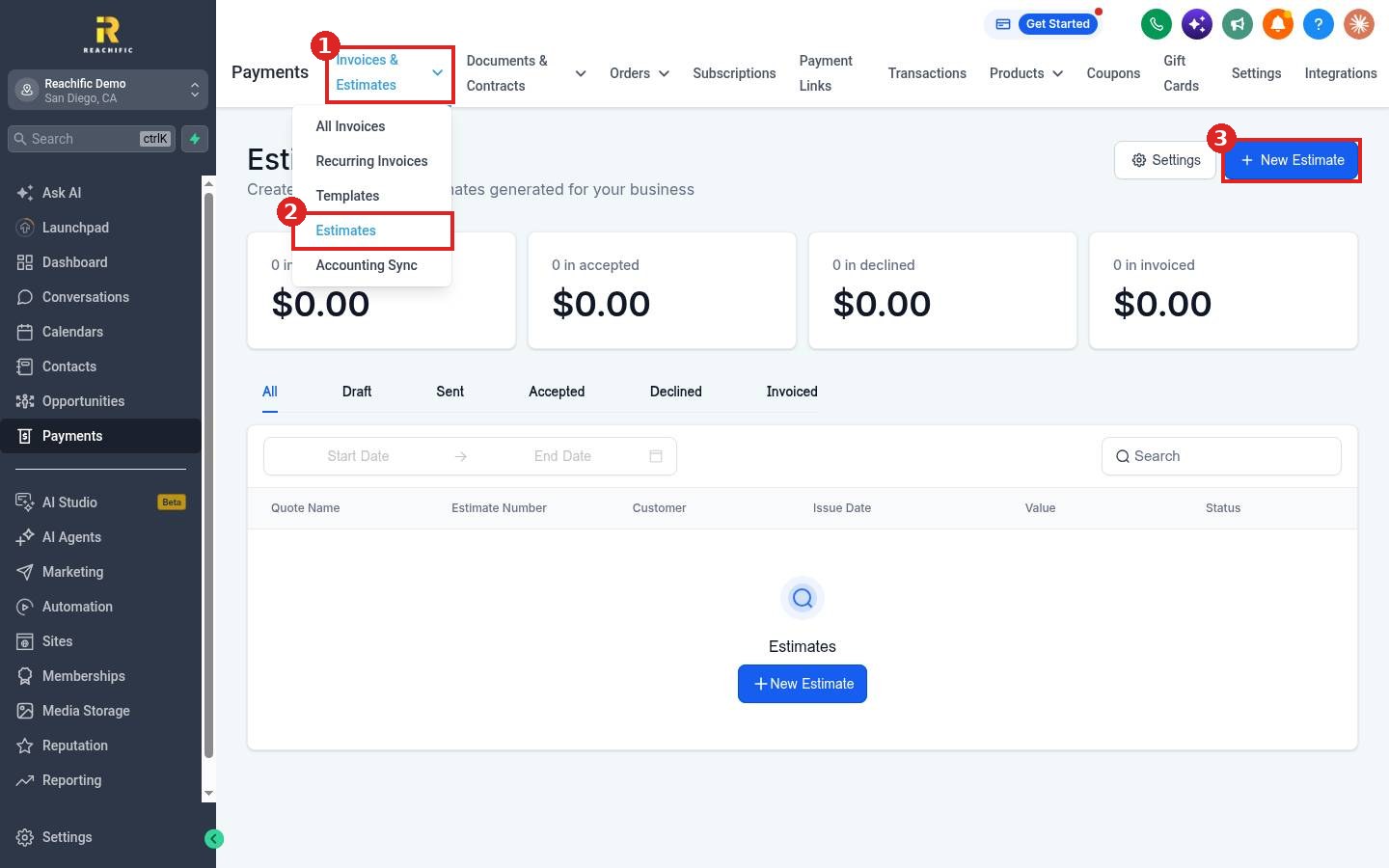
The Estimates page shows totals for sent, accepted, declined and invoiced estimates, with tabs to filter by status.
Step 2: Fill in the estimate
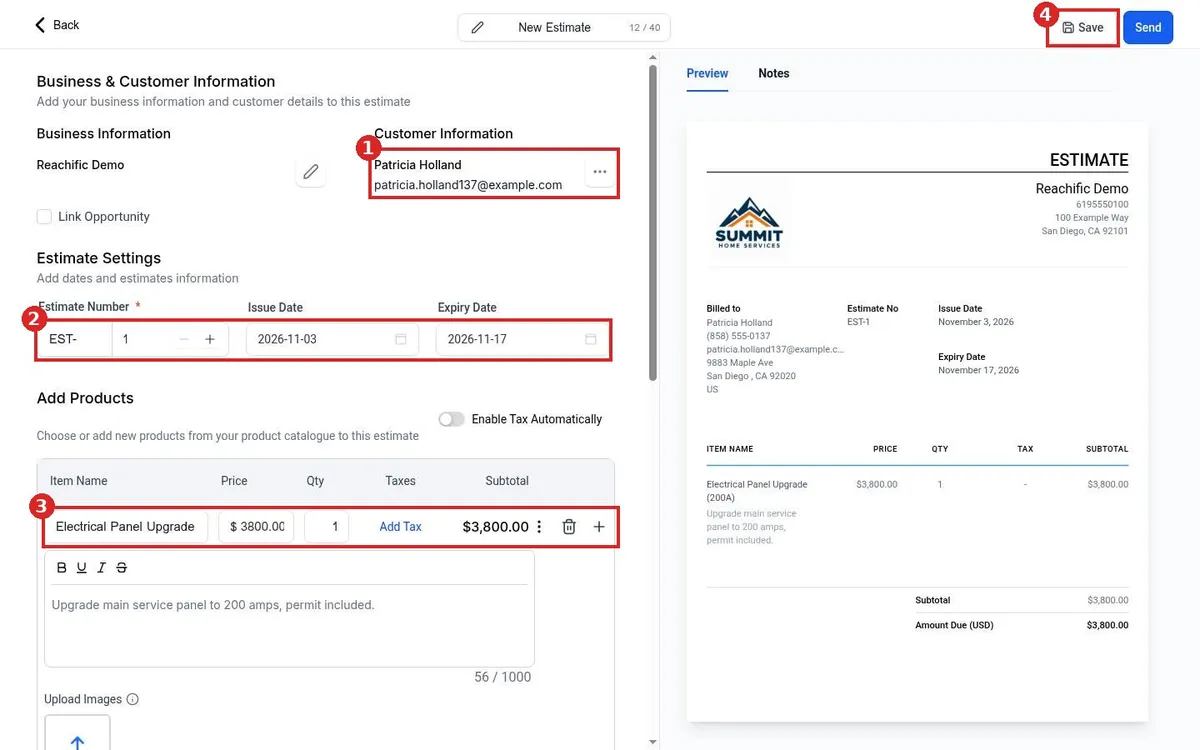
- Under Customer Information (1), click Add Customer, type a name and pick the contact, or click New Customer. Check Link Opportunity to tie the estimate to a deal in your pipeline.
- Under Estimate Settings (2), check the Estimate Number, Issue Date and Expiry Date.
- Under Add Products, click Add products and choose an item (3), or click Create Product. Edit the price, quantity and description. You can also upload images of the job.
- Click Save (4). The preview on the right shows what your customer will see.
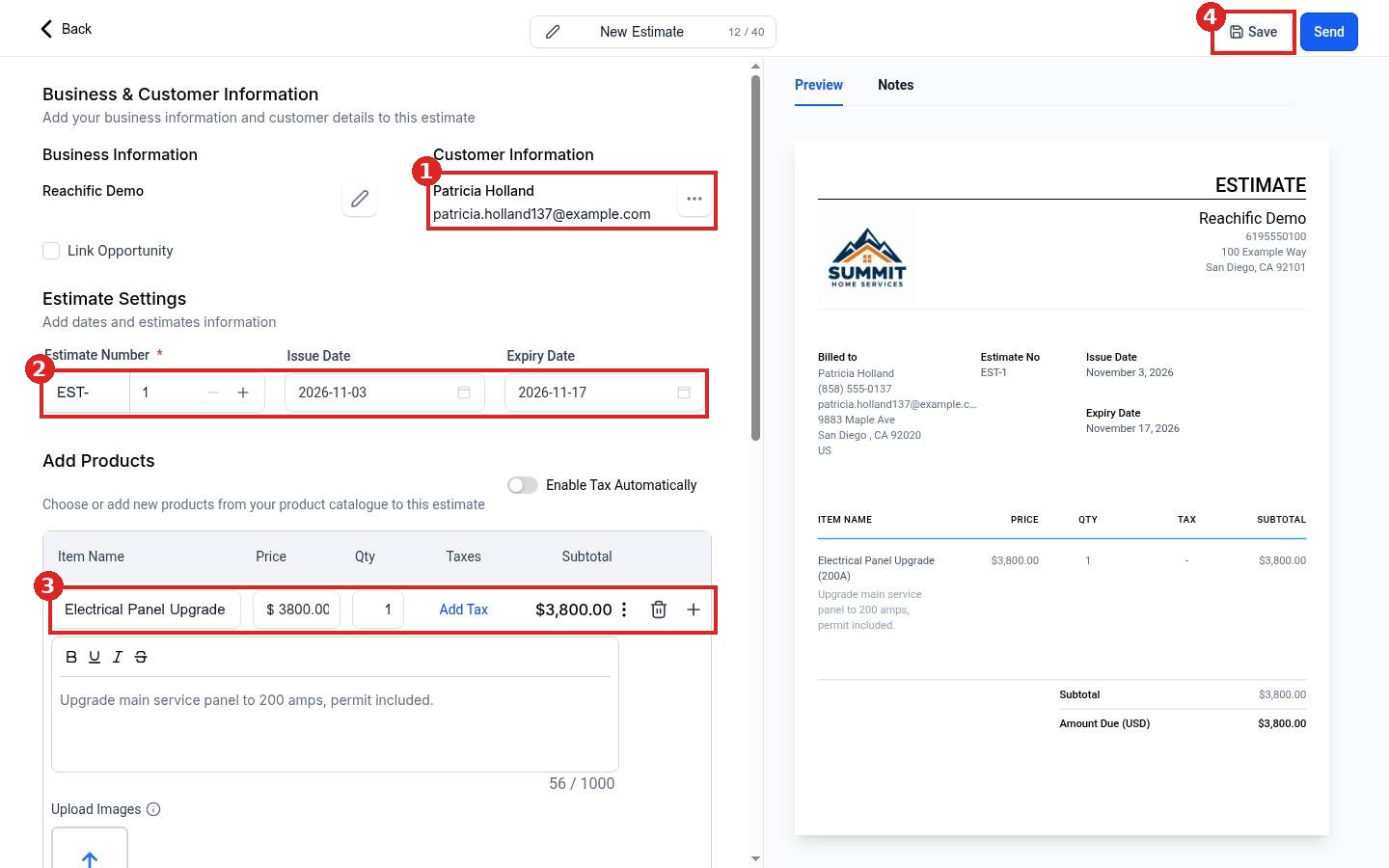
Below the products you can add a discount, tax and a payment schedule, plus terms and conditions or an attachment under Additional Options.
Step 3: Send the estimate
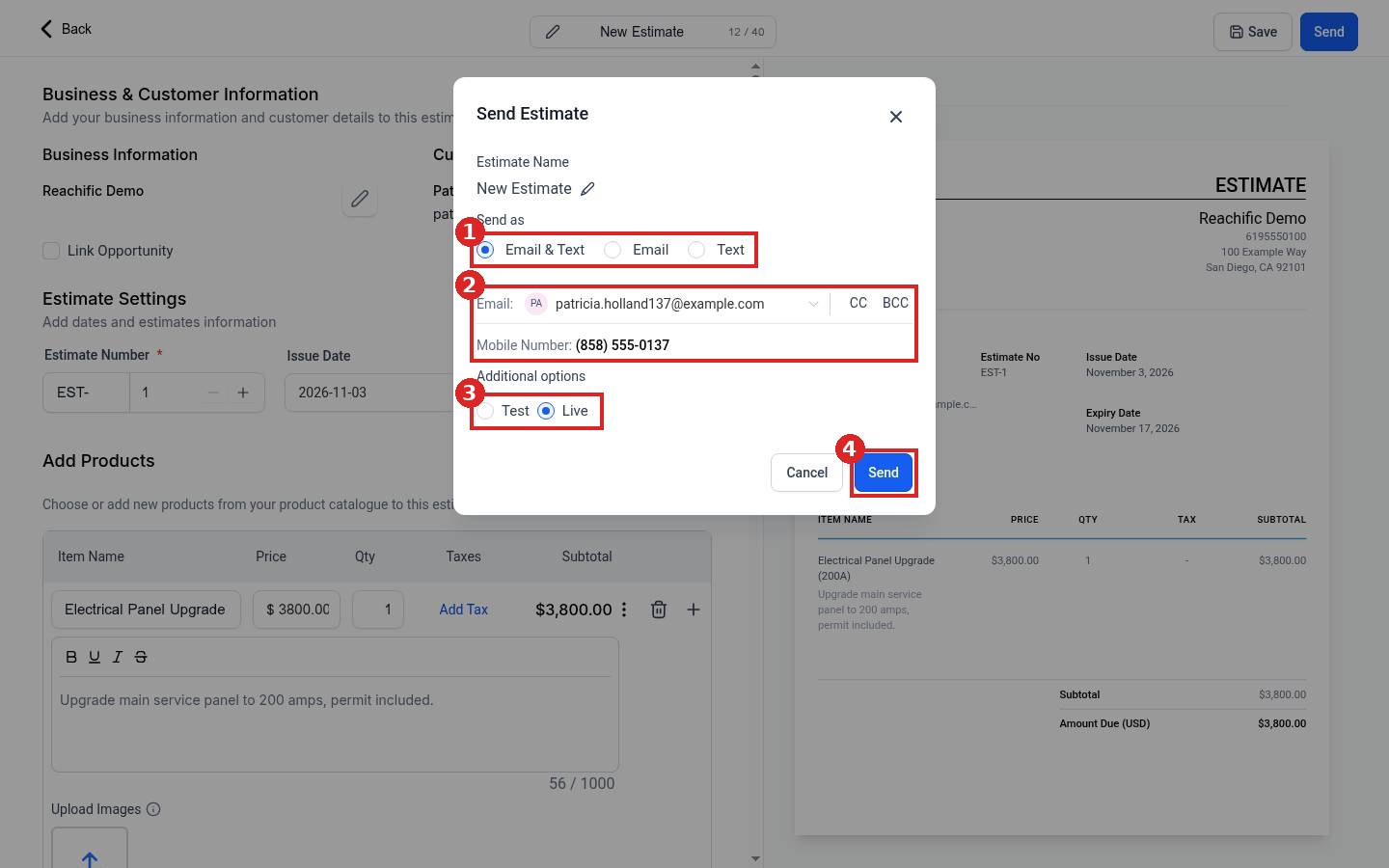
Click Send at the top right. In the Send Estimate window:
- Under Send as (1), pick Email & Text, Email or Text.
- Check the customer email and mobile number (2). Use CC or BCC to copy someone else.
- Under Additional options (3), choose Test to send a sample or Live to send the real estimate.
- Click Send (4).
Step 4: Track the answer
Back on the Estimates page, use the Sent, Accepted, Declined and Invoiced tabs to see where each estimate stands. When the customer says yes, turn the estimate into an invoice so you can get paid.
FAQ
What is the difference between an estimate and an invoice?
An estimate is a price quote before the work. An invoice asks for payment. See How do I create and send an invoice?
Can I take a deposit on an estimate?
Use Add Payment Schedule below the products to split the total into parts.
Does sending by text cost anything?
Texts are usage based and billed to your wallet per message segment, and sending texts requires a Reachific phone number.
Want us to handle it? Our team can build your estimate templates, product catalog and follow up reminders so more quotes turn into booked jobs. Book a free strategy call and get a free quote.
Related articles
- How do I create and send an invoice?
- How do I set up a recurring invoice?
- How do I set my payment and tax settings?
Still stuck? Submit a ticket and our team will help. Need faster answers? See our support plans.
