
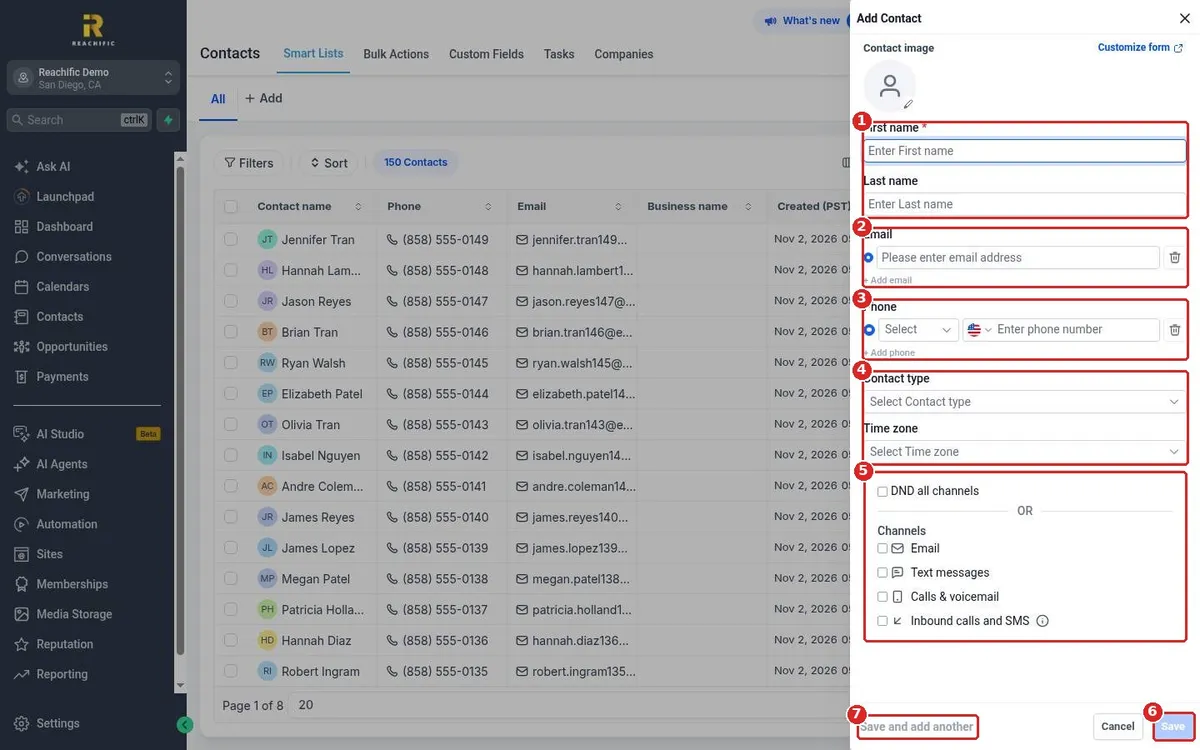
How do I add a contact by hand?
Quick answer: Click Contacts in the left menu, then click the add contact icon next to Import. Enter the First name (required), last name, email and phone. Pick a Contact type and Time zone, check any DND boxes the person asked for, and click Save.
Before you start
- Adding many people at once? Use an import instead. See How do I import contacts from a CSV file?
- Only First name is required, but add an email or phone so you can reach them.
Step 1: Open the Add Contact panel
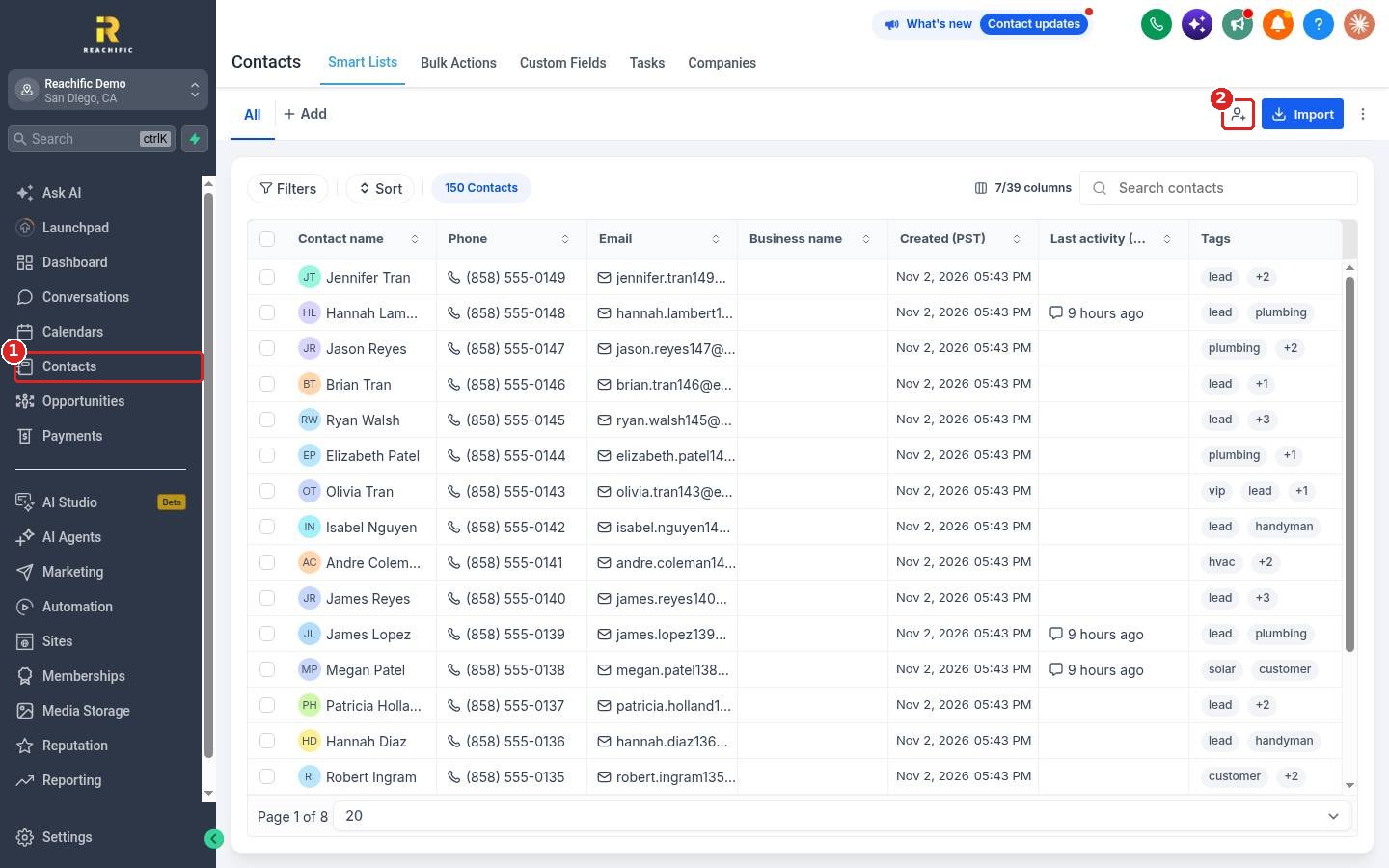
Click Contacts (1) in the left menu. Click the add contact icon (2) at the top right, next to Import.
Step 2: Fill in the details and save
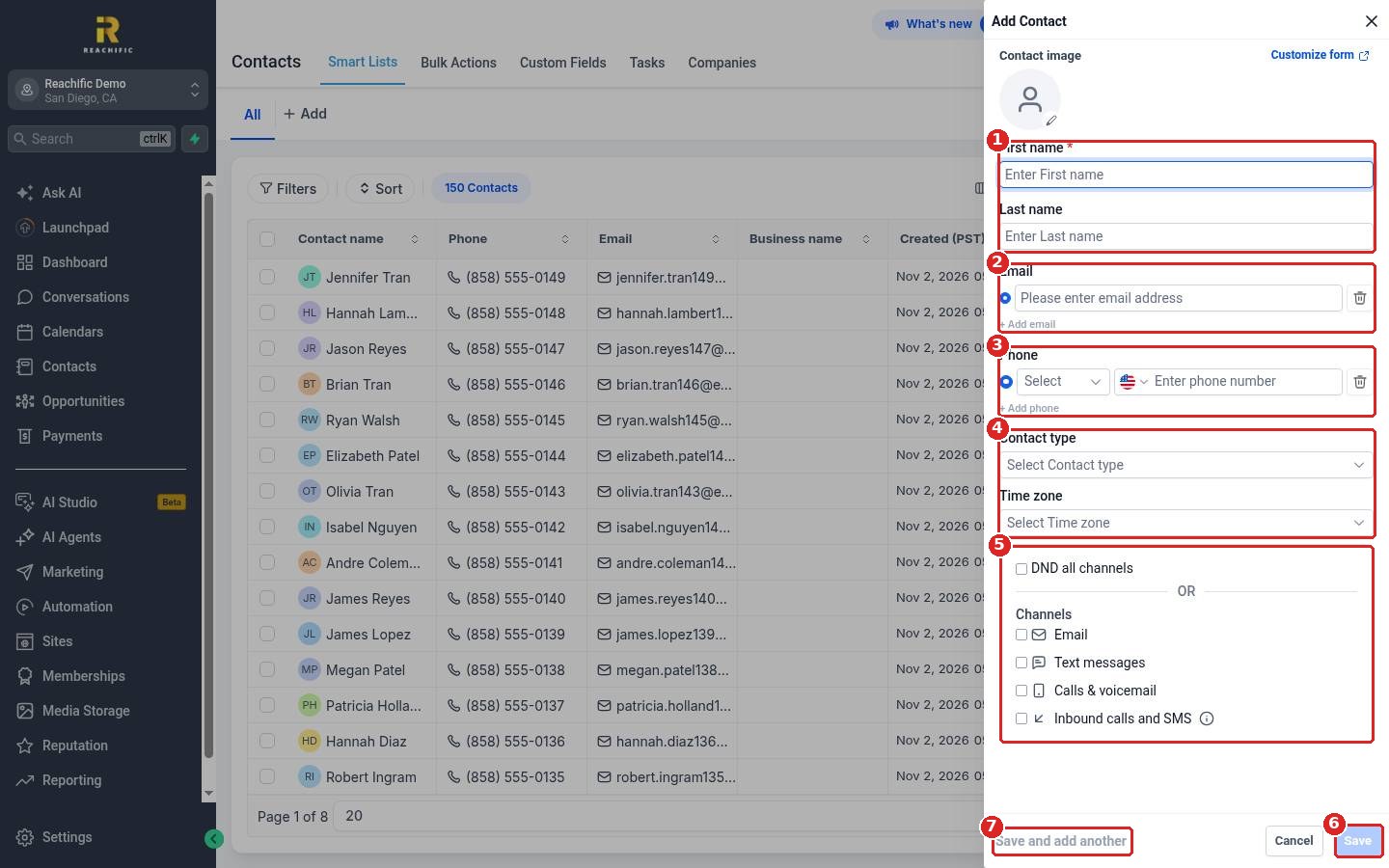
Type the First name and Last name (1). Add an Email (2) and a Phone (3); use + Add email or + Add phone for extras. Choose a Contact type and Time zone (4). If the person asked not to be contacted, check DND all channels or just the channels they chose (5). Click Save (6), or Save and add another (7) to keep going.
FAQ
What happens if the contact already exists?
Reachific checks for duplicates by email or phone, based on your contact deduplication setting in Business Profile.
Can I add more fields to this form?
Yes. Click Customize form at the top of the panel to choose which fields show.
What does DND mean?
Do Not Disturb. A contact with DND on a channel will not get messages on that channel from Reachific.
Want us to handle it? Our team can import and clean up your customer list so your CRM is ready to use. Book a free strategy call and get a free quote.
Related articles
- How do I import contacts from a CSV file?
- How do I add or remove tags on contacts?
- How do I add notes and tasks to a contact?
Still stuck? Submit a ticket and our team will help. Need faster answers? See our support plans.
