
How do I edit a contact's details?
Quick answer: Open Contacts and click the contact's name. In the left panel, click the field you want to change, such as first name, email or phone, type the new value and save.
Step 1: Open the contact
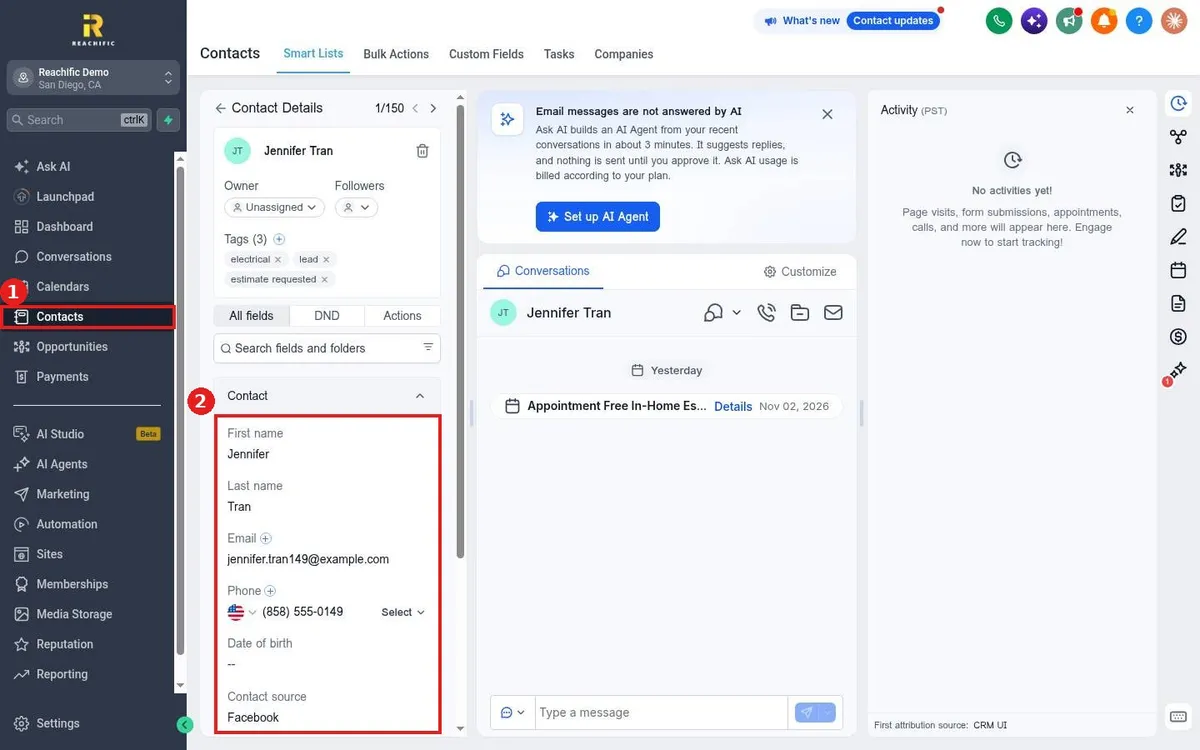
Click Contacts in the left menu (1), then click the contact's name in the list. You can also search by name, email or phone at the top of the list.
Step 2: Change the field
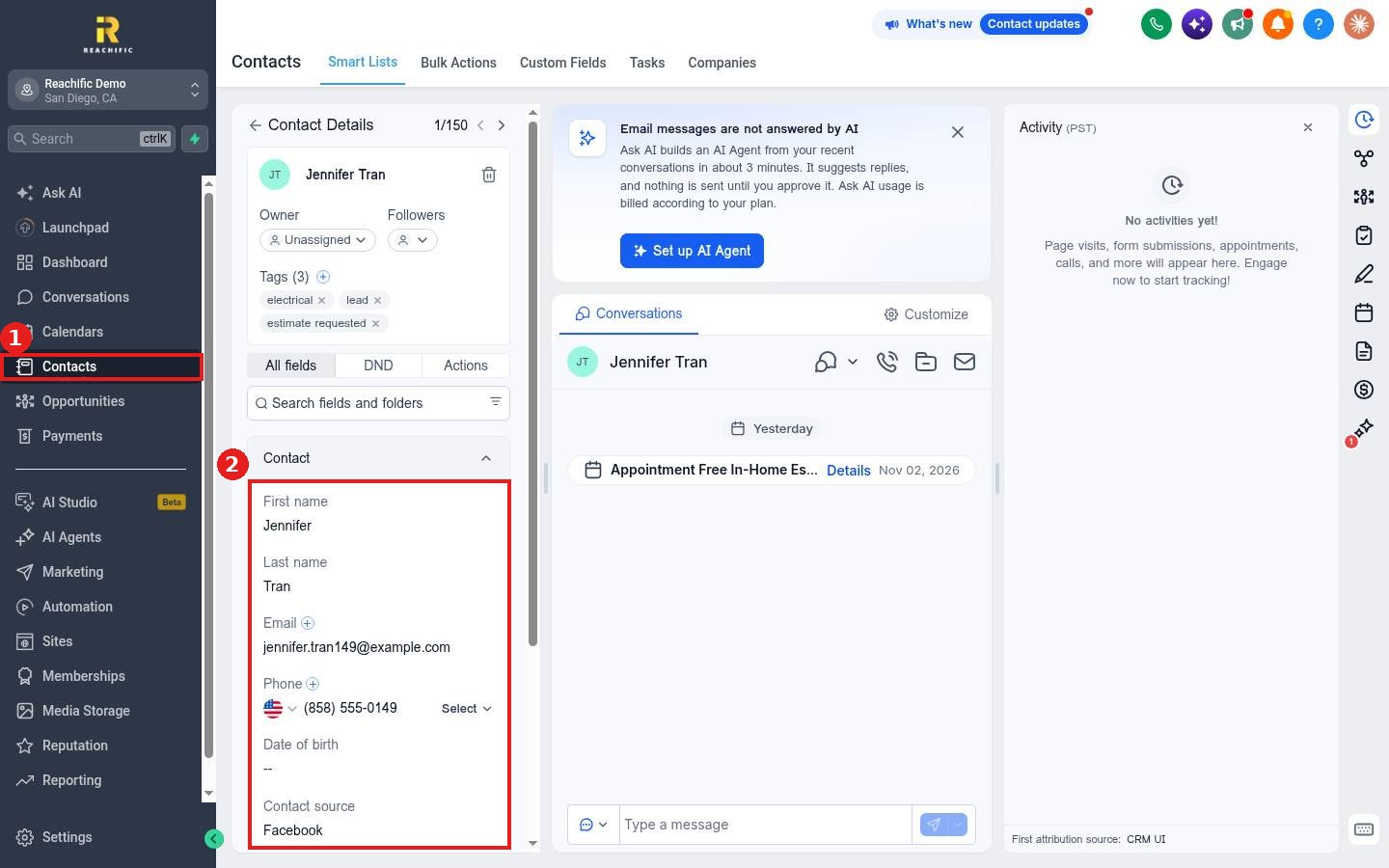
The All fields panel on the left (2) lists every field, grouped into folders like Contact and General Info. Click a value to edit it. Use Search fields and folders to jump to a field fast.
Step 3: Save
Save your change when prompted, then check the field shows the new value.
FAQ
How do I change the owner or tags?
Use Owner and Tags at the top of the same panel. See How do I add or remove tags on contacts?
Can I see who changed a contact?
Yes. Click Audit logs at the bottom of the panel.
Can I add a field that is not there?
Yes. Create a custom field. See How do I create a custom field for contacts?
Want us to handle it? Our team can clean up and organize your contact data. Book a free strategy call and get a free quote.
Related articles
- How do I add a contact by hand?
- How do I add notes and tasks to a contact?
- How do I see a contact's full activity history?
Still stuck? Submit a ticket and our team will help. Need faster answers? See our support plans.
