
How do I create a custom field for contacts?
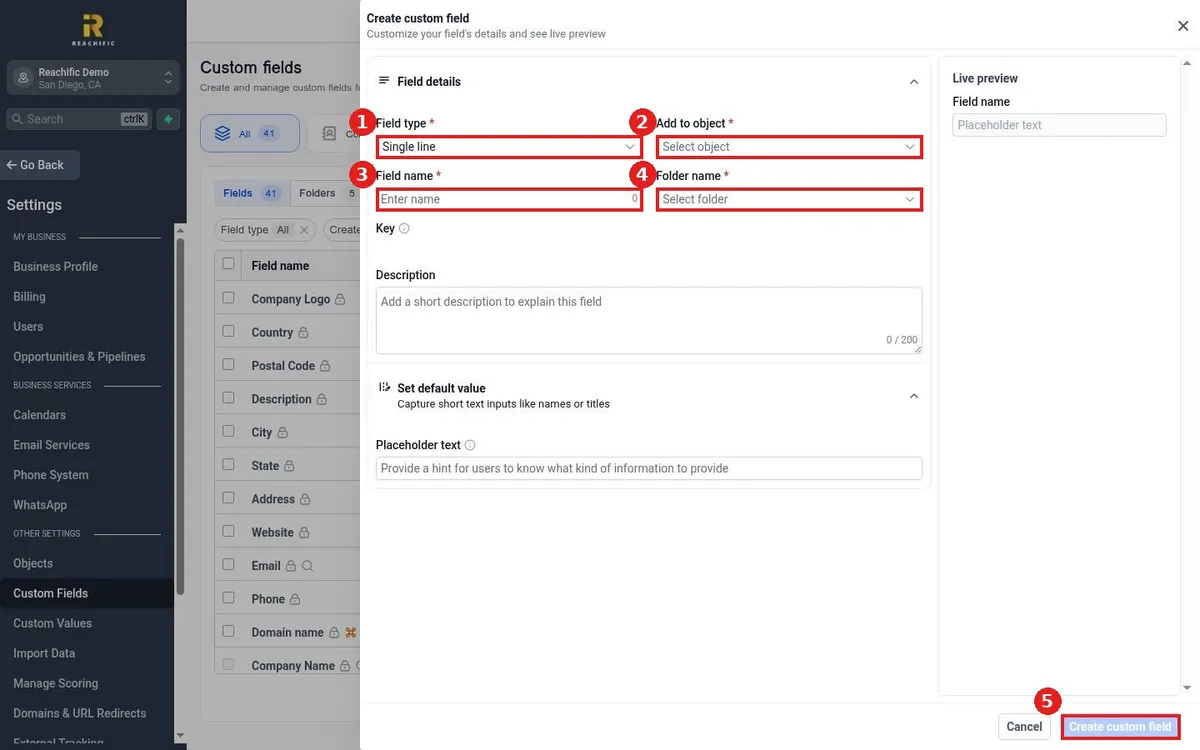
Quick answer: Open Contacts, then Custom Fields, and click Create field. Pick a Field type, set Add to object to Contact, enter a Field name, choose a Folder name and click Create custom field.
Before you start
- Pick the right type: Single line for short text, Dropdown for set choices, Date for dates, Number for amounts.
Step 1: Open Custom Fields
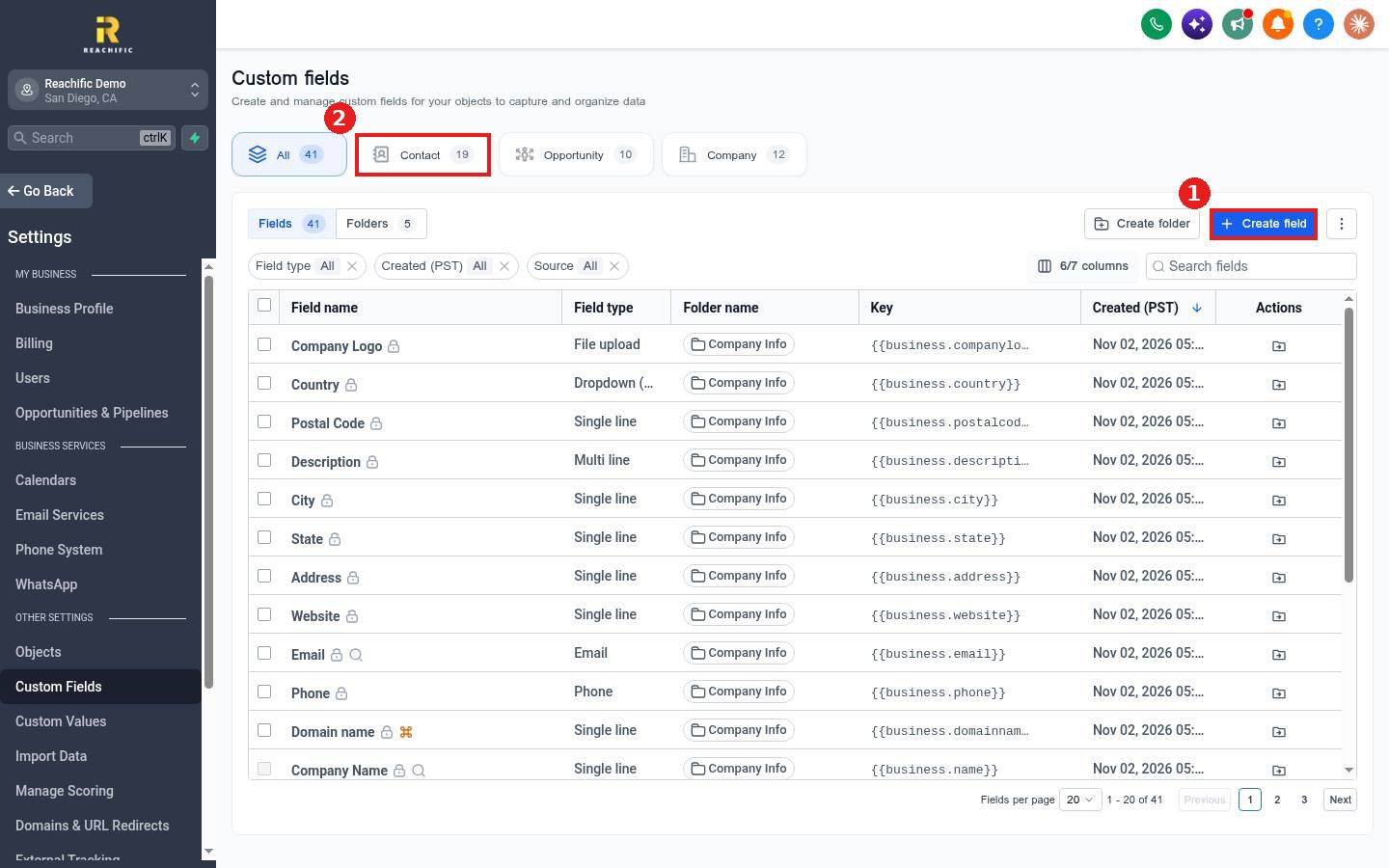
Click Create field (1). Use the Contact filter (2) to see only contact fields.
Step 2: Fill in the field details
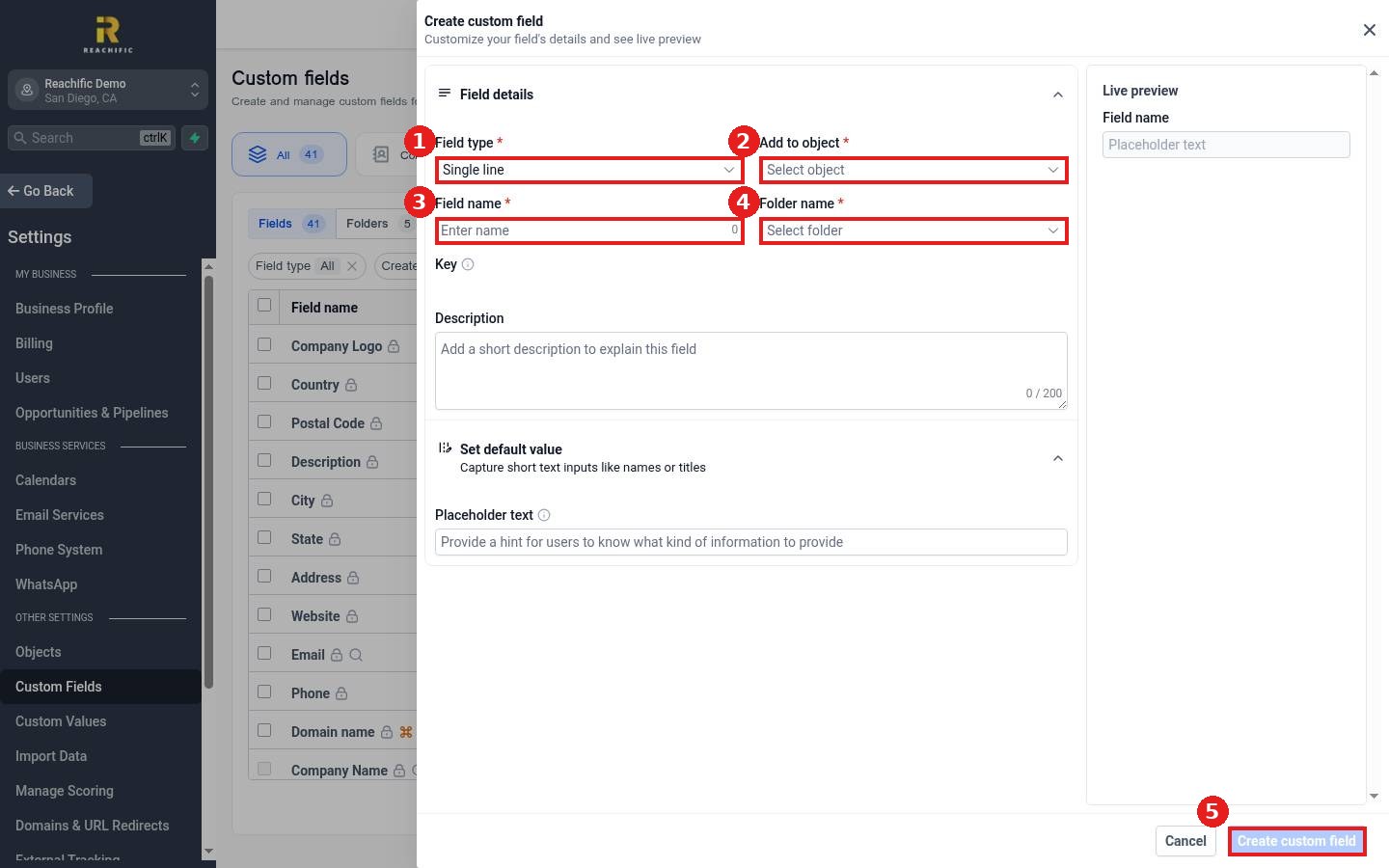
Choose the Field type (1) and set Add to object to Contact (2). Type a clear Field name (3), like Roof Age, and pick a Folder name (4) so it shows in the right group on the contact. The Live preview on the right shows how it will look.
Step 3: Create
Click Create custom field (5). The field now appears on every contact and can be used in forms, filters and workflows.
FAQ
What is the Key?
It is the merge field, like {{contact.roof_age}}, that you paste into messages to insert the value.
Can I add custom fields to opportunities?
Yes. Set Add to object to Opportunity.
Can I change the type later?
Plan the type up front. Changing types later can affect saved data.
Want us to handle it? Our team can design the fields your business needs and add them to forms. Book a free strategy call and get a free quote.
Related articles
- How do I organize custom fields into folders?
- How do I build a form?
- How do I edit a contact's details?
Still stuck? Submit a ticket and our team will help. Need faster answers? See our support plans.
