
How do I add or remove tags on contacts?
Quick answer: For one contact, open their record and click the plus next to Tags to add a tag, or the small x on a tag to remove it. For many contacts, check them in the list, click Add tags, enter an action name, pick the tags and click Add tags.
Before you start
- Keep tag names short and consistent, like lead, customer or hvac. Workflows and smart lists use them.
- Adding a tag can start a workflow if one is set to trigger on that tag.
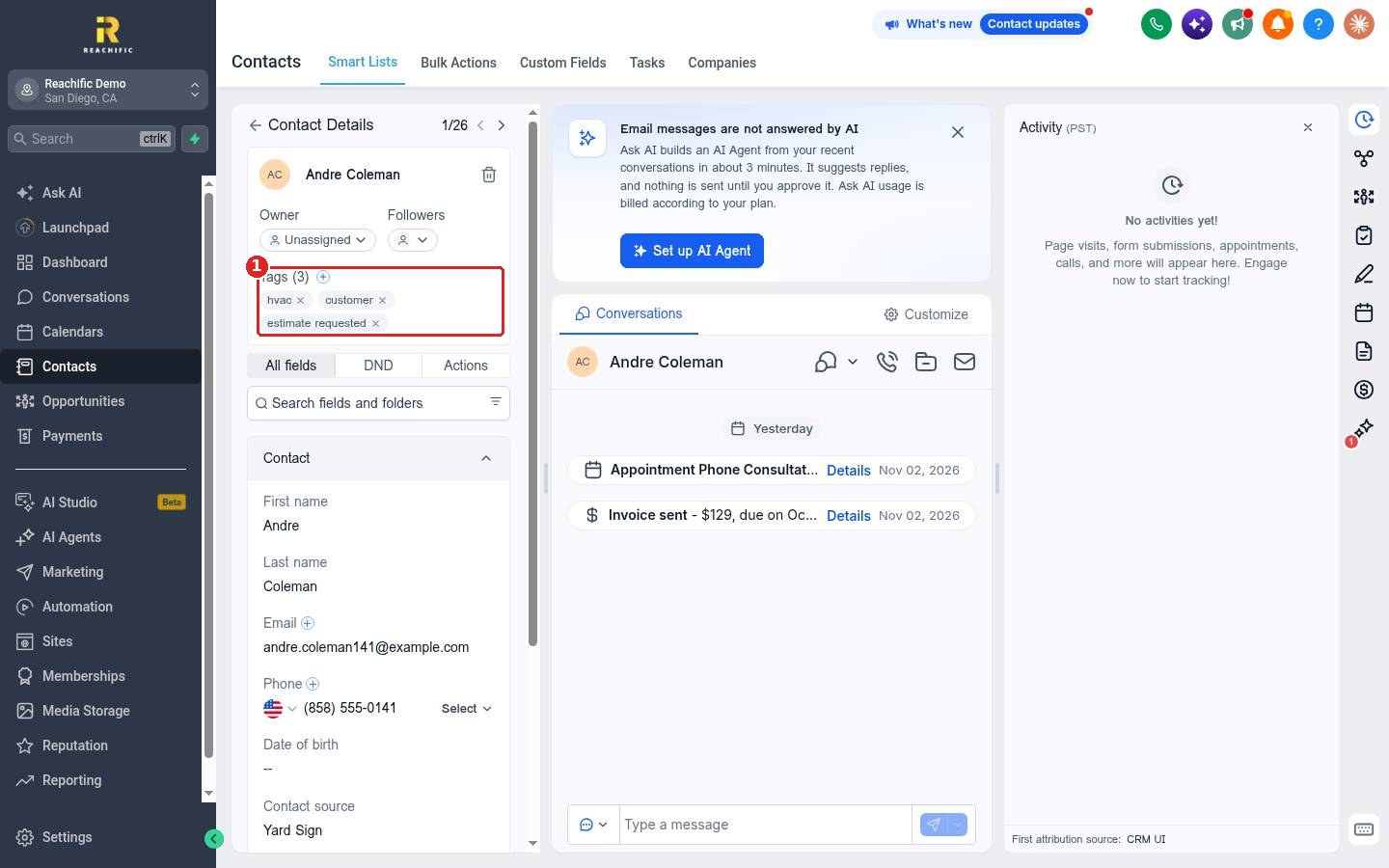
Step 1: Tag one contact
Open the contact. In the Tags area (1), click the plus to add a tag, or click the x on a tag to remove it.
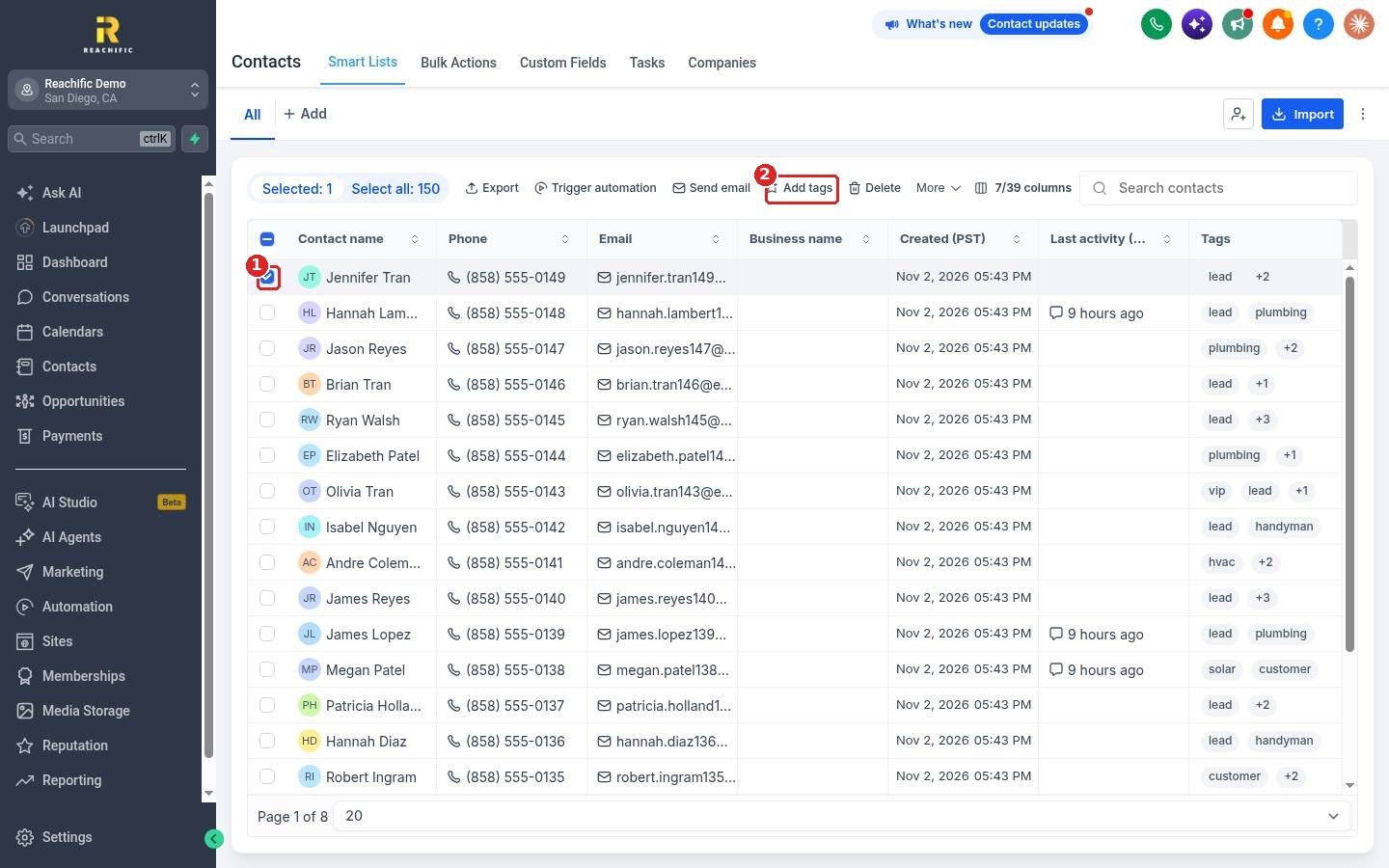
Step 2: Tag many contacts at once
In Contacts, check the box next to each contact (1), then click Add tags (2) in the bar that appears.
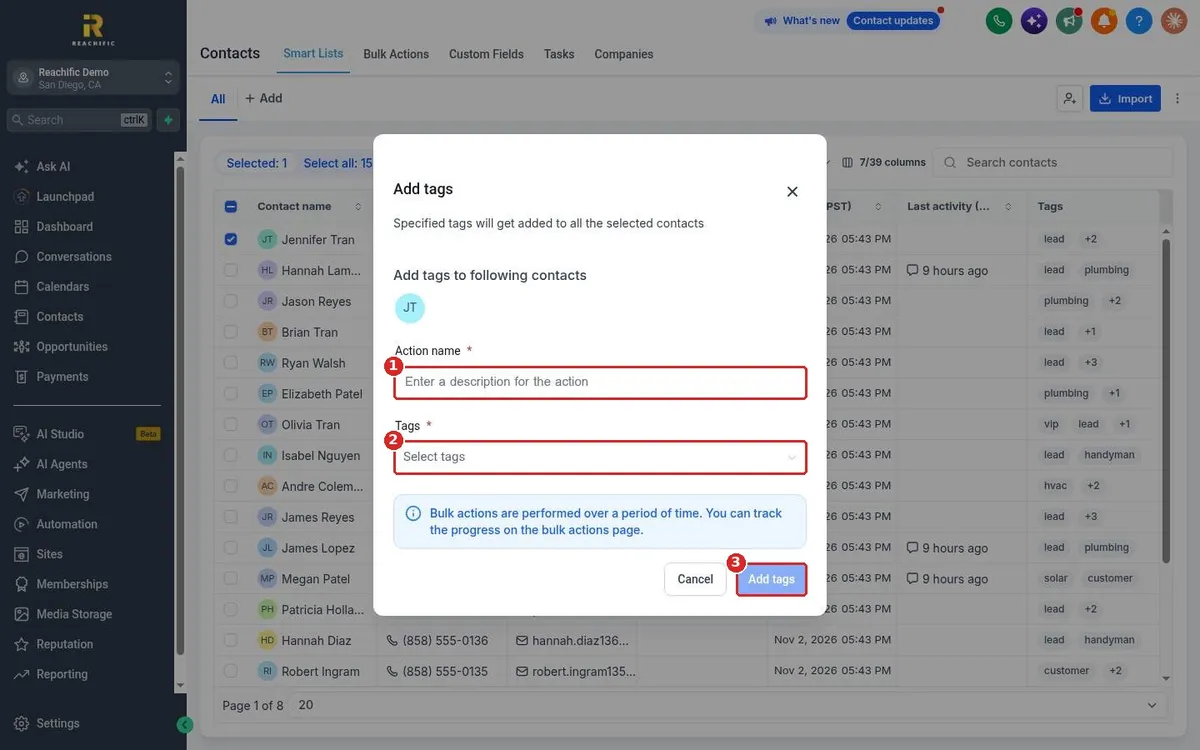
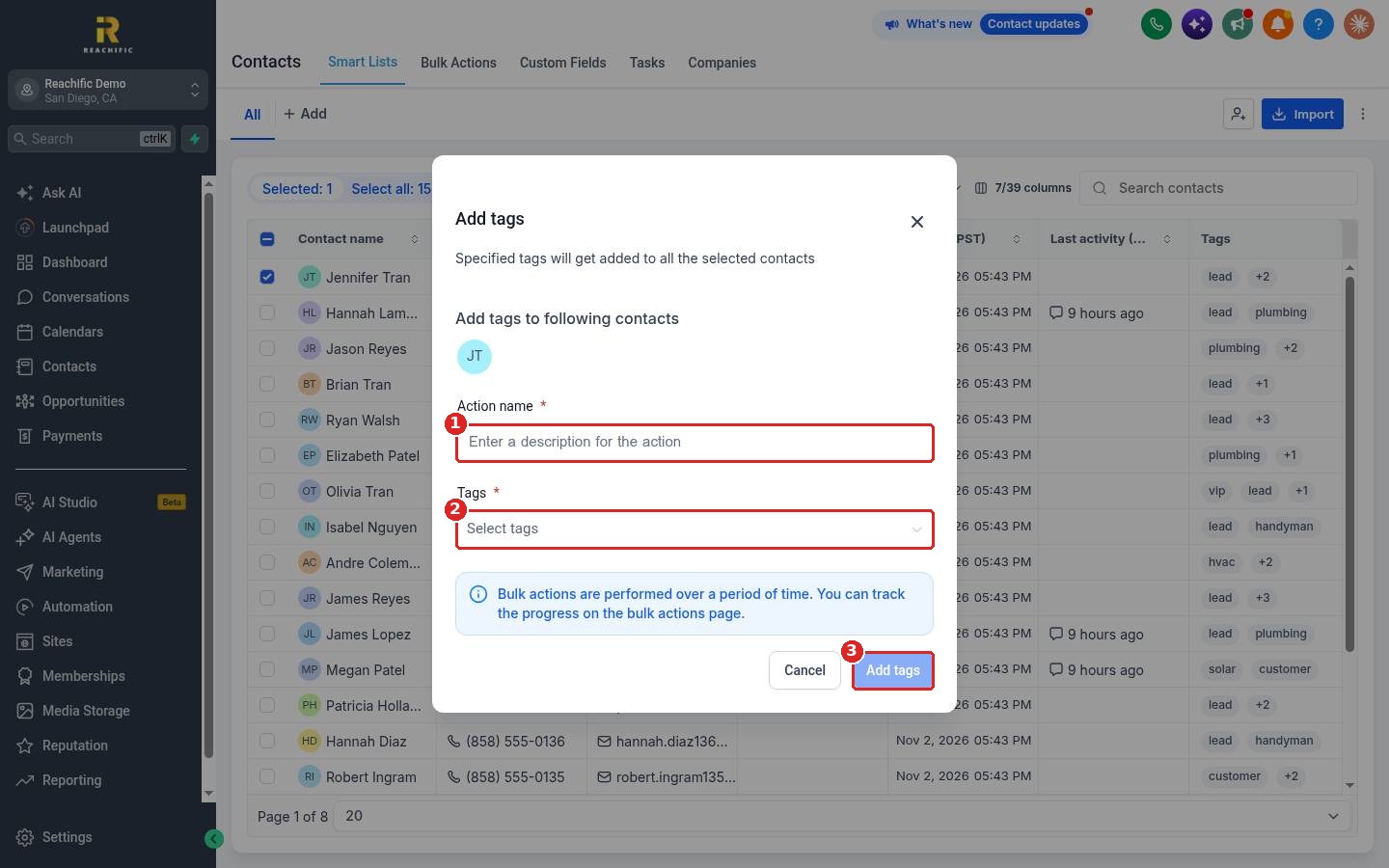
Step 3: Pick the tags and confirm
Enter an Action name (1) so you can find this job later, like Tag spring promo list. Choose one or more Tags (2) and click Add tags (3).
FAQ
How do I remove a tag from many contacts?
Select the contacts and open More in the action bar to find the remove tags option.
Where do I manage all my tags?
Go to Settings, then Tags, to create, rename or delete tags.
Why did not every contact get the tag right away?
Bulk actions run over a few minutes. Check progress on the Bulk Actions tab in Contacts.
Want us to handle it? Our team can design a simple tag system and automations that run off it. Book a free strategy call and get a free quote.
Related articles
- How do I create a smart list with filters?
- How do I add a contact by hand?
- How do I create my first workflow?
Still stuck? Submit a ticket and our team will help. Need faster answers? See our support plans.
