
How do I add notes and tasks to a contact?
Quick answer: Open the contact. On the icon bar at the far right, click Notes or Tasks, then click Add. For a note, type a description and click Save. For a task, enter a title, set the due date and time, pick who it is assigned to and click Create.
Before you start
- Open a contact by clicking their name in Contacts.
- Use notes for things to remember, like gate codes or preferences. Use tasks for things someone has to do by a date.
Step 1: Open Notes or Tasks
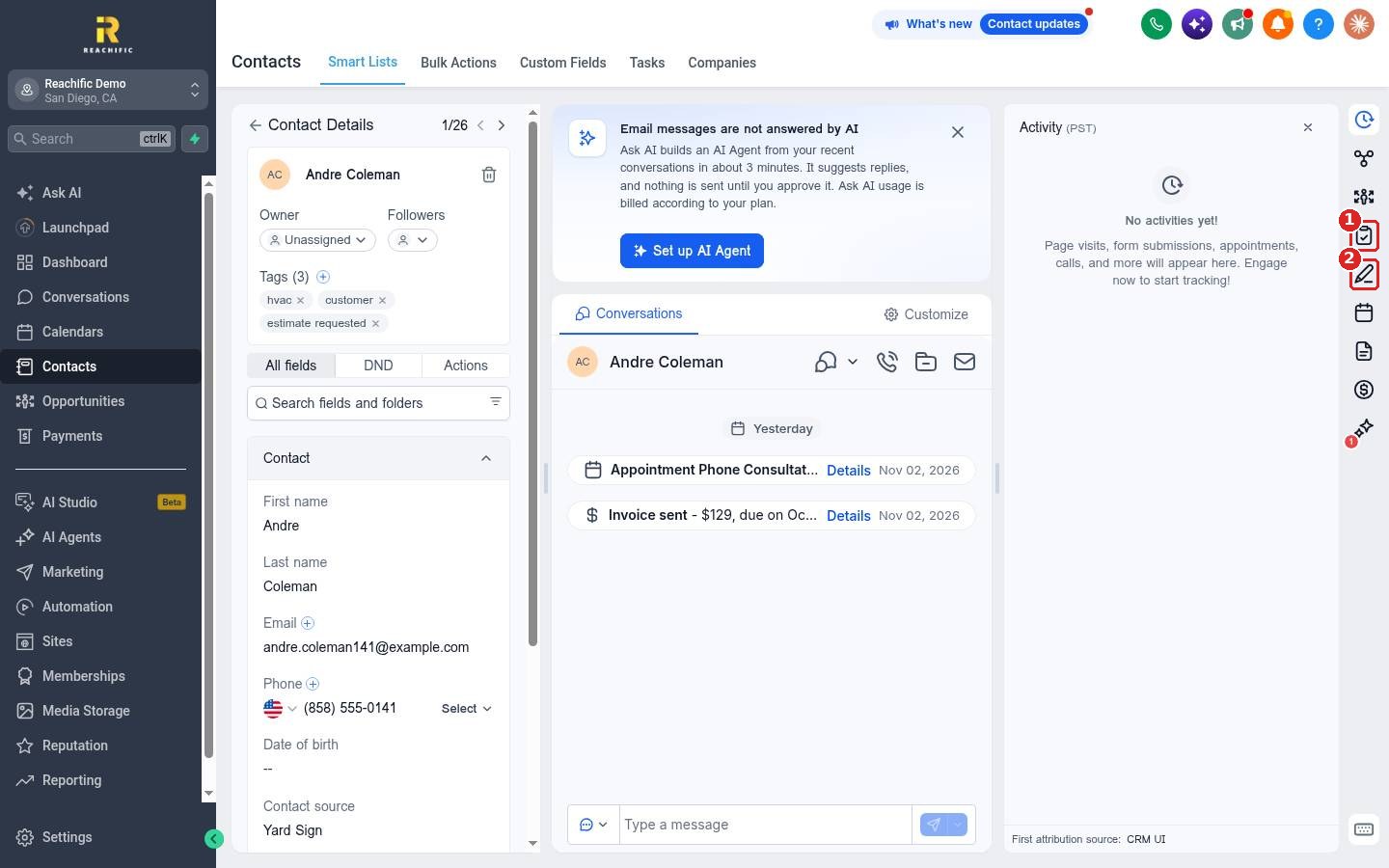
On the contact record, find the icon bar on the far right. Click the Tasks icon (1) or the Notes icon (2). Then click Add at the top of the panel.
Step 2: Add a note
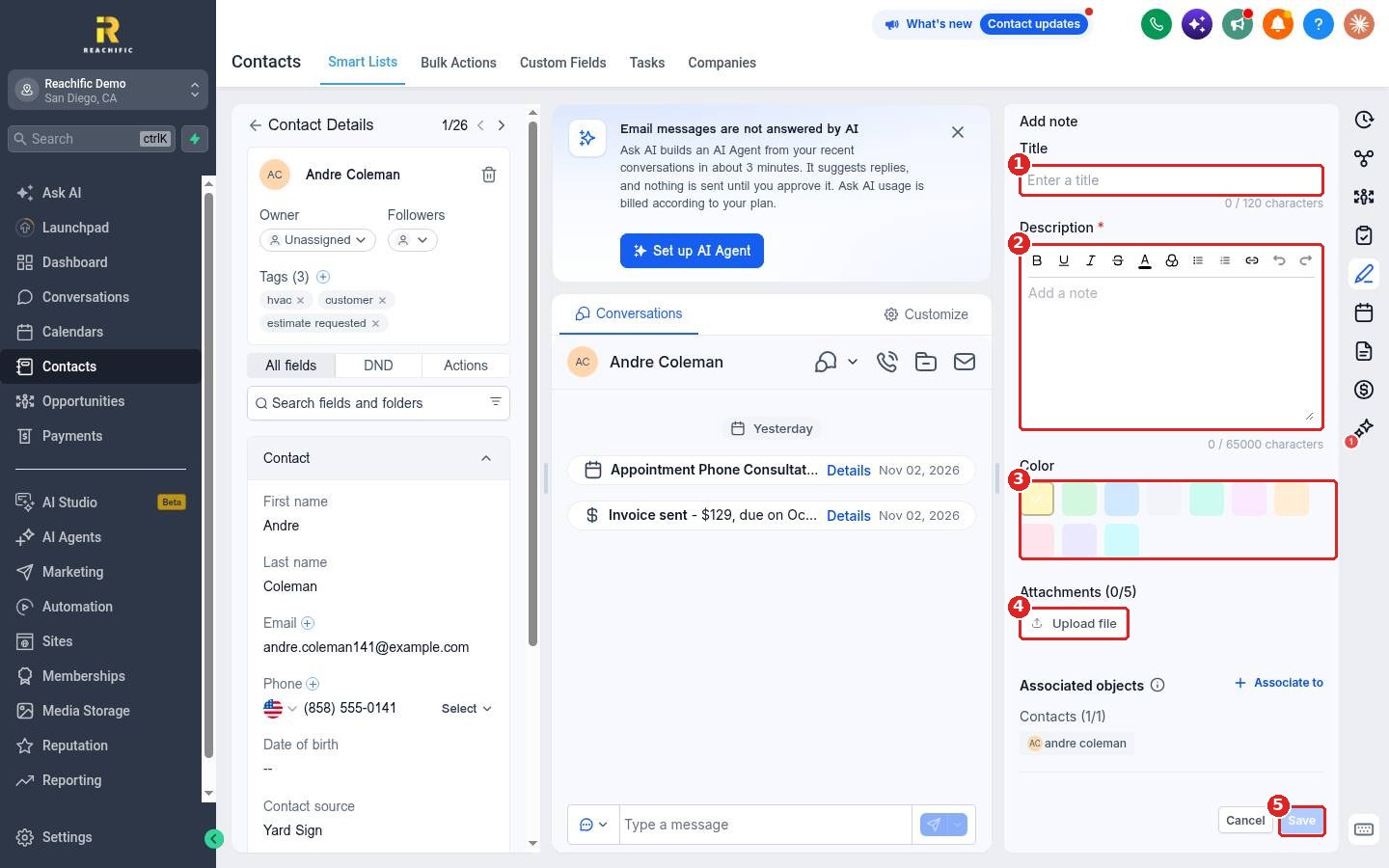
Give the note a Title (1) if you like, and type the note in Description (2), which is required. Pick a Color (3) to make it stand out, and use Upload file (4) to attach up to 5 files. Click Save (5).
Step 3: Add a task
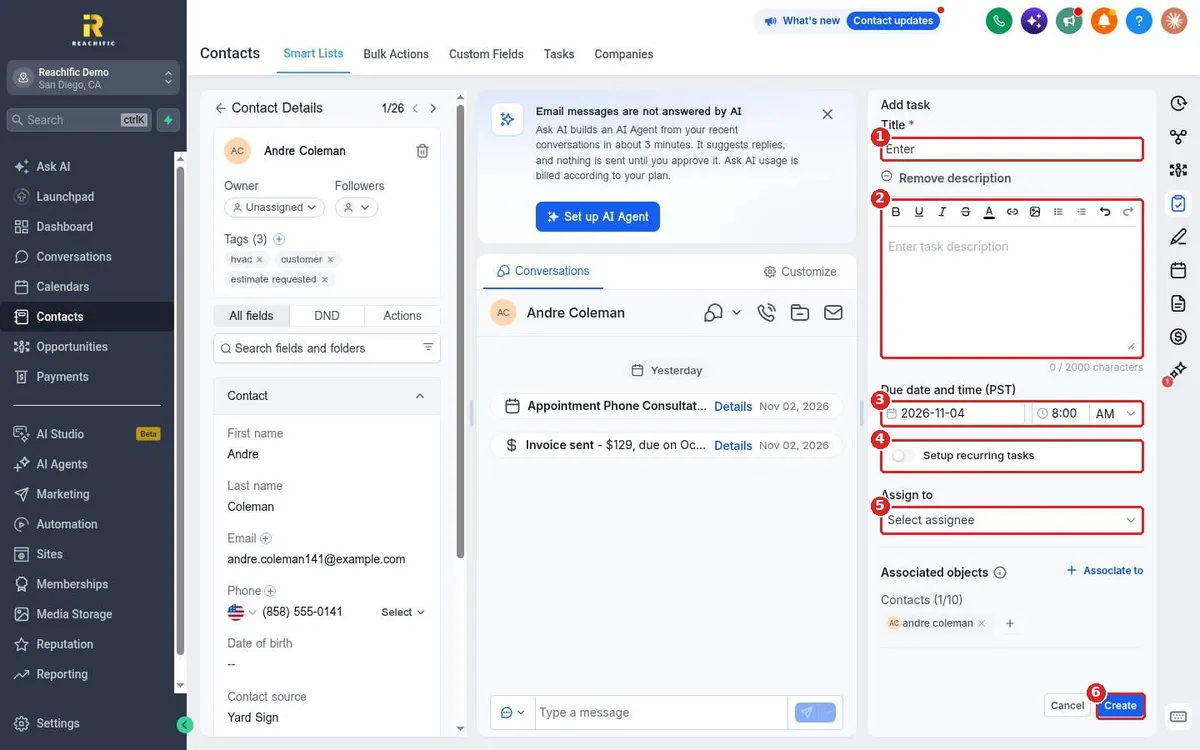
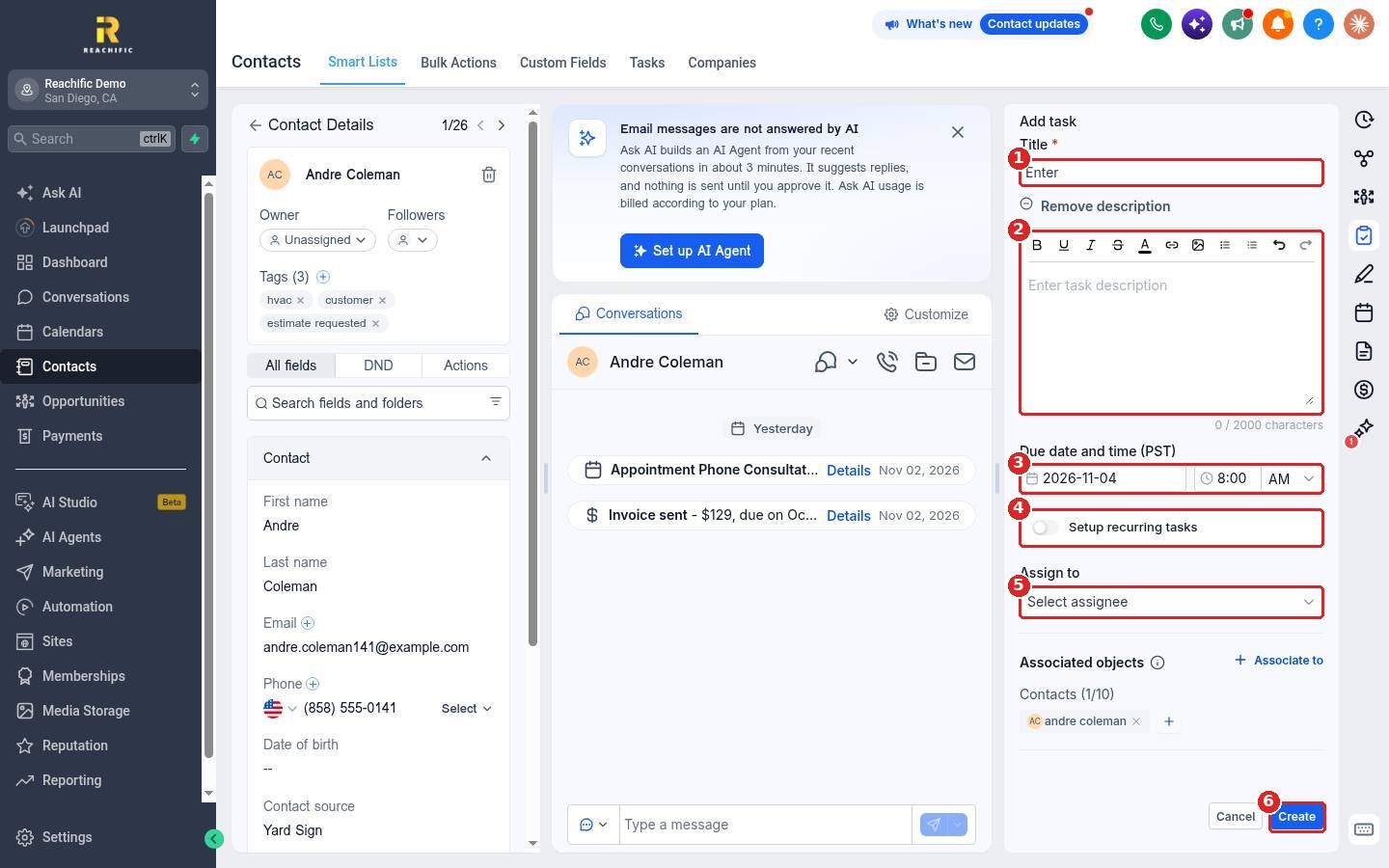
Type the task Title (1), which is required, and add details in the description (2). Set the Due date and time (3). Turn on Setup recurring tasks (4) if it repeats. Choose who it is for in Assign to (5) and click Create (6).
FAQ
Where can I see all my tasks?
Open Contacts and click the Tasks tab to see tasks across every contact.
Can I link a note or task to more than one contact?
Yes. Use Associate to in the panel to link other records.
Can customers see my notes?
No. Notes and tasks are for your team only.
Want us to handle it? Our team can set up automatic follow up tasks so no lead slips through the cracks. Book a free strategy call and get a free quote.
Related articles
- How do I add a contact by hand?
- How do I add or remove tags on contacts?
- How do I add a team member?
Still stuck? Submit a ticket and our team will help. Need faster answers? See our support plans.
