
How do I book an appointment for a customer?
Quick answer: Open Calendars and click New. Pick the calendar, search for the contact, choose a date and slot, set the status and click Book appointment.
Before you start
- You need a calendar with open hours. See How do I set my available hours on a calendar?
- Booking can send the confirmation messages you turned on for that calendar, so the customer may get a text or email.
Step 1: Start a new appointment
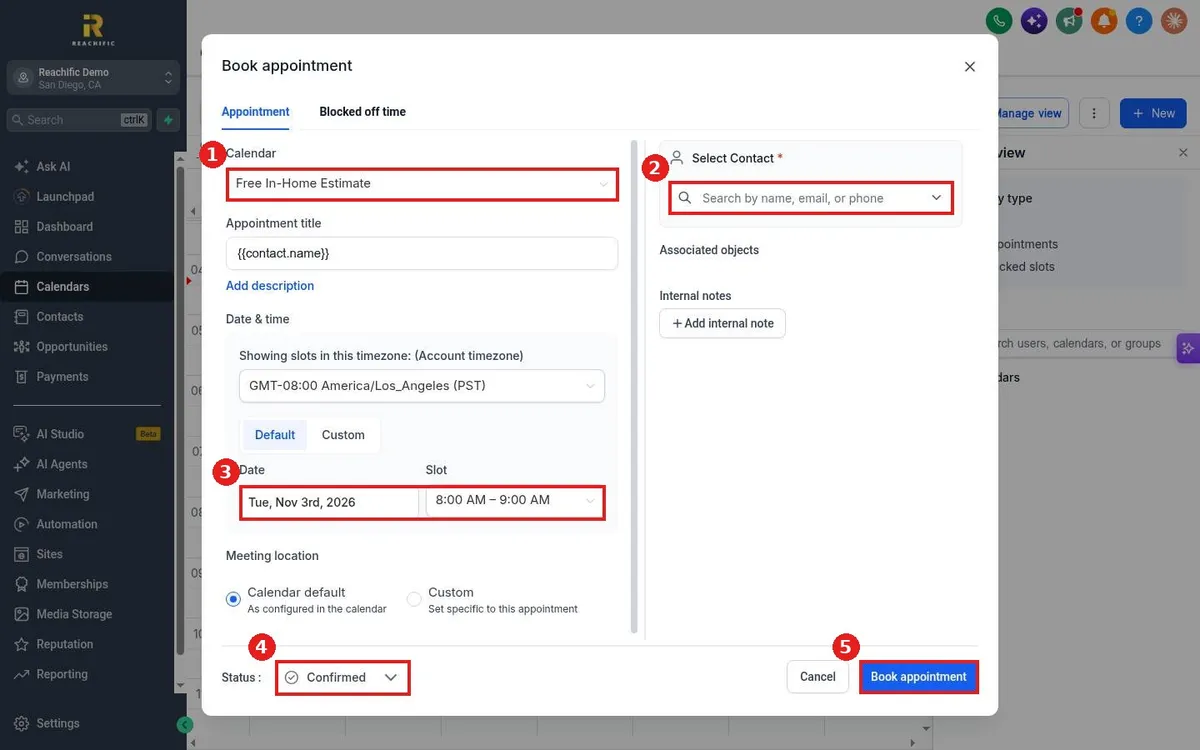
Click Calendars in the left menu (1), then click New at the top right (2). You can also click an empty time on the calendar grid.
Step 2: Fill in the details
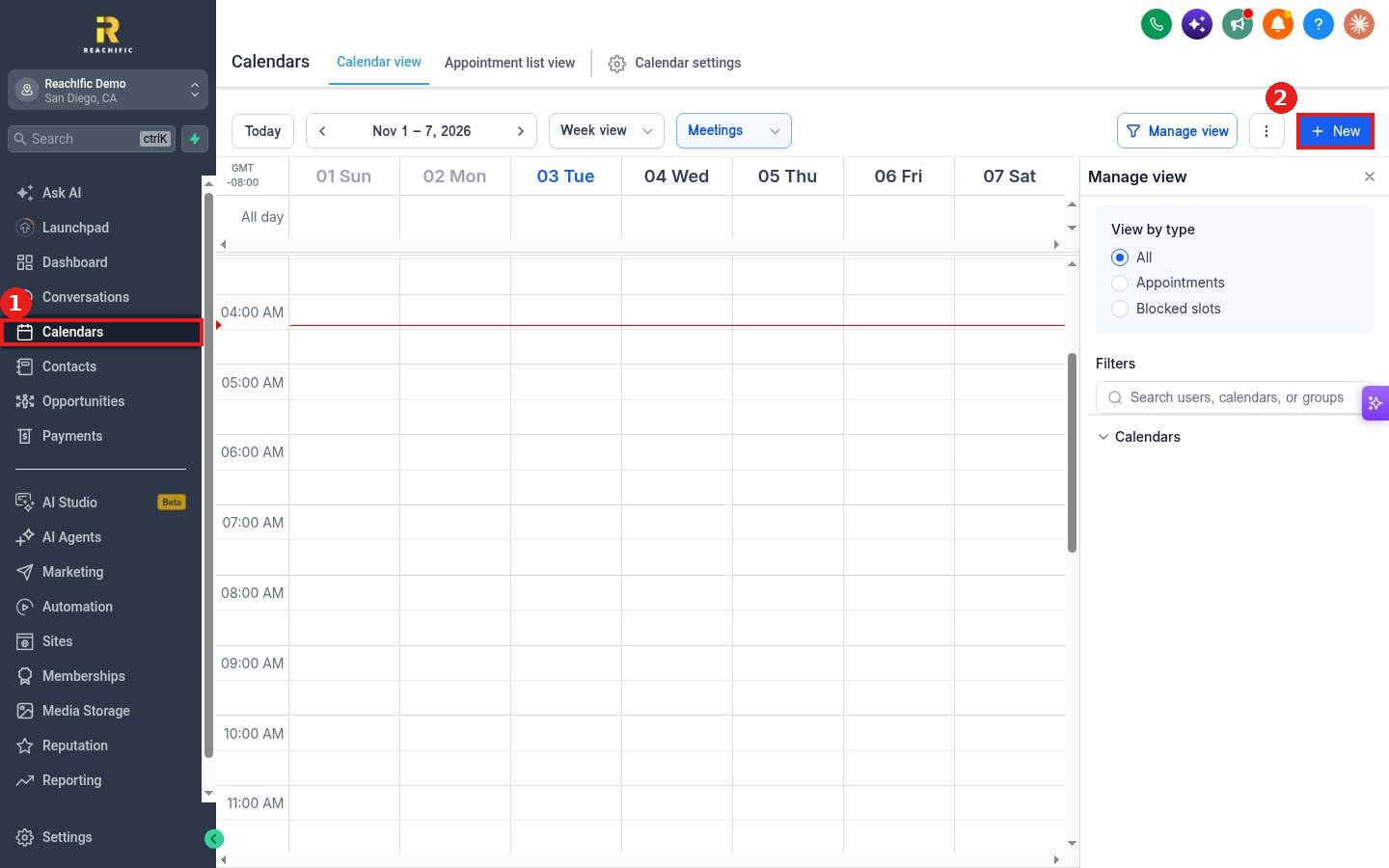
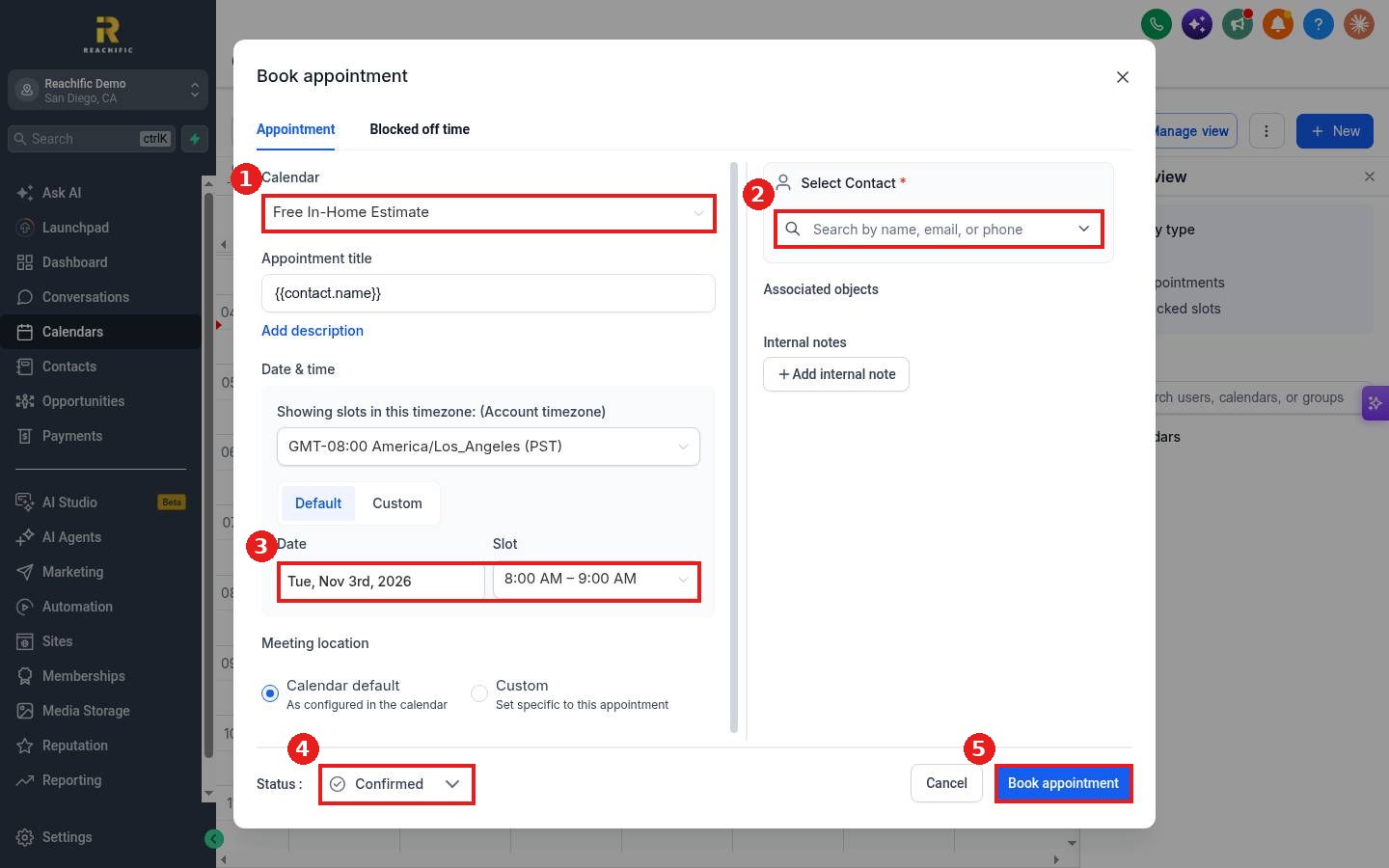
Choose the Calendar (1). Under Select Contact, search by name, email or phone (2). If the person is new, you can add them from the same search box. Pick the Date and Slot (3). Use Custom if you need a time outside your normal slots.
Step 3: Set the status and book
Leave Status on Confirmed (4), or pick Unconfirmed if you still need the customer to confirm. Click Book appointment (5).
FAQ
Can I add notes the team will see?
Yes. Click Add internal note on the right. Internal notes are not sent to the customer.
Can I book at a different address than usual?
Yes. Under Meeting location, choose Custom and enter the address or link for this one appointment.
Where do I see the booking after?
On the calendar grid and in the Appointment list view. See How do I see all upcoming appointments in a list?
Want us to handle it? Our team can set up your calendars so customers book themselves and your team stays in sync. Book a free strategy call and get a free quote.
Related articles
- How do I reschedule or cancel an appointment?
- How do I send appointment confirmation and reminder messages?
- How do I add a contact by hand?
Still stuck? Submit a ticket and our team will help. Need faster answers? See our support plans.
