
How do I share my booking link with customers?
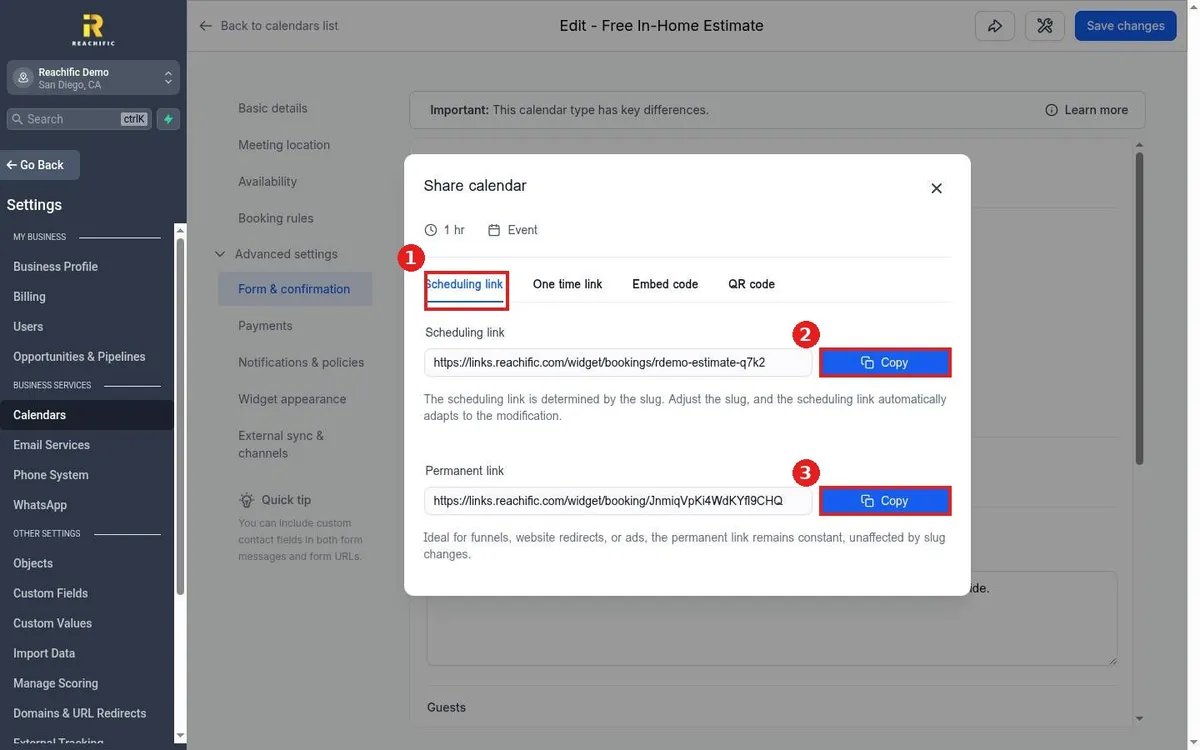
Quick answer: Go to Settings, then Calendars, and click the pencil on your calendar. Click the share arrow at the top of the page, then click Copy next to the scheduling link or the permanent link. Paste it anywhere customers can click it.
Before you start
- Set your hours first so customers only see times you want. See How do I set my available hours on a calendar?
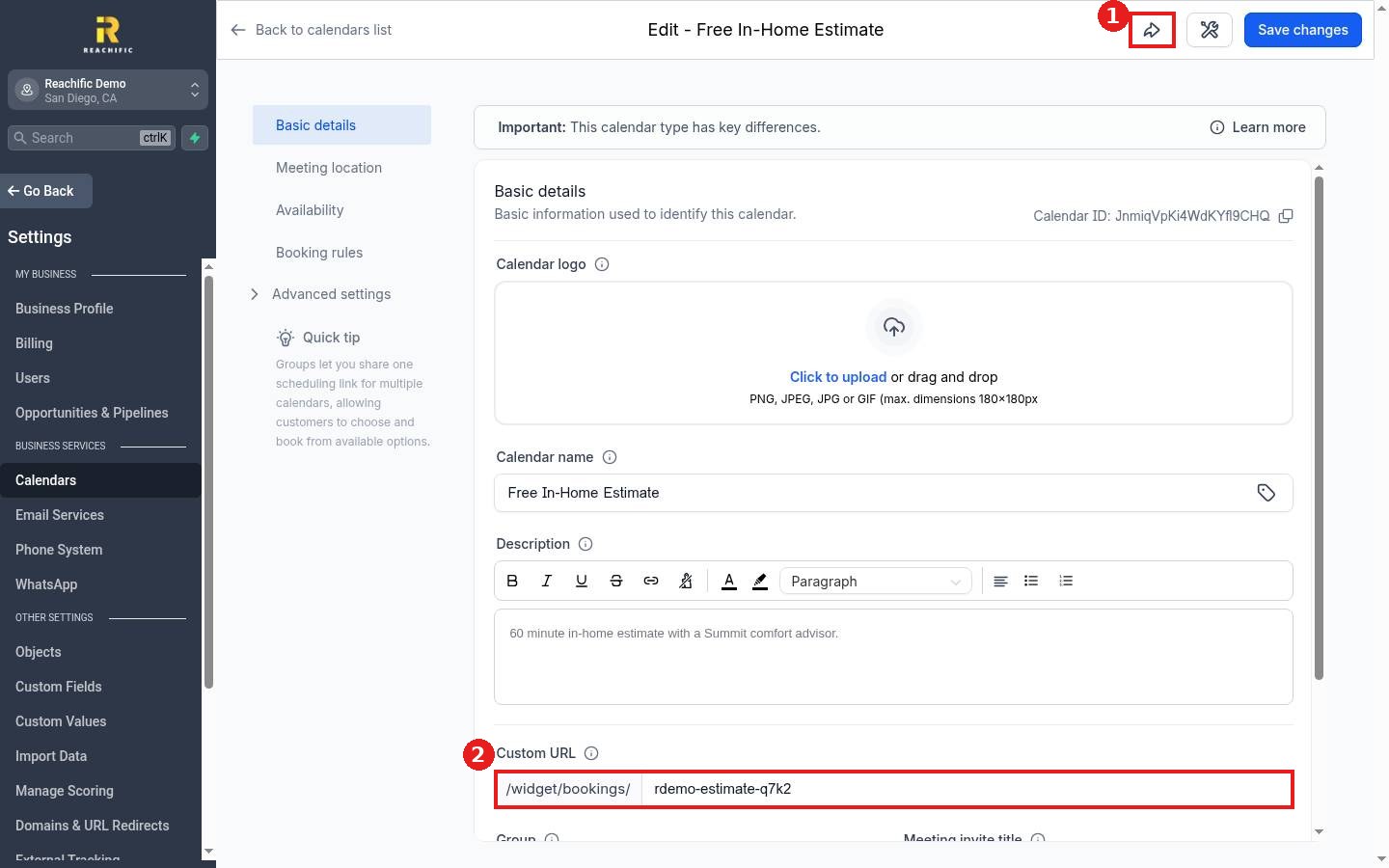
- The scheduling link uses the calendar's Custom URL. If you change that URL later, the scheduling link changes too.
Step 1: Open the share window
In the calendar editor, click the share arrow at the top (1). The Custom URL on the Basic details tab (2) sets the end of your scheduling link, so pick something short and clear like your service name.
Step 2: Copy the link you need
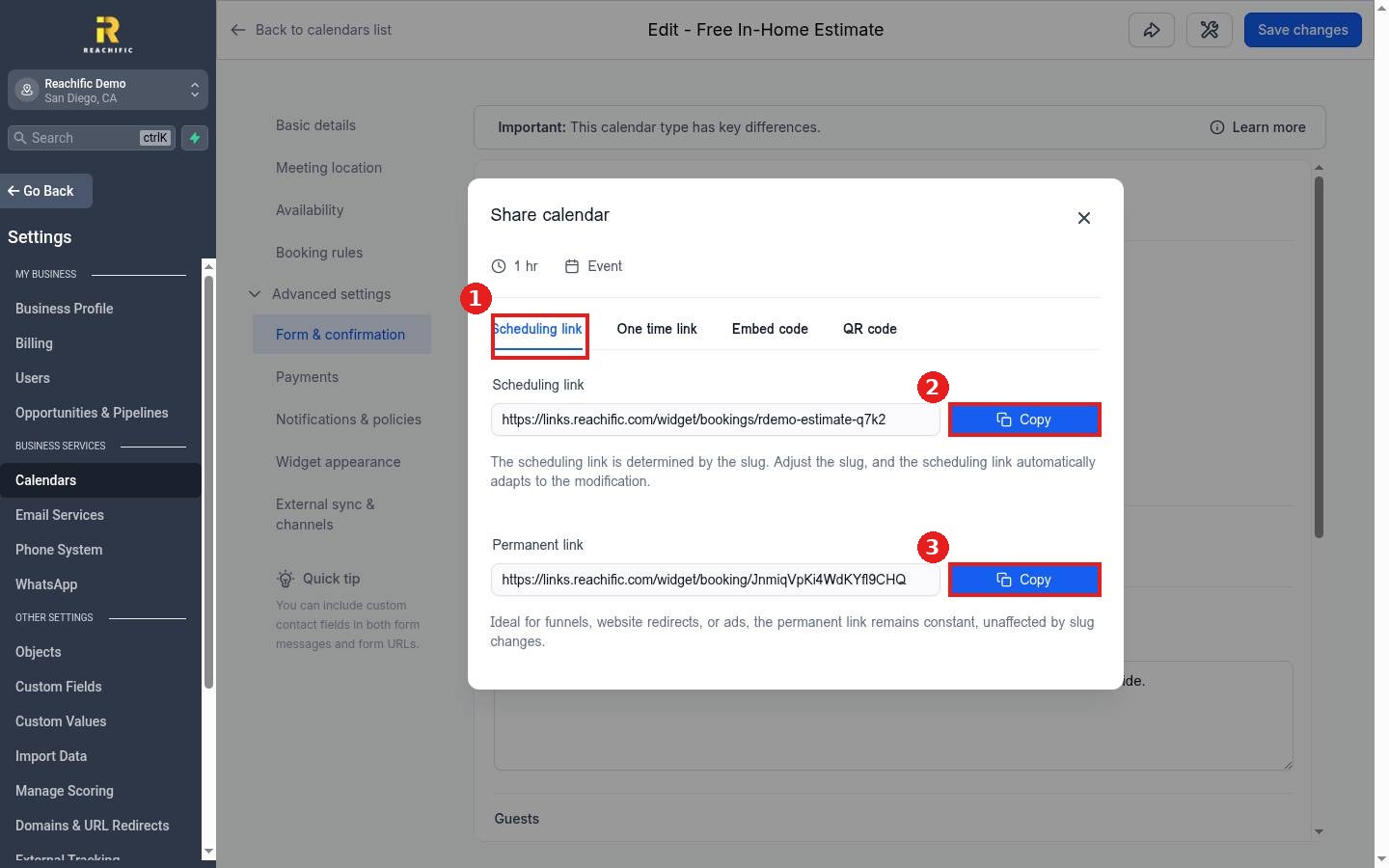
On the Scheduling link tab (1), click Copy next to the scheduling link (2) to share in texts and emails. Use the Permanent link (3) for ads, funnels and website buttons, because it never changes even if you rename the Custom URL.
Step 3: Send it
Paste the link into a text or email from Conversations, your email signature, your Google Business Profile booking button or a social post.
FAQ
What is a one time link?
The One time link tab makes a link that works for a single booking, so it cannot be shared around.
Can I share a QR code instead?
Yes. Open the QR code tab in the same window and download the code for flyers, trucks or receipts.
How do I put the calendar right on my website?
Use the Embed code tab. See How do I add my calendar to my website?
Want us to handle it? Our team can set up your booking calendar and put it everywhere your customers look. Book a free strategy call and get a free quote.
Related articles
- How do I create a booking calendar?
- How do I send a text message to a contact?
- How do I set my available hours on a calendar?
Still stuck? Submit a ticket and our team will help. Need faster answers? See our support plans.
