
How do I add my calendar to my website?
Quick answer: Go to Settings, then Calendars, and click the pencil on your calendar. Click the share arrow at the top, open the Embed code tab and click Copy. Paste the code into a custom code or HTML block on your website page and publish the page.
Before you start
- Set your hours and booking rules first so the widget shows the right slots.
- If your site is built in Reachific, you can also drop in a Calendar element from the builder instead of code.
Step 1: Open the share window
In the calendar editor, click the share arrow at the top of the page. See How do I share my booking link with customers? for where it sits.
Step 2: Copy the embed code
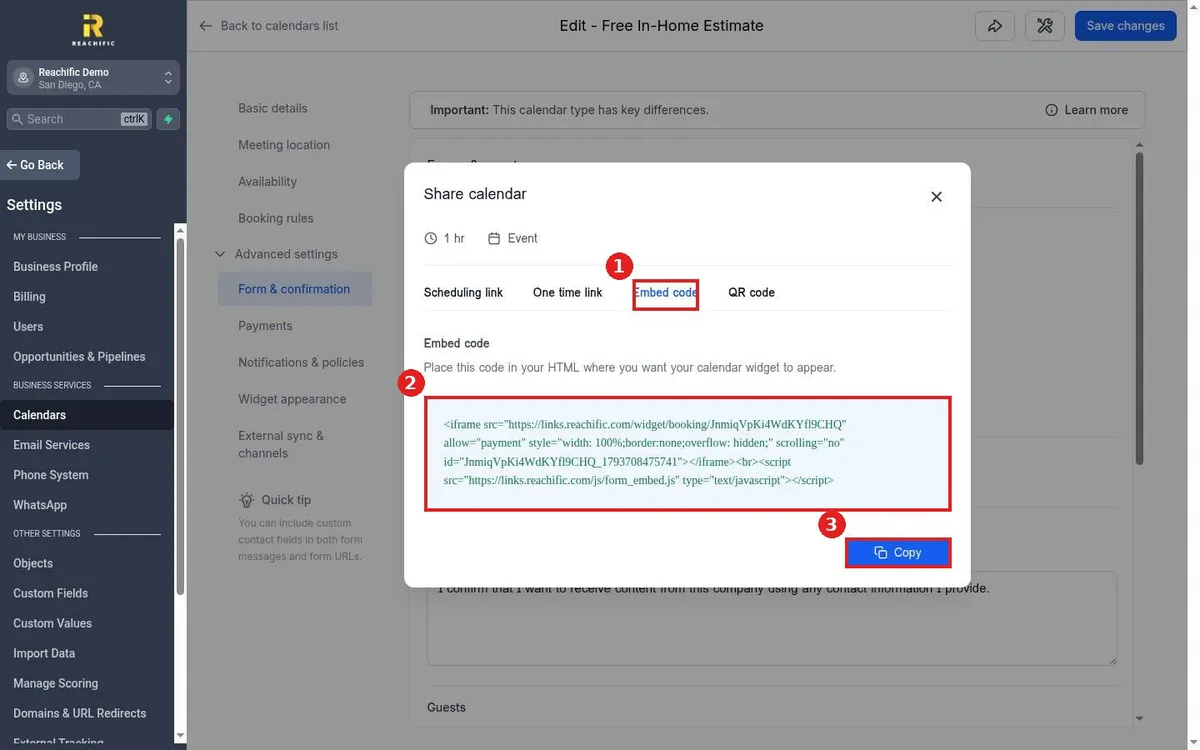
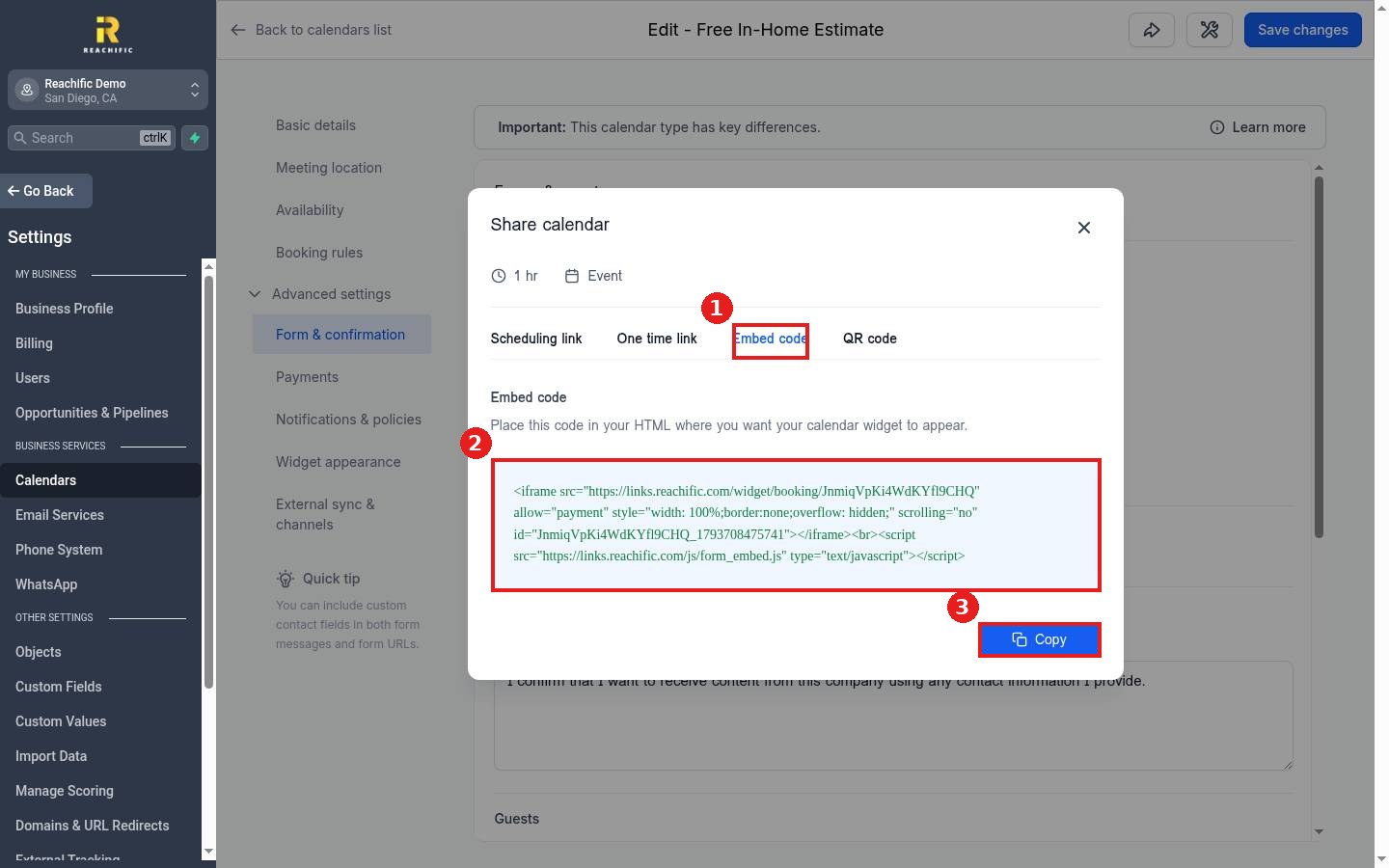
Click the Embed code tab (1). The box (2) holds a short iframe and script. Click Copy (3).
Step 3: Paste it on your page
Open your website editor and add a custom code or HTML block where you want the calendar, for example on a Book Now or Contact page. Paste the code, save and publish. Open the live page and make a test booking to confirm it works.
FAQ
Does this work on WordPress, Wix or Squarespace?
Yes. Any site that lets you add an HTML or embed block can show the calendar.
The calendar looks cut off. What do I do?
Keep both parts of the code, the iframe and the script. The script resizes the calendar to fit. Also give the block full width.
Can I change the colors of the widget?
Yes. In the calendar editor open Advanced settings, then Widget appearance.
Want us to handle it? Our team can add online booking to your website and test it end to end. Book a free strategy call and get a free quote.
Related articles
- How do I share my booking link with customers?
- How do I create a booking calendar?
- How do I edit my header and footer on every page?
Still stuck? Submit a ticket and our team will help. Need faster answers? See our support plans.
