
How do I set up a reactivation campaign for old leads?
Quick answer: Go to Automation > Workflows > Create workflow > Select from Template and pick List Reactivation. Rewrite the offer text, change the Contact tag trigger to a tag such as reactivate, then publish. In Contacts, filter for leads with no recent activity, save that as a smart list, select the contacts and use Add tags to add reactivate. Each tagged contact gets the offer.
Before you start
- Only text people who gave you permission to contact them, and give them a real reason to reply: a seasonal special, a free check or a limited spot on your schedule.
- You need a Reachific phone number to send texts.
- Pick one tag name for the campaign, for example reactivate. The tag is what starts the workflow.
Step 1: Start from the List Reactivation template
Open Automation > Workflows, click Create workflow and choose Select from Template. Search for reactivation (1) and click List Reactivation (2). There is also a longer email based option, Long Term Nurture/Reactivation Email, if you prefer email.
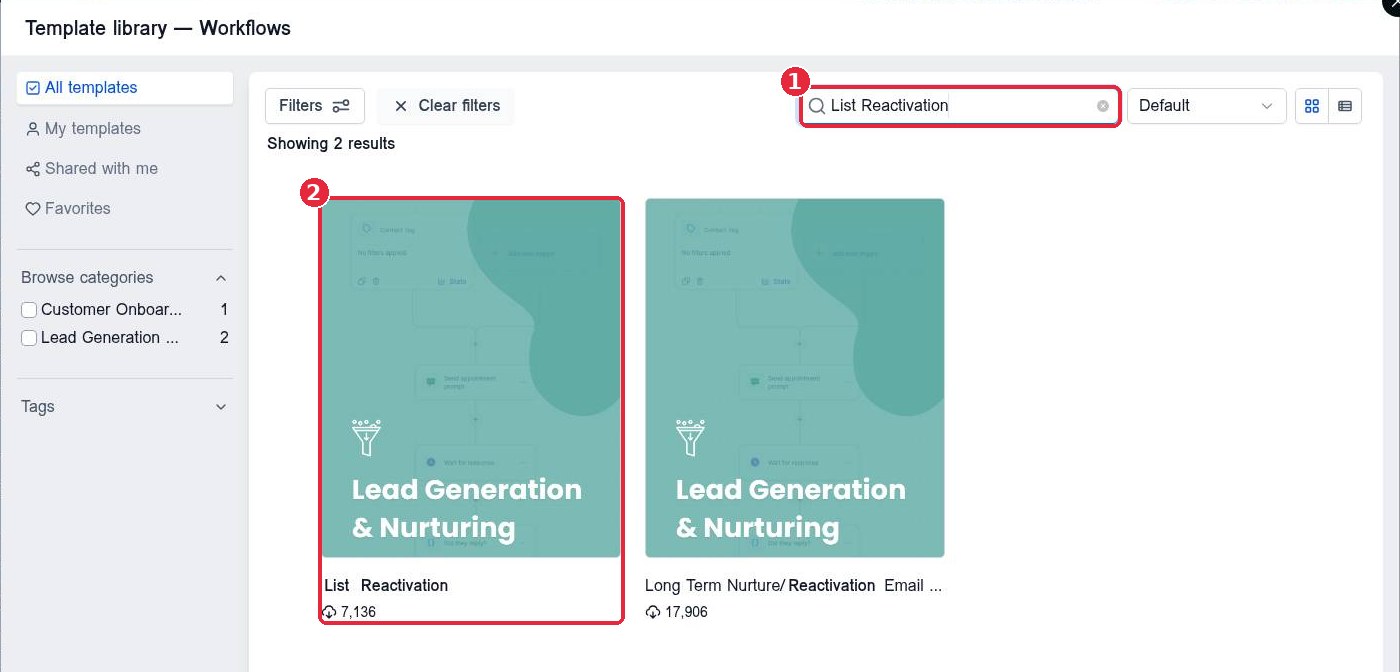
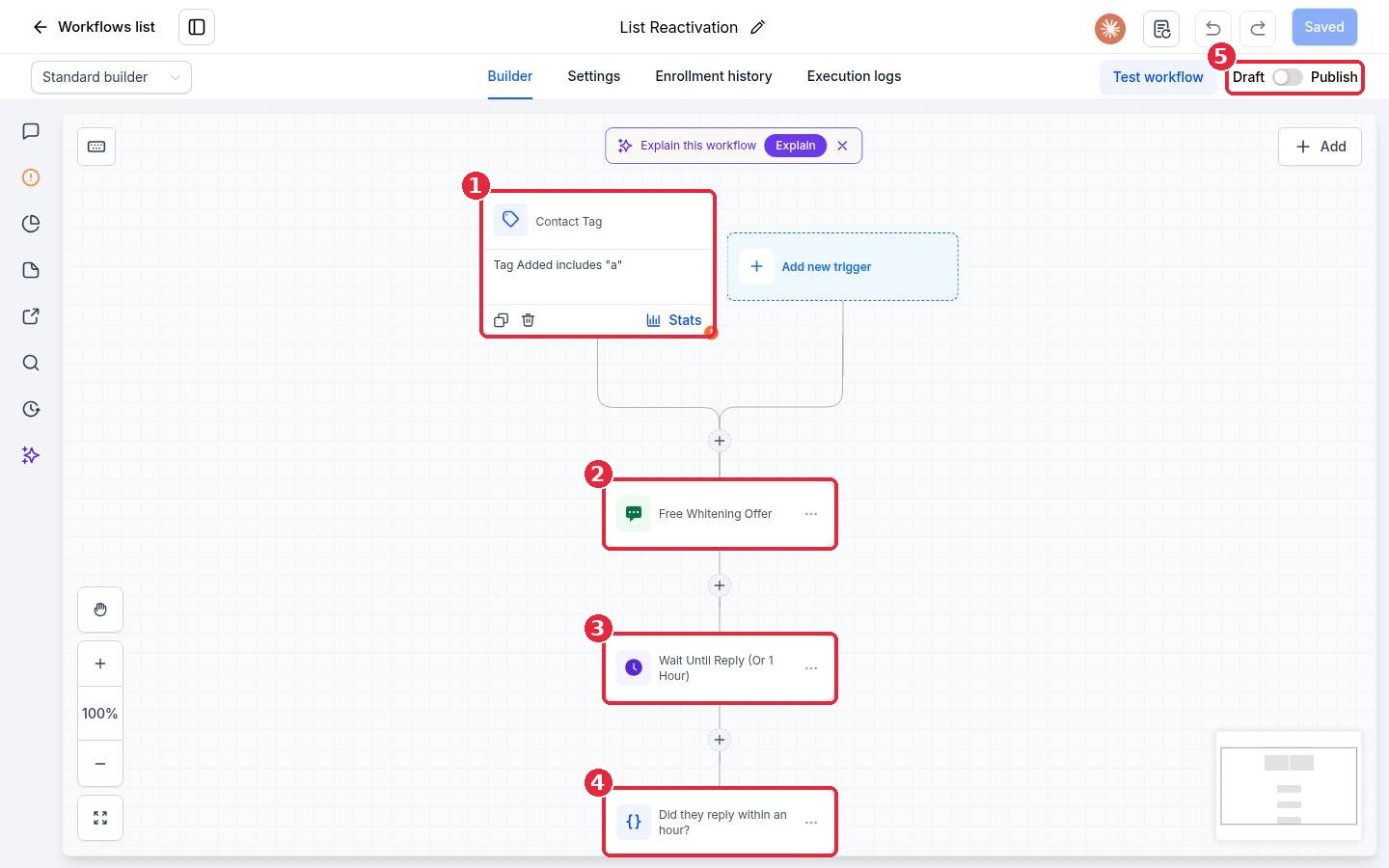
The template opens in the builder as a draft. It starts with a Contact tag trigger (1), sends an offer text (2), waits for a reply for up to an hour (3), then checks whether the contact replied (4) so you can follow up with people who stay quiet. It stays in Draft (5) until you publish.
Step 2: Rewrite the offer text
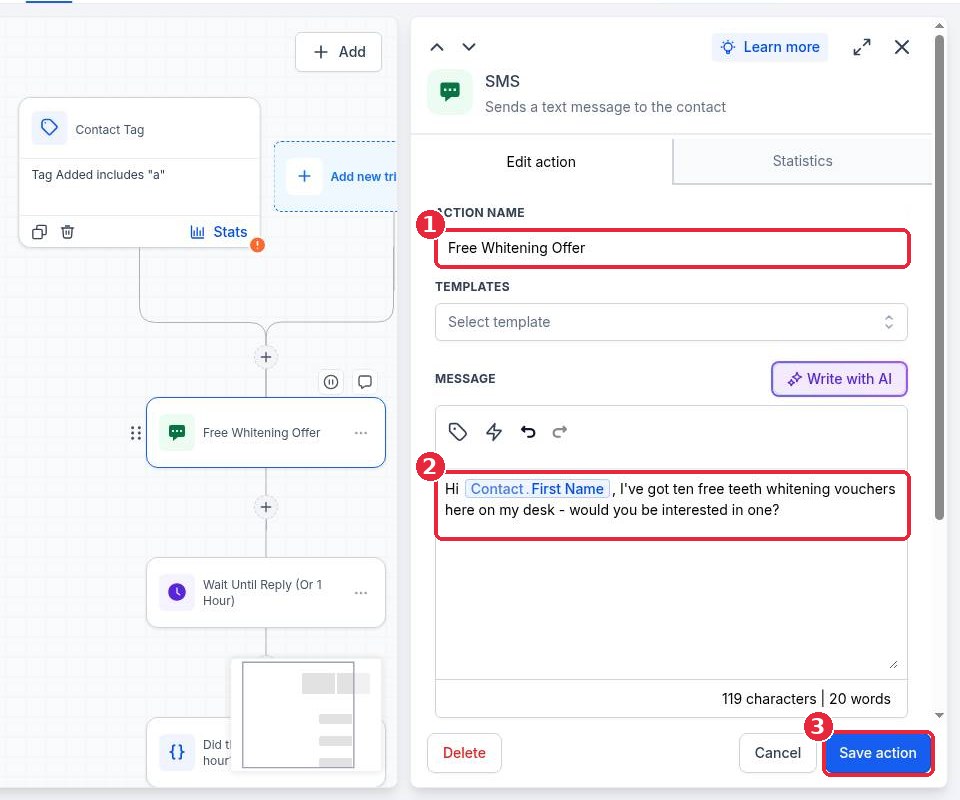
Click the text step. Rename it (1) and replace the sample message with your own offer (2). Keep the first name custom value so each text feels personal. Example: Hi {{contact.first_name}}, it has been a while! We have two open spots this week for a free system check. Want one? Click Save action (3). Open the other text and email steps in the template and rewrite them the same way.
Step 3: Set the tag trigger and publish
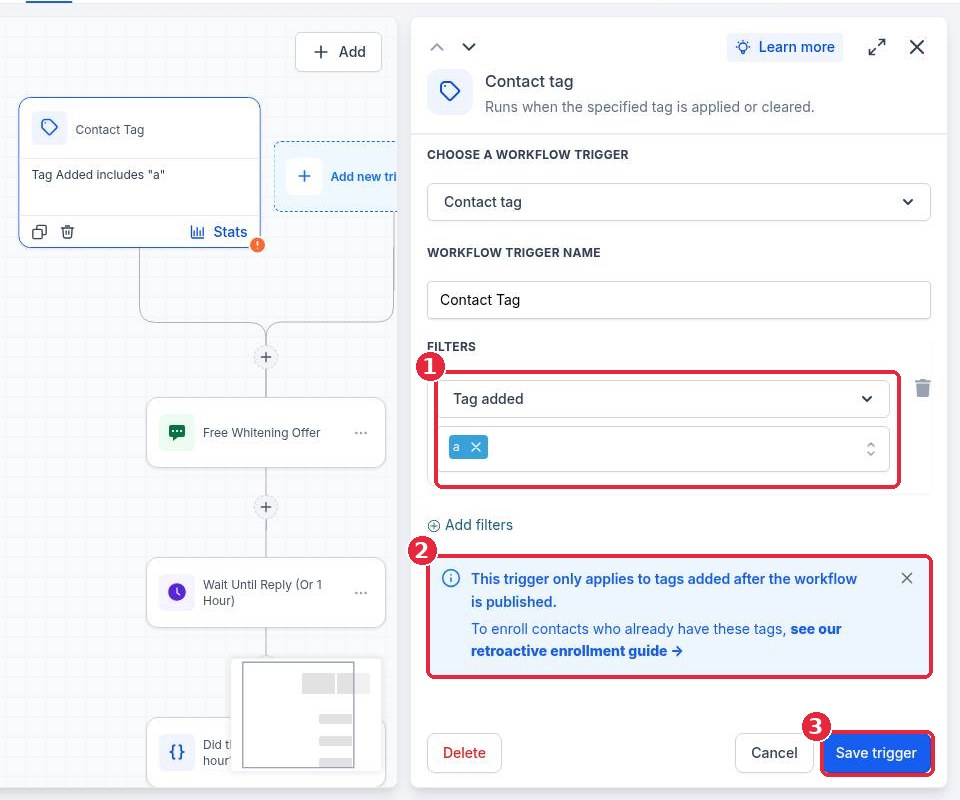
Click the Contact tag trigger. Under Tag added, remove the sample tag and pick your campaign tag (1). Note the message in the panel (2): the trigger only fires for tags added after the workflow is published. Click Save trigger (3), click Save, test the workflow on yourself, then switch it from Draft to Publish.
Step 4: Build a smart list of old leads
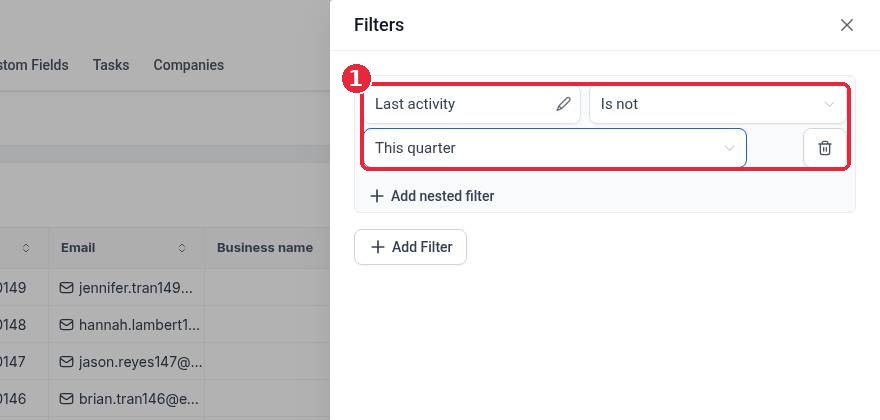
Go to Contacts and click Filters. Search for Last activity, set it to Is not and This quarter (1), then click Apply. You can add more filters, such as a tag like lead, to leave out current customers.
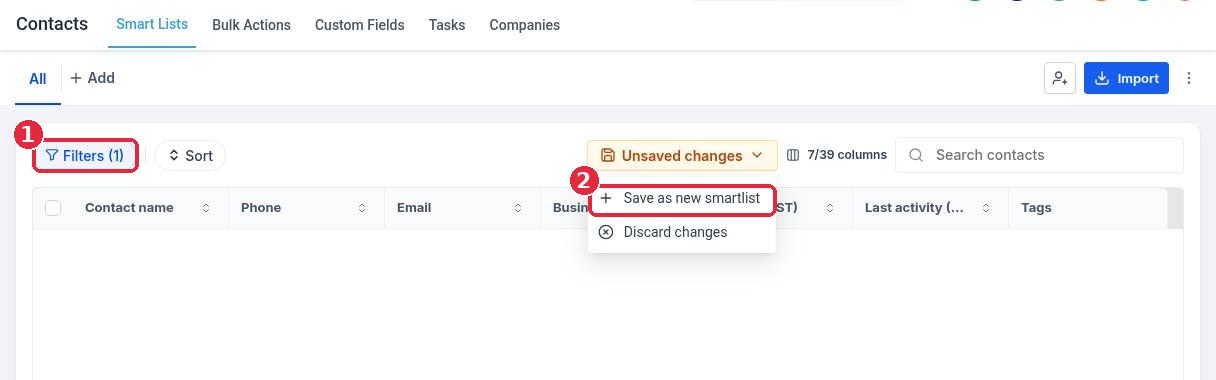
With the filter applied (1), open Unsaved changes and click Save as new smartlist (2). Name it, for example Old leads. The list keeps updating as contacts go quiet.
Step 5: Tag the list to start the campaign
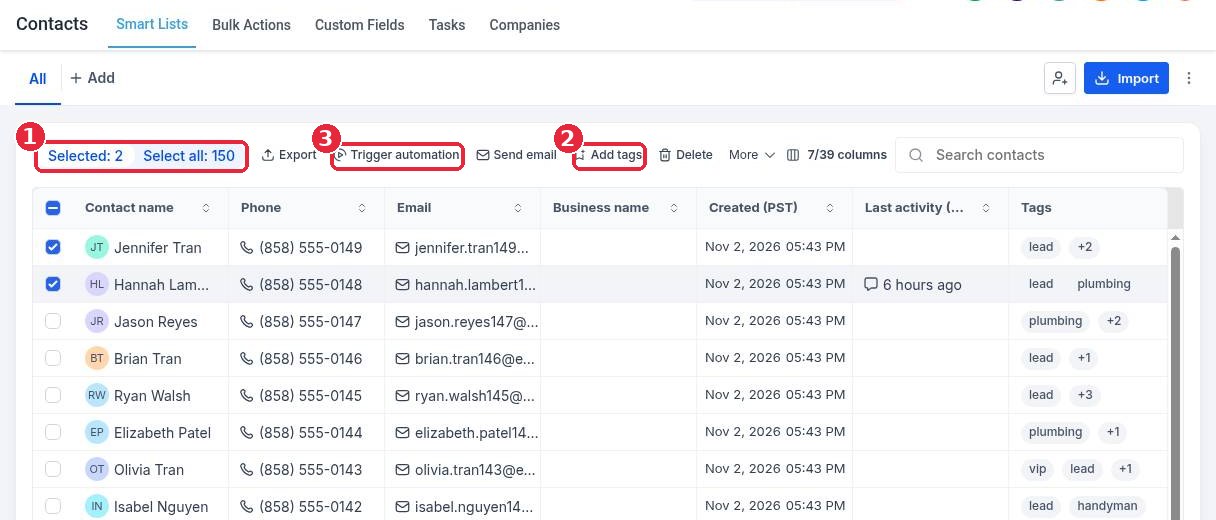
Open your smart list, tick the contacts you want or click Select all (1), then click Add tags (2) and add your campaign tag. Every contact that gets the tag enters the published workflow. You can also use Trigger automation (3) to add the selected contacts to a workflow directly.
Tip: start with a small batch of 25 to 50 contacts so your team can keep up with the replies, then tag the next batch.
FAQ
I tagged contacts before I published and nothing happened. Why?
The tag trigger only fires for tags added after the workflow is published. Remove the tag from those contacts and add it again, or use Trigger automation to add them to the workflow.
Where do the replies go?
Replies land in Conversations. Reply quickly while the lead is warm, and move interested people into your pipeline.
Can a contact go through the campaign twice?
Check the workflow Settings tab for the option that controls whether contacts can enter more than once before you run a second round.
What counts as old?
Most businesses start with leads that have not booked, bought or replied in three to six months. Adjust the Last activity filter to match your sales cycle.
Want us to handle it? Our team can write the offer, build the list and run your reactivation campaign in batches so old leads turn into booked jobs. Book a free strategy call and get a free quote.
Related articles
- How do I create my first workflow?
- How do I send a bulk text or email to a list?
- How do I set up missed call text back?
Still stuck? Submit a ticket and our team will help. Need faster answers? See our support plans.
