
How do I set up missed call text back?
Quick answer: Go to Automation > Workflows and create a workflow from scratch. Add the Call details trigger, filter it to Call status busy, voicemail and no answer and Call direction Incoming, then save the trigger. Add a Send SMS action with your text back message, name the workflow, test it and switch it from Draft to Publish.
Before you start
You need a Reachific phone number on the account. Missed calls on that number are what start this workflow.
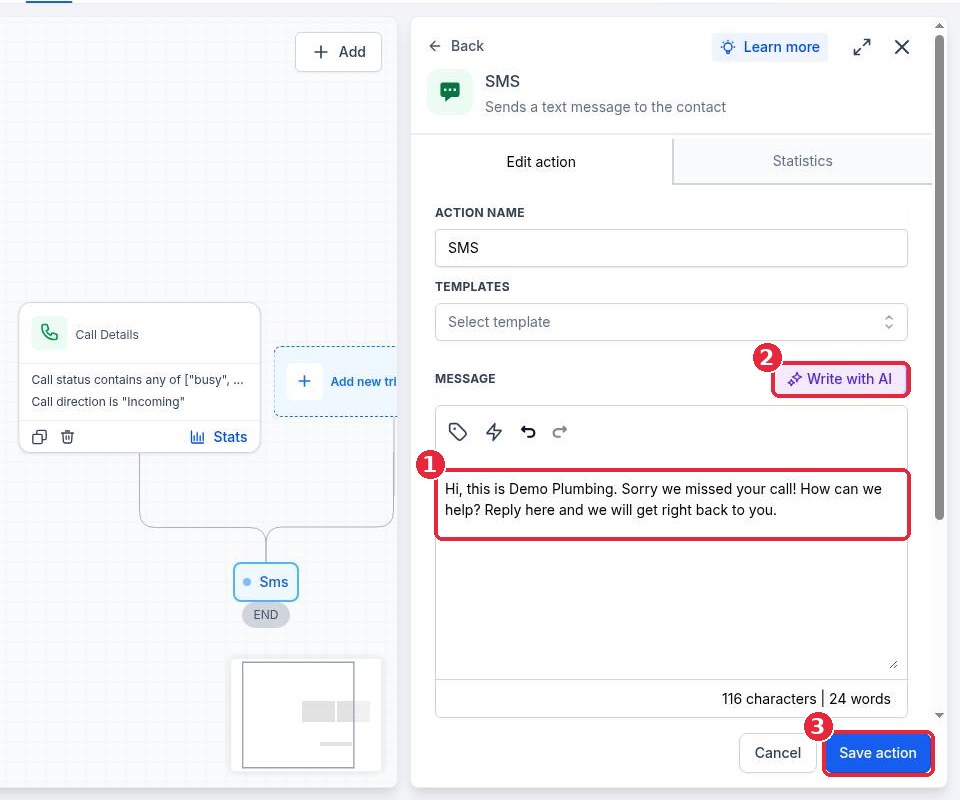
Write the text you want callers to get. Keep it short, say who you are and invite them to reply. Example: Hi, this is Your Business. Sorry we missed your call! How can we help? Reply here and we will get right back to you.
Workflows stay in Draft until you publish them, so you can build and test safely. New to workflows? Read How do I create my first workflow? first.
Step 1: Add the Call details trigger
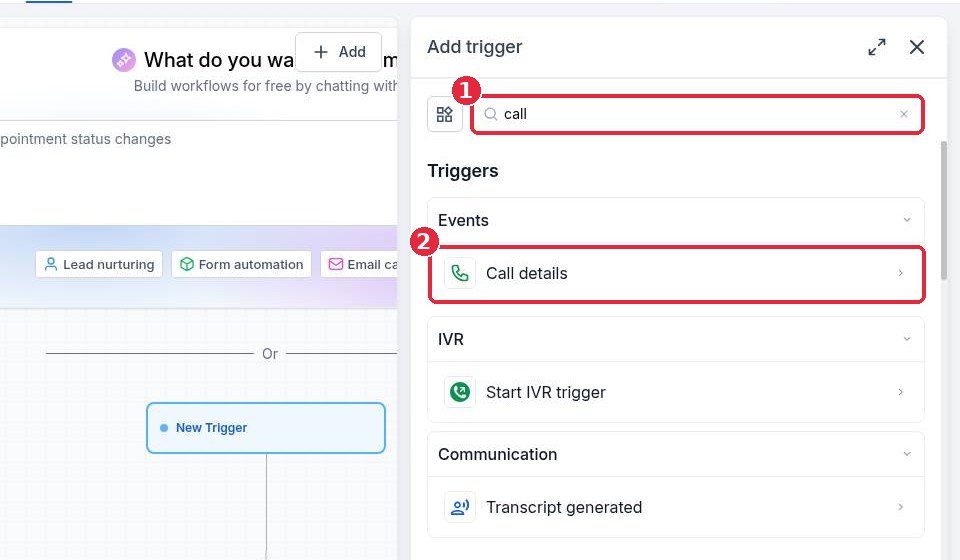
Open Automation > Workflows, click Create workflow and choose Start from Scratch. In the builder, click Add new trigger, type call in the search box (1) and pick Call details (2). This trigger fires after a call ends with the status you choose.
Step 2: Filter to missed incoming calls
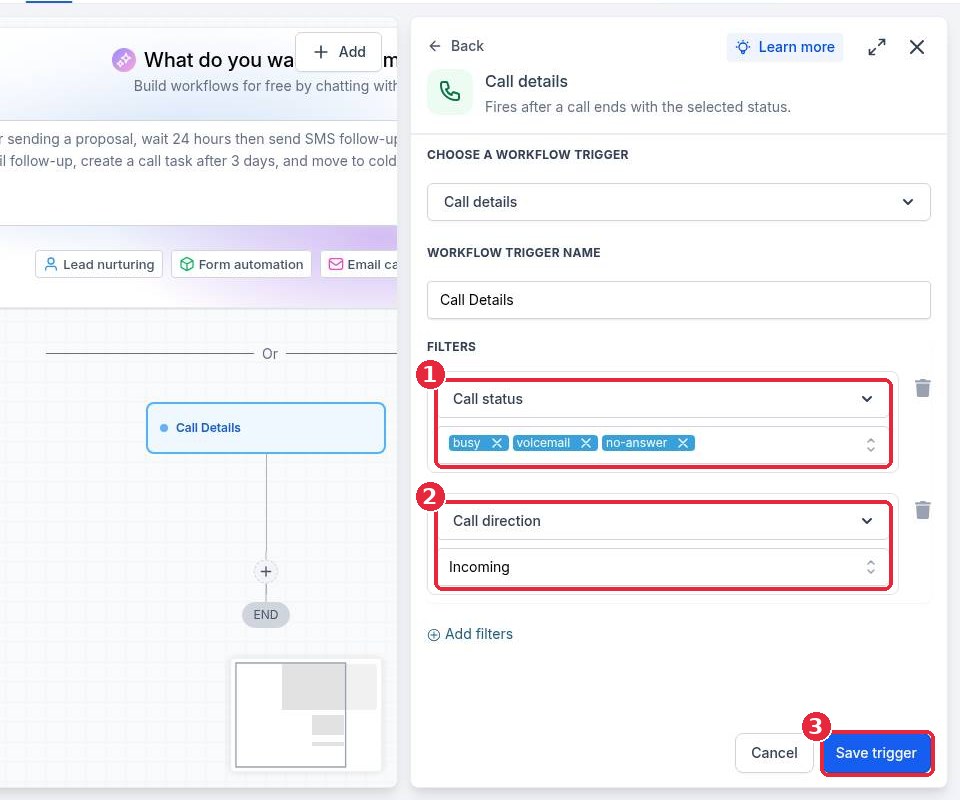
Click Add filters. Choose Call status and tick busy, voicemail and no answer (1). Click Add filters again, choose Call direction and pick Incoming (2) so the text only goes to people who called you, not people you called. Click Save trigger (3).
Step 3: Add the text back message
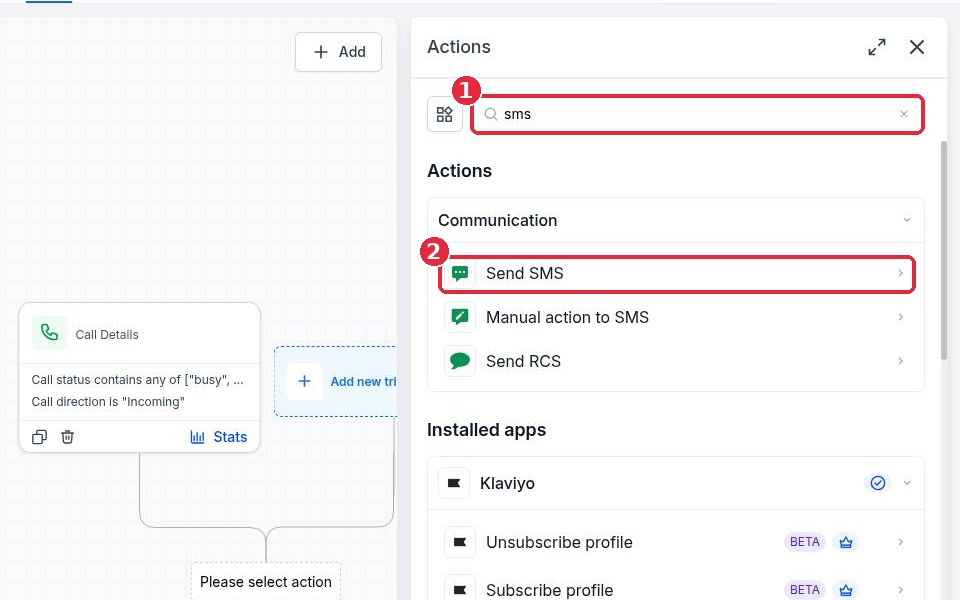
Click the + under the trigger. In the Actions panel, search for sms (1) and pick Send SMS (2).
Type your message in the Message box (1). Use the tag icon to add custom values such as the contact first name, or click Write with AI (2) for a draft you can edit. Click Save action (3).
Step 4: Name, test and publish
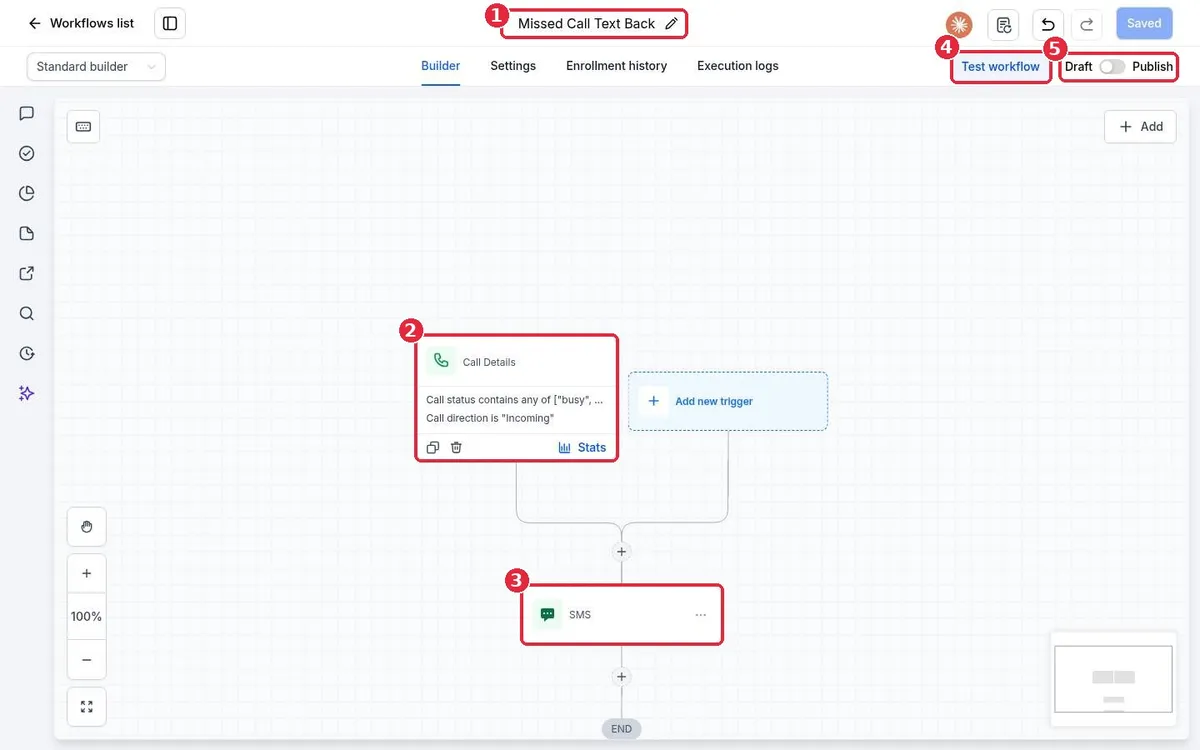
Your workflow now has the trigger (2) and the SMS step (3).
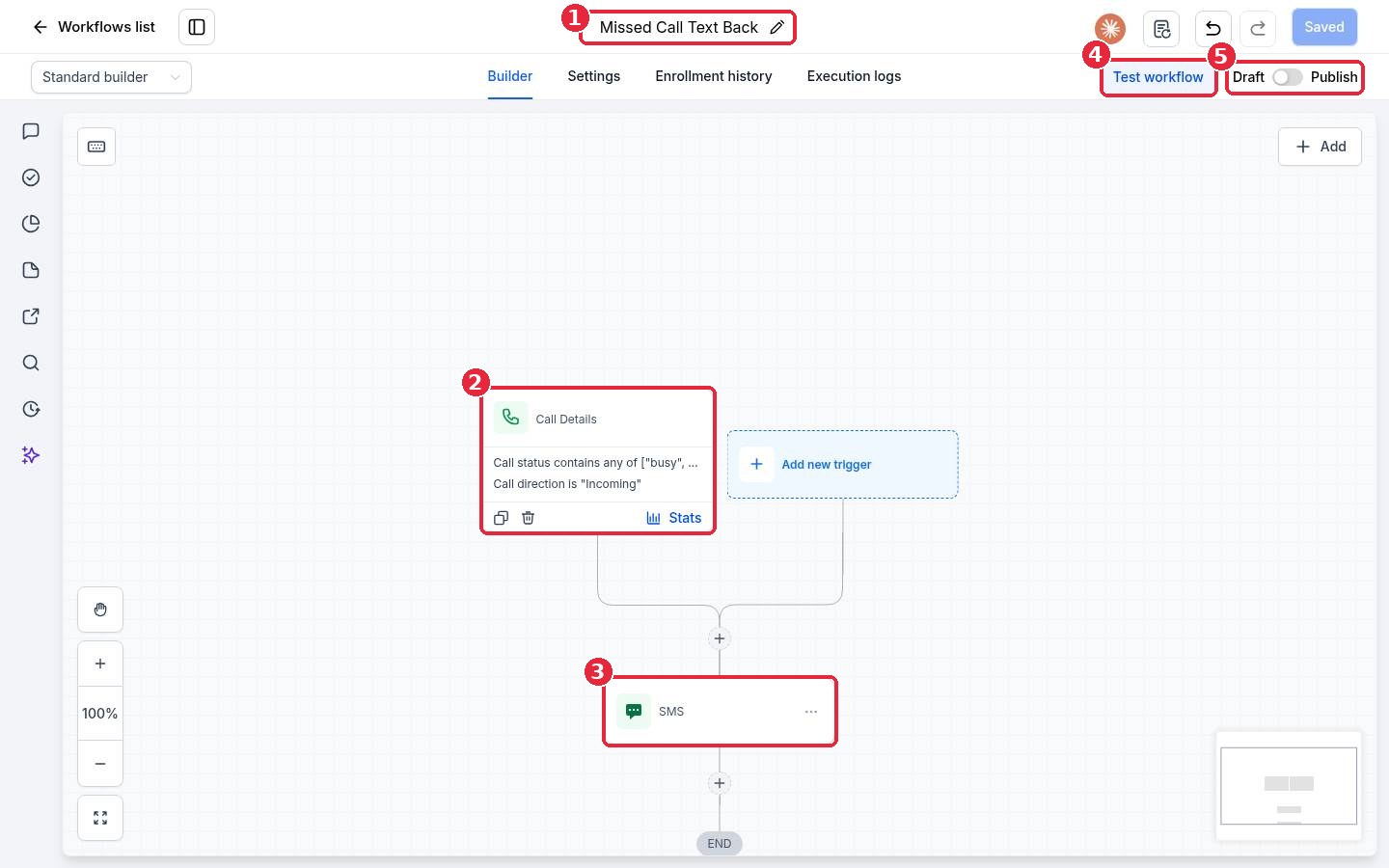
Click the pencil next to the name (1) and call it something clear, such as Missed Call Text Back. Click Save.
Click Test workflow (4) and run it on yourself, or call your Reachific number from your own phone and let it ring out.
Switch the toggle from Draft to Publish (5) and make sure it saves.
Want more? Add a Wait and a second text, an Add contact tag step such as missed call, or an internal notification so your team calls back fast.
FAQ
Why did a caller not get the text?
Check that the workflow is set to Publish, that the call ended as busy, voicemail or no answer, and that the contact is not set to Do Not Disturb for texts. Open Execution logs in the builder to see what happened.
Will people I call get the text if they do not pick up?
Not if you keep the Call direction filter set to Incoming. Without that filter, unanswered outbound calls can start the workflow too.
Can the text go out only after business hours?
Yes. Add an If/Else step after the trigger that checks the time, and send different messages for open and closed hours.
Do replies come back to Reachific?
Yes. When the caller replies, the message lands in Conversations so your team can answer from there.
Related articles
Still stuck? Submit a ticket and our team will help. Need faster answers? See our support plans.
