
How do I import opportunities from a CSV?
Quick answer: Open Opportunities and click Import. Click Start CSV import, upload your file, map each column to a field, review and finish. Check Import history on the same page for results and any errors.
Before you start
- Your CSV needs at least an opportunity name, a pipeline and a stage, plus a contact email or phone to link each deal to a contact.
- Make sure the pipeline and stage names in the file match the ones in your account. See How do I create a sales pipeline with stages?
Step 1: Open Import
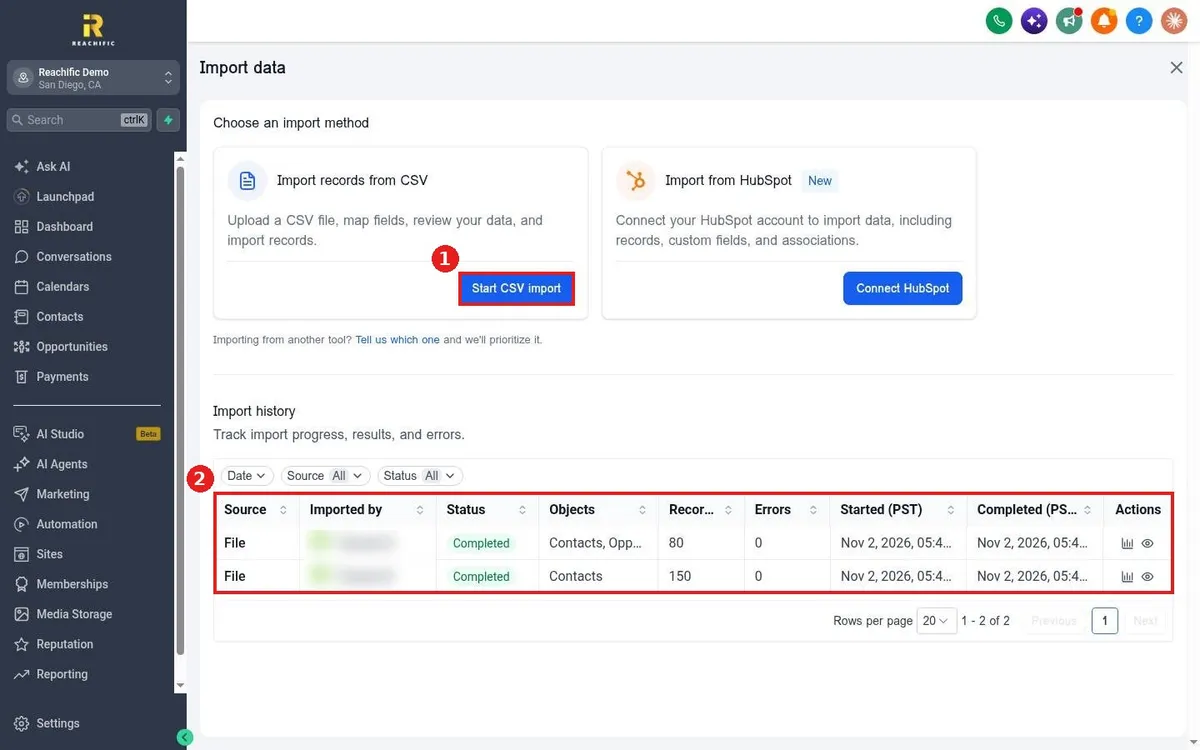
On the Opportunities board, click Import (1).
Step 2: Upload and map
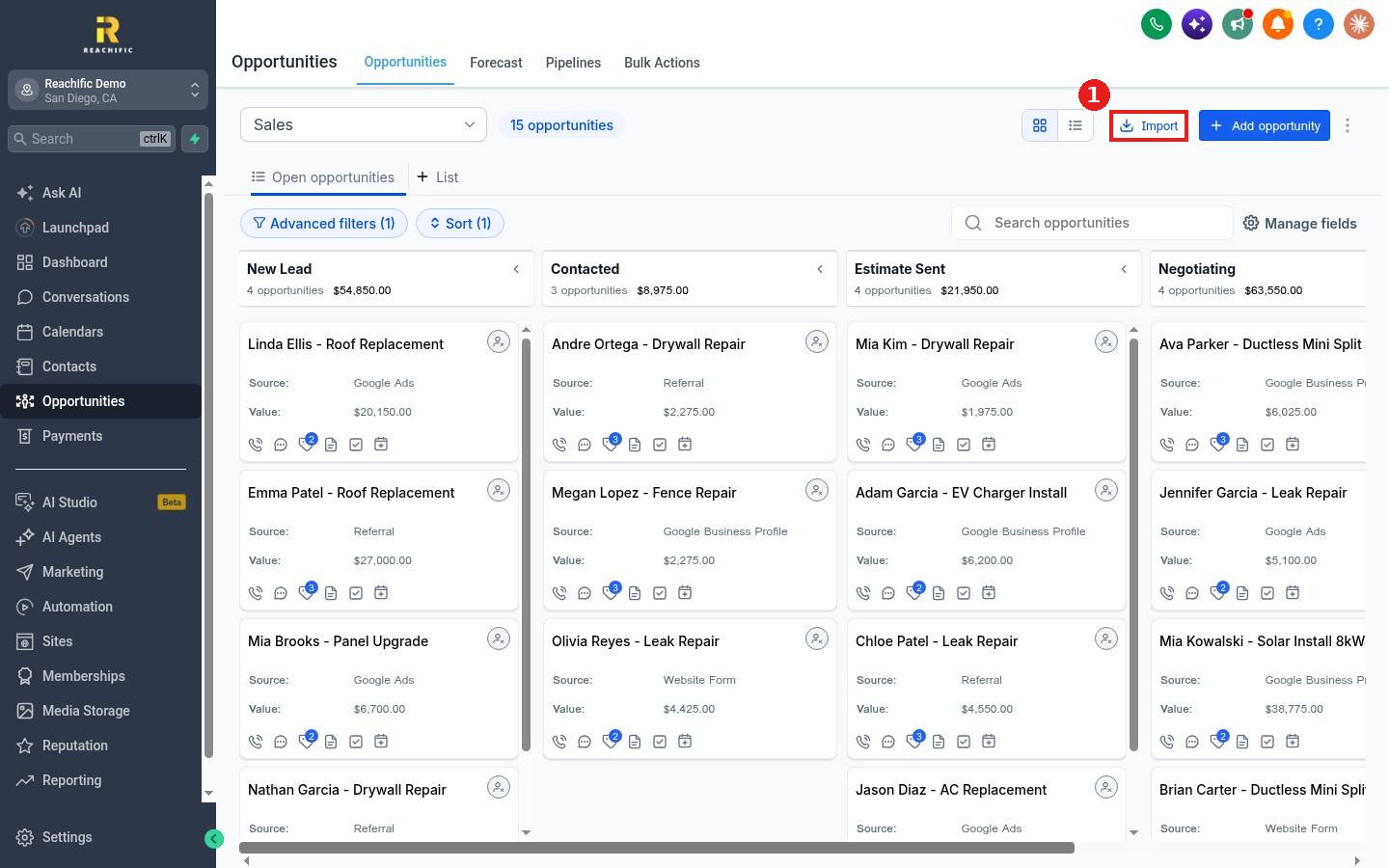
Click Start CSV import (1). Upload your file, then match each column to a Reachific field. Review the preview and start the import.
Step 3: Check the results
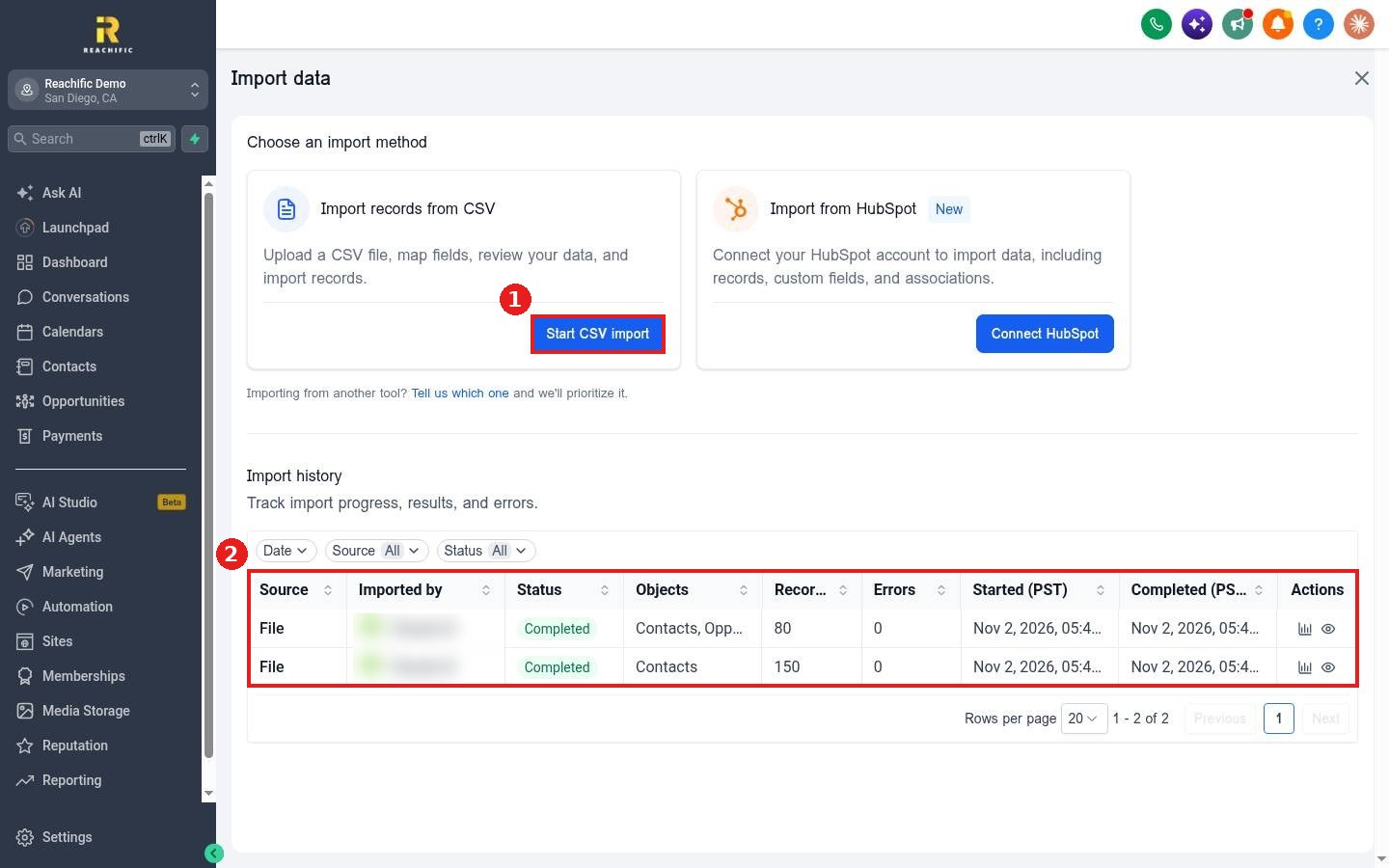
The Import history table (2) shows each import with status, record count and errors. Click the eye icon to see details.
FAQ
Will it create contacts too?
Yes. If a contact in the file does not exist yet, it is created and linked to the opportunity.
Why did some rows fail?
Usually a stage name that does not match, or a missing contact email or phone. Fix the rows and import them again.
Can I import from another CRM?
Export a CSV from your old CRM and import it here. A direct HubSpot import option also appears on this page.
Want us to handle it? Our team can clean up and move your old CRM data for you. Book a free strategy call and get a free quote.
Related articles
- How do I import contacts from a CSV file?
- How do I add an opportunity to a pipeline?
- How do I create a sales pipeline with stages?
Still stuck? Submit a ticket and our team will help. Need faster answers? See our support plans.
