
How do I export my contacts?
Quick answer: In Contacts, check the box next to the contacts you want, or click Select all. Click Export in the bar that appears, then click Export again to confirm. You get a notification when the file is ready, and it stays available for 30 days.
Before you start
- Want only some contacts? Filter the list first, for example by tag. See How do I create a smart list with filters?
- Exports run in the background. Track them on the Bulk Actions tab.
Step 1: Select the contacts
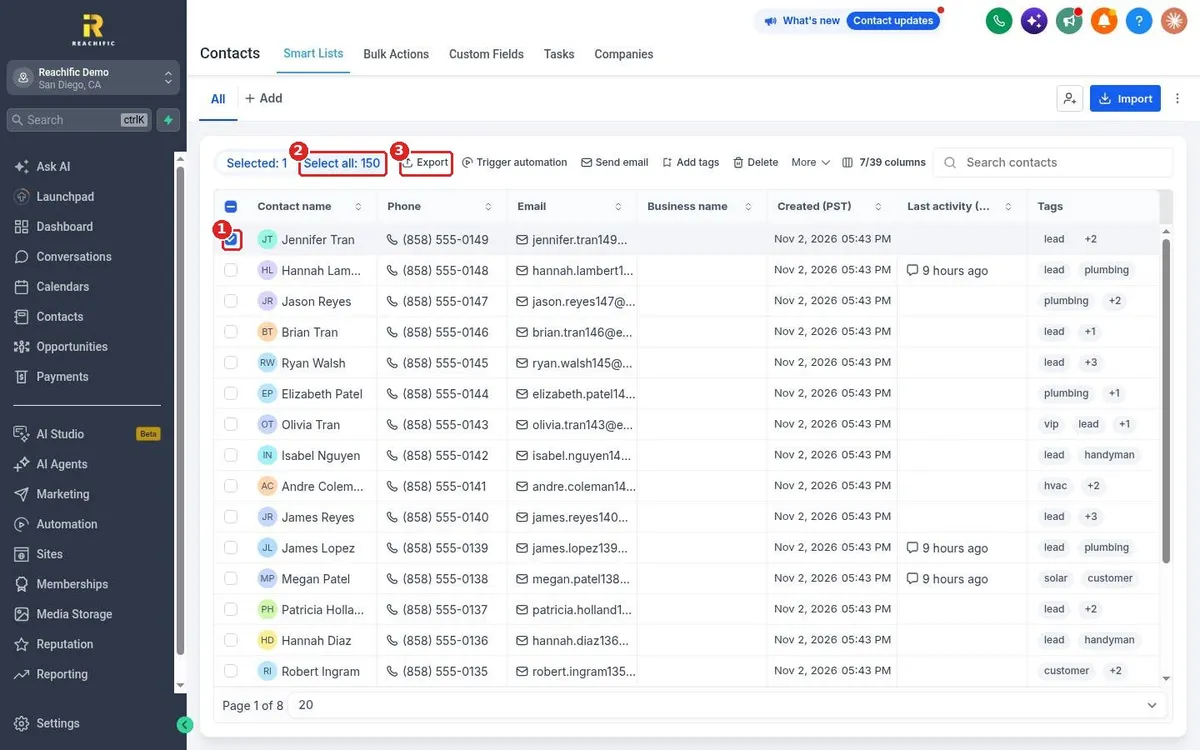
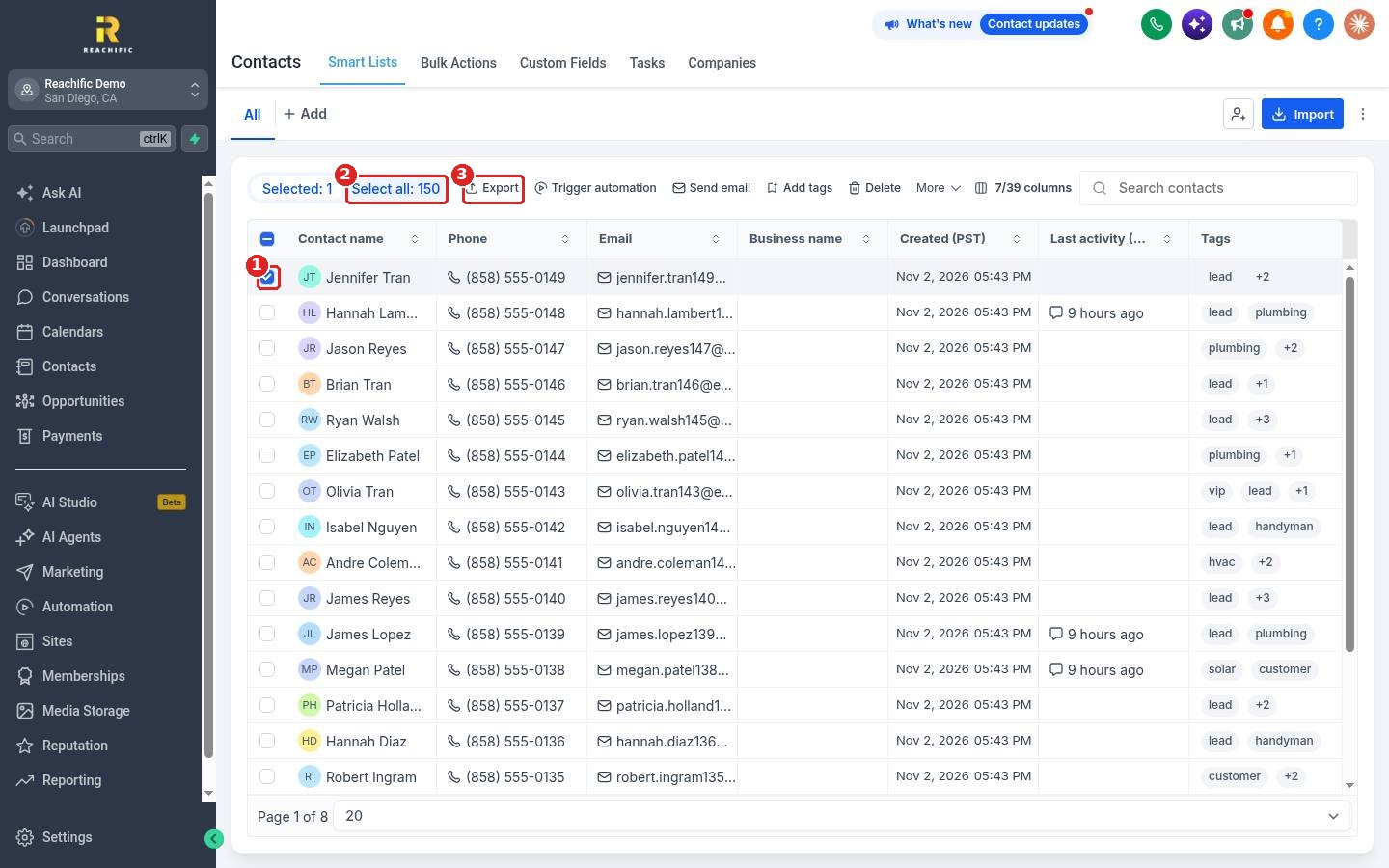
Check the box next to each contact (1) you want. To export everyone in the list, click Select all (2). Then click Export (3).
Step 2: Confirm the export
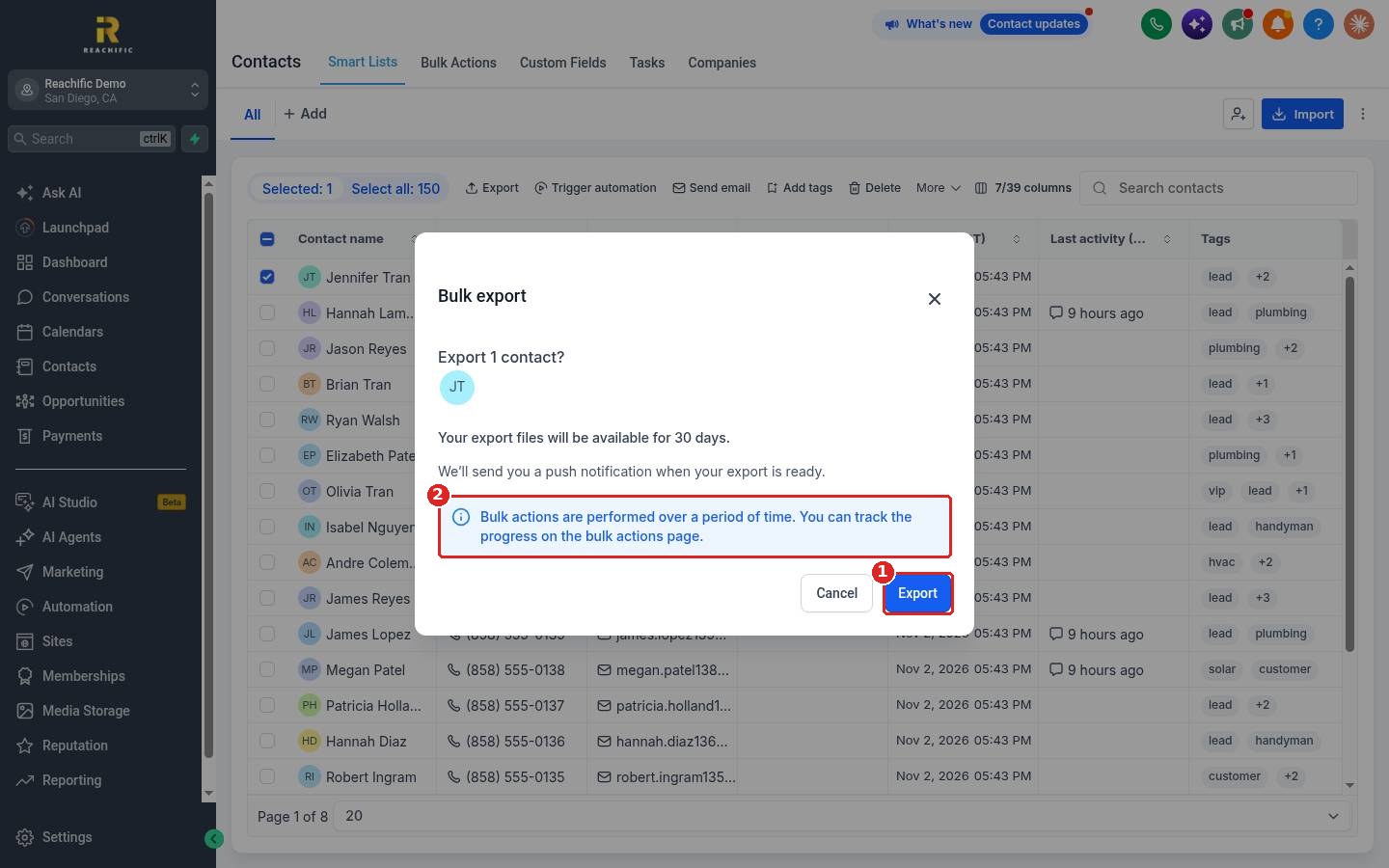
In Bulk export, check the count and click Export (1). The note (2) reminds you that bulk actions take a little time and you can track progress on the Bulk Actions page.
FAQ
Where do I download the file?
Open Contacts, then the Bulk Actions tab, and find your export. You also get a notification when it is ready.
How long is the export file available?
30 days. Download it before then.
Can I choose which columns are exported?
The export follows the contacts you selected. Use filters to pick the right people before you export.
Want us to handle it? Our team can clean, segment and export your lists for any campaign. Book a free strategy call and get a free quote.
Related articles
- How do I import contacts from a CSV file?
- How do I create a smart list with filters?
- How do I send a bulk text or email to a list?
Still stuck? Submit a ticket and our team will help. Need faster answers? See our support plans.
