
How do I connect my Facebook page from the Launchpad?
Quick answer: Click Launchpad in the left menu. On the Facebook row, click Connect, sign in to Facebook, pick your business page and allow access. Messenger chats then land in your Conversations inbox and Facebook leads sync to your contacts.
Before you start
- You need admin access to the Facebook business page.
Step 1: Click Connect
- Click Launchpad in the left menu.
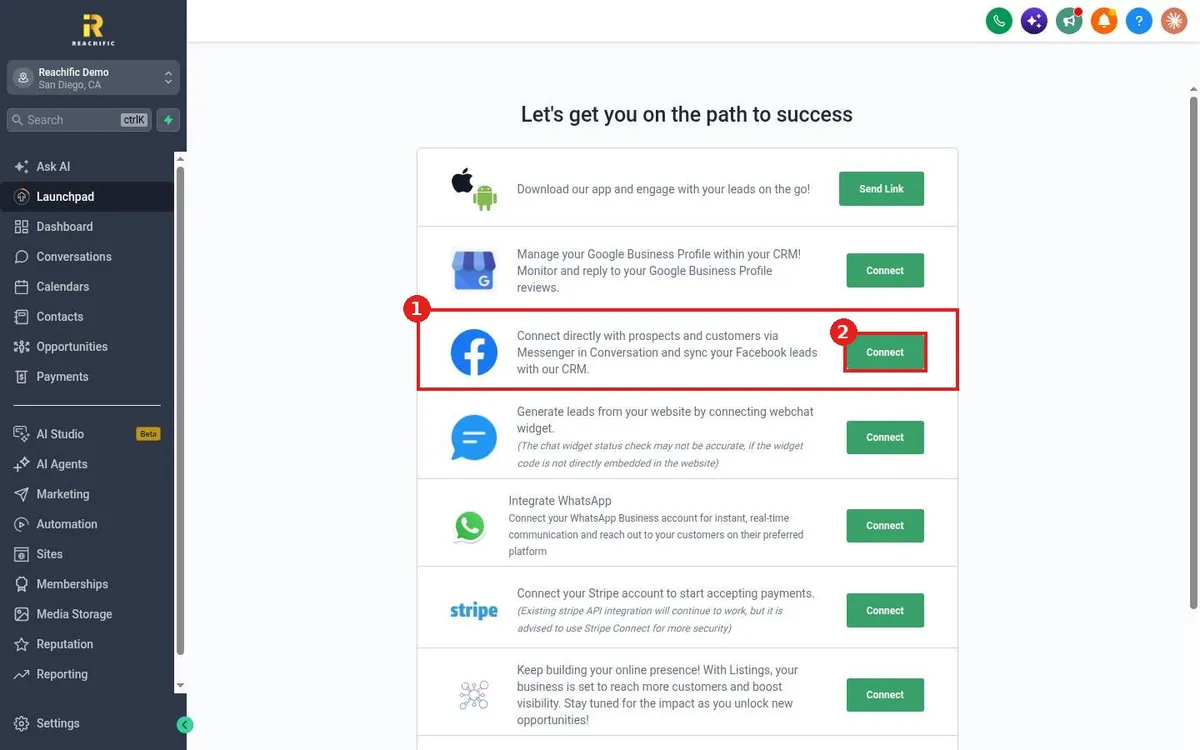
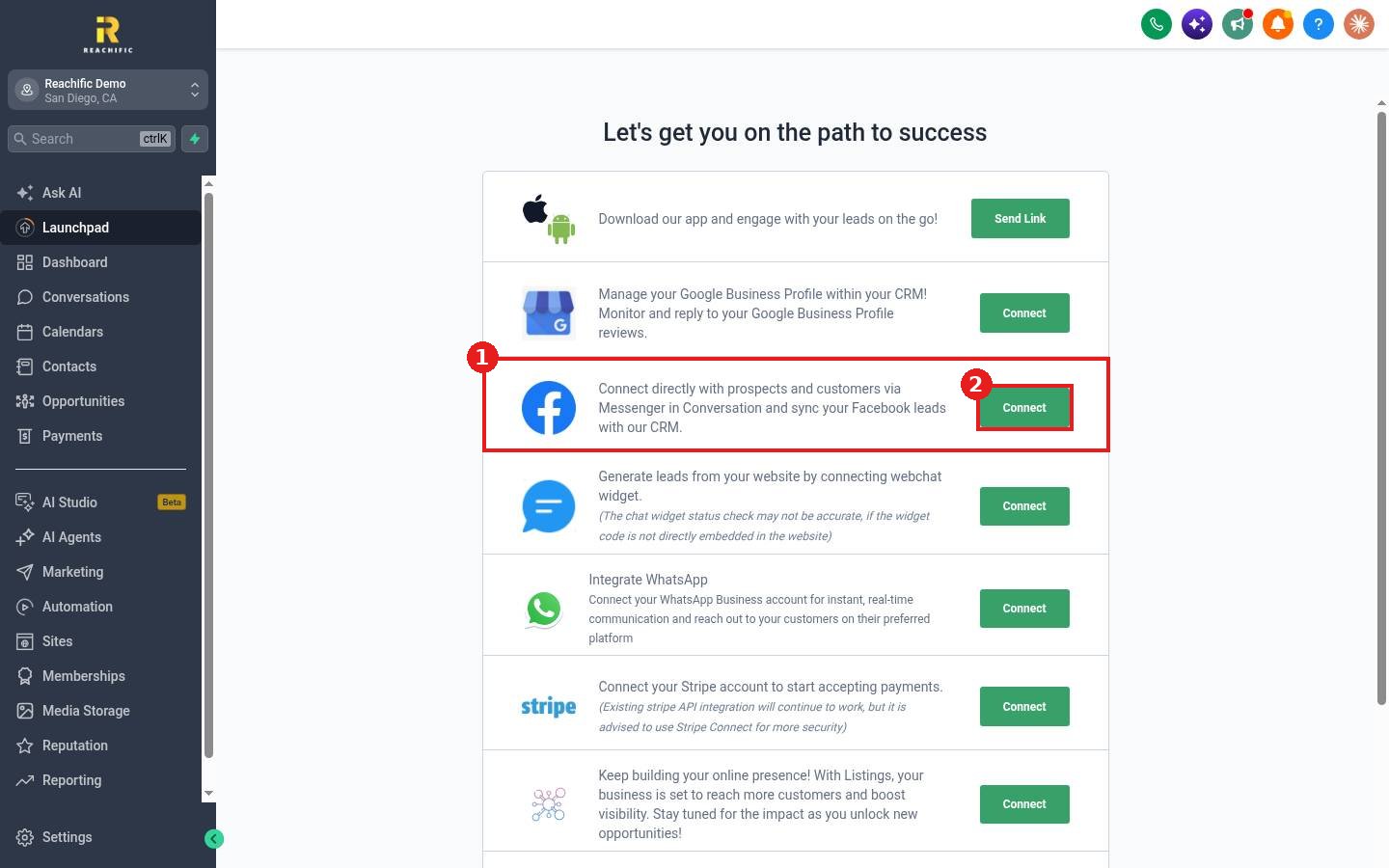
- Find the Facebook row (1), Connect directly with prospects and customers via Messenger.
- Click Connect (2).
Step 2: Approve in Facebook
- Sign in to Facebook in the window that opens.
- Select the business page (and Instagram account if asked).
- Leave the requested permissions on and finish.
FAQ
Where do Messenger messages show up?
In Conversations, alongside texts and emails. See How do I reply to texts, emails and chats from one inbox?
Do I also need to connect Facebook in Social Planner?
To post to Facebook from Social Planner, connect it there too. See How do I connect my social media accounts?
Want us to handle it? Our team can connect your Facebook page and set up automatic replies to new leads. Book a free strategy call and get a free quote.
Related articles
- How do I use the Launchpad checklist to set up my account?
- How do I connect my social media accounts?
- How do I set up a Conversation AI bot?
Still stuck? Submit a ticket and our team will help. Need faster answers? See our support plans.
