
How do I add custom code to a page?
Quick answer: Click Add Elements, search code and drag the Code element onto the page. Select it, click Open Code Editor, paste your HTML, CSS or embed and click Save. For scripts on every page, use Head tracking code and Body tracking code in the website Settings tab.
Before you start
- Only paste code from sources you trust. Bad code can break the page layout.
- Use the preview to check the result before you publish.
Step 1: Add a Code element
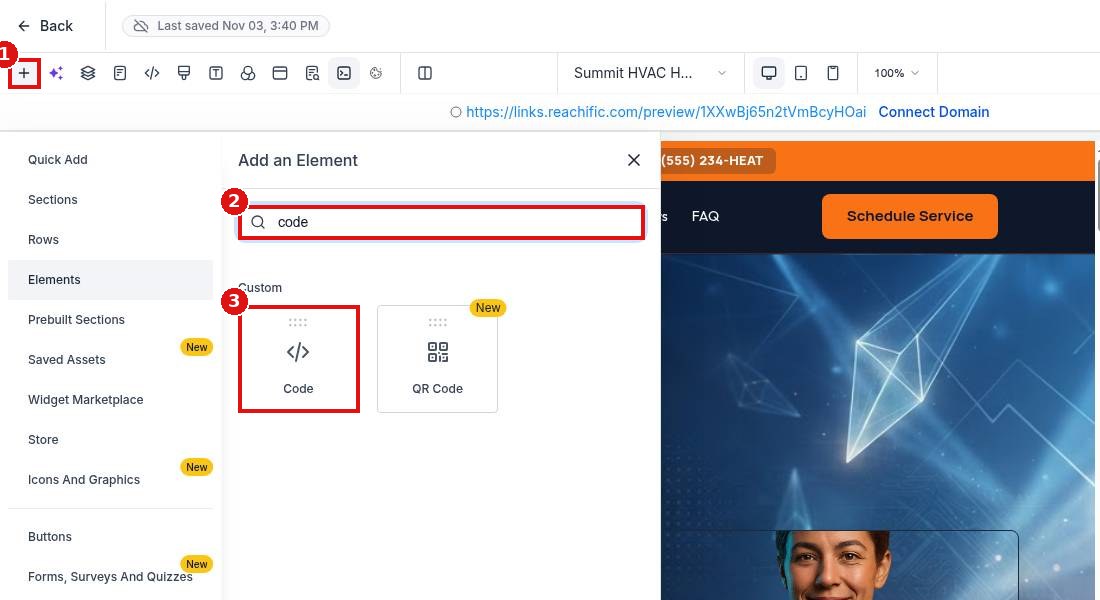
Click the plus icon (1), type code in the element search (2) and drag the Code element (3) onto the page.
Step 2: Open the code editor
Select the code block on the page (1). In the Custom Code panel click Open Code Editor (2).

Step 3: Paste your code
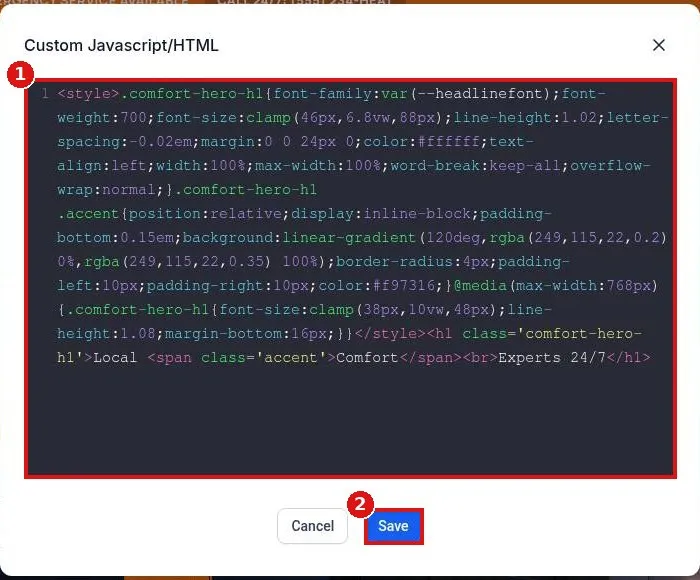
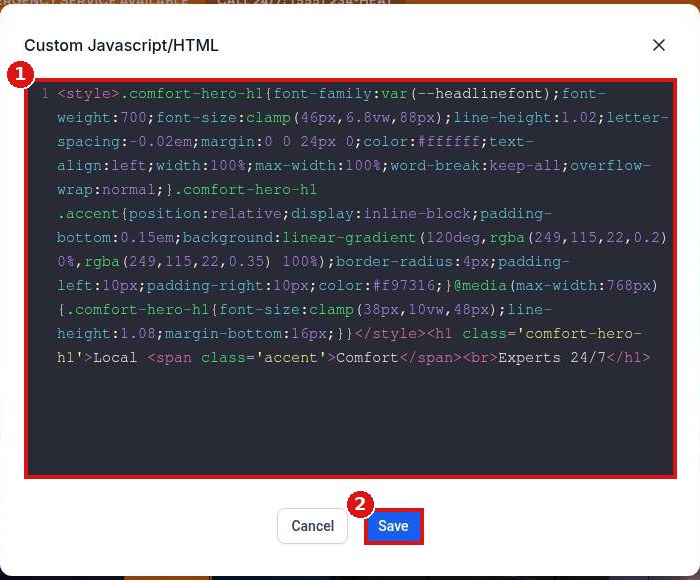
Paste or edit the code (1) and click Save (2). Save and publish the page.
Step 4: Add site wide scripts
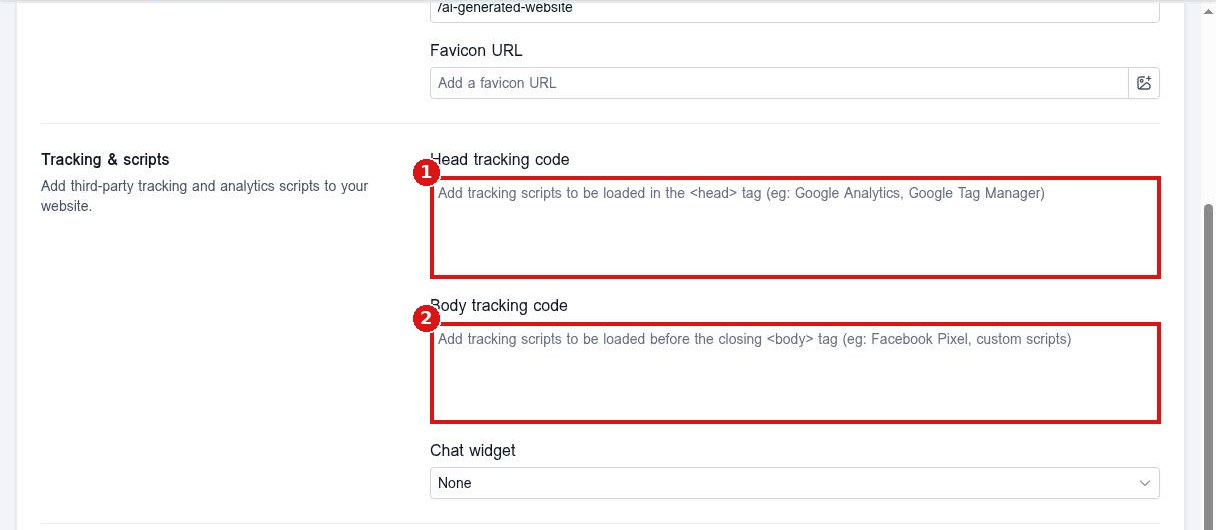
For analytics or pixels on every page, open the website Settings tab and paste into Head tracking code (1) or Body tracking code (2), then save.
FAQ
Can I add a script to just one page?
Yes. Put it in a Code element on that page.
Why does my embed not show in the editor?
Some scripts only run on the live or preview page. Check the preview after saving.
Where do Google Analytics or Meta pixel codes go?
Use Head tracking code in the website Settings tab so they load on every page.
Want us to handle it? Our team designs and builds fast, mobile friendly websites that turn visitors into leads, then keeps them updated for you. Book a free strategy call and get a free quote.
Related articles
- How do I edit text and images on a page?
- How do I publish my website changes?
- How do I add schema markup to a page?
Still stuck? Submit a ticket and our team will help. Need faster answers? See our support plans.
