
How do I add schema markup to a page?
Quick answer: Open the page in the builder and click the SEO & AI search optimization icon. Expand Schema markup, then click Create with AI to let AI write it or Add schema to enter it yourself. Publish the page. The website SEO & AEO tab shows schema status for every published page, and Auto-generate schema in website Settings adds it for you.
Before you start
- Schema tells search engines and AI answer engines what a page is about, such as your business, services and FAQs.
- Fill in your business profile first so AI has accurate details to use.
Step 1: Open the SEO panel
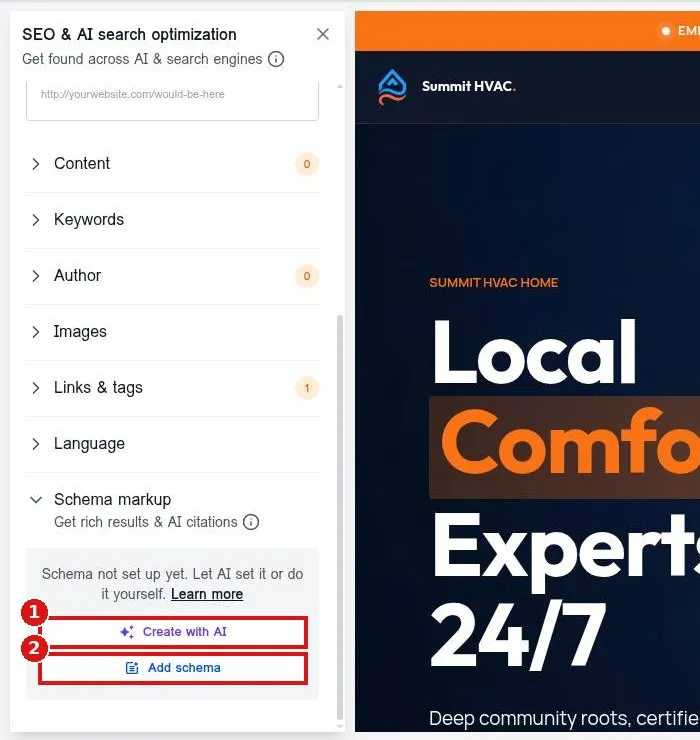
In the builder click the SEO & AI search optimization icon (1). Scroll the panel and expand Schema markup (2).
Step 2: Create the schema
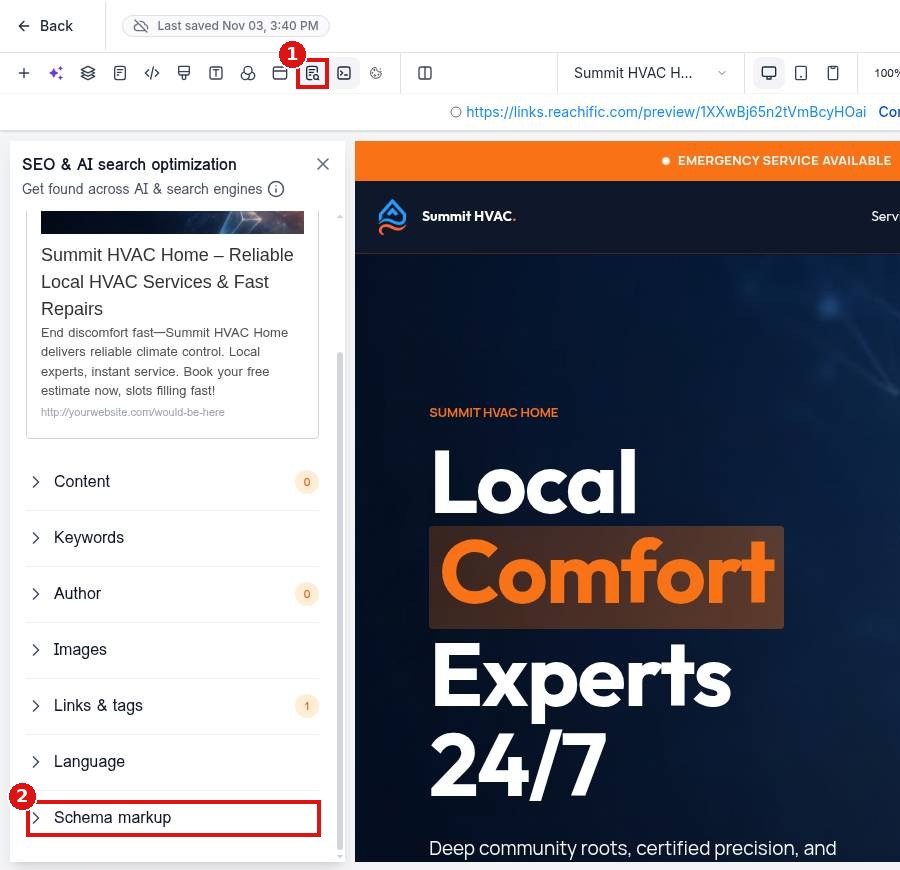
Click Create with AI (1) to have AI build it from the page, or Add schema (2) to add it by hand. Save and publish the page.
Step 3: Check schema for the whole site
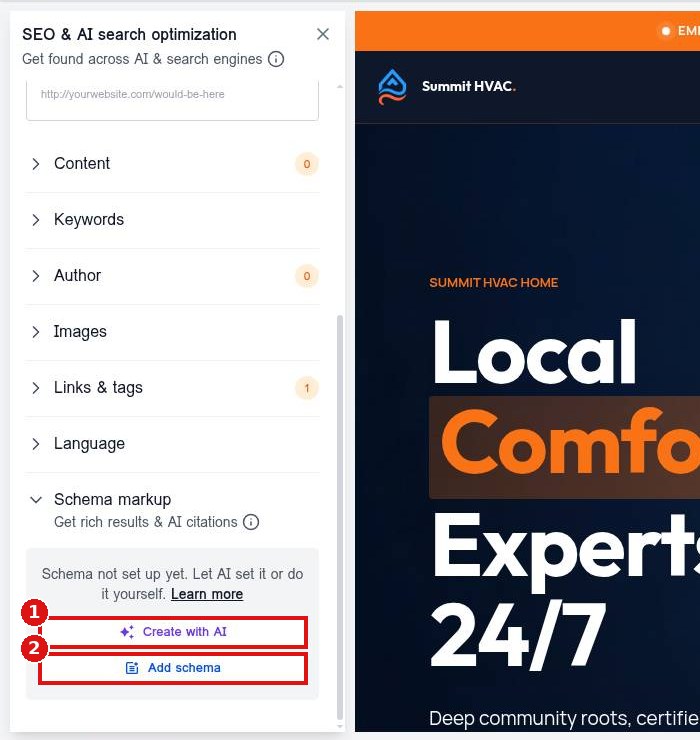
Open the website SEO & AEO tab (1). Select pages and click Generate schema (2) to create schema in bulk. Status (3) shows which pages are up to date. Pages must be published first.
Step 4: Turn on automatic schema
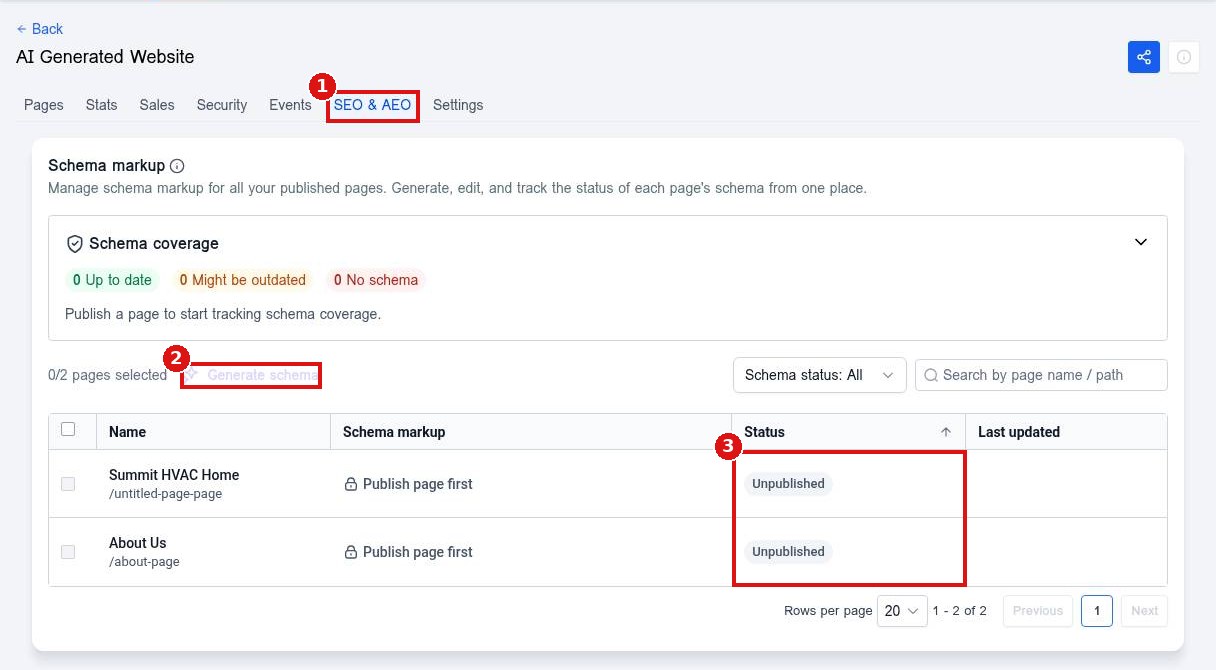
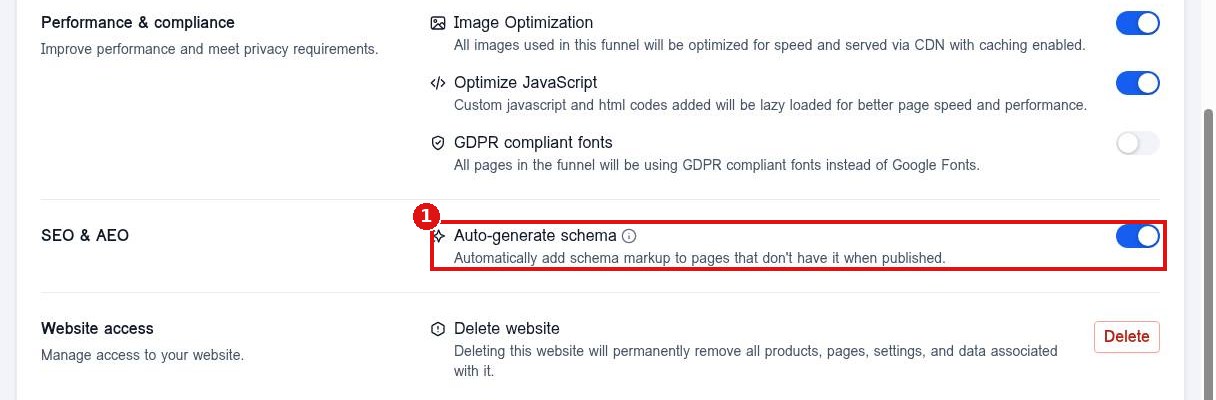
In the website Settings tab, switch on Auto-generate schema (1) so pages without schema get it when published.
FAQ
Do I need to know code to add schema?
No. Create with AI writes it for you. Add schema is there if you want to paste your own.
Why does a page say Publish page first?
Schema is tracked only for published pages. Publish the page and check again.
Will schema help with AI search?
Clear schema helps search engines and AI tools understand your business, services and answers.
Want us to handle it? Our team sets up page SEO, schema and content that helps local customers find your business. Book a free strategy call and get a free quote.
Related articles
- How do I set a page title, meta description and social image?
- How do I edit text and images on a page?
- How do I create a new website?
Still stuck? Submit a ticket and our team will help. Need faster answers? See our support plans.
