
How do I edit text and images on a page?
Quick answer: Go to Sites > Websites, open your website and click Edit on the page. In the builder, click the text or image you want to change. Type over text right on the page, or use the settings panel on the right for fonts, colors, the image file and its alt text. Click Save, then Publish.
Before you start
- Changes stay in draft until you publish, so you can experiment safely.
- Have new images ready, or upload them from the image picker while you edit.
Step 1: Open the page in the builder
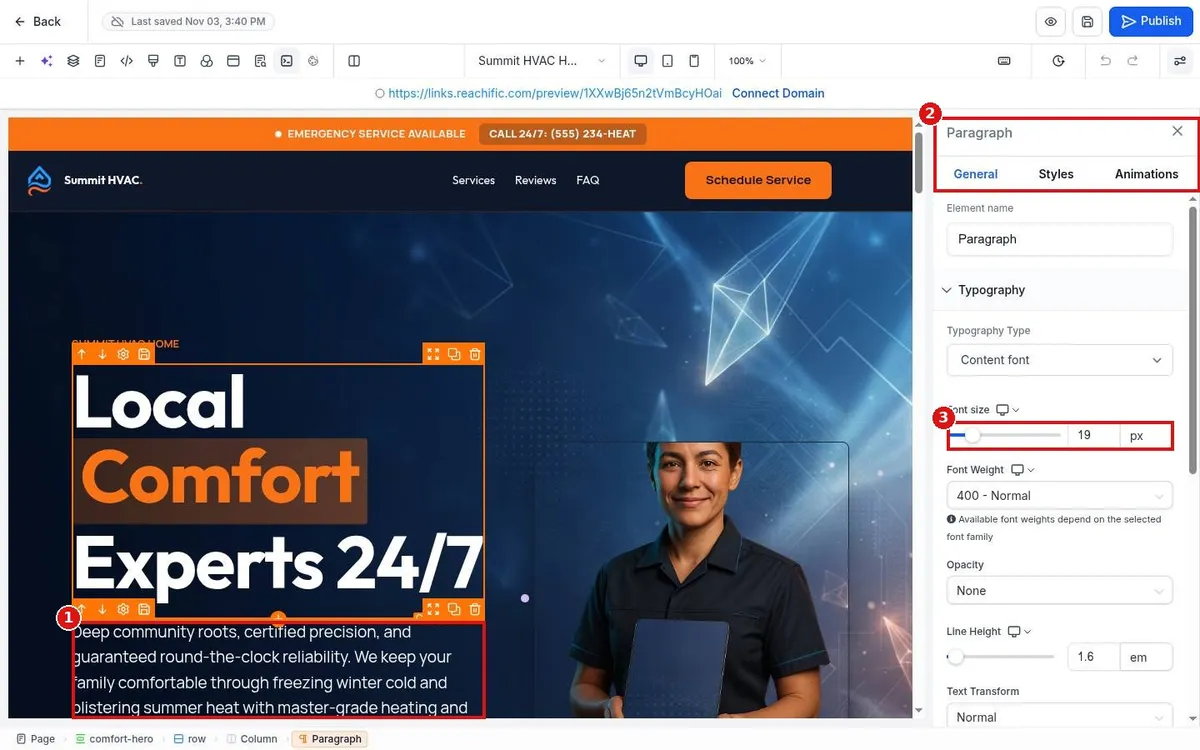
Open your website, stay on the Pages tab (1) and click Edit (2) on the page you want to change.
Step 2: Edit text
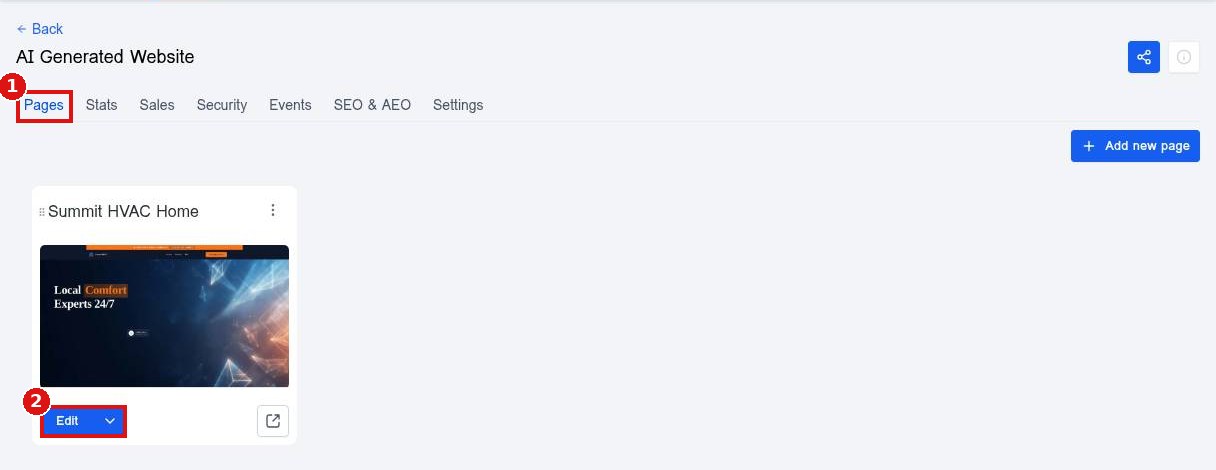
Click a headline or paragraph (1) to select it. Click again to type over the words. The General panel (2) on the right sets the font, size (3), weight, line height and color.
Step 3: Replace an image
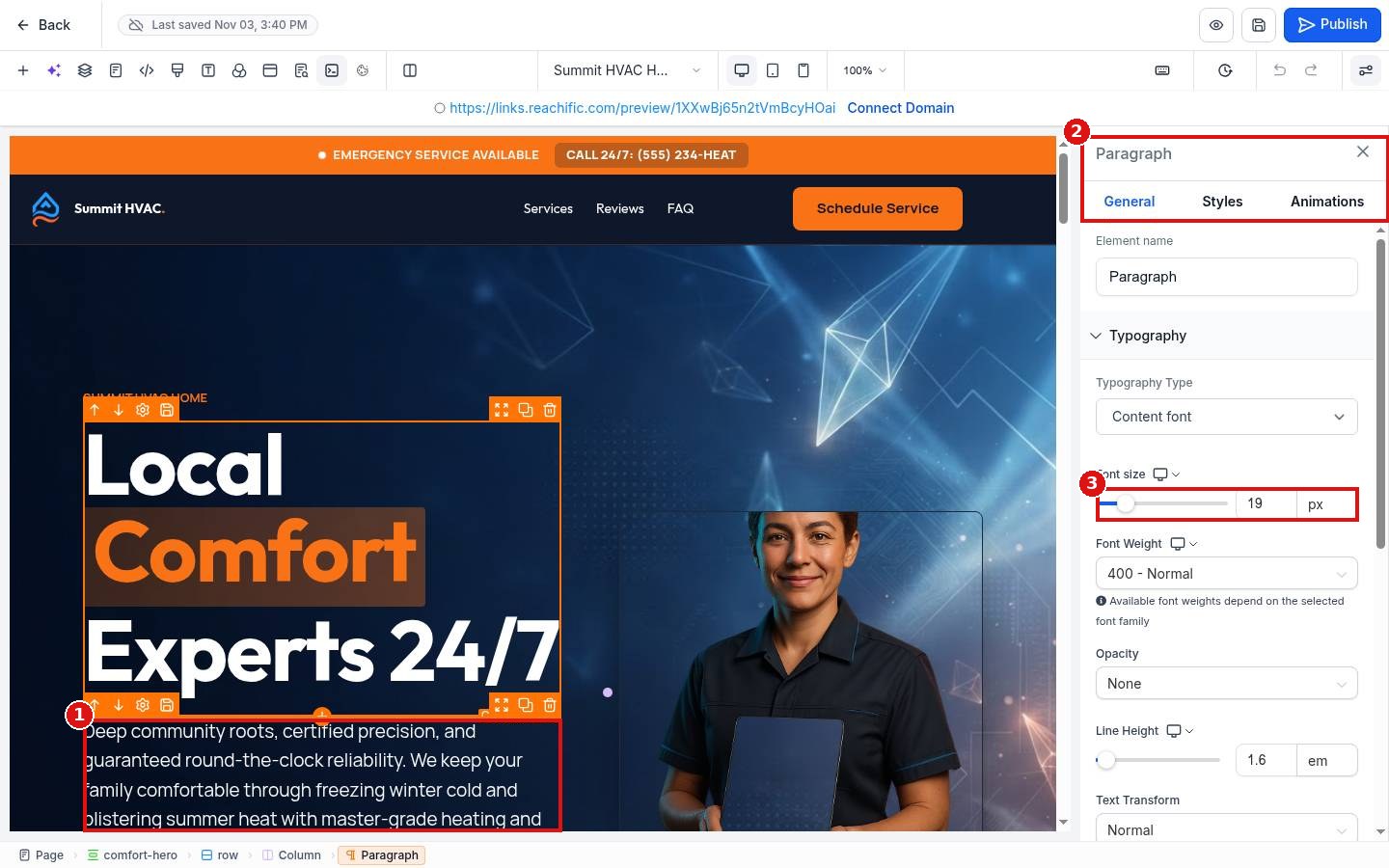
Click the image (1). In the panel, use the Image field and its picker button (2) to choose a new file from Media Storage, and update the Alt Text (3) so search engines know what the picture shows.
Step 4: Save and publish
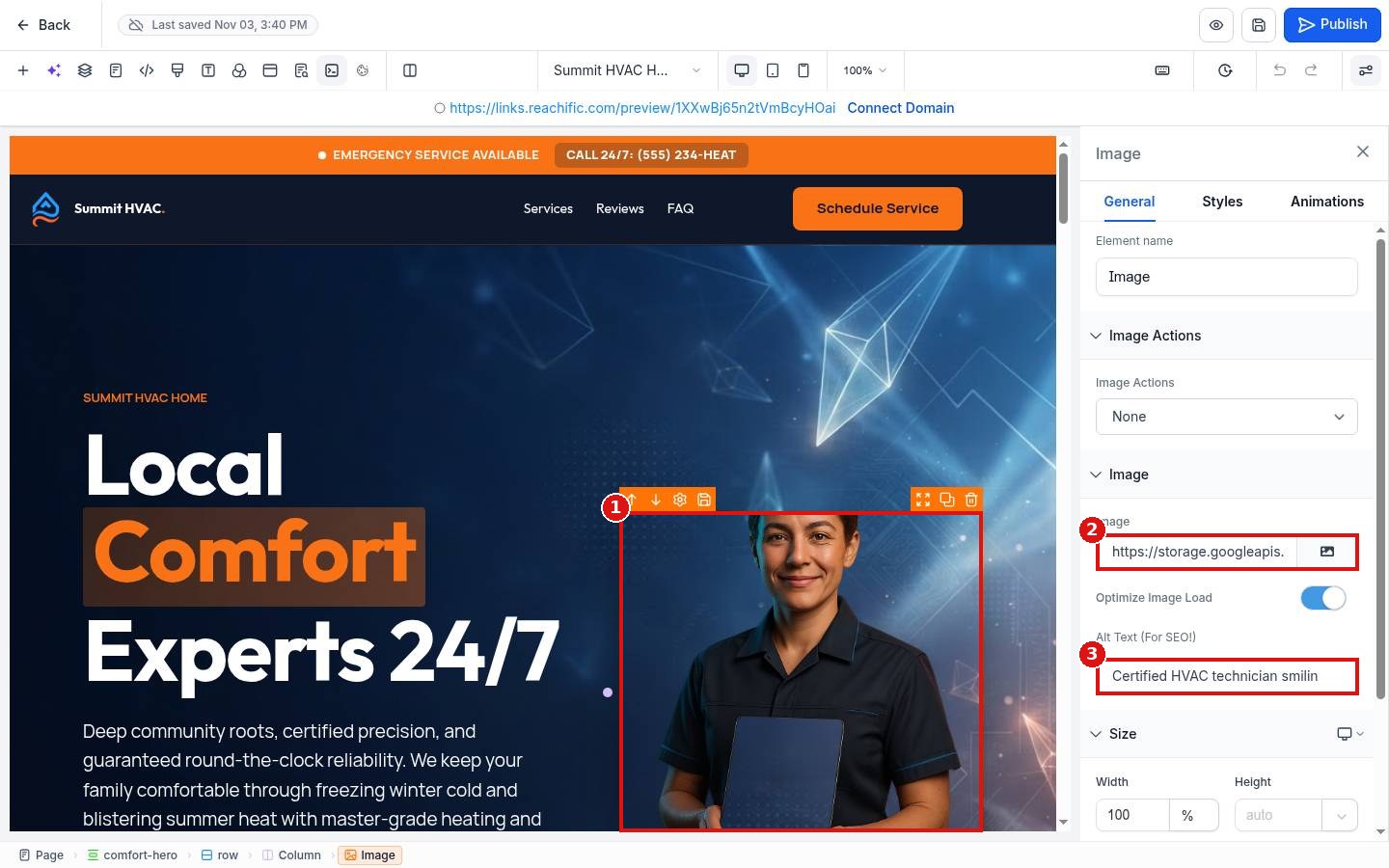
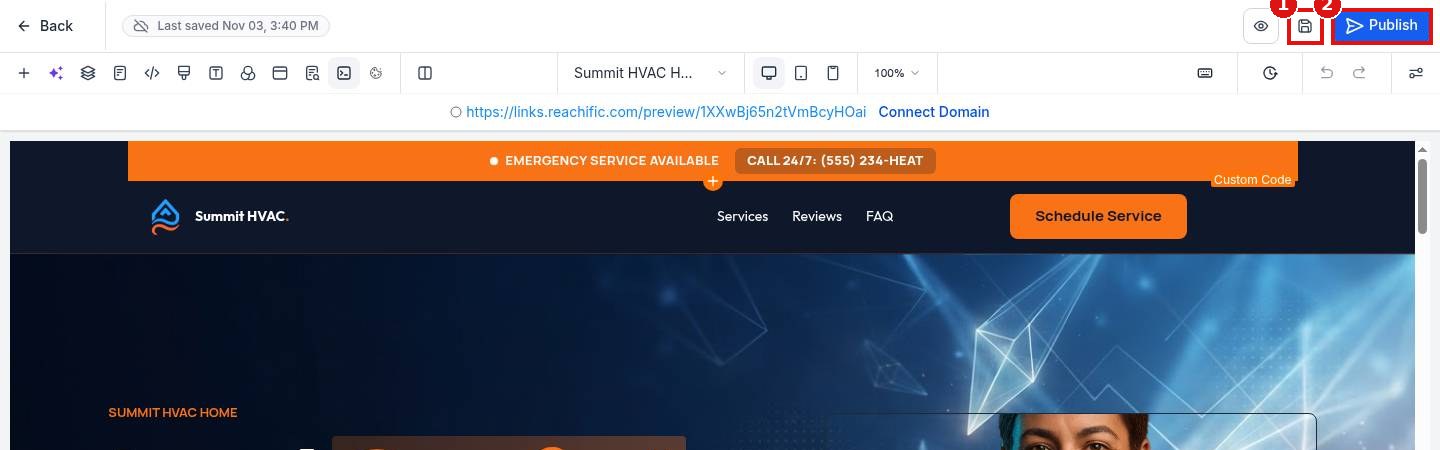
Click the Save icon (1) to keep your draft, then Publish (2) when you want visitors to see the change.
FAQ
Why can I not type in some headlines?
Some sections are built with a Custom Code element. Select it and click Open Code Editor to change the words inside the code.
Will editing change my live site right away?
No. Visitors see your changes only after you click Publish.
Can I undo a mistake?
Yes. Use the undo arrow in the top bar, or restore an older copy from version history.
Want us to handle it? Our team designs and builds fast, mobile friendly websites that turn visitors into leads, then keeps them updated for you. Book a free strategy call and get a free quote.
Related articles
- How do I create a new website?
- How do I set a page title, meta description and social image?
- How do I edit my header and footer on every page?
Still stuck? Submit a ticket and our team will help. Need faster answers? See our support plans.
