
How do I publish my website changes?
Quick answer: In the builder click Save to store your draft, then Publish to push it live. If the publish window says a domain is needed, connect your domain and pick it in the website Settings tab, then publish again.
Before you start
- Save often. The top bar shows when the page was last saved.
- Publish each page you change. Publishing one page does not publish the others.
Step 1: Save, then publish
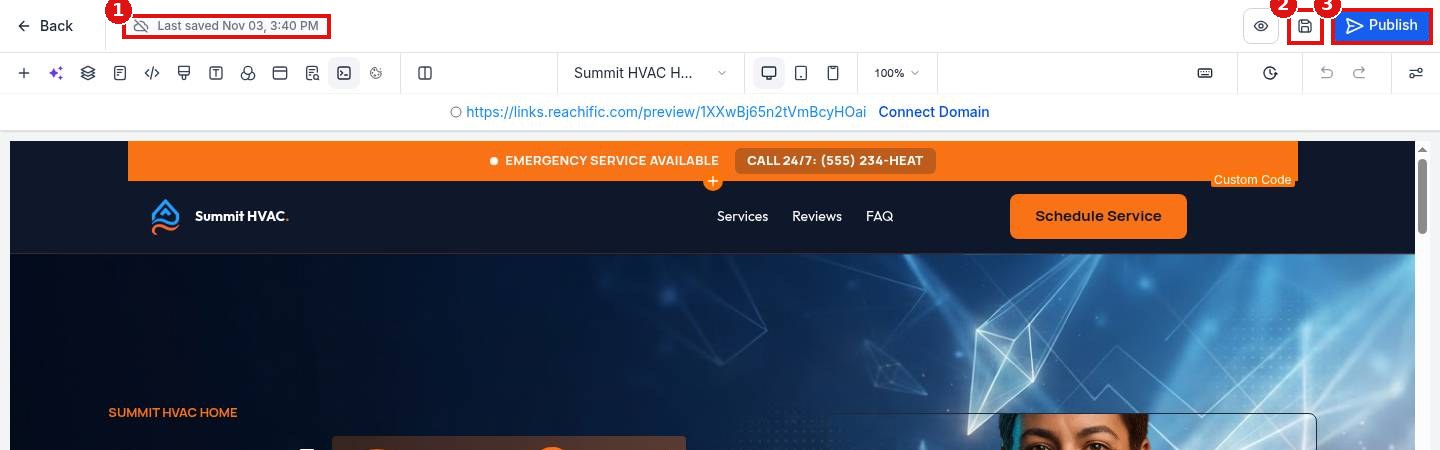
The top bar shows the Last saved time (1). Click the Save icon (2) to keep your draft, then Publish (3).
Step 2: Pick a domain if asked
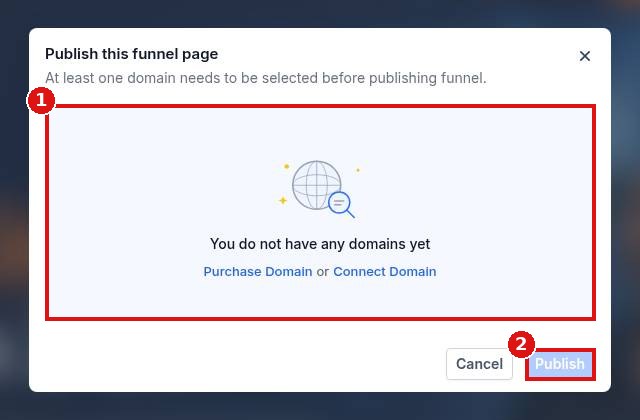
If no domain is connected, the publish window says You do not have any domains yet (1) and Publish (2) stays grey. Connect a domain first.
Step 3: Set the website domain
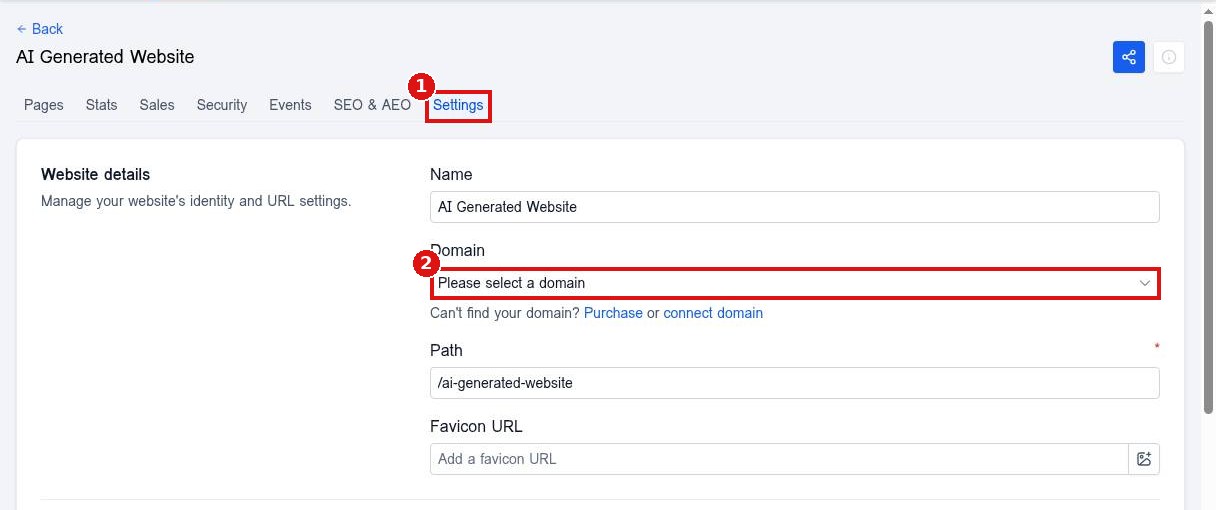
Open the website Settings tab (1) and choose your connected domain in Domain (2). Save, then publish the page again.
FAQ
What is the difference between Save and Publish?
Save keeps a draft only you see. Publish makes the page live for visitors.
Can I preview before publishing?
Yes. Click the eye icon in the top bar, or use the preview link under the toolbar.
Why did my changes not show up?
Make sure you clicked Publish on that page, then refresh your site with a hard reload.
Want us to handle it? Our team designs and builds fast, mobile friendly websites that turn visitors into leads, then keeps them updated for you. Book a free strategy call and get a free quote.
Related articles
- How do I connect my domain to my Reachific website?
- How do I edit text and images on a page?
- How do I create a new website?
Still stuck? Submit a ticket and our team will help. Need faster answers? See our support plans.
