
How do I upload files and FAQs to a knowledge base?
Quick answer: Open your knowledge base in AI Agents > Knowledge Base. On the FAQ tab click Add FAQ, type a question and answer and click Save. On the Files tab click Upload from computer or Import from Google Drive.
Before you start
- List the ten questions customers ask most, with short, clear answers.
- Have documents ready, such as a service menu, warranty terms or a price sheet.
Step 1: Add FAQs
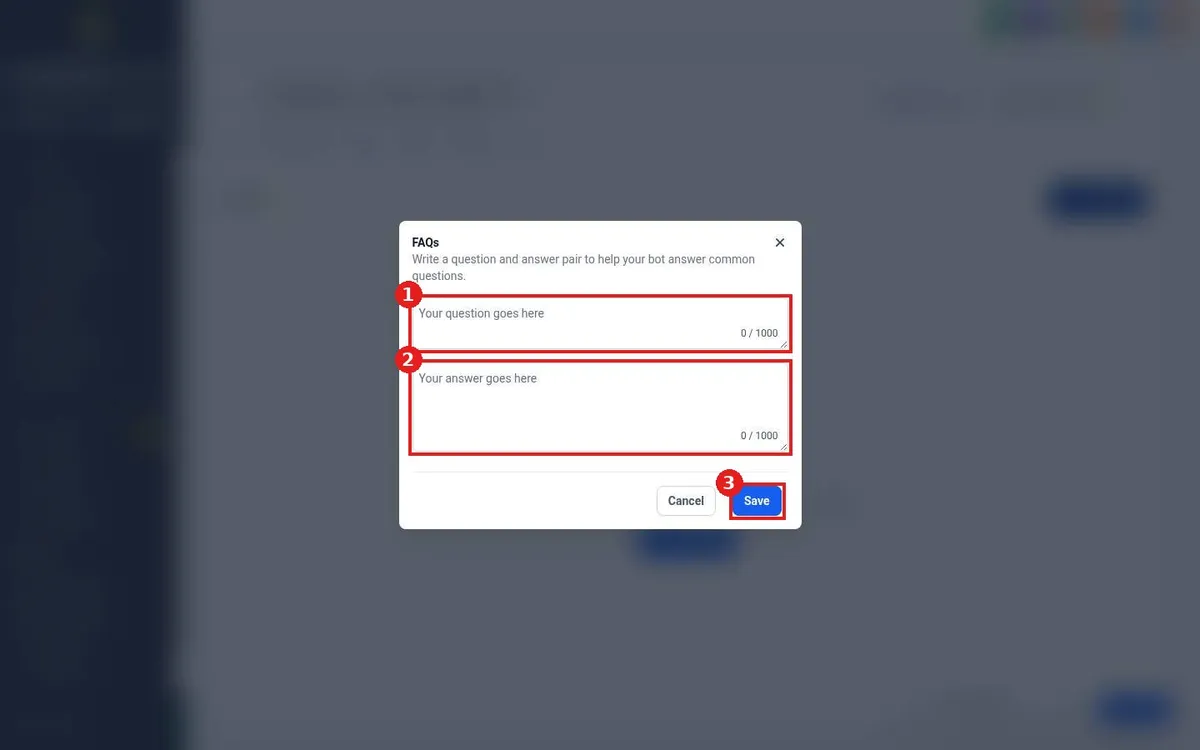
- Open the knowledge base and click the FAQ tab, then Add FAQ.
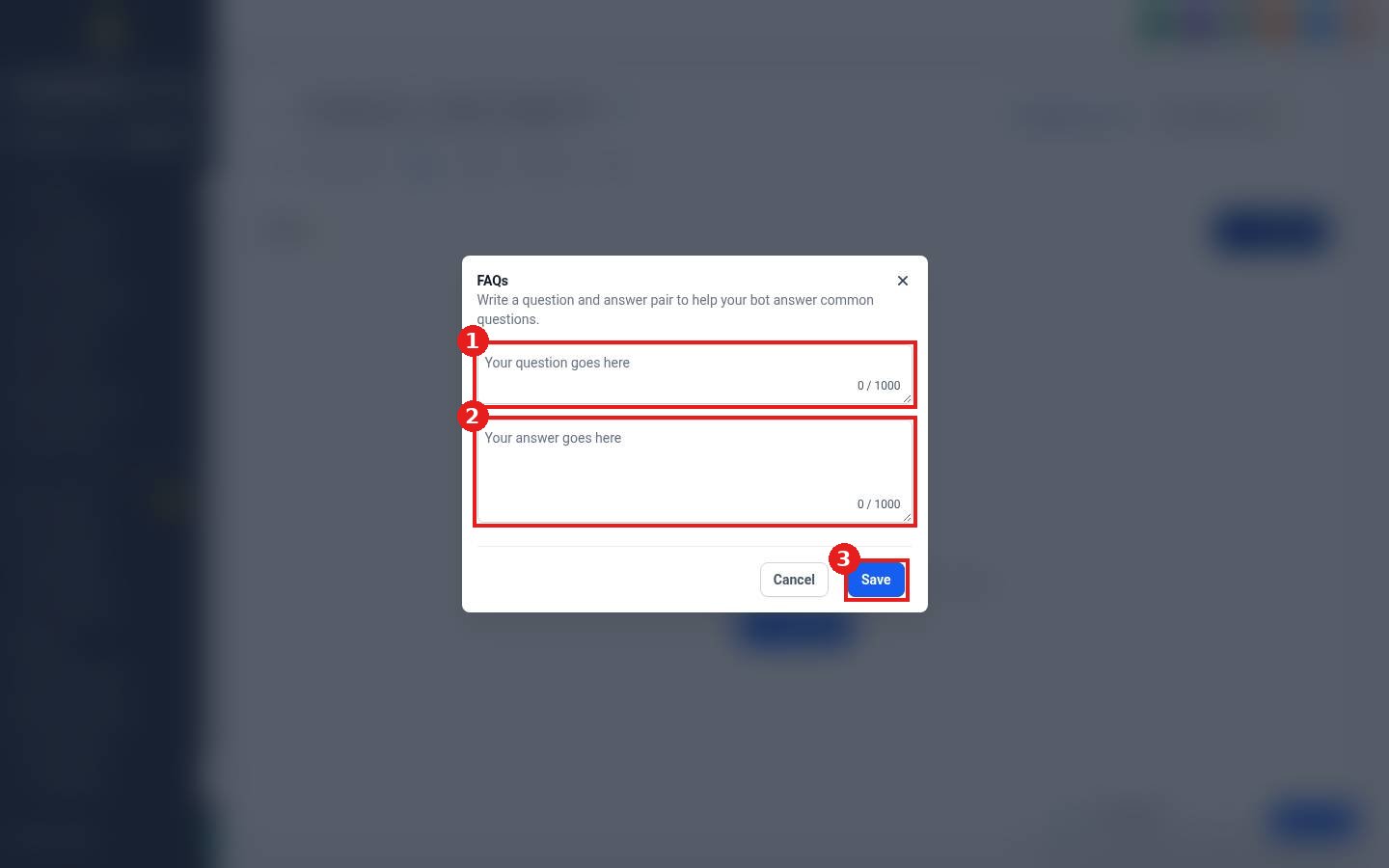
- Type the question (1) the way a customer would ask it.
- Type the answer (2). Each field holds up to 1000 characters.
- Click Save (3). Repeat for each question.
Step 2: Upload files
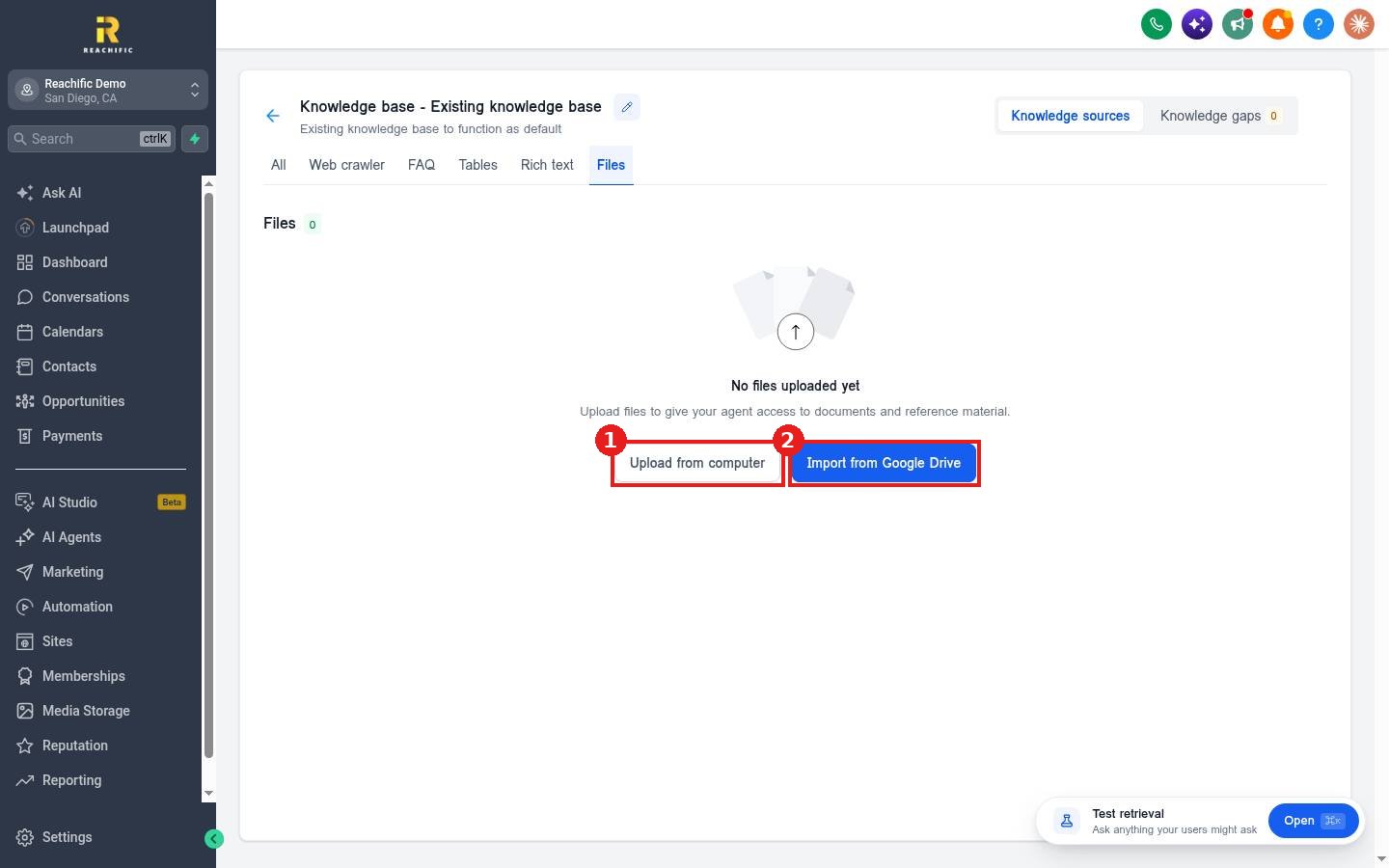
- Click the Files tab.
- Click Upload from computer (1) or Import from Google Drive (2).
- Pick the file. It is added to the Files list when it finishes.
Step 3: Test
Click Open on Test retrieval and ask one of your questions in different words to make sure the agent finds the answer.
FAQ
FAQ or file, which is better?
FAQs give the most exact answers for common questions. Files are best for longer detail like policies and service descriptions.
Can I keep a Google Sheet in sync?
Yes. The knowledge base can sync Google Sheets so edits flow in without uploading again.
Want us to handle it? Our team can write your FAQs and load your documents so your AI agents answer like your best employee. Book a free strategy call and get a free quote.
Related articles
- How do I create a knowledge base for my AI agents?
- How do I add my website to a knowledge base with the web crawler?
- How do I set up a Voice AI agent to answer my calls?
Still stuck? Submit a ticket and our team will help. Need faster answers? See our support plans.
