
How do I add my website to a knowledge base with the web crawler?
Quick answer: Open your knowledge base in AI Agents > Knowledge Base, click Web crawler, then Add website. Pick a mode: Exact URL, All URLs with the path or All URLs in this domain. Enter your website address and click Train this page.
Before you start
- Create or open a knowledge base. See How do I create a knowledge base for my AI agents?
- Make sure the pages you want are public and up to date.
Step 1: Open the web crawler
- Go to AI Agents > Knowledge Base and click the pencil on your knowledge base.
- Click the Web crawler tab, or the Web crawler quick button on an empty knowledge base.
- Click Add website.
Step 2: Choose what to crawl
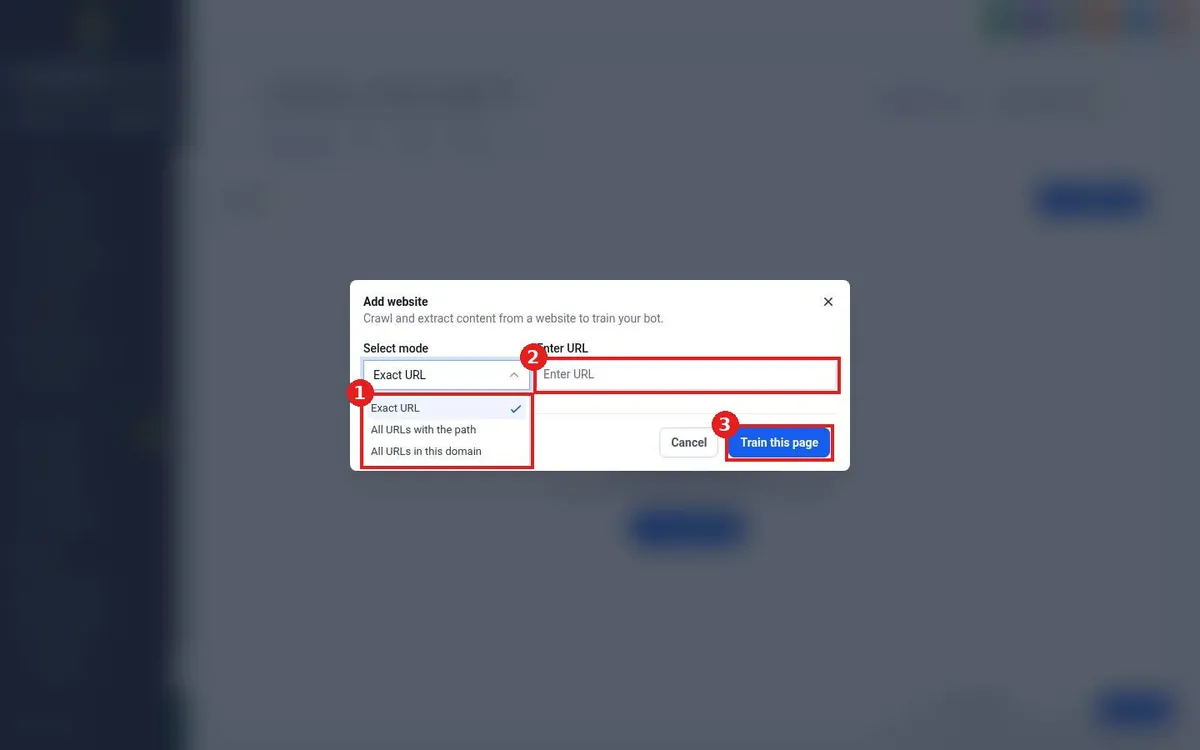
- Open Select mode (1):
- Exact URL reads one page only.
- All URLs with the path reads every page under a section, such as yoursite.com/services.
- All URLs in this domain reads your whole site.
- Enter the address in Enter URL (2).
- Click Train this page (3).
Step 3: Check the results
The crawled pages show under URLs on the Web crawler tab. Use Test retrieval to ask a question and confirm the agent finds the right answer.
FAQ
What if my website changes?
Train the pages again after big updates so your agents use the latest information.
Should I crawl my whole site?
Only if every page is useful to customers. Crawl service, pricing, area and FAQ pages, and skip pages like old blog posts that might confuse answers.
Want us to handle it? Our team can choose the right pages, train your agents and keep them current. Book a free strategy call and get a free quote.
Related articles
- How do I create a knowledge base for my AI agents?
- How do I upload files and FAQs to a knowledge base?
- How do I set up a Conversation AI bot?
Still stuck? Submit a ticket and our team will help. Need faster answers? See our support plans.
