
How do I upload my business logo?
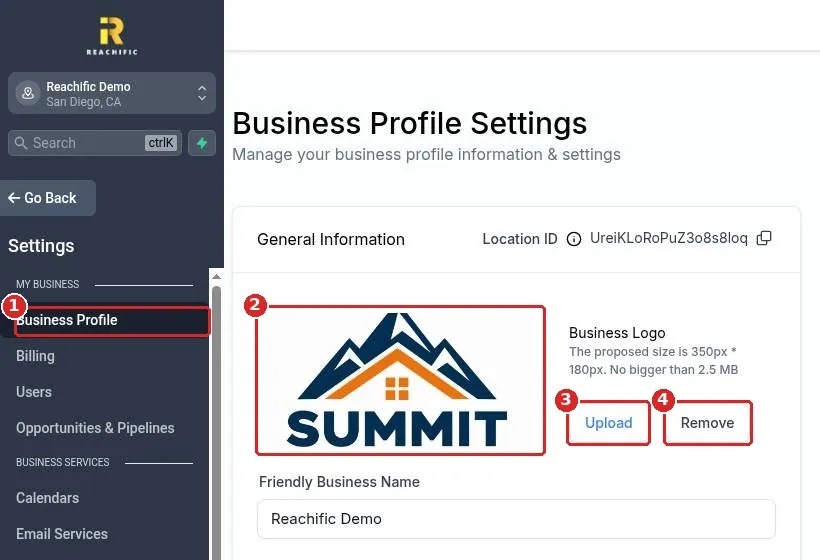
Quick answer: Click Settings, then Business Profile. Under Business Logo, click Upload and pick your logo file. Use an image about 350 by 180 pixels that is no bigger than 2.5 MB. Then click Update Information to save.
Before you start
- Use a PNG with a transparent background if you have one. It looks clean on light and dark backgrounds.
- A wide logo works best. The space is about twice as wide as it is tall.
- Keep the file under 2.5 MB or the upload will not go through.
Step 1: Upload the logo
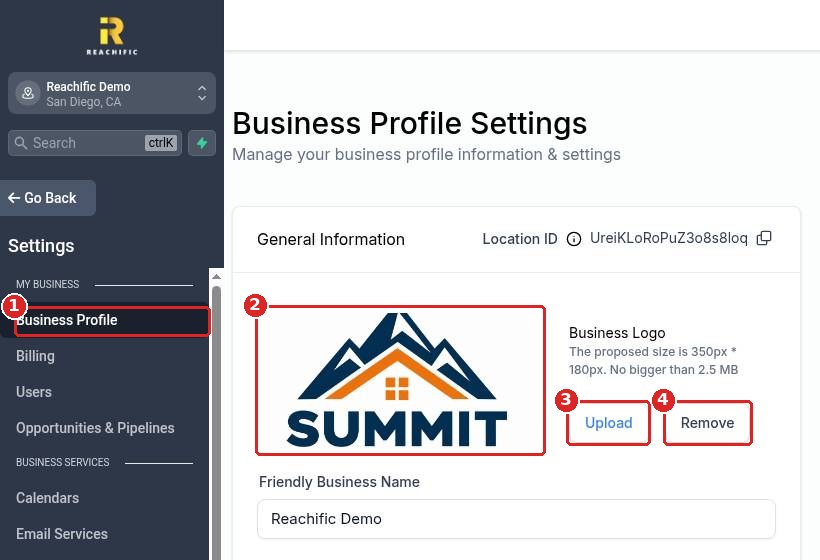
Click Settings at the bottom of the left menu, then Business Profile (1). Your current logo shows in the preview (2). Click Upload (3) and choose your logo file. To take a logo off, click Remove (4).
Step 2: Save your change
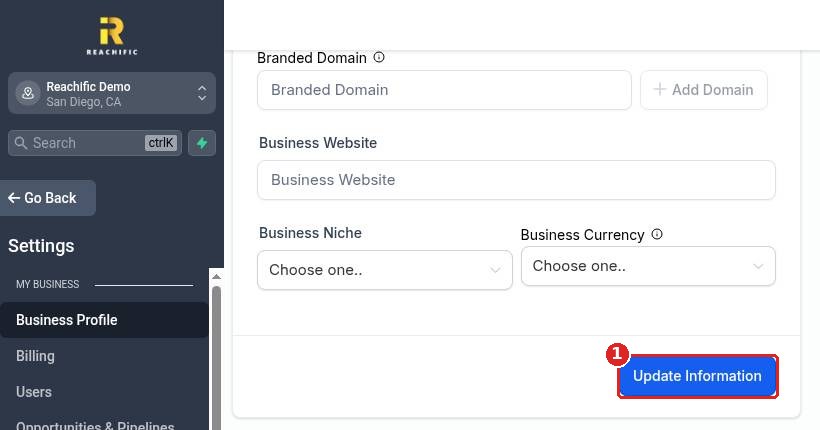
Scroll to the bottom of the General Information card and click Update Information (1). Reload the page to check the new logo shows.
FAQ
What size should my logo be?
About 350 by 180 pixels, and no bigger than 2.5 MB. A larger image is scaled down to fit.
Where does my business logo show up?
It is used across your account for your business, such as on invoices and other customer facing items that pull your business details.
Does this change the logo on my website?
No. Your website logo is set in the website builder. Edit the header of your site to change it there.
My logo looks blurry. What should I do?
Upload a sharper file close to 350 by 180 pixels. Very small images get blurry when they are stretched.
Want us to handle it? Our team can set up your branding, logo and website so everything matches. Book a free strategy call and get a free quote.
Related articles
- How do I fill in my business profile?
- How do I edit my header and footer on every page?
- How do I upload images and files to Media Storage?
Still stuck? Submit a ticket and our team will help. Need faster answers? See our support plans.
