
How do I edit my header and footer on every page?
Quick answer: In the website builder, click your header or footer section and click the save icon on its left toolbar. Name it and choose Global Sections (syncs across this website) or Universal Sections (syncs across every site in your account), then click Save. Add it to your other pages from + > Saved Assets. From then on, an edit to that section on any page updates it everywhere it is used.
Before you start
- Open your site in Sites > Websites, pick the website and click Edit on a page that already has the header or footer you want to reuse.
- Build the section the way you want it first: logo, menu, phone number, button, links and copyright line.
- Decide how far changes should reach. Global is safest if you run more than one website in the account.
Step 1: Select the section
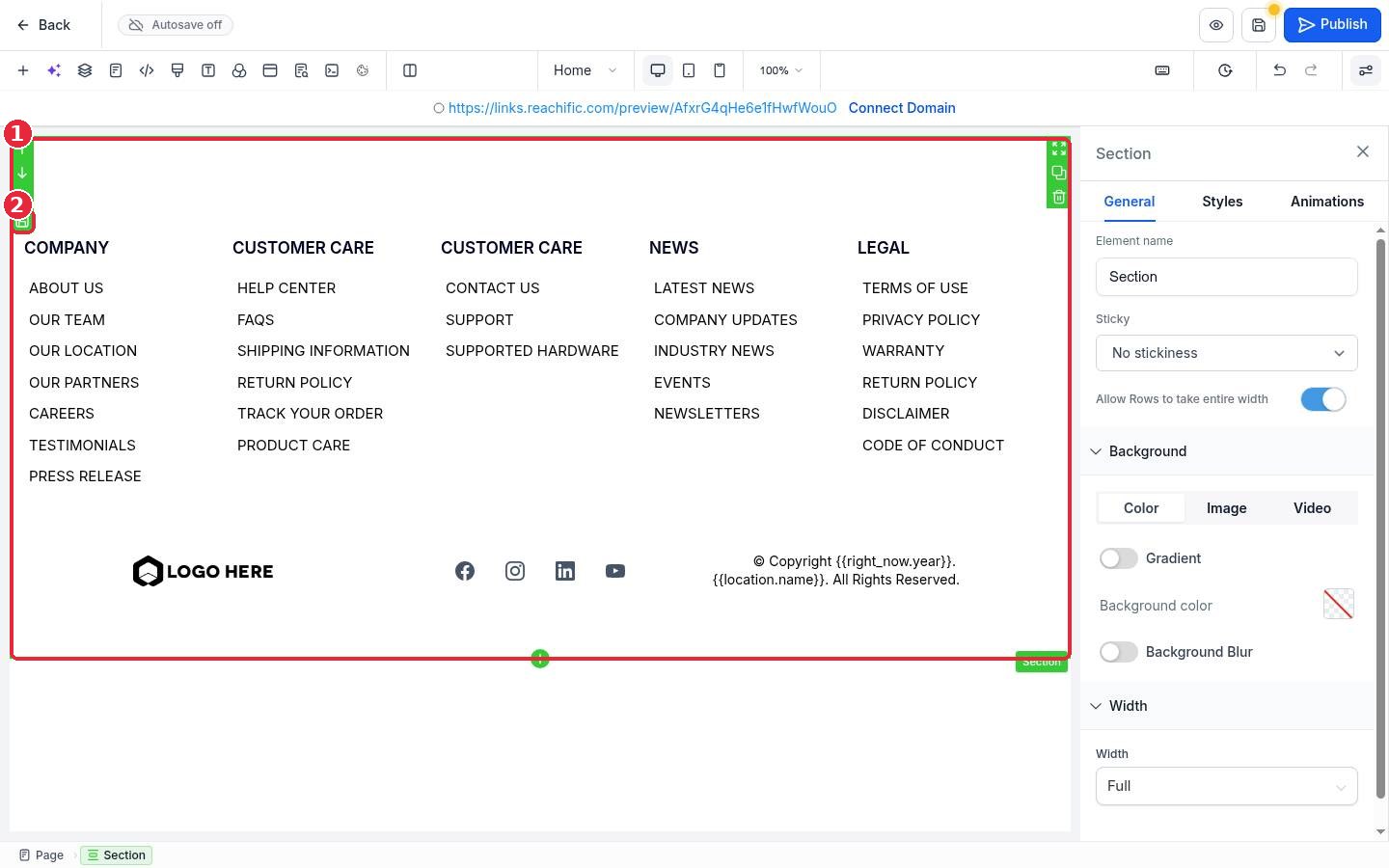
Click an empty spot inside the header or footer so the whole section is outlined (1). A small toolbar appears on its left edge. Click the save icon at the bottom of that toolbar (2).
Step 2: Save it as a Global or Universal section
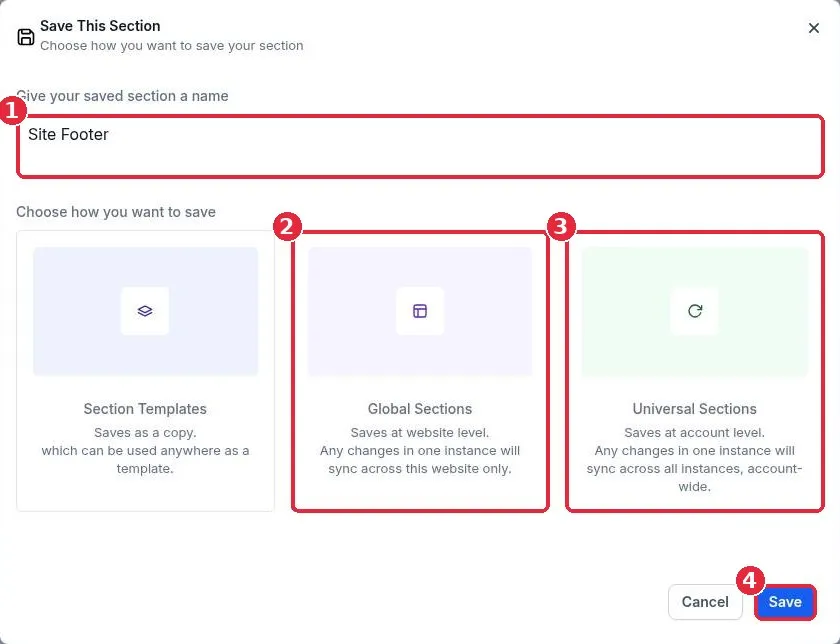
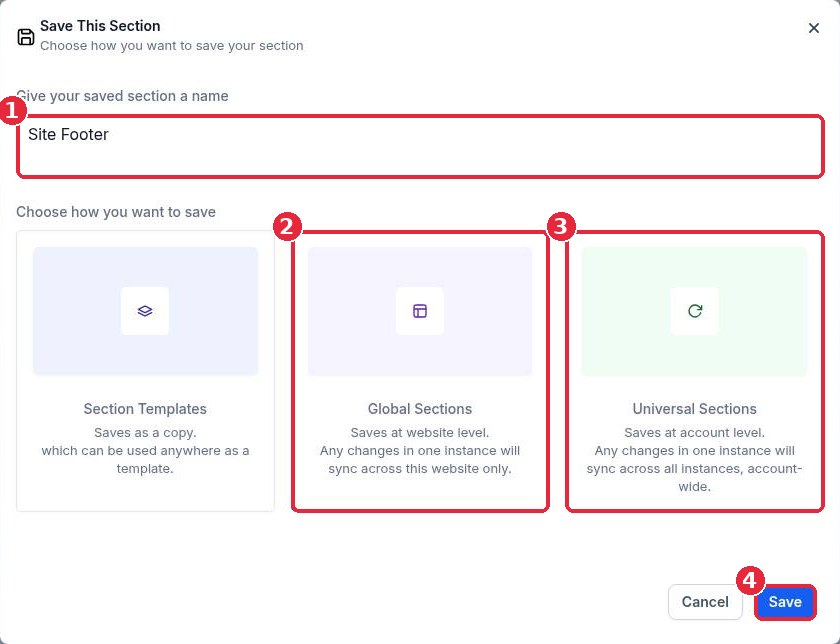
In Save This Section, type a clear name such as Site Header or Site Footer (1). Then choose how to save it:
- Global Sections (2): saved at the website level. Change it once and it updates on every page of this website.
- Universal Sections (3): saved at the account level. Change it once and it updates on every page, website and funnel where you used it.
- Section Templates: saves a separate copy that does not stay in sync. Use this only when you want a starting point.
Click Save (4).
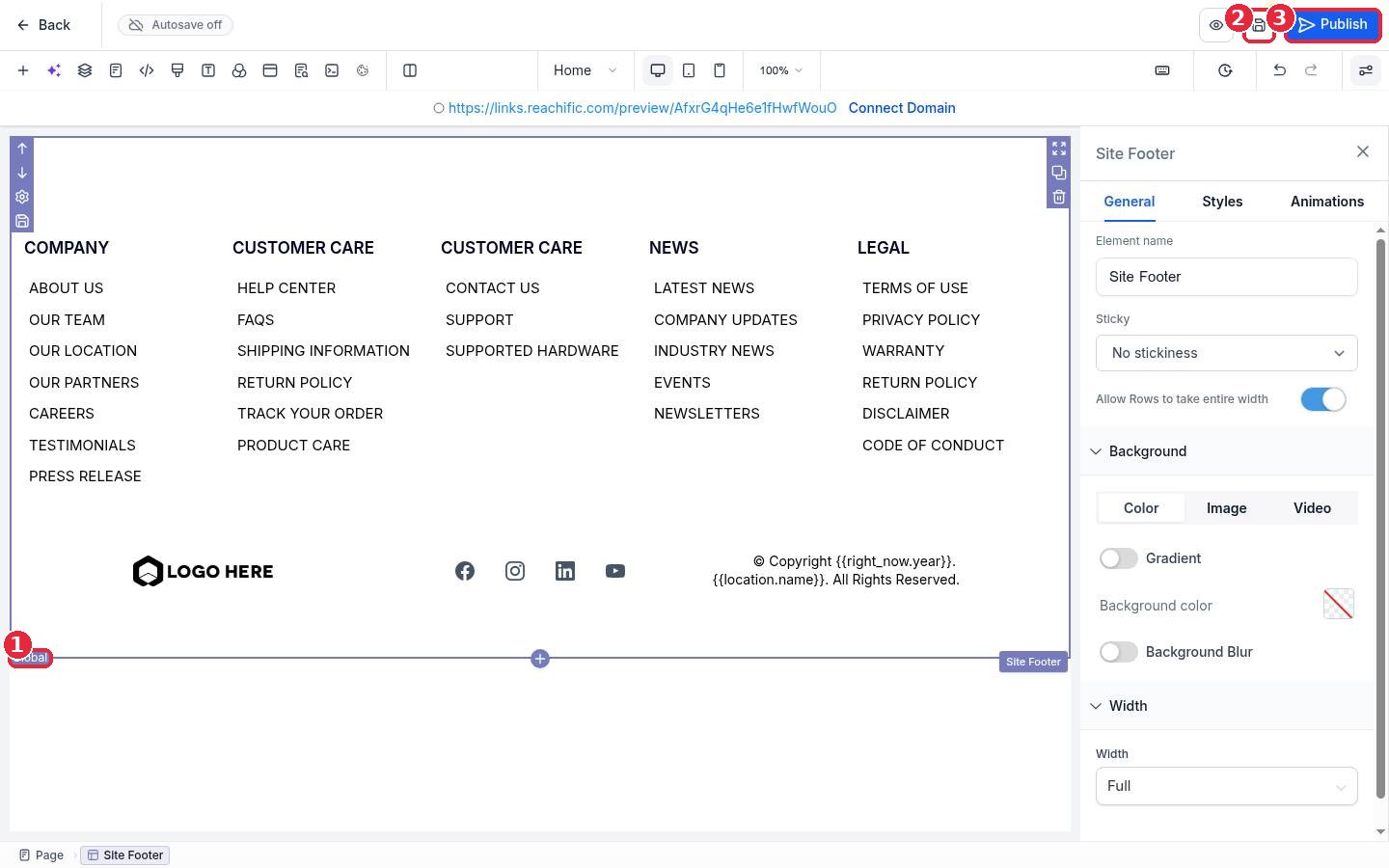
The section now shows a Global label (1). Click the Save icon (2) at the top to save the page, then Publish (3) when you are ready for it to go live.
Step 3: Add it to your other pages
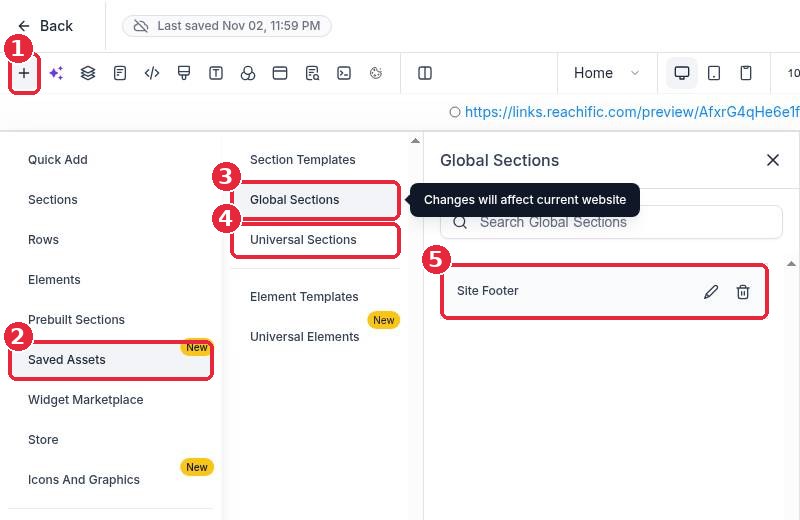
Open each other page in the builder. Click + (1), choose Saved Assets (2), then Global Sections (3) or Universal Sections (4). Drag your saved section (5) onto the page, at the top for a header or the bottom for a footer. Remove any old header or footer that was only on that page, then save and publish.
Step 4: Edit once, update everywhere
- Open any page that uses the section and change it: new phone number, new menu link, new logo.
- Click Save. The change applies to every page that uses that Global or Universal section.
- Publish the pages so visitors see the update. Check a couple of pages on your live site to confirm.
FAQ
Can I change the header on just one page?
Yes. Use a regular section on that page instead of the saved one, or save a separate section template for that page. Editing a Global or Universal section always changes every copy.
What is the difference between Global and Universal?
Global stays inside one website. Universal is shared across the whole account, so it can keep the same footer on your website and your funnels.
How do I rename or delete a saved section?
Go to + > Saved Assets > Global Sections or Universal Sections and use the pencil or trash icon next to the section.
Do I need to republish every page?
Republish the pages after a change to make sure the live site shows the latest version, then check them on your phone too.
Want us to handle it? Our team can build a clean header and footer, set them up once for every page and keep your phone number, menu and links consistent across your whole site. Book a free strategy call and get a free quote.
Related articles
- How do I connect my domain to my Reachific website?
- How do I set up missed call text back?
- How do I start my 14 day Reachific free trial?
Still stuck? Submit a ticket and our team will help. Need faster answers? See our support plans.
