
How do I upload images and files to Media Storage?
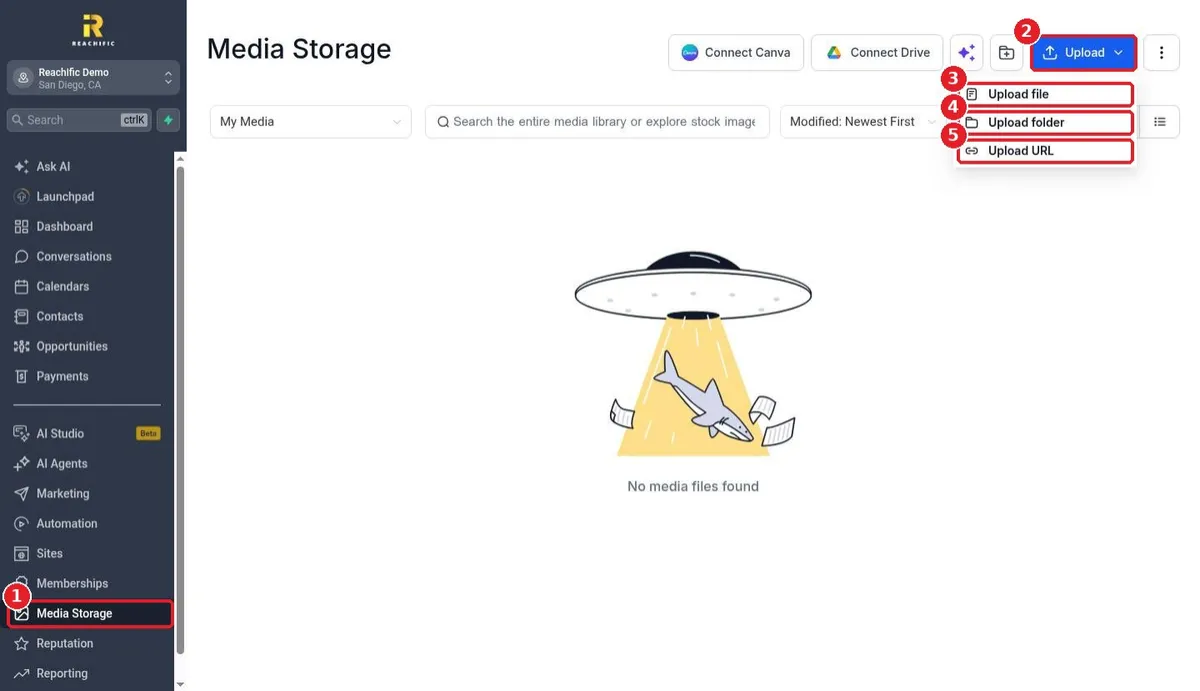
Quick answer: Click Media Storage in the left menu, then click Upload. Choose Upload file to pick files from your computer, Upload folder to add a whole folder, or Upload URL to import a file from a direct link. When the upload finishes, the file shows under Files. Click it to copy its link, add tags or write alt text.
Before you start
- Media Storage holds images, videos, audio and documents such as PDFs. You can use them in your website, funnels, emails, courses and blog posts.
- Give files clear names before you upload, like summer-promo-banner.jpg, so they are easy to find later.
- Only upload media you own or have the right to use.
Step 1: Open Media Storage and click Upload
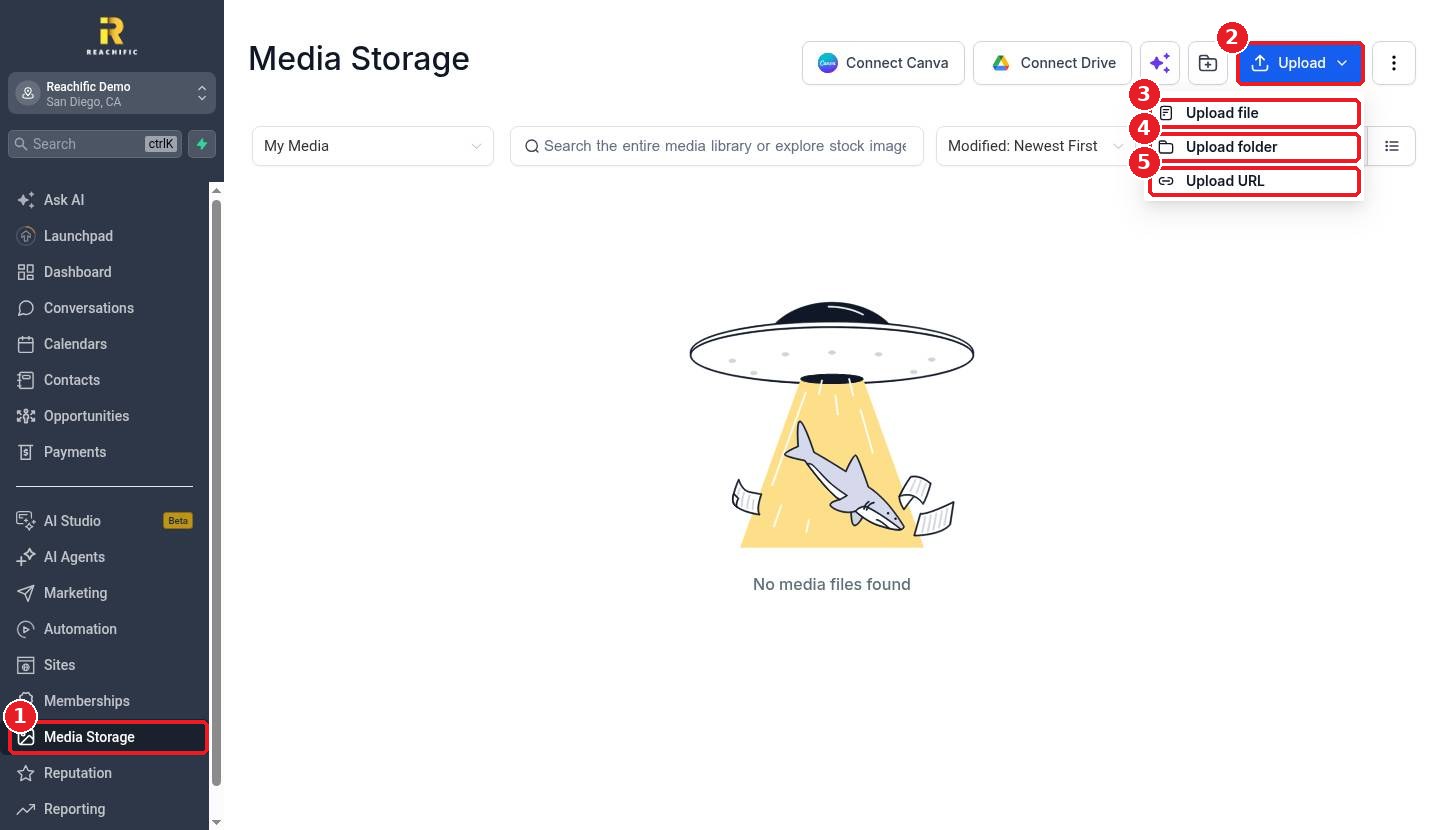
Click Media Storage in the left menu (1). Click Upload (2) to open the upload options:
- Upload file (3): pick one or more files from your computer.
- Upload folder (4): upload a whole folder at once.
- Upload URL (5): import a file from a direct link.
Step 2: Import a file from a link (optional)
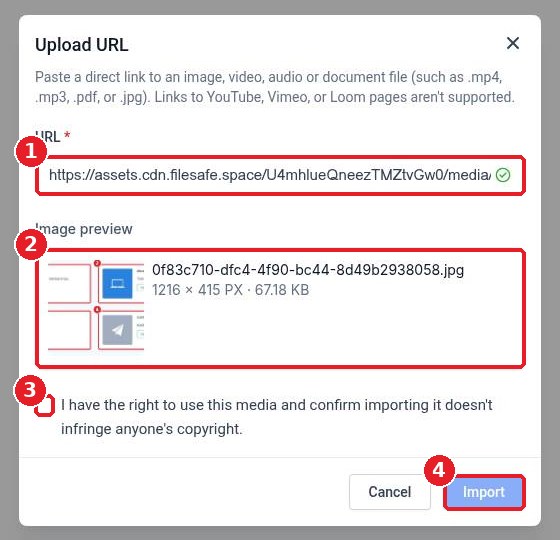
If the file is already online, choose Upload URL. Paste a direct link to the file (1). It must end in a file type such as .jpg, .png, .pdf, .mp3 or .mp4. Links to YouTube, Vimeo or Loom pages do not work here. Check the preview (2), tick the box to confirm you have the right to use the media (3), then click Import (4).
Step 3: Check the upload
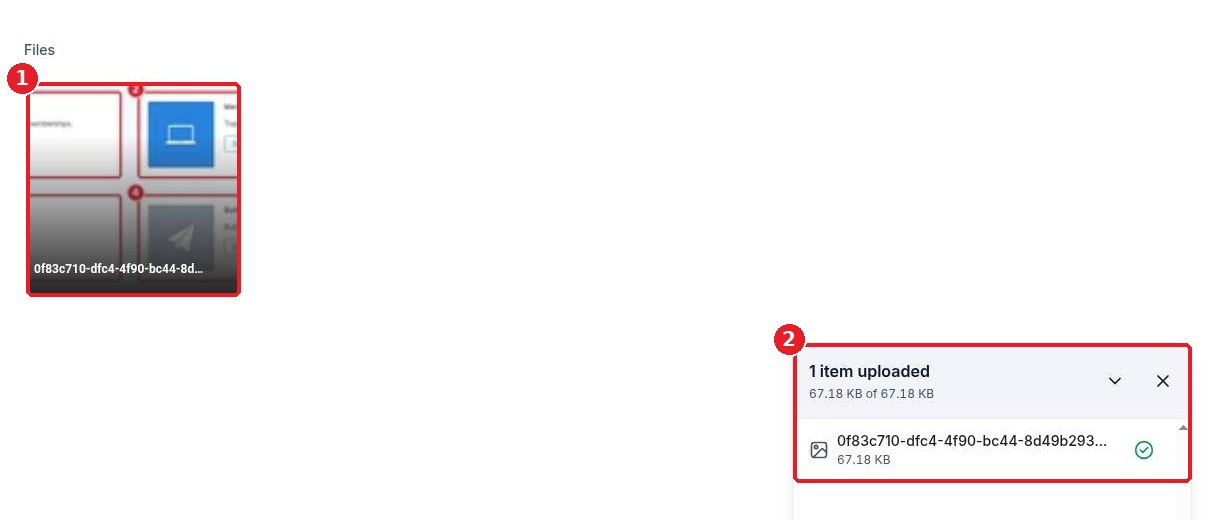
Your file appears under Files (1). The upload panel (2) shows each file and a green check when it is done. Close the panel when you are finished.
Step 4: Copy the link, tag it and add alt text
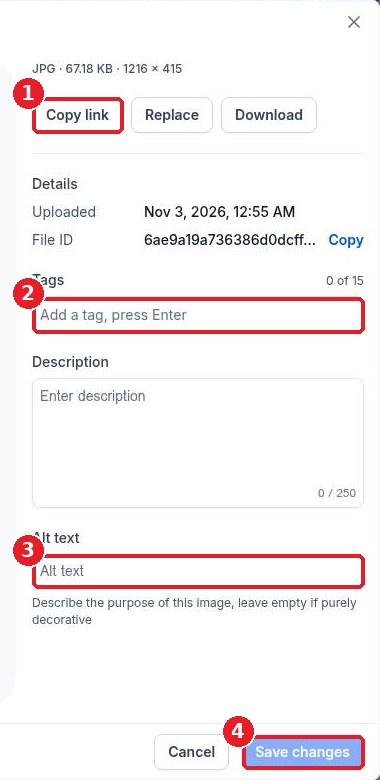
Click the file to open it. Click Copy link (1) to get a public URL you can paste anywhere. Add Tags (2) so you can search for it later, and write Alt text (3) that describes the image for screen readers and search engines. Click Save changes (4). You can also Replace or Download the file from here.
FAQ
Can I upload straight from Canva or Google Drive?
Yes. Use the Connect Canva or Connect Drive buttons at the top of Media Storage to link those accounts and bring files in.
Can I upload a YouTube video?
Not as a file. Upload URL only accepts direct links to a file. For YouTube or Vimeo, paste the video link into the page, email or course lesson instead.
How do I keep my files organized?
Use the folder button next to Upload to create folders, and add tags to each file. The search bar finds files by name.
Does replacing a file change it everywhere?
Replace swaps the file behind the same media item. Check the pages and emails that use it after you replace it.
Want us to handle it? Our team can organize your media, create on brand images and put them to work across your website and marketing. Book a free strategy call and get a free quote.
Related articles
- How do I write and publish a blog post?
- How do I set the page title, meta description and social image?
- How do I create an online course?
Still stuck? Submit a ticket and our team will help. Need faster answers? See our support plans.
