
How do I train the Reachific AI Assistant on my business?
Quick answer: The Reachific AI Assistant lives in Ask AI at the top of the left menu. Click Projects, then New project. Name it, say what it is for, and click Create project. Click the pencil on Instructions and type your services, hours, tone and rules. Under Context, click + to add PDFs, documents or text. Every chat you start in that project uses this knowledge.
Before you start
- Gather the basics: services, service area, hours, booking steps, policies and how you like to sound.
- Have files ready to upload, like a price sheet, FAQ or service menu (PDF or document).
- Keep sensitive data like passwords and card numbers out of instructions and files.
Step 1: Open Projects in Ask AI
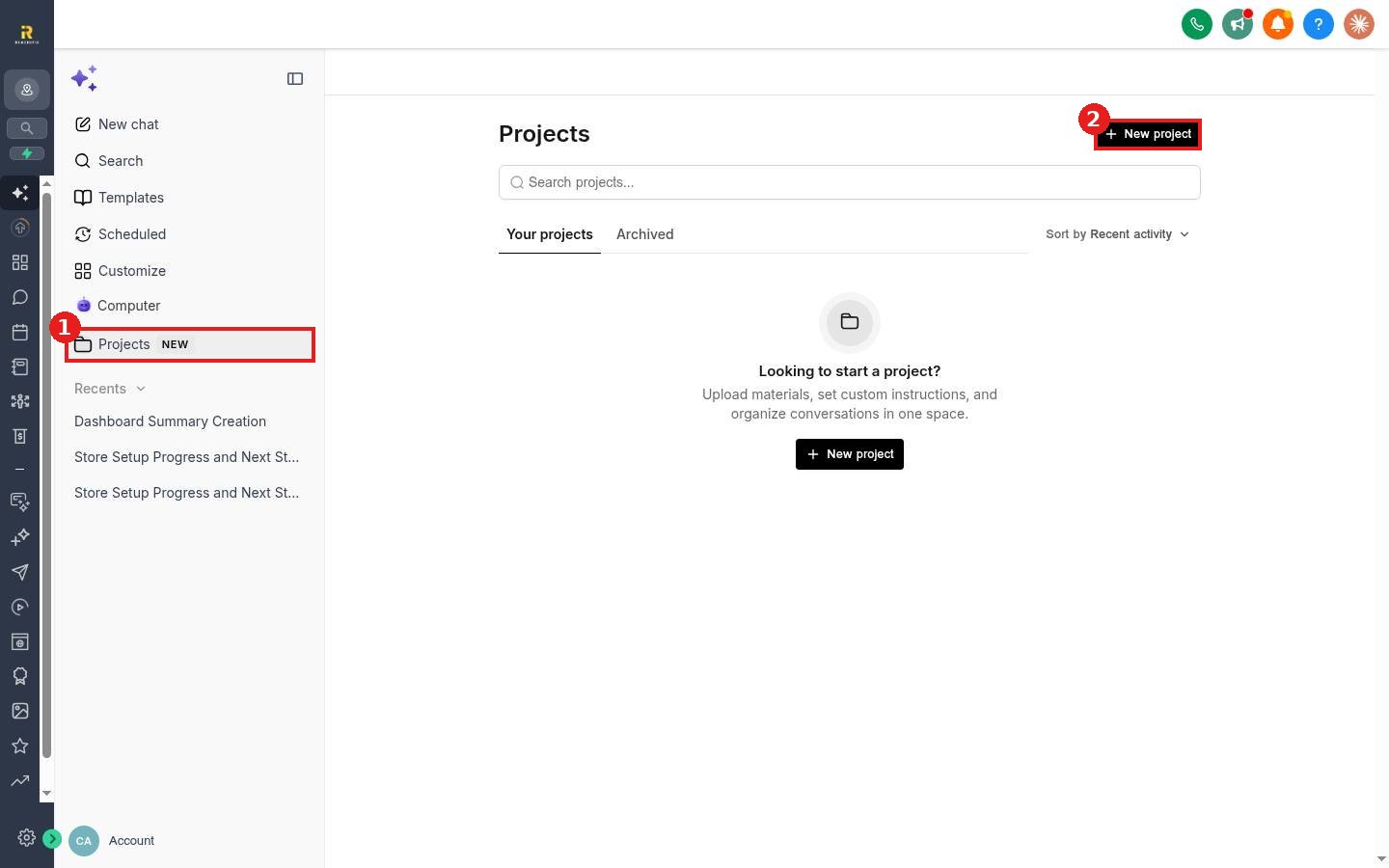
Click Ask AI at the top of the left menu, then click Projects (1). Click New project (2).
Step 2: Create the project
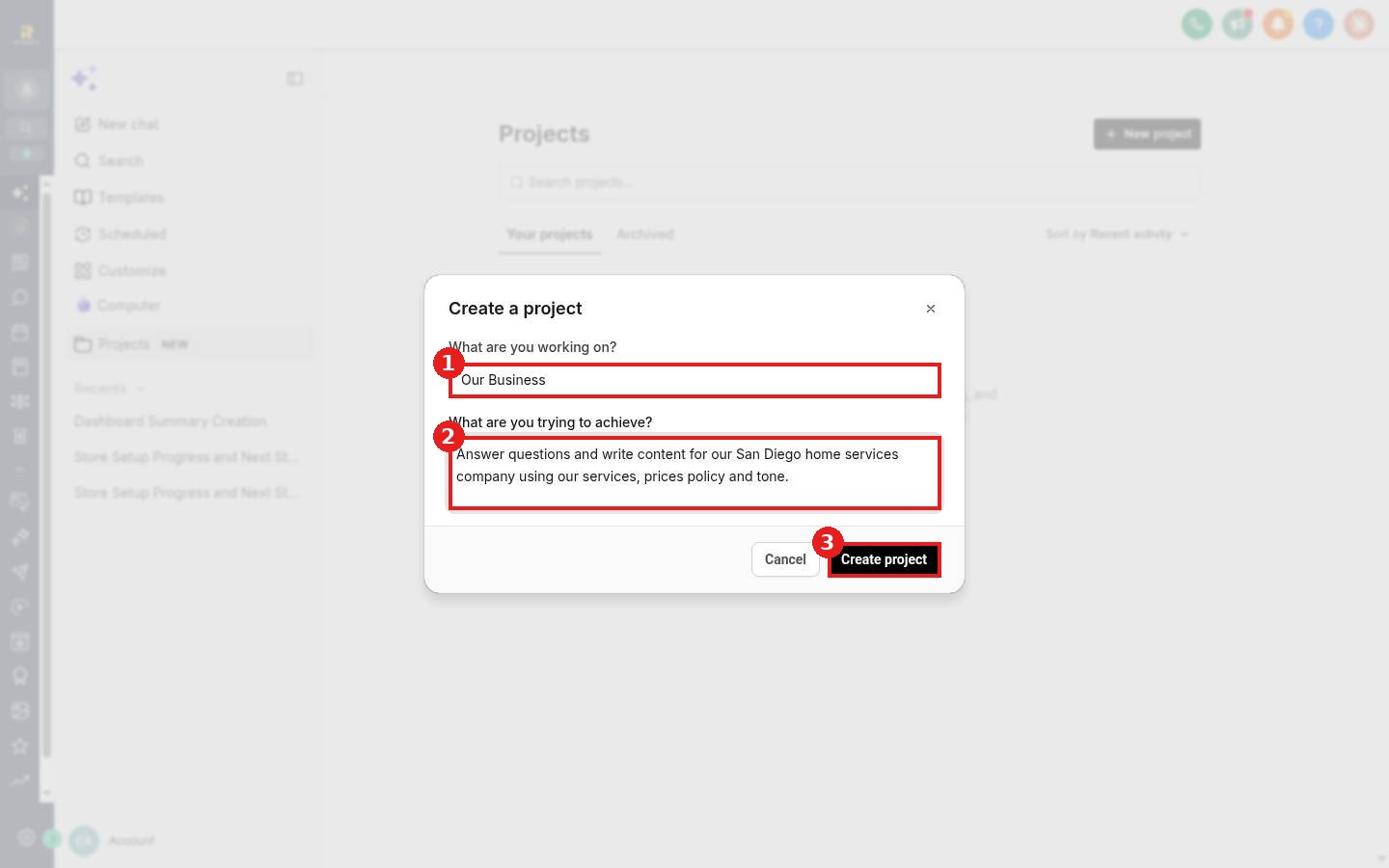
Name the project (1), for example Our Business. Describe what you want it to do (2), such as answer questions and write content for our company. Click Create project (3).
Step 3: Add your instructions
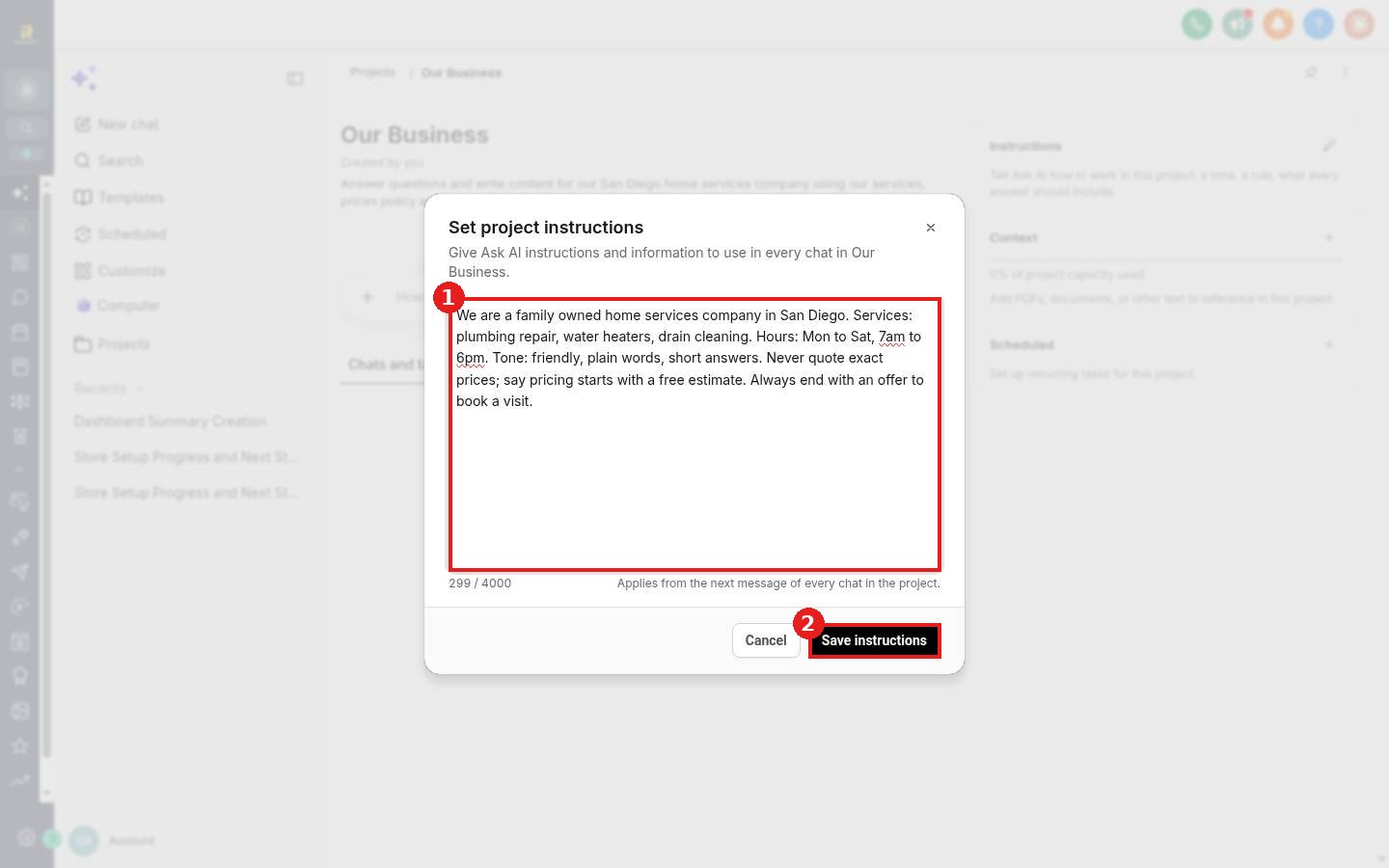
On the project page, click the pencil next to Instructions. Type what the assistant should always know and do (1): who you are, your services, hours, tone, and rules such as never quote exact prices. You have up to 4,000 characters. Click Save instructions (2). They apply from the next message in every chat in the project.
Step 4: Add files and text under Context
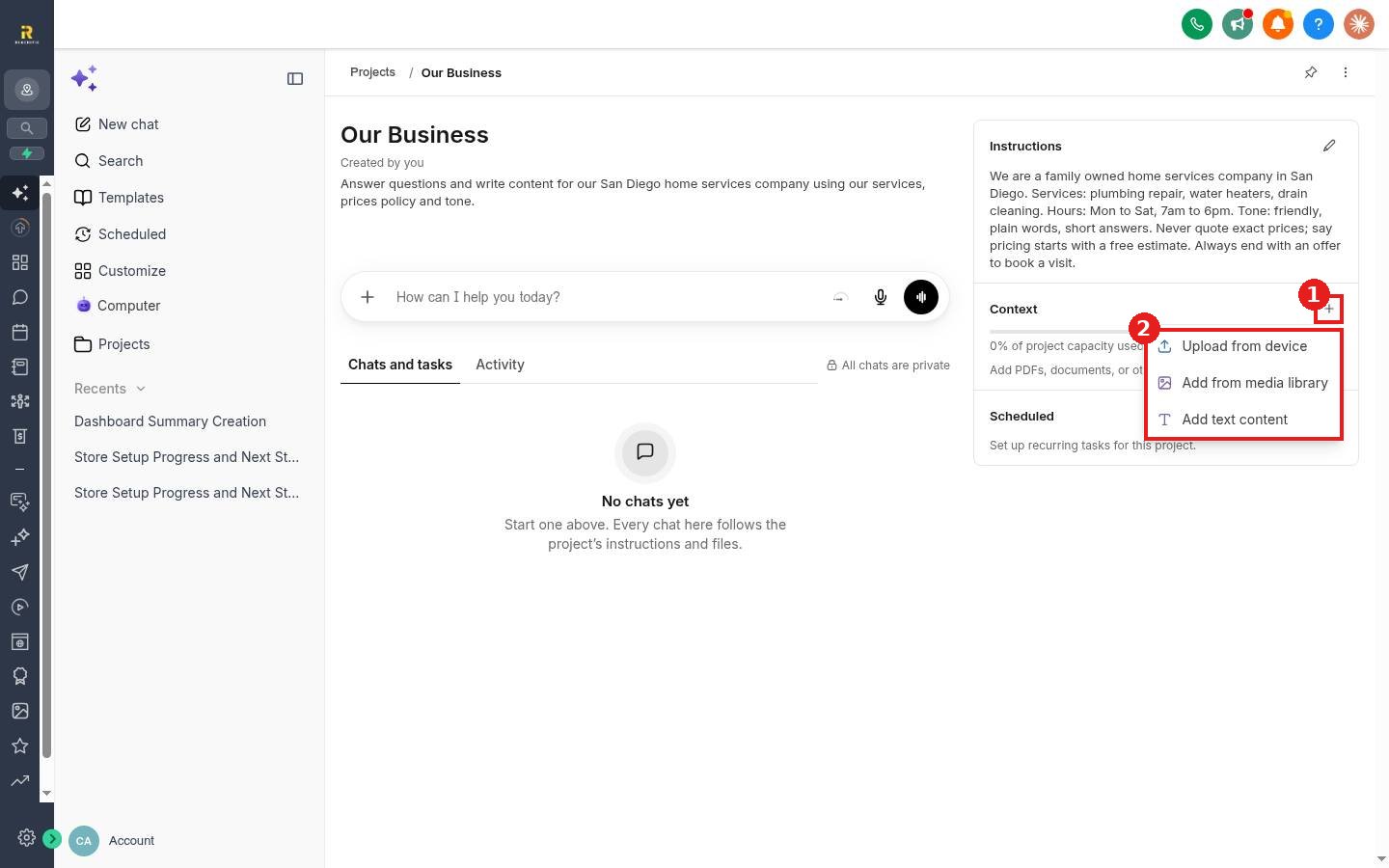
Click + next to Context (1). Choose Upload from device, Add from media library or Add text content (2). The bar shows how much of the project capacity you have used.
Step 5: Chat inside the project
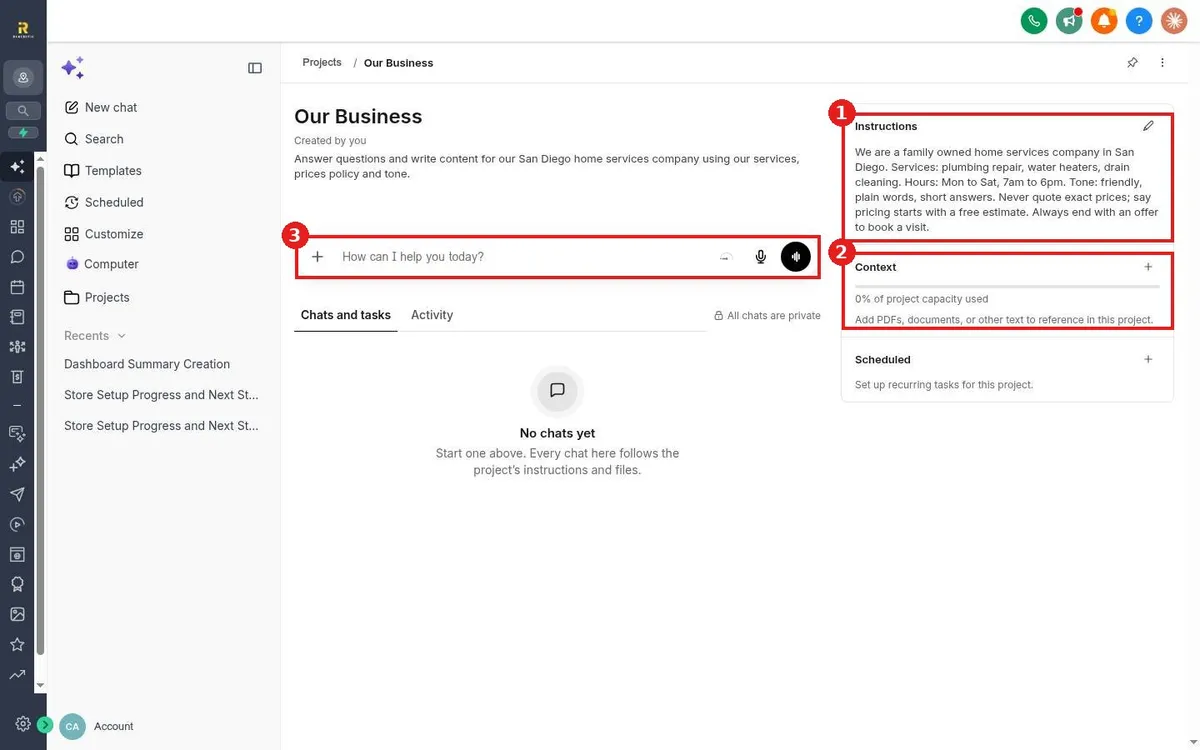
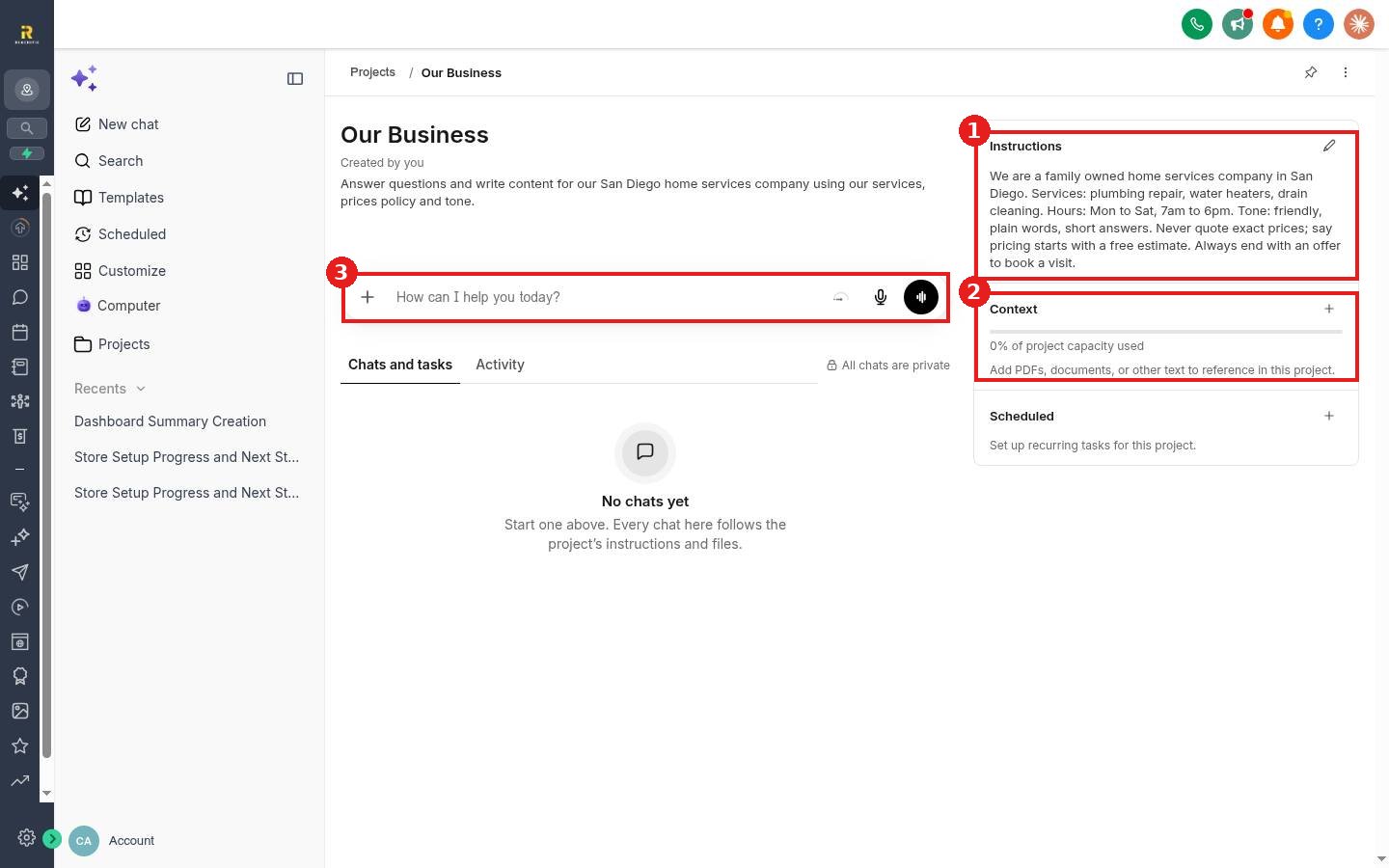
Your saved instructions (1) and context (2) now sit on the right. Type in the chat box (3) to start. Every chat here follows the project instructions and files.
Optional: teach it repeat tasks with Skills
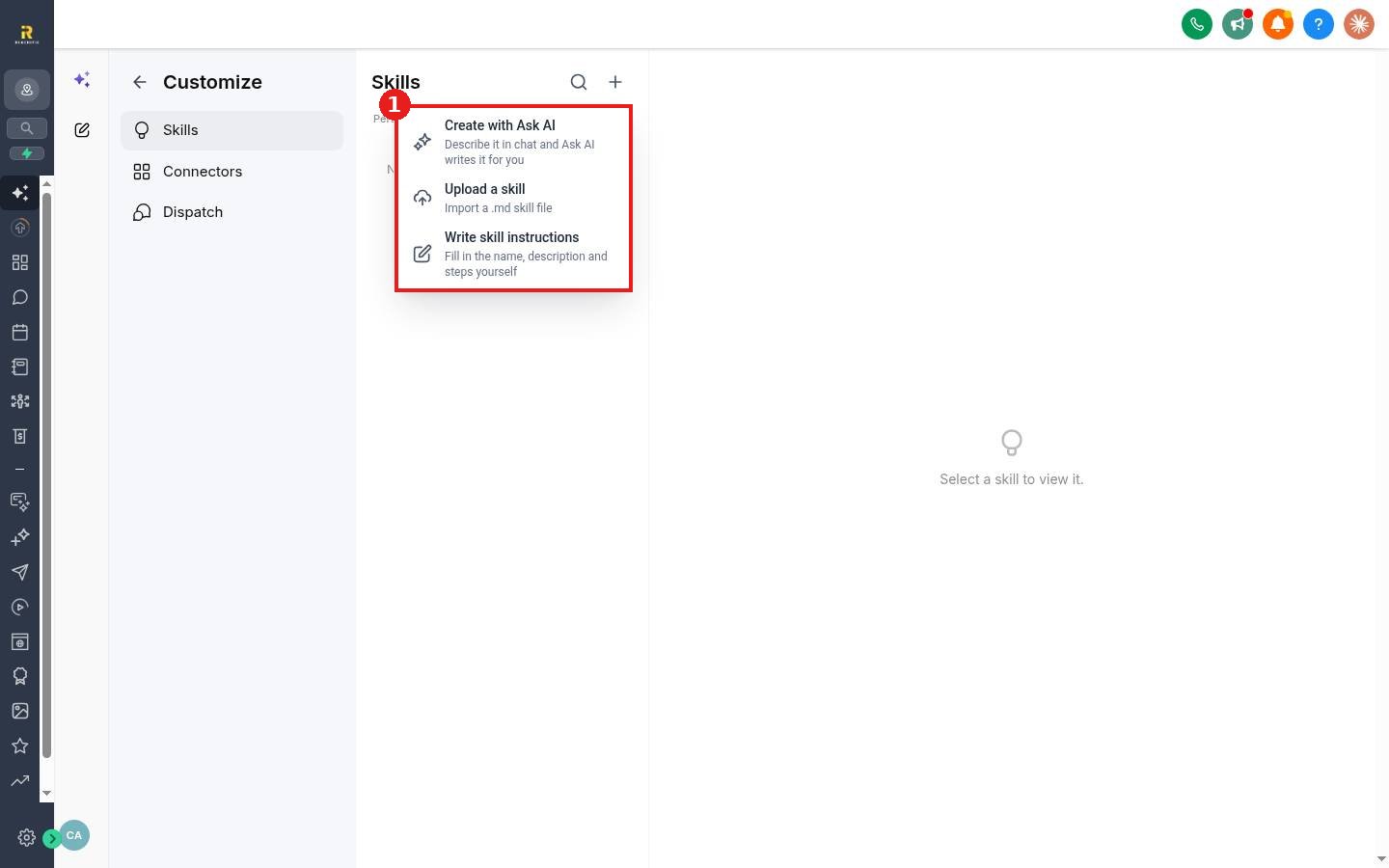
For a task you ask for often, like a weekly report, open Ask AI > Customize > Skills and click +. Choose Create with Ask AI, Upload a skill or Write skill instructions.
FAQ
Does the assistant learn from every chat?
Project instructions and context apply to chats inside that project. Chats outside the project do not use them.
How much can I upload?
The Context card shows the percent of project capacity used. Instructions hold up to 4,000 characters.
Can I change the instructions later?
Yes. Click the pencil on Instructions, edit and save. Changes apply from the next message.
Are project chats private?
The project page notes that all chats are private.
Want us to handle it? Our team sets up the AI Assistant with your services, policies and brand voice so your whole team gets accurate answers from day one. Book a free strategy call and get a free quote.
Related articles
- How do I use Ask AI to get answers inside my account?
- How do I use Ask AI to build or change something for me?
- How do I give my team access to the AI Assistant?
Still stuck? Submit a ticket and our team will help. Need faster answers? See our support plans.
