
How do I take payment when someone books?
Quick answer: First connect a payment provider such as Stripe. Then go to Settings, Calendars, click the pencil on your calendar, open Advanced settings, then Payments. Turn on Accept payments, set the amount and click Save changes.
Before you start
- You need a connected payment provider. See How do I connect Stripe to take payments?
- Payment is collected during booking, and the appointment is only confirmed after payment goes through.
Step 1: Open the Payments tab
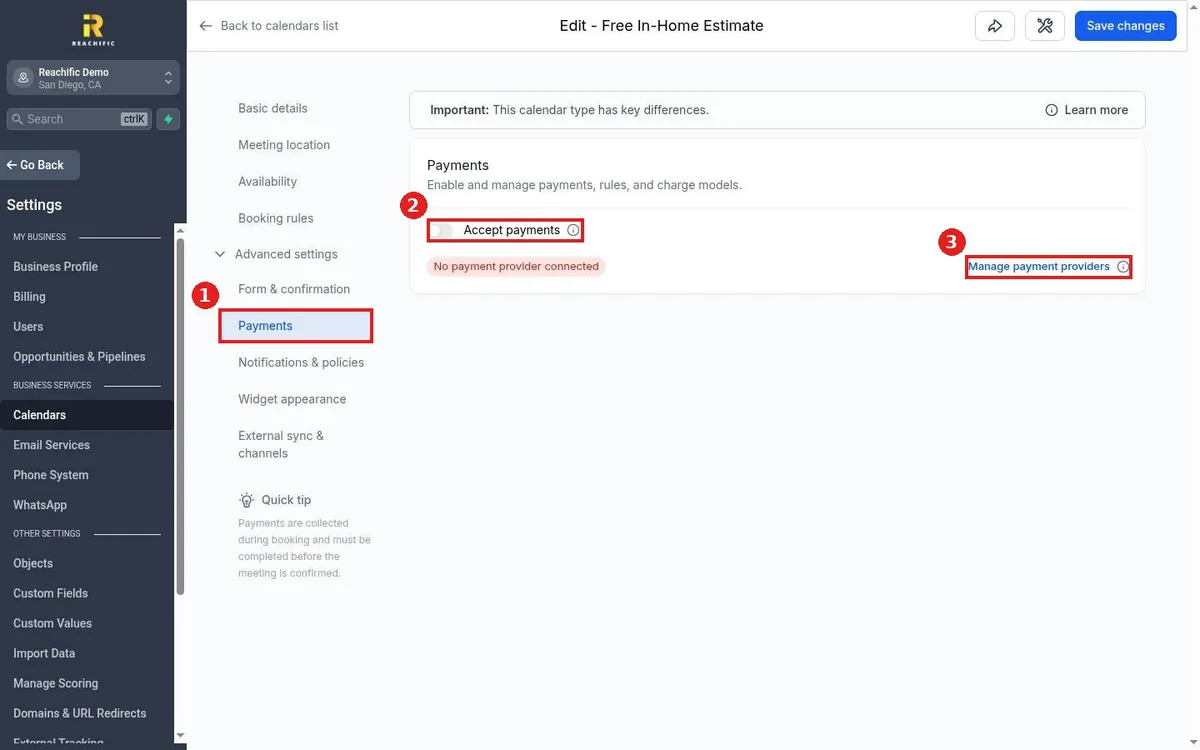
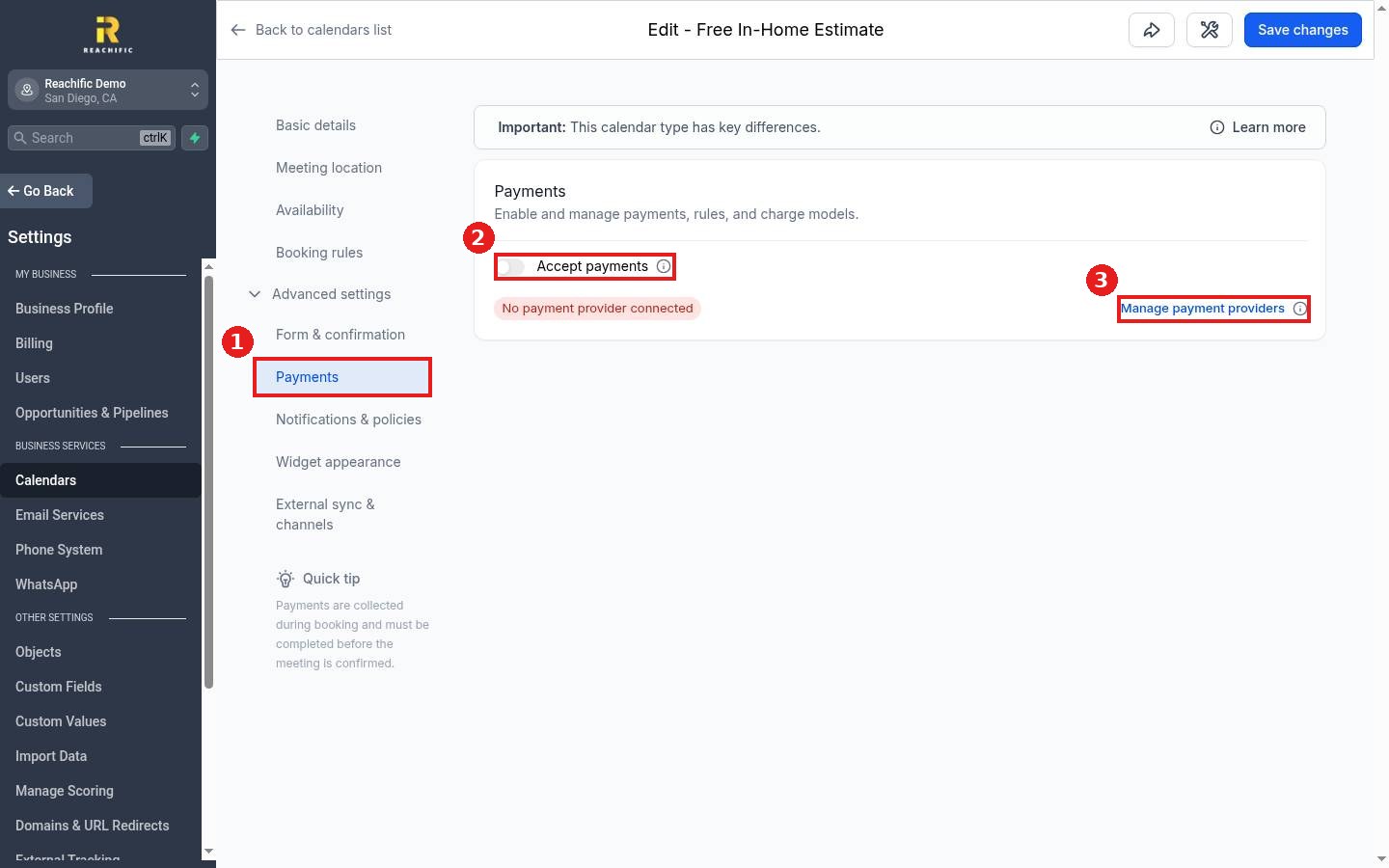
In the calendar editor, expand Advanced settings and click Payments (1).
Step 2: Connect a provider if you see a red warning
If you see No payment provider connected, click Manage payment providers (3) and connect Stripe or another gateway. Then come back to this tab.
Step 3: Turn on payments and save
Turn on Accept payments (2). Enter the amount you want to charge, such as a full fee or a deposit, and click Save changes at the top right. Open your booking link and run a test booking to see the payment step.
FAQ
Can I charge a deposit instead of the full price?
Yes. Enter the deposit amount as the price. Collect the rest later with an invoice.
Why is the Accept payments switch grayed out?
No payment provider is connected yet. Connect one first.
Where do I see booking payments?
Go to Payments, then Transactions.
Want us to handle it? Our team can set up paid bookings and deposits so no shows cost you less. Book a free strategy call and get a free quote.
Related articles
- How do I connect Stripe to take payments?
- How do I create and send an invoice?
- How do I create a booking calendar?
Still stuck? Submit a ticket and our team will help. Need faster answers? See our support plans.
