
How do I set up URL redirects?
Quick answer: Go to Settings > Domains & URL Redirects and open the URL Redirects tab. Click Add a redirect, choose your domain, enter the old path, then choose the target: a Website page, a Funnel step or a Custom URL. Click Add a redirect to save. Every redirect is a permanent 301 redirect, so search engines pass the old page's ranking to the new one.
Before you start
- The domain you redirect from must already be connected to Reachific. See How do I connect my domain.
- Make a list of old addresses and where each should go, for example /old-services to /about.
Step 1: Open URL Redirects
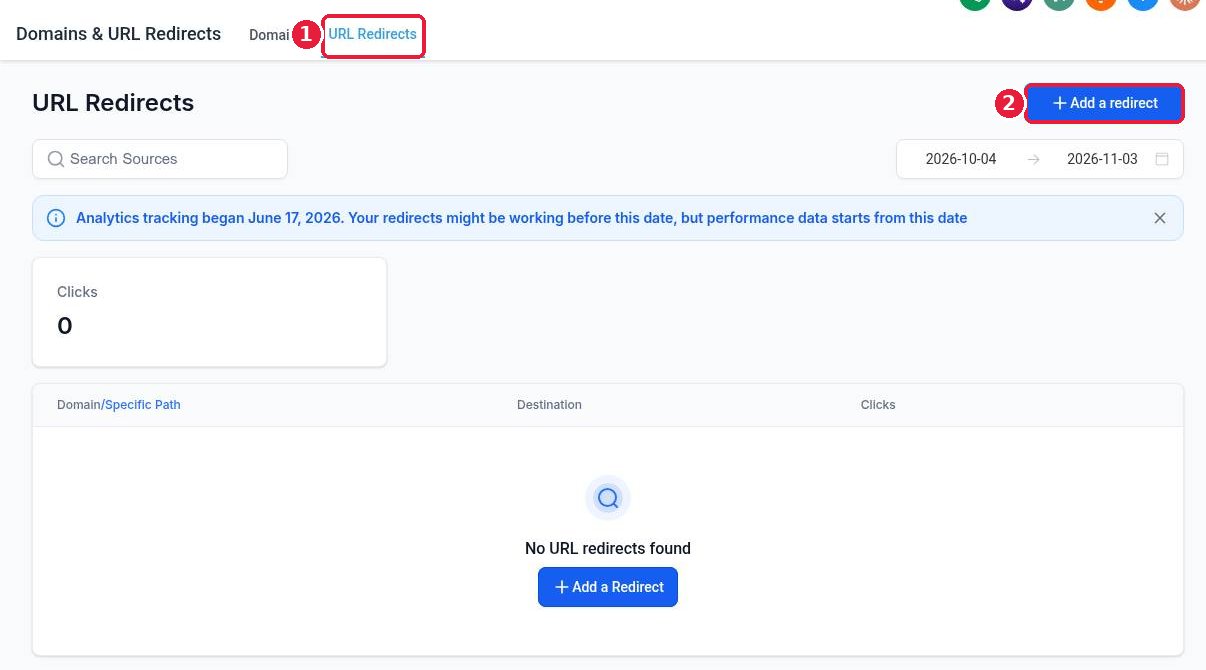
In Settings > Domains & URL Redirects, click the URL Redirects tab (1), then Add a redirect (2).
Step 2: Fill in the source and target
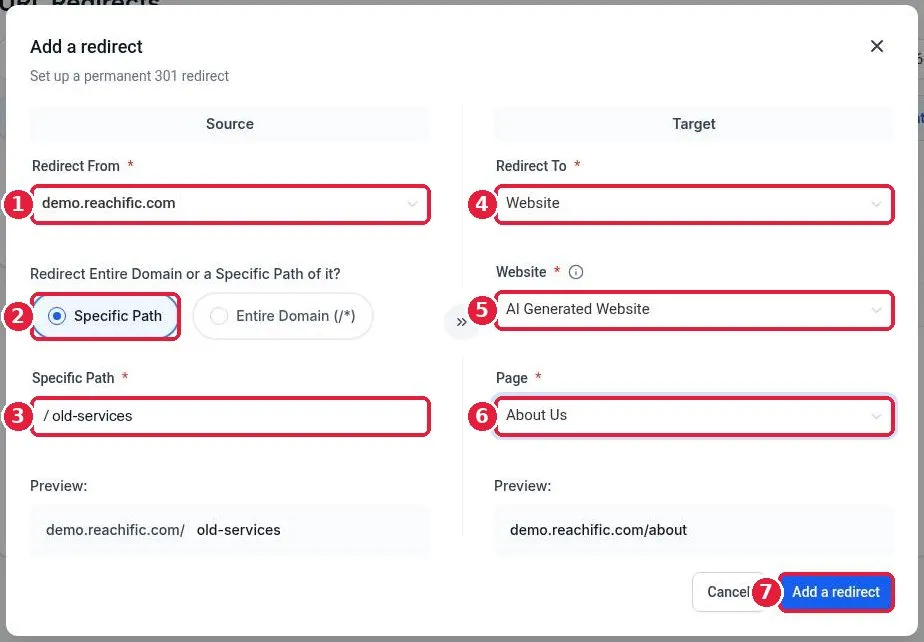
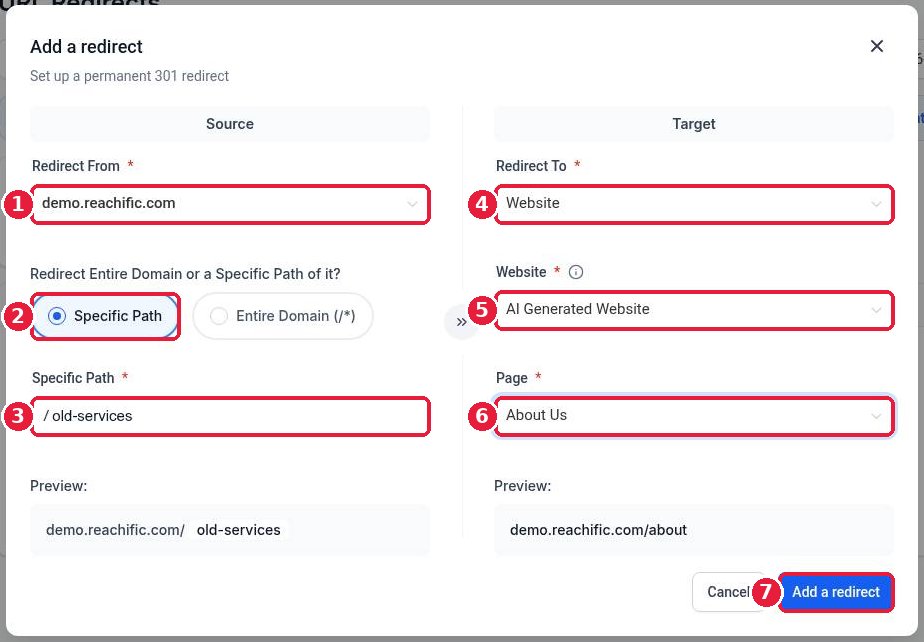
On the Source side choose the domain under Redirect From (1). Pick Specific Path (2) to move one page, or Entire Domain (/*) to forward the whole domain. Type the old path (3) without the domain.
On the Target side choose Redirect To (4): Website, Funnel or Custom URL. For a website, pick the site (5) and page (6). Check both previews, then click Add a redirect (7).
Step 3: Confirm and test the redirect
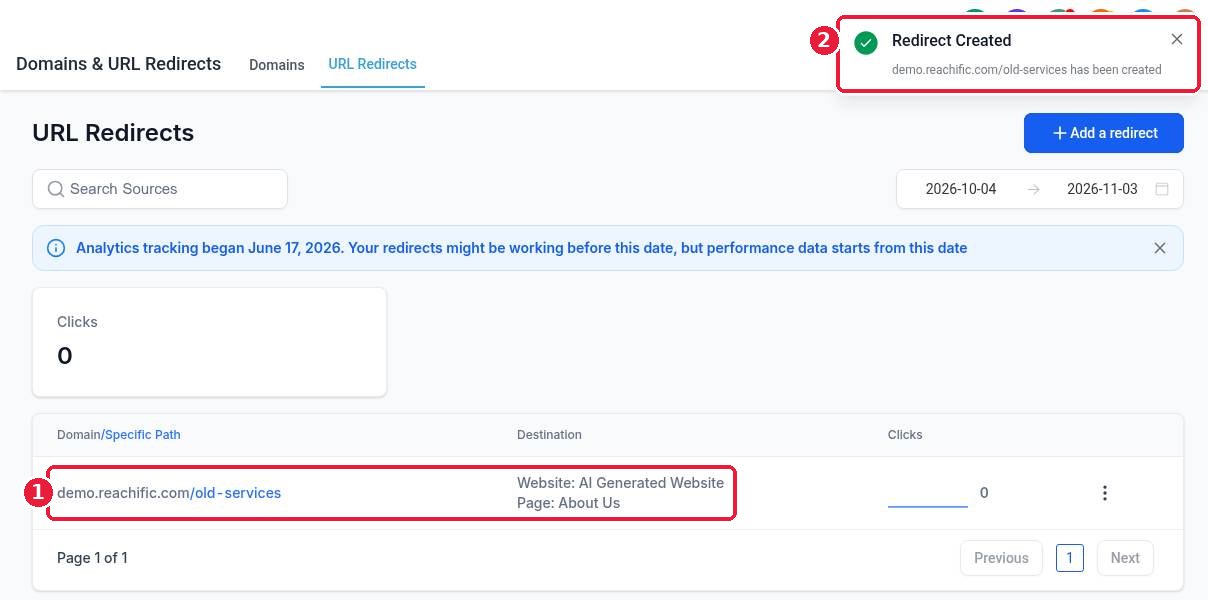
You see Redirect Created (2) and the new row in the list (1) with its destination and a click counter. Open the old address in a private window to make sure it lands on the new page.
FAQ
What type of redirect does Reachific use?
A permanent 301 redirect. It tells browsers and search engines the page has moved for good.
Can I send a whole old domain to my new site?
Yes. Connect the old domain, then choose Entire Domain (/*) as the source and your new site or a Custom URL as the target.
How do I edit or delete a redirect?
Click the three dot menu at the end of the redirect row in the URL Redirects list and choose edit or delete.
Can I see if people use a redirect?
Yes. The Clicks column and the date range at the top show how often each redirect was used.
Want us to handle it? Moving to a new site? Our team maps every old page to its new home so you keep your search rankings and your leads. Book a free strategy call and get a free quote.
Related articles
- How do I connect a domain I bought at GoDaddy or Namecheap?
- How do I connect my domain to my Reachific website?
- How do I set a 404 page and favicon?
Still stuck? Submit a ticket and our team will help. Need faster answers? See our support plans.
