
How do I connect a domain I bought at GoDaddy or Namecheap?
Quick answer: Go to Settings > Domains & URL Redirects, click Connect a domain, choose Funnel/Website/Store/Blog/Webinar and enter your domain. If your domain is at GoDaddy, Reachific detects it and you approve the connection in a GoDaddy window. For Namecheap or any other provider, click Add record manually and copy the A and CNAME records into your provider's DNS settings. Then pick the website the domain should open.
Before you start
- Have the login for the account where you bought the domain (GoDaddy, Namecheap or another registrar).
- Decide whether visitors should use www.yourdomain.com or a subdomain such as book.yourdomain.com.
- Your website or funnel should already exist in Reachific so you can link the domain at the end.
Step 1: Start a new domain connection
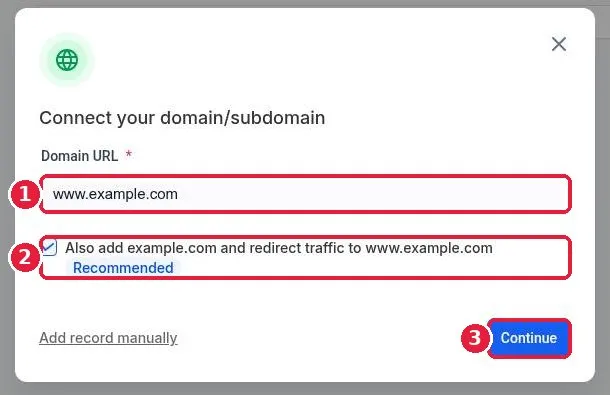
Open Settings > Domains & URL Redirects and click Connect a domain. On the next screen click Connect next to Funnel/Website/Store/Blog/Webinar (1).
Step 2: Enter your domain
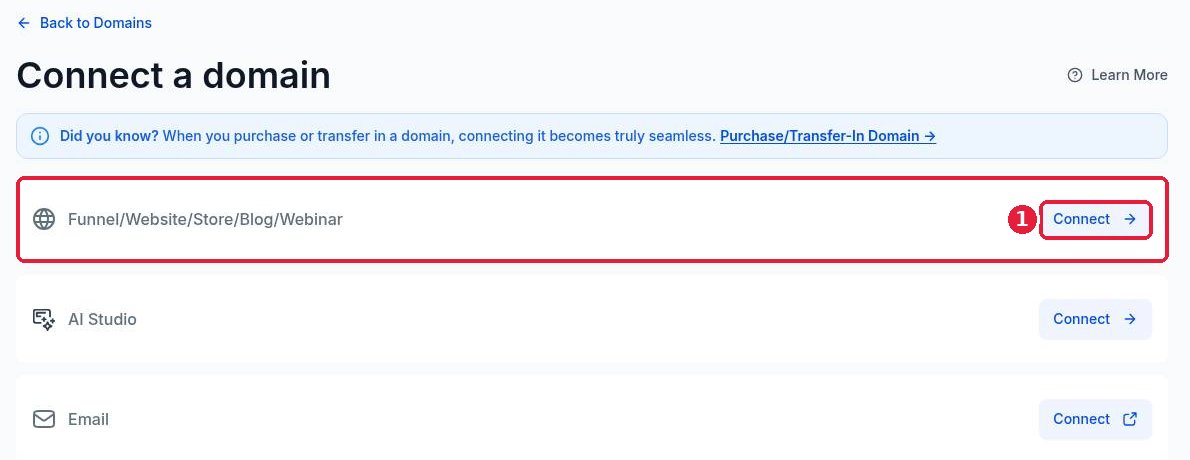
Type your domain (1). If you enter a www address, leave Also add yourdomain.com and redirect traffic checked (2) so the bare domain forwards to www. Click Continue (3).
Step 3: GoDaddy domains: approve the automatic connect
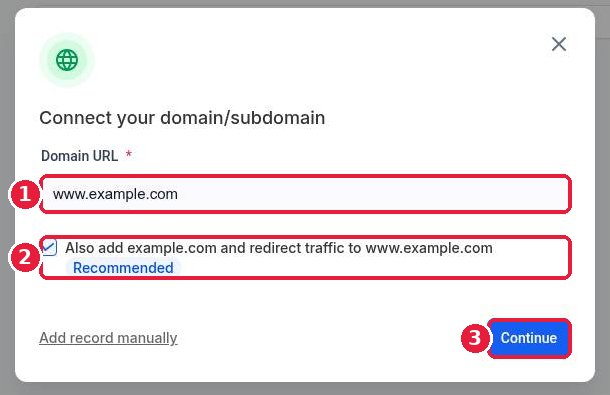
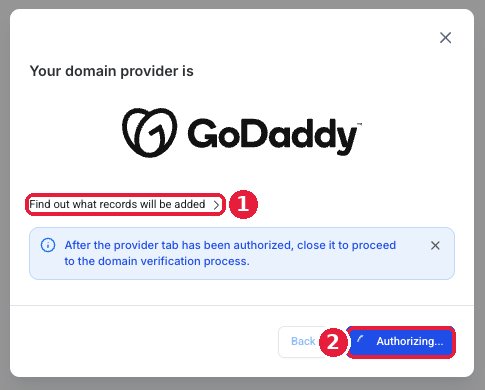
Reachific checks who hosts your DNS. For GoDaddy it shows Your domain provider is GoDaddy. Click Find out what records will be added (1) if you want to see them, then click Authorize (2). A GoDaddy tab opens.
Sign in to GoDaddy if asked and click Connect (1). When GoDaddy confirms the domain is connected, click Close, close that tab and return to Reachific.

Step 4: Namecheap and other providers: add the records yourself
If your provider is not detected, or you prefer to do it by hand, click Add record manually in the connect window. Reachific shows the exact records to add, usually an A record for @ and a CNAME record for www. Use the copy buttons so the values are exact.
- Namecheap: Domain List > Manage next to your domain > Advanced DNS > Add New Record. Add each record, then save with the check mark.
- GoDaddy (manual): My Products > your domain > DNS > Add New Record.
- Delete any old A, AAAA or CNAME records for the same host first, or they will conflict.
Back in Reachific click Verify records. DNS changes usually show within minutes but can take up to 24 to 48 hours.
Step 5: Link the domain to your website
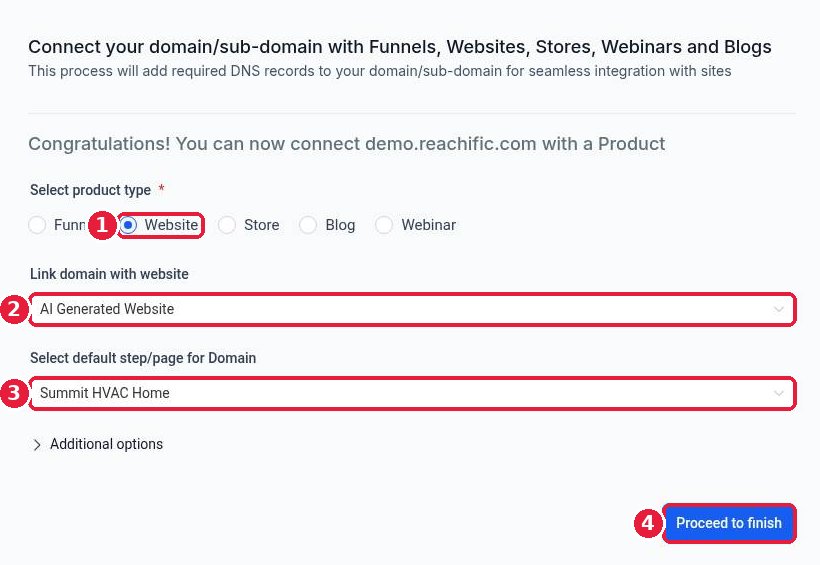
Once the records are found you see Congratulations! You can now connect your domain with a Product. Choose the product type, for example Website (1), pick the site (2) and its home page (3), then click Proceed to finish (4).
Step 6: Check the domain list
Your domain now appears under External Domains with its subdomain (1) and the connected product (2). Open your domain in a browser to confirm the site loads with the padlock.

FAQ
Do I need to move my domain away from GoDaddy or Namecheap?
No. Your domain stays where you bought it. You only add DNS records that point it to Reachific.
Will connecting my domain break my email?
No, as long as you leave your MX records alone. The connect only adds or changes the A and CNAME records for your site.
How long does it take to go live?
The GoDaddy automatic connect is usually live within minutes. Manual records can take up to 24 to 48 hours to spread across the internet.
Can I use a subdomain instead of my main domain?
Yes. Enter the subdomain, such as book.yourdomain.com, in Step 2. Your main site stays where it is.
Want us to handle it? Our team connects your domain, sets up SSL and redirects, and makes sure nothing breaks along the way. Book a free strategy call and get a free quote.
Related articles
- How do I connect my domain to my Reachific website?
- How do I set a 404 page and favicon?
- How do I publish my website changes?
Still stuck? Submit a ticket and our team will help. Need faster answers? See our support plans.
