
How do I connect my domain to my Reachific website?
Quick answer: In Reachific, go to Settings > Domains & URL Redirects, click Connect a domain, choose Funnel/Website/Store/Blog/Webinar, enter your domain, then add the two DNS records Reachific shows you (an A record and a CNAME record) at the company where you bought your domain. Click Verify records, then pick the domain in your website's Settings tab. Most domains connect within a few minutes; some DNS changes can take up to 48 hours.
Before you start
You need a domain you already own (for example yourbusiness.com) and the login for the company where you bought it, such as GoDaddy, Namecheap, Google Domains or Squarespace Domains.
You need a website, funnel, store or blog already created in Reachific under Sites.
Do not have a domain yet? On the same Domains screen you can click Purchase domain and Reachific sets up the records for you.
Step 1: Open Domains in your settings
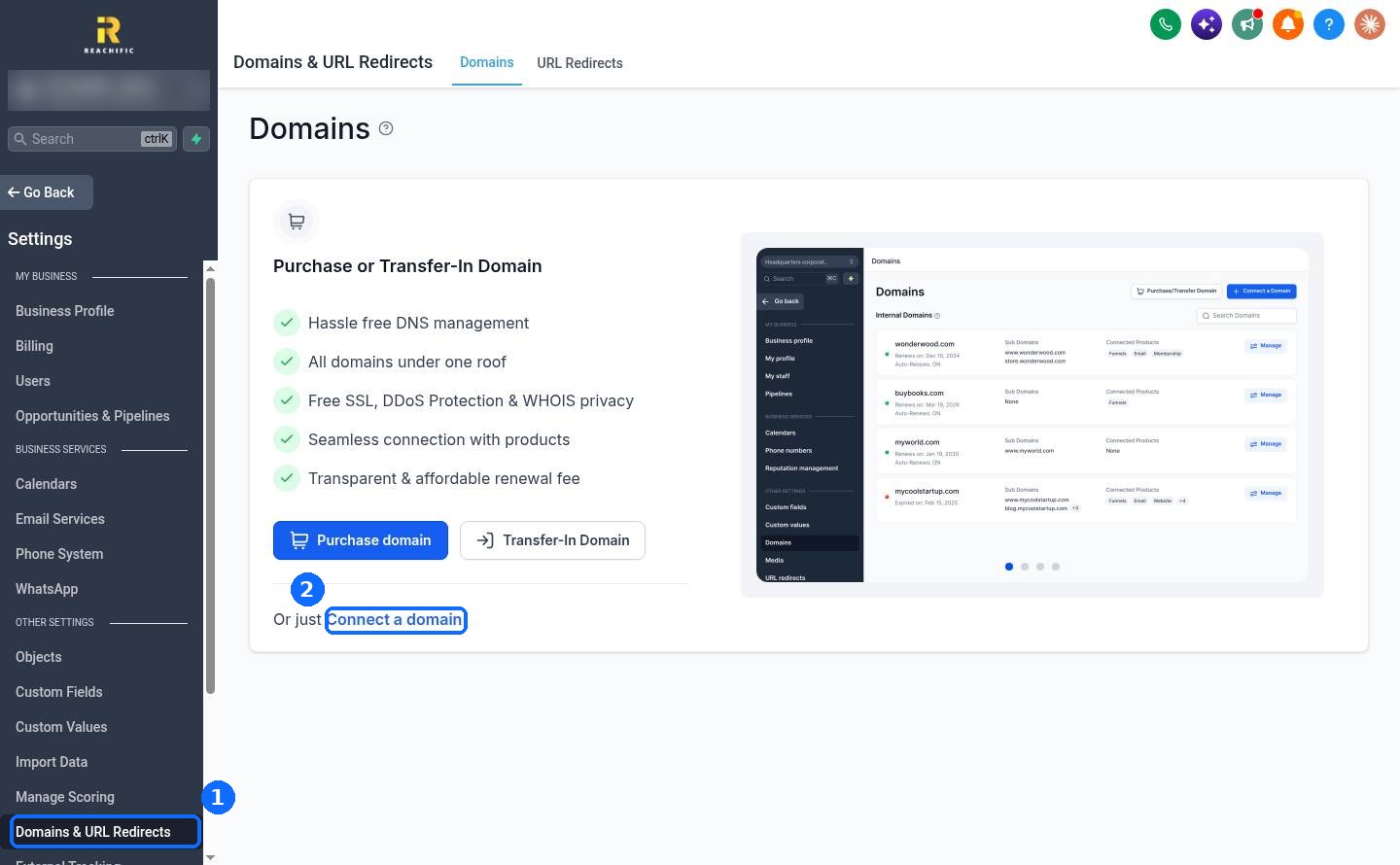
Click Settings at the bottom of the left menu. Under Other Settings, click Domains & URL Redirects (1). Then click Connect a domain (2).
Step 2: Choose what the domain is for
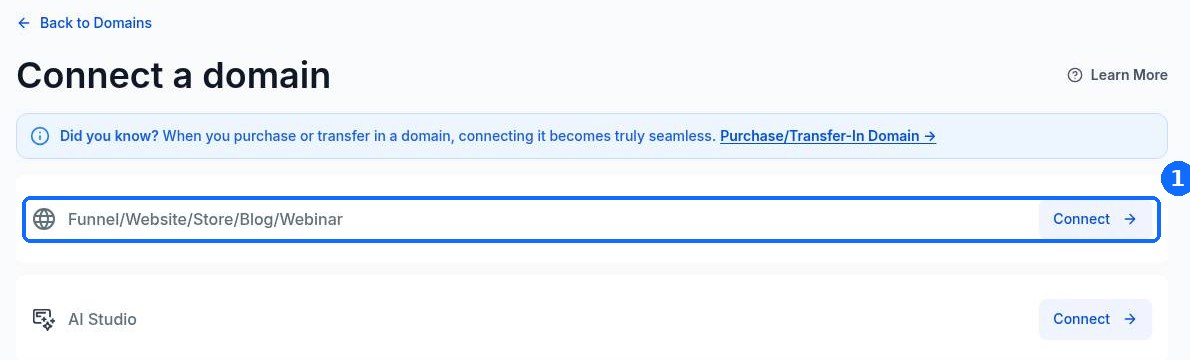
Reachific asks what you want this domain to point to. For a website, funnel, online store, blog or webinar page, click Connect on the Funnel/Website/Store/Blog/Webinar row (1).
Step 3: Enter your domain
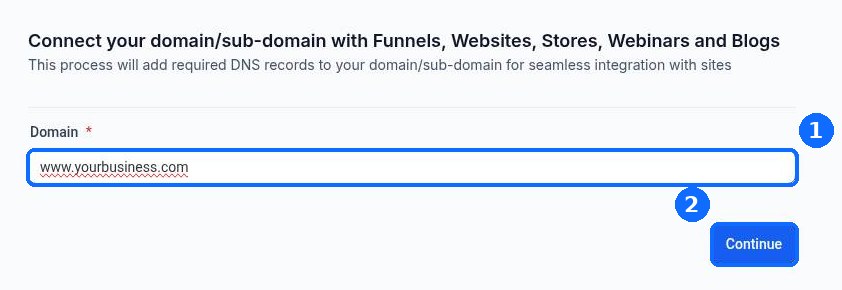
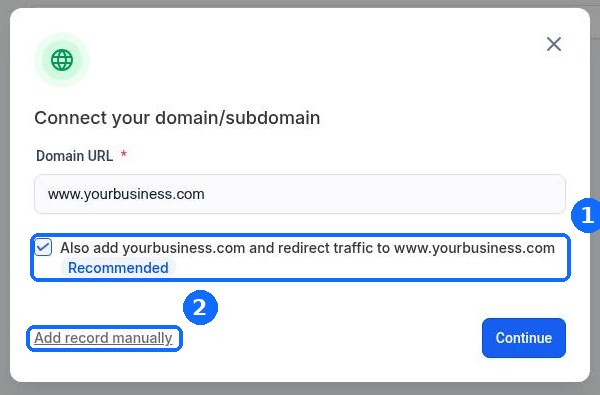
Type your domain in the Domain box (1). We recommend the www version, for example www.yourbusiness.com. Click Continue (2).
Step 4: Keep the root domain option on
Leave the box checked that adds your root domain and sends its visitors to the www version (1). That way people who type yourbusiness.com without www still land on your site. Then click Add record manually (2) to see the exact records to add.
Step 5: Add the two DNS records where you bought your domain
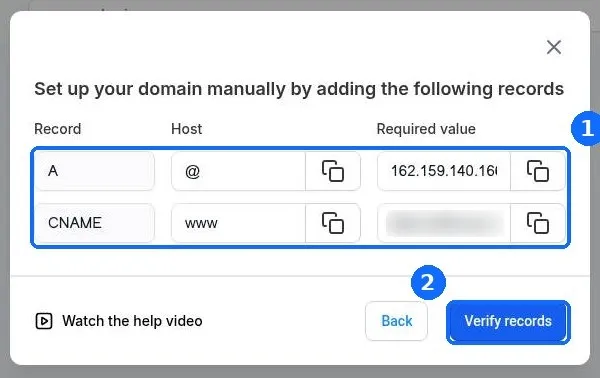
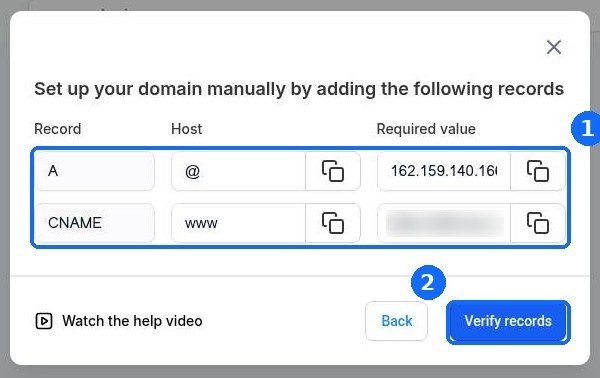
Reachific shows two records (1). Use the copy buttons so the values are exact.
A record: Host @, value = the IP address shown in your account.
CNAME record: Host www, value = the address shown in your account.
In a new browser tab, log in to your domain company and open the DNS settings for your domain. Add (or edit) the A record for @ and the CNAME record for www so they match what Reachific shows. If an old A record for @ already exists, edit it instead of adding a second one. Save your changes, come back to Reachific and click Verify records (2).
Step 6: Point your website at the domain
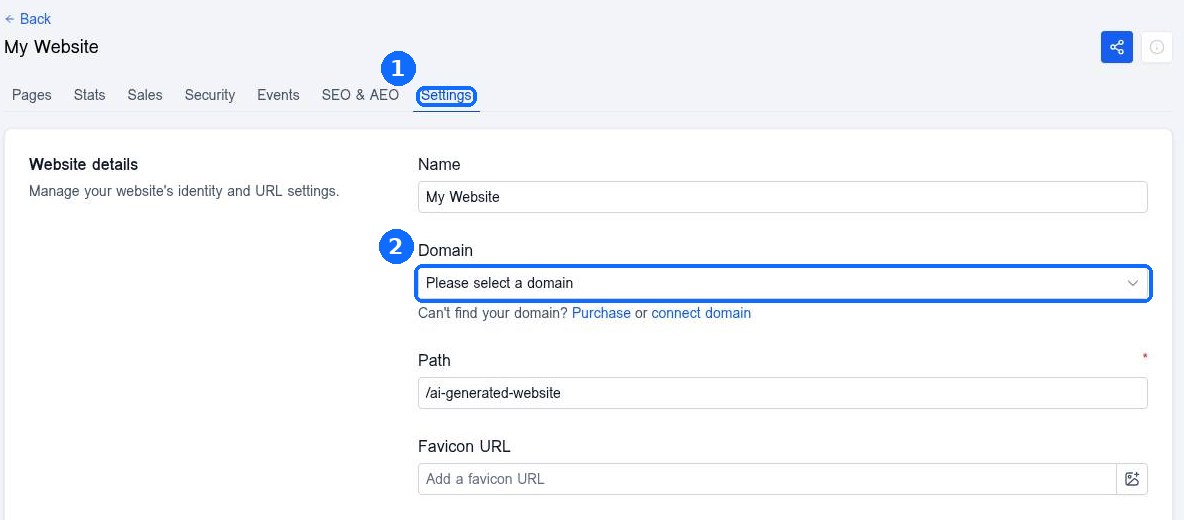
Go to Sites > Websites and open your website. Click the Settings tab (1). In the Domain dropdown (2), pick the domain you just connected and save. Then open your home page and click Publish so the live site uses the new address.
Step 7: Check that it works
Open a private browser window and visit your domain with and without www. Both should load your Reachific site with a padlock in the address bar. The security certificate is added for you automatically once the records verify.
FAQ
How long does it take for my domain to connect?
Usually a few minutes after you save the DNS records. Some domain companies take longer to update, up to 48 hours. If Verify records fails, wait 15 minutes and try again.
Reachific says there are multiple A records. What do I do?
Your domain company probably added a default or parked A record for @. Edit that record so it uses the IP address Reachific shows, instead of adding a new one. Keep only one A record for @.
Can I use a subdomain like book.yourbusiness.com?
Yes. Enter the subdomain in Step 3. Reachific will show a CNAME record for that subdomain to add at your domain company.
Will connecting my domain break my email?
No. You only add or edit the A record for @ and the CNAME for www. Leave your MX records and any email records alone and your email keeps working.
Can I connect more than one domain?
Yes. Repeat these steps for each domain. Each website, funnel or store can use its own domain or subdomain.
Related articles
How do I connect a domain I bought at GoDaddy or Namecheap?
How do I fix a domain that will not connect?
How do I set up URL redirects?
How do I generate my XML sitemap?
How do I publish my website changes?
Still stuck? Submit a ticket and our team will help you get connected. Need faster answers? See our support plans.
