
How do I set up a recurring invoice?
Quick answer: Go to Payments > Invoices & Estimates, click New and choose New Recurring Invoice. Pick the customer, add your products, then under Recurring Invoice Settings choose How often (daily, weekly, monthly or yearly), the Start Date, when it should End and how many days in advance to send it. Click Schedule. Reachific then sends the invoice for you on every cycle.
Before you start
- Connect a payment provider so customers can pay online. See How do I connect other payment providers?
- Add the service you bill for as a product in Payments > Products, such as a monthly maintenance plan.
- Set your tax rates first if you charge tax. See How do I set my payment and tax settings?
Step 1: Start a recurring invoice
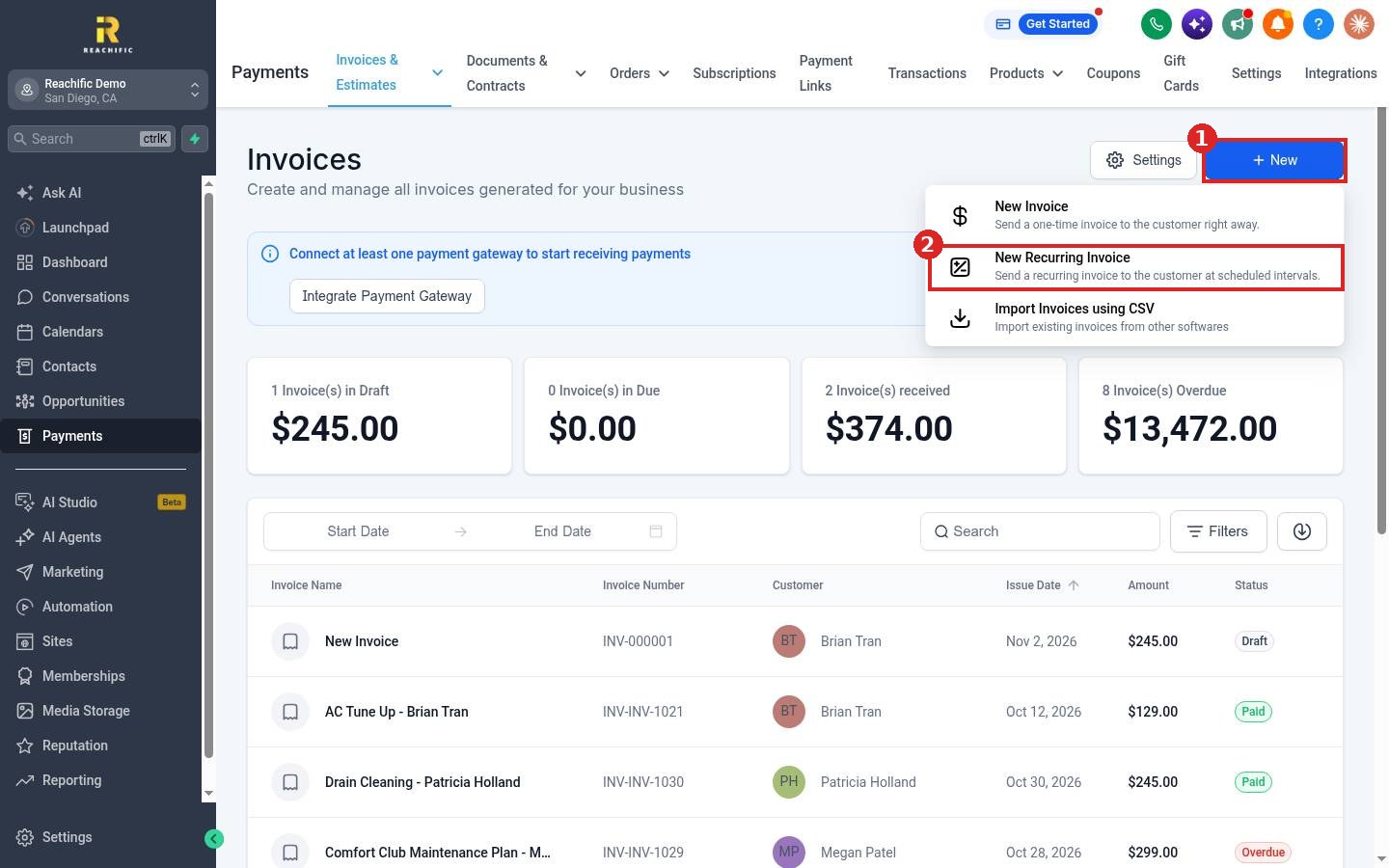
Click Payments in the left menu, then Invoices & Estimates. Click New (1) and choose New Recurring Invoice (2).
Step 2: Add the customer and products
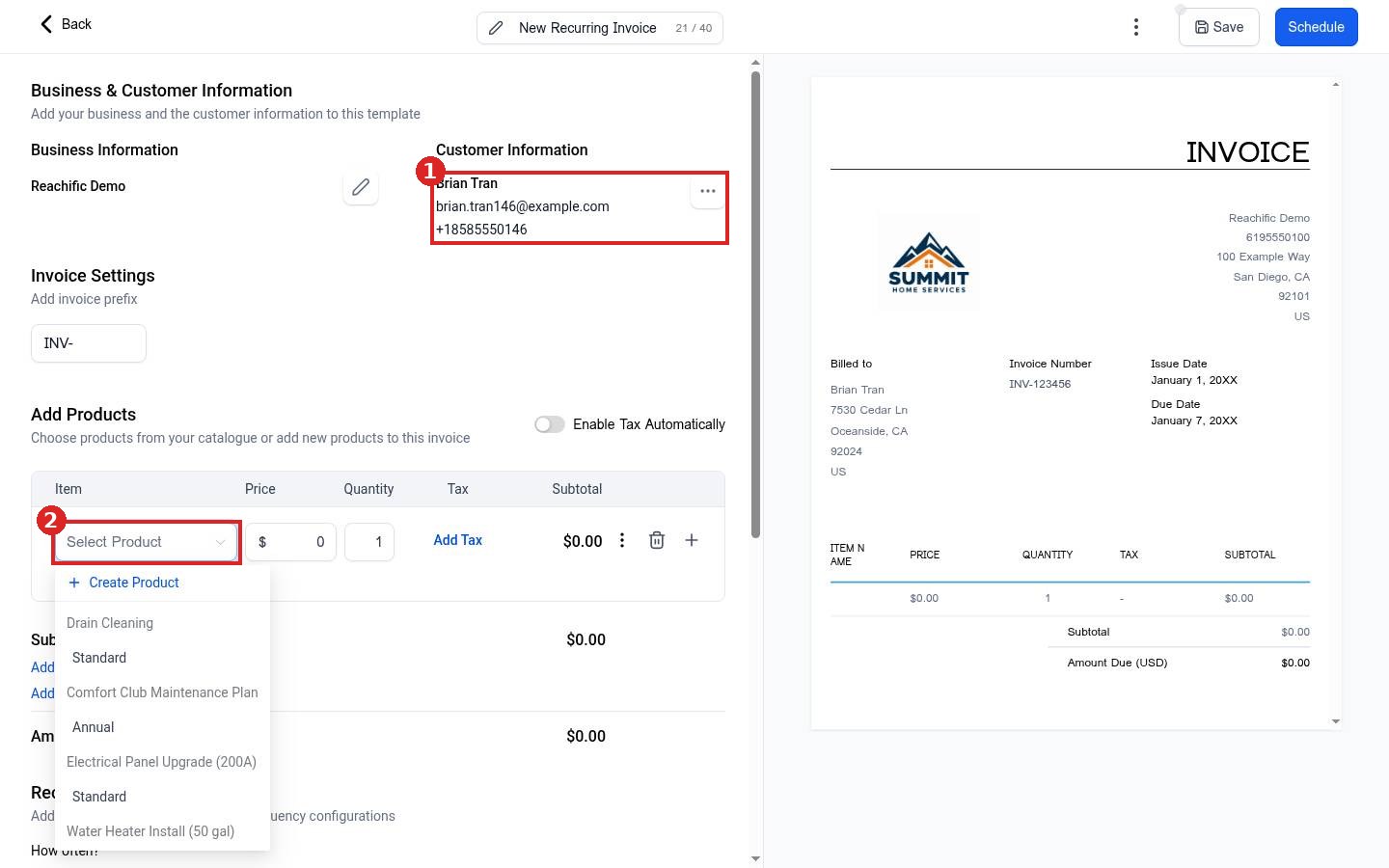
- Under Customer Information (1), click Select Customer, type a name and pick the contact, or click Add Customer.
- Under Add Products, click Add Product and choose an item from the Select Product list (2), or click Create Product. Change the price or quantity if needed, and use Add Discount or Add Tax below the subtotal.
- Click the pencil next to New Recurring Invoice at the top to give it a clear name, such as Maintenance Plan for Brian Tran.
Step 3: Set the schedule
Scroll down to Recurring Invoice Settings:
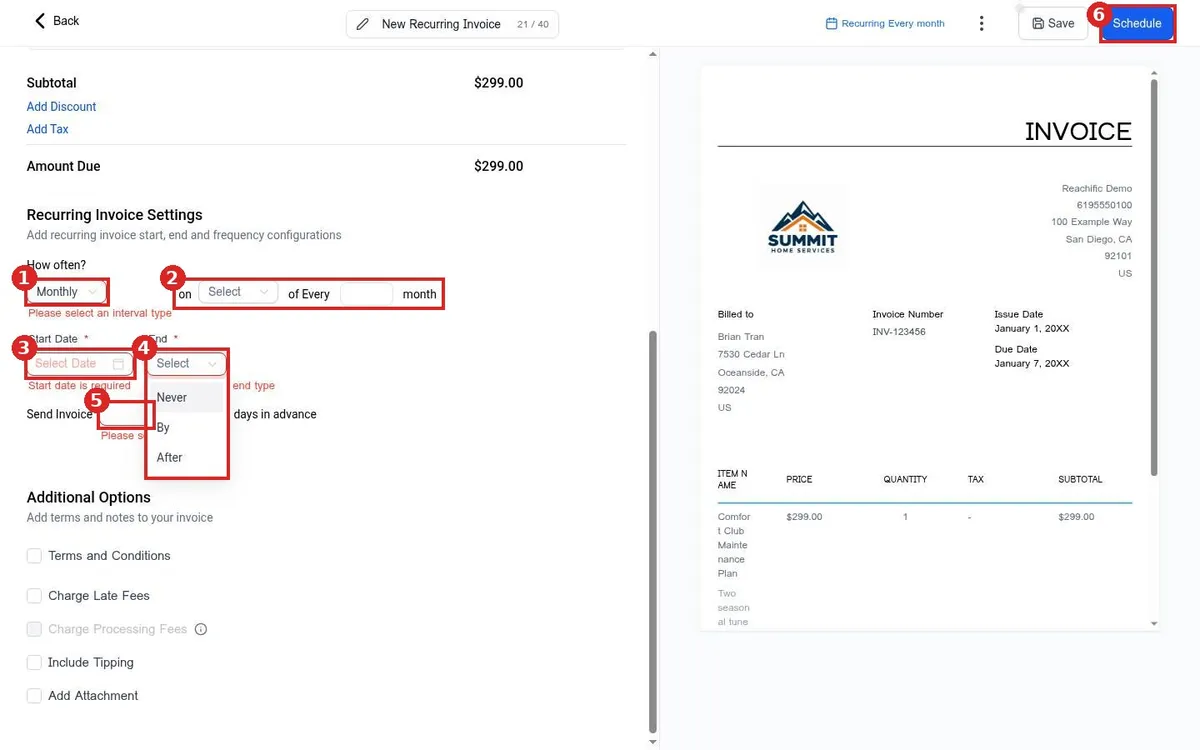
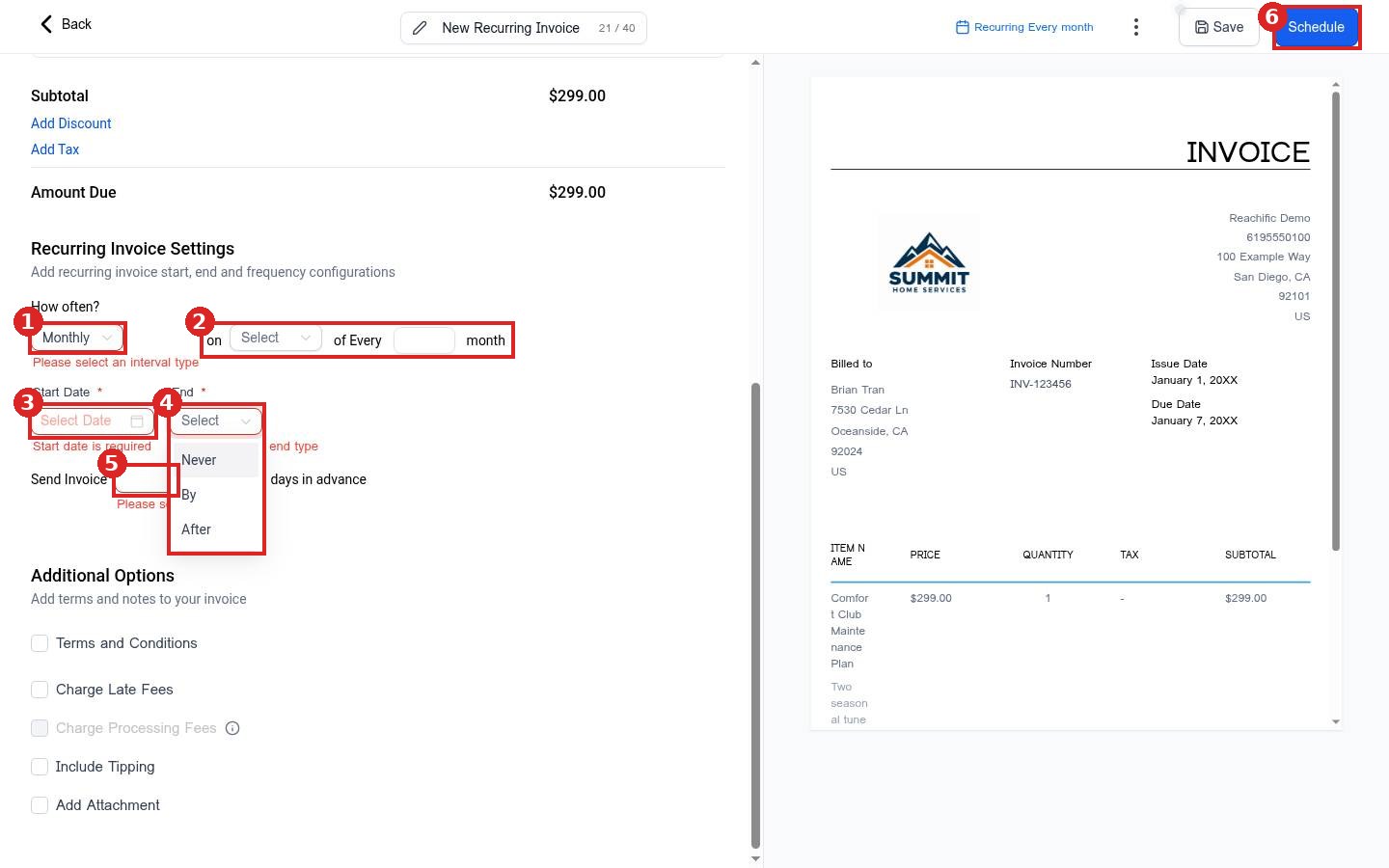
- How often (1): pick Daily, Weekly, Monthly or Yearly.
- Choose when in the cycle it goes out (2). For Monthly, pick a date or a day such as the first or last, and how many months between invoices.
- Start Date (3): the date of the first invoice.
- End (4): choose Never to keep billing until you stop it, By to stop on a date, or After to stop after a set number of invoices.
- Send Invoice (5): how many days before each date the invoice is sent.
- Click Schedule (6). The schedule shows at the top, for example Recurring Every month.
Not ready yet? Click Save instead to keep it as a draft.
Step 4: Find and manage it
Open the Invoices & Estimates menu and choose Recurring Invoices. The list shows each recurring invoice with its customer, last issued date, frequency, amount and status. Click one to open it.
FAQ
Can I add late fees or tips?
Yes. Under Additional Options at the bottom of the editor you can add terms and conditions, charge late fees, include tipping and add an attachment.
Can I bill once a year?
Yes. Choose Yearly under How often, then pick the month and day.
What is the difference from a one time invoice?
A one time invoice is sent once. A recurring invoice is a template that creates and sends a new invoice on every cycle. For a single bill see How do I create and send an invoice?
Want us to handle it? Our team can set up your maintenance plans, recurring invoices and payment reminders so steady revenue comes in on autopilot. Book a free strategy call and get a free quote.
Related articles
- How do I create and send an invoice?
- How do I set my payment and tax settings?
- How do I connect other payment providers?
Still stuck? Submit a ticket and our team will help. Need faster answers? See our support plans.
