
How do I set SEO for a blog post?
Quick answer: Open the post and click Continue. Set a short URL slug, a clear Title, a Post description of 100 to 250 characters and a few keywords. Add a cover image with alt text, check the SEO metadata preview and publish.
Before you start
- Pick the main search phrase the post should rank for, such as "AC tune up San Diego".
- Use that phrase in the title, slug and description in a natural way.
Step 1: Set the slug, title, description and keywords
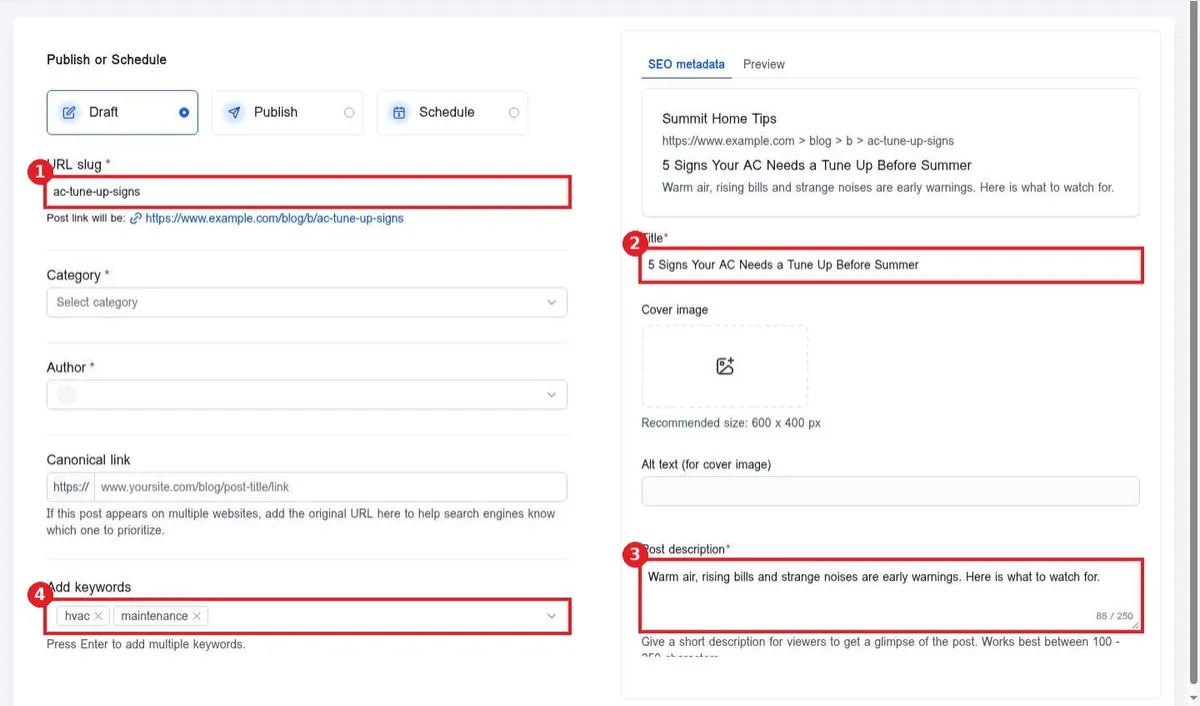
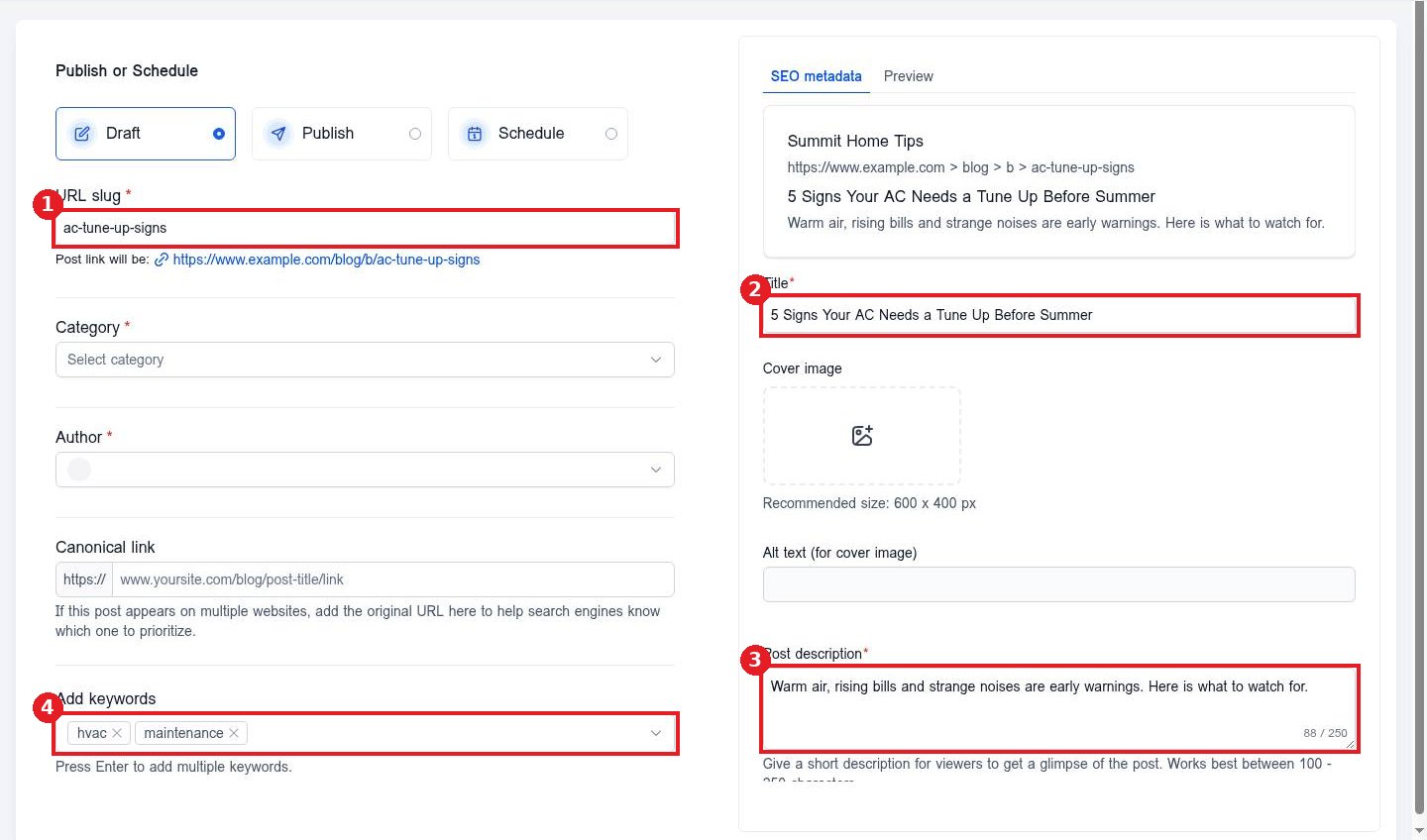
In the post settings, type a short URL slug (1) with words separated by dashes. Write the Title (2) people will see in search. Write the Post description (3), which becomes the meta description. Add keywords (4) and press Enter after each.
Step 2: Add a cover image with alt text
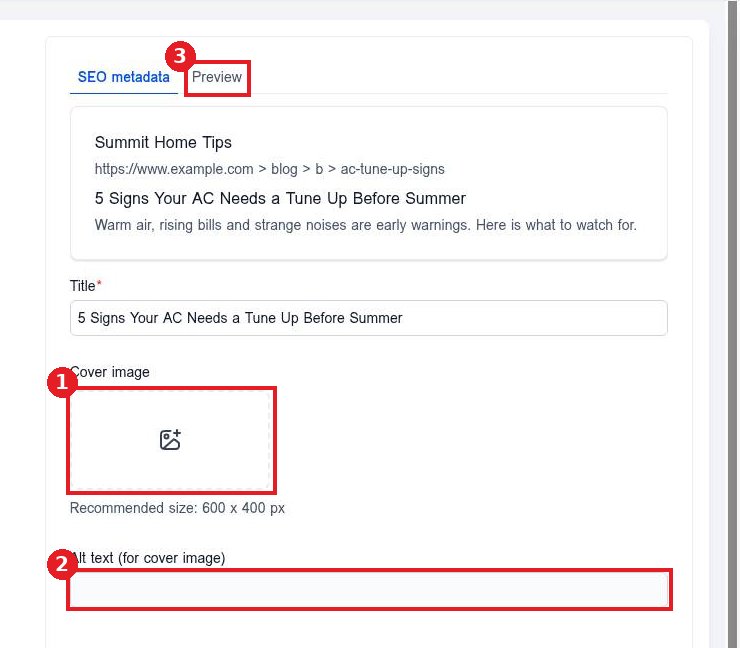
Click the Cover image box (1) to add an image, ideally 600 by 400 pixels. Describe the image in Alt text (2). Open the Preview tab (3) to see how the post card looks.
Step 3: Check the search preview and publish
The SEO metadata box at the top right shows how the post will look in Google. When it reads well, choose Publish or Schedule and save.
FAQ
How long should the post description be?
Aim for 100 to 250 characters. Search engines often cut off longer text.
Should I change the slug after publishing?
Try not to. Changing it changes the link, so old links and rankings can break.
What is the canonical link field for?
Use it only when the same post also appears on another site, to tell search engines which copy is the original.
Want us to handle it? Our team plans and writes search friendly blog content that brings in leads, then publishes it for you on a steady schedule. Book a free strategy call and get a free quote.
Related articles
- How do I write and publish a blog post?
- How do I schedule a blog post?
- How do I set a page title, meta description and social image?
Still stuck? Submit a ticket and our team will help. Need faster answers? See our support plans.
