
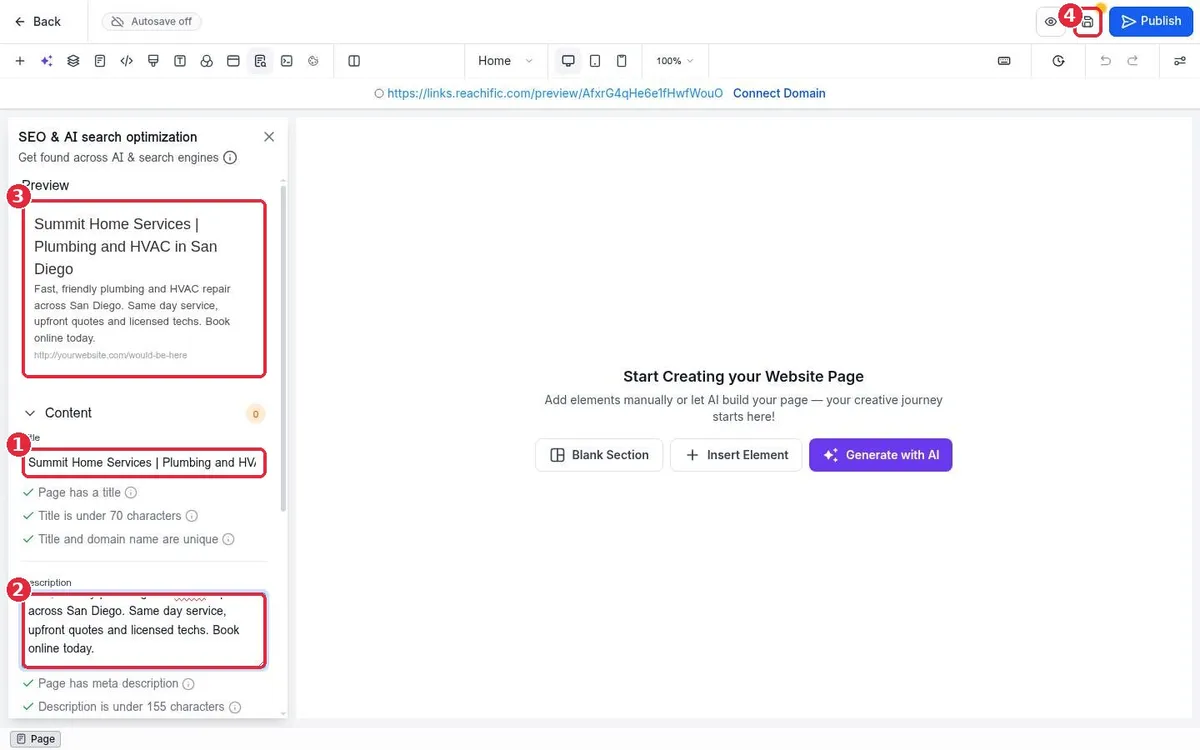
How do I set a page title, meta description and social image?
Quick answer: Open the page in the website builder and click the SEO & AI search optimization icon in the top toolbar. Under Content, type the page Title and Description. Under Images, pick the image you want shown when the page is shared. Click Save, then Publish.
Before you start
- Each page has its own SEO settings, so repeat these steps for every page on your site.
- Write a title under 70 characters that says what the page is and where you work, such as Summit Home Services | Plumbing and HVAC in San Diego.
- Write a description under 155 characters that gives a reason to click, such as same day service or free quotes.
- For the social image, a wide picture (about 1200 by 630 pixels) of your team, work or logo works well. Upload it to Media Storage first if it is not there yet.
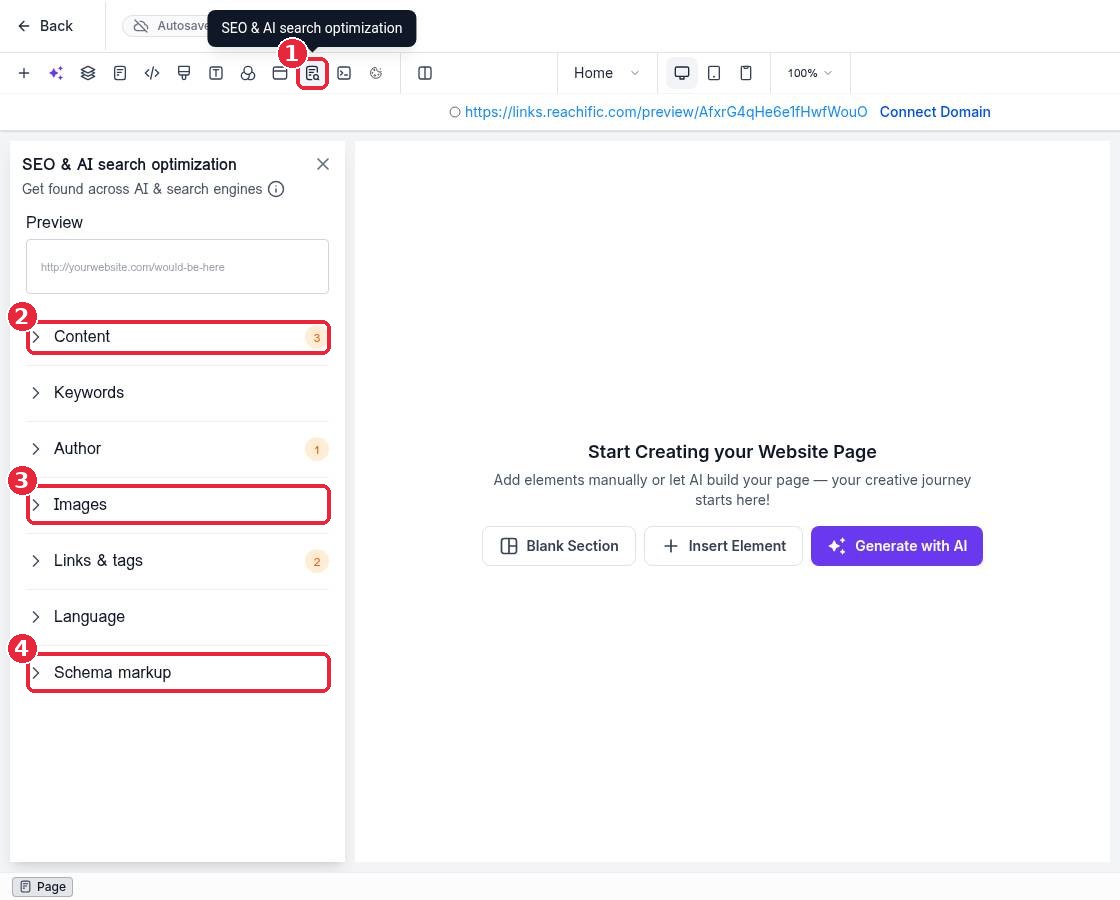
Step 1: Open the SEO panel
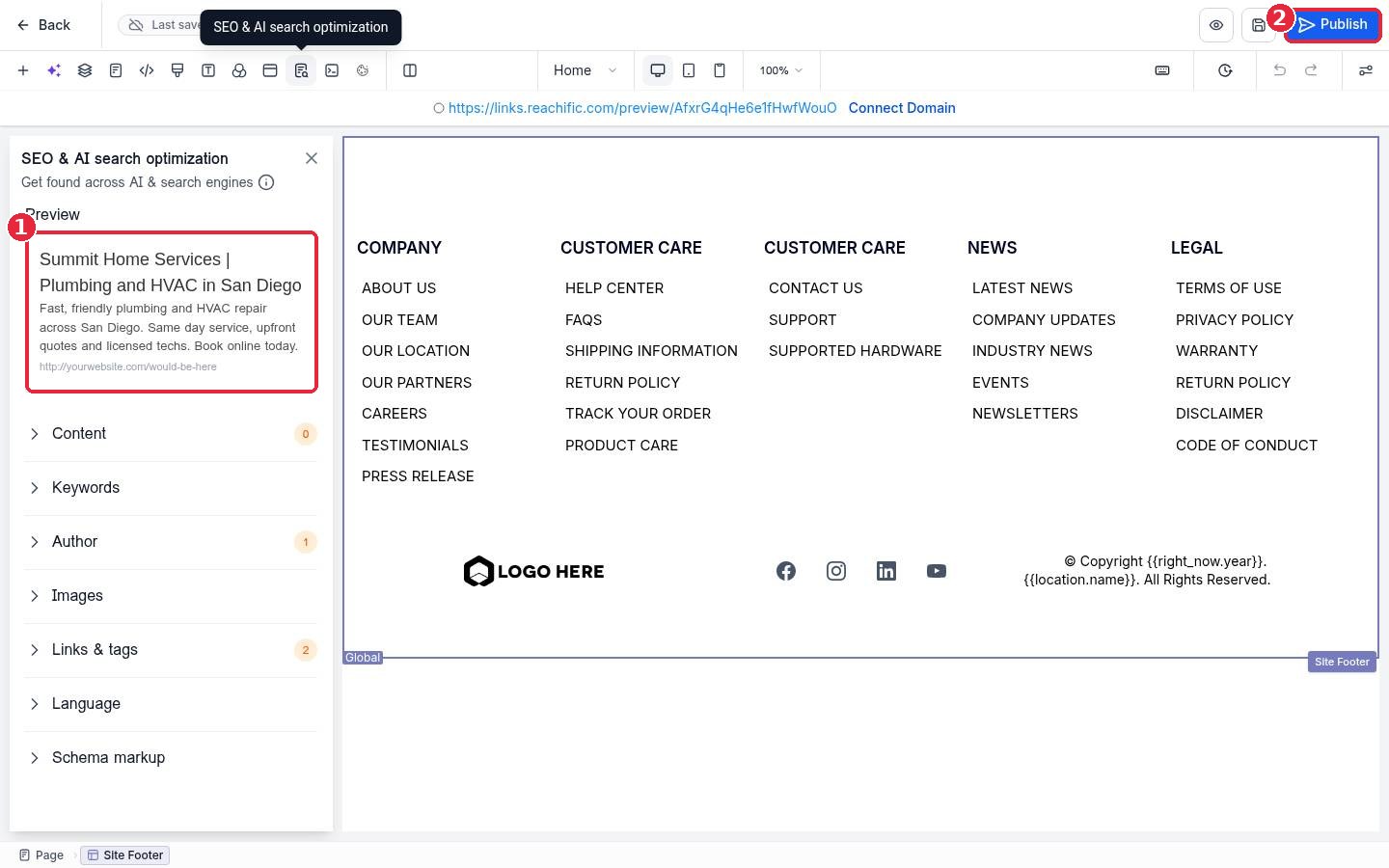
Go to Sites > Websites, open your website and click Edit on the page. In the builder, click the SEO & AI search optimization icon (1). The panel shows a search preview and sections for Content (2), Keywords, Author, Images (3), Links and tags, Language and Schema markup (4). The orange numbers show how many checks still need attention.
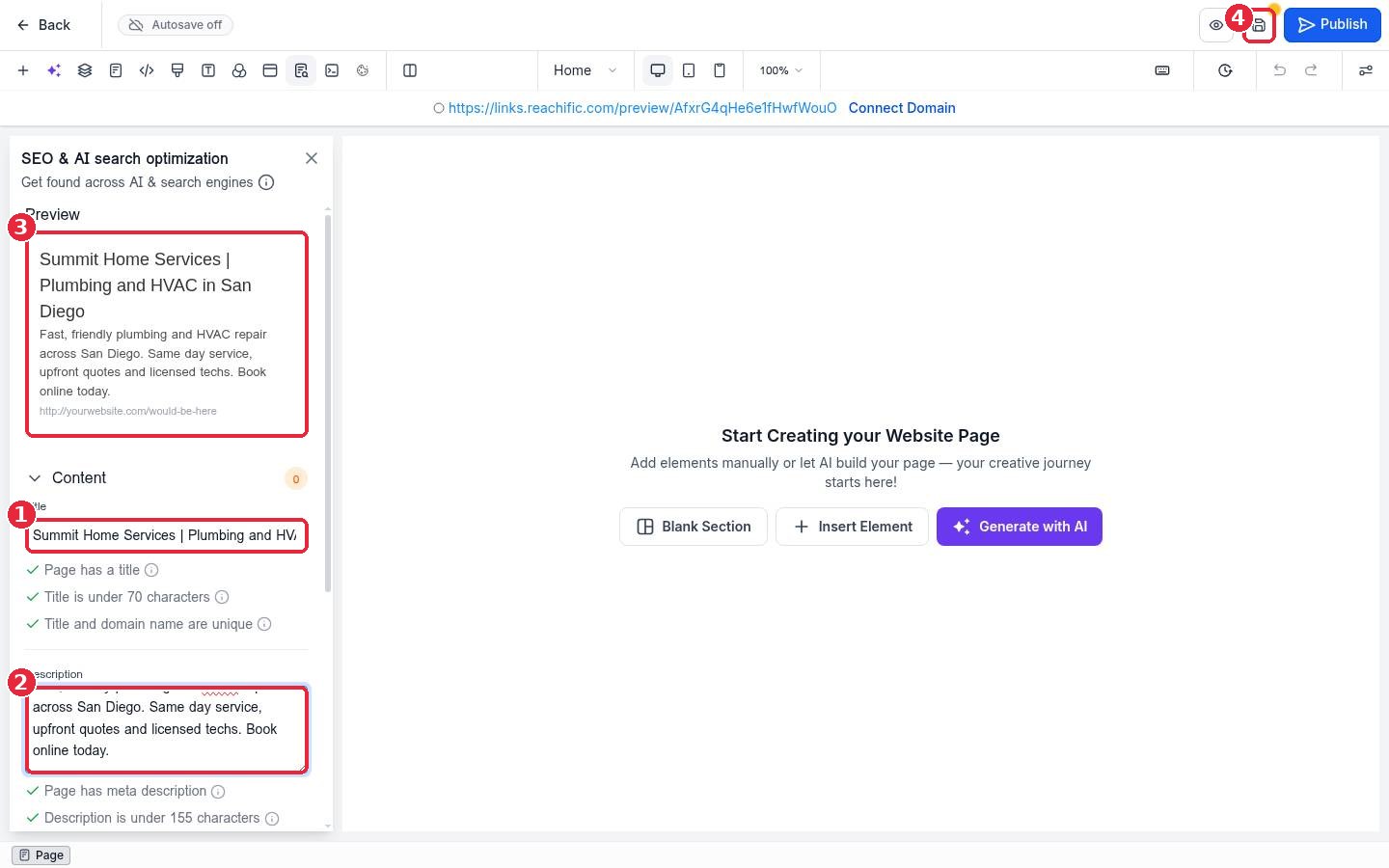
Step 2: Add the title and meta description
Open Content. Type your page title in Title (1) and your summary in Description (2). The checks under each box turn green when the text is present, short enough and unique. Watch the Preview (3) to see roughly how the page will look in search results. Click the Save icon (4) at the top.
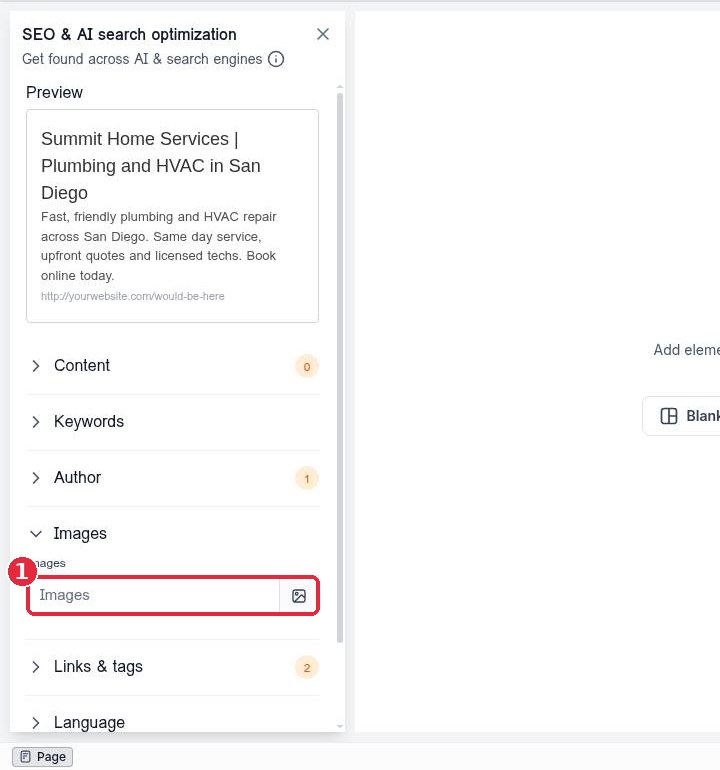
Step 3: Set the social share image
Open Images and click the image icon next to the box (1) to pick an image from Media Storage. This is the picture that shows when someone shares the page on Facebook, LinkedIn or in a text message.
Step 4: Save, publish and check
After you save, close and reopen the builder to confirm your title and description are still in the Preview (1). Then click Publish (2) so the new settings go live.
Search engines update on their own schedule, so the new title can take days or weeks to show in Google. Regenerating your XML sitemap after publishing helps them find changes faster.
FAQ
Why does the builder say it cannot save my page?
A page needs at least one section before it can be saved. Add your content first, then set the SEO fields and save.
Do blog posts use the same settings?
No. Blog posts have their own SEO fields in the blog post editor.
What should go in Keywords and Schema markup?
Keywords lets you list the main phrases for the page. Schema markup adds structured data that helps search and AI engines understand your business. Both are optional extras after the title and description.
Should every page have a different title?
Yes. Unique titles and descriptions help each page rank for its own topic. The panel warns you when a title or description is not unique.
Want us to handle it? Our team can write search ready titles, descriptions and schema for every page on your site so customers and AI answer engines find you first. Book a free strategy call and get a free quote.
Related articles
- How do I edit my header and footer on every page?
- How do I connect my domain to my Reachific website?
- How do I start my 14 day Reachific free trial?
Still stuck? Submit a ticket and our team will help. Need faster answers? See our support plans.
