
How do I set my contact deduplication preference?
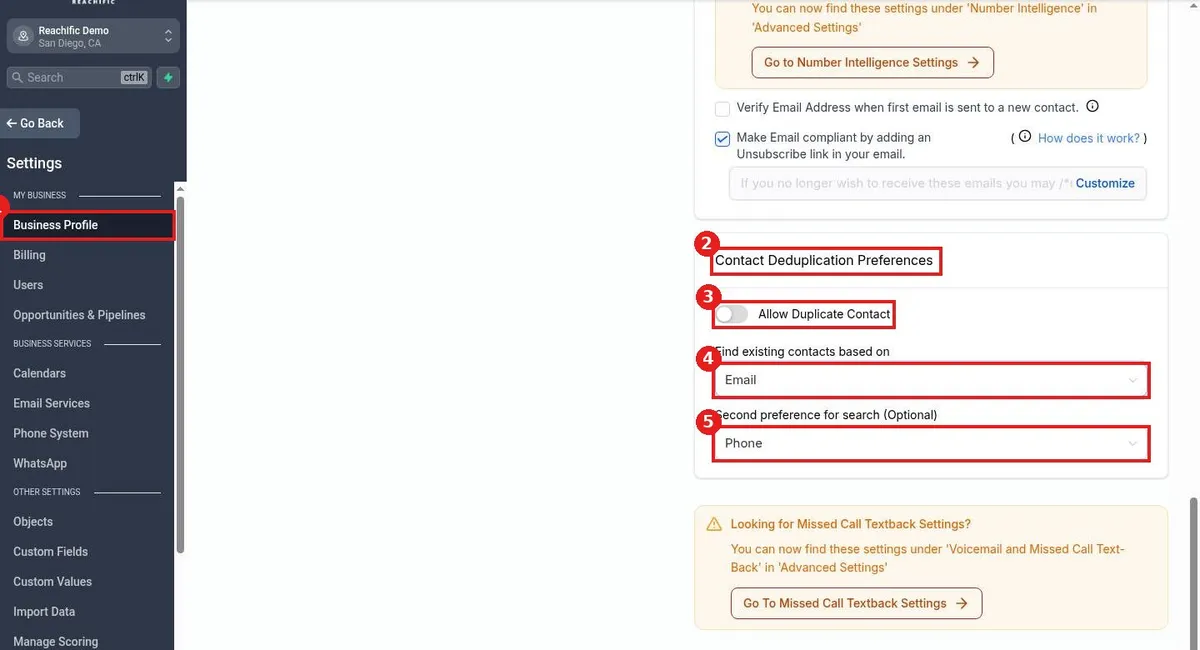
Quick answer: Go to Settings, Business Profile, and scroll to Contact Deduplication Preferences. Leave Allow Duplicate Contact off to stop duplicates, then pick the field Reachific uses to find an existing contact (Email or Phone) and an optional second field.
Why this matters
When a form, booking or import brings in someone you already have, Reachific checks this setting to decide whether to update the existing contact or create a new one. Getting it right keeps one clean record per customer.
Step 1: Open Business Profile
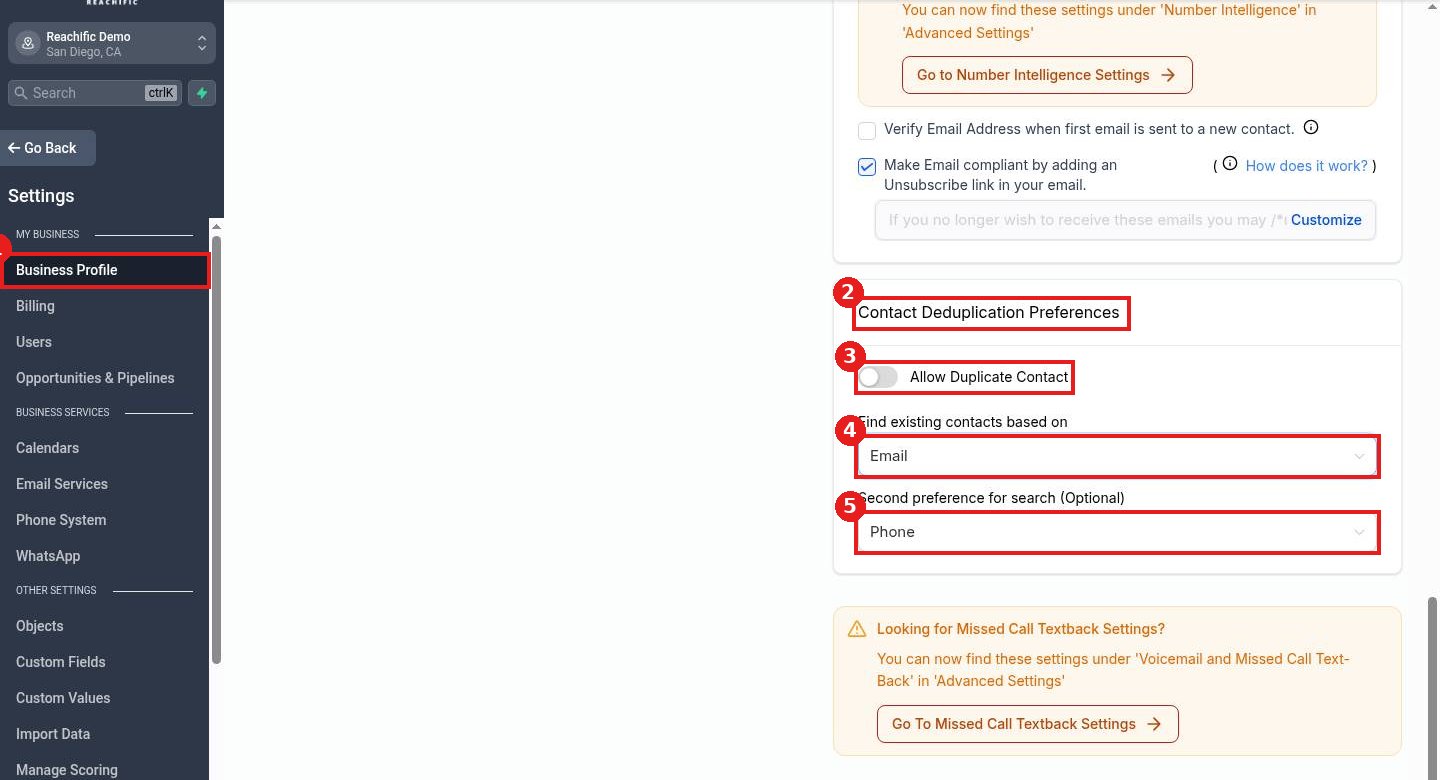
Click Settings at the bottom left, then Business Profile (1). Scroll down the right column to Contact Deduplication Preferences (2).
Step 2: Choose your rules
- Allow Duplicate Contact (3): off means Reachific matches new entries to existing contacts. On means it can create a second record for the same person.
- Find existing contacts based on (4): the main field to match on, such as Email.
- Second preference for search (5): an optional backup field, such as Phone.
Step 3: Check it saved
Reload the page and scroll back down to confirm your choices are still set.
FAQ
Should I match on email or phone?
Pick the one your customers give you most reliably. Many home service businesses get phone numbers more often than emails.
Does this merge contacts I already have?
No. It applies to new contacts coming in. Clean up existing duplicates separately.
When would I allow duplicates?
Rarely. One case is when several people share one office phone or email and you need separate records.
Want us to handle it? Our team can clean up your contact list and set the right rules for you. Book a free strategy call and get a free quote.
Related articles
- How do I fill in my business profile?
- How do I import contacts from a CSV file?
- How do I edit a contact's details?
Still stuck? Submit a ticket and our team will help. Need faster answers? See our support plans.
