
How do I set buffer time and booking limits?
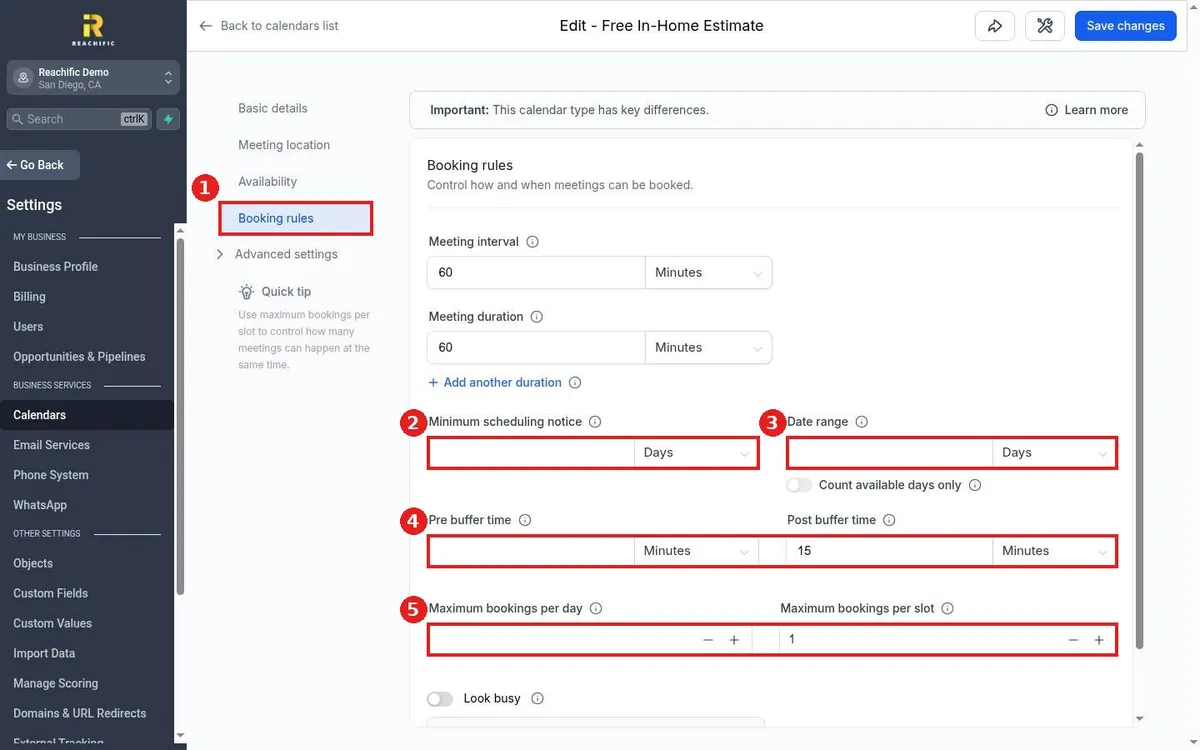
Quick answer: Go to Settings, then Calendars, and click the pencil on your calendar. Open Booking rules and fill in Minimum scheduling notice, Date range, Pre buffer time, Post buffer time and the maximum bookings fields. Click Save changes.
Before you start
- Buffers protect drive time and prep time between jobs. Limits stop you from getting overbooked.
- Leave a field empty if you do not want that rule.
Step 1: Open Booking rules
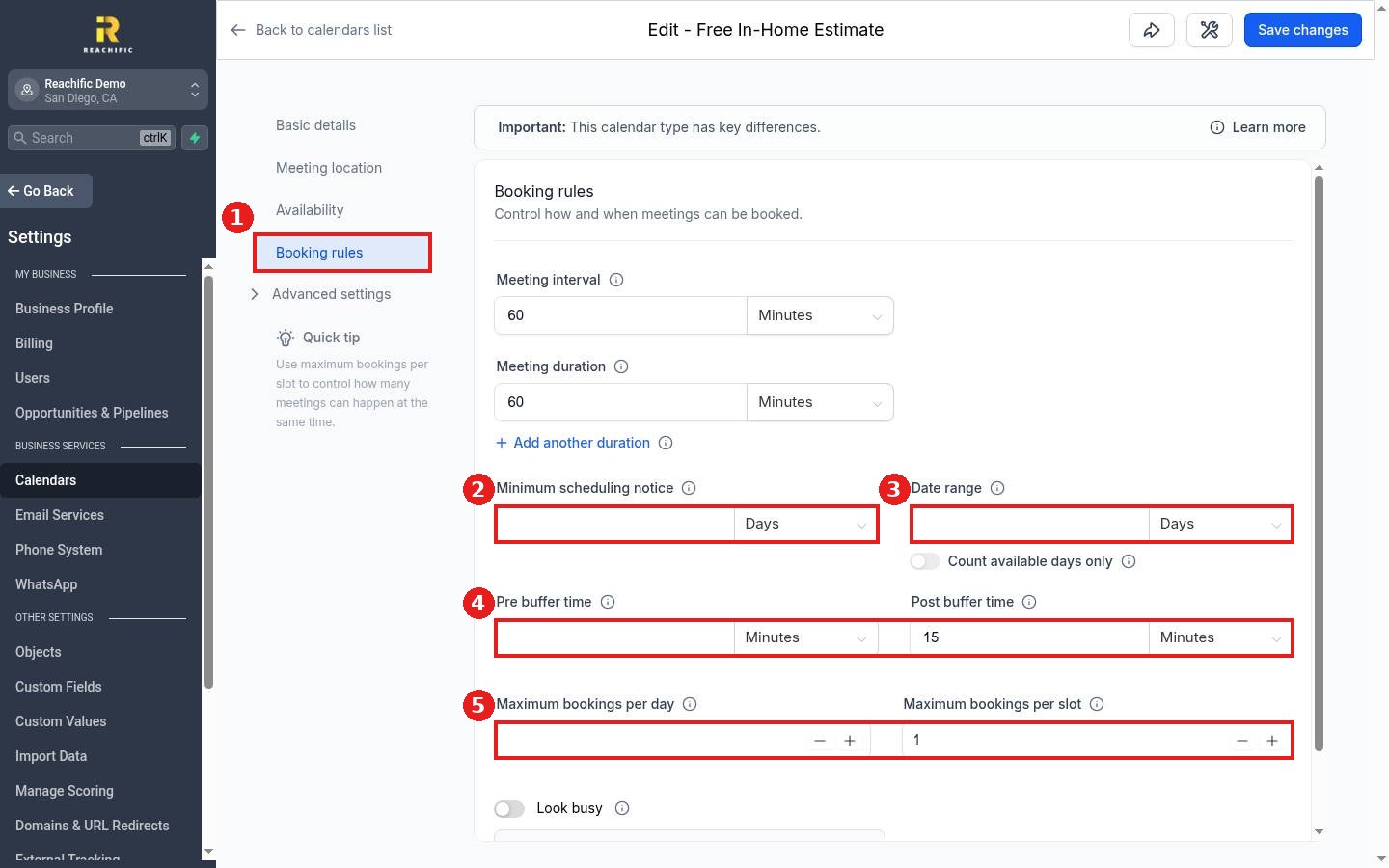
In the calendar editor, click Booking rules (1).
Step 2: Set notice and how far ahead people can book
Minimum scheduling notice (2) blocks last minute bookings. For example, 1 day means nobody can book for today. Date range (3) limits how far ahead people can book, for example 30 days.
Step 3: Add buffer time
Pre buffer time and Post buffer time (4) keep free time before and after each appointment. A 15 minute post buffer gives you time to wrap up and travel to the next job.
Step 4: Cap your bookings and save
Maximum bookings per day and Maximum bookings per slot (5) cap how many appointments you take. Keep per slot at 1 unless several people can be served at once. Click Save changes at the top right.
FAQ
What is the meeting interval?
It is how often a new slot starts. With a 60 minute interval, slots start at 8:00, 9:00, 10:00 and so on.
What does Look busy do?
It hides a share of your open slots so your calendar does not look empty to new customers.
Do buffers show to customers?
No. Customers only see fewer open slots. The buffer time stays private.
Want us to handle it? Our team can tune your booking rules around your crews and drive times. Book a free strategy call and get a free quote.
Related articles
- How do I set my available hours on a calendar?
- How do I create a booking calendar?
- How do I share my booking link with customers?
Still stuck? Submit a ticket and our team will help. Need faster answers? See our support plans.
