
How do I send a review request?
Quick answer: First turn on review requests: go to Reputation > Settings, open SMS Requests or Email Requests, switch the toggle on and pick your sender. Then go to Reputation > Overview and click Send Review Request. Search for the contact, check the phone and email, choose Email, SMS or WhatsApp, and click Send Review Request.
Before you start
Set your review link first so requests send customers to the right page. See How do I connect my Google Business Profile for reviews?
To send by text, you need a Reachific phone number. To send by email, your email sending must be set up.
Only ask real customers who have used your service, and ask soon after the job is done.
Step 1: Turn on SMS review requests
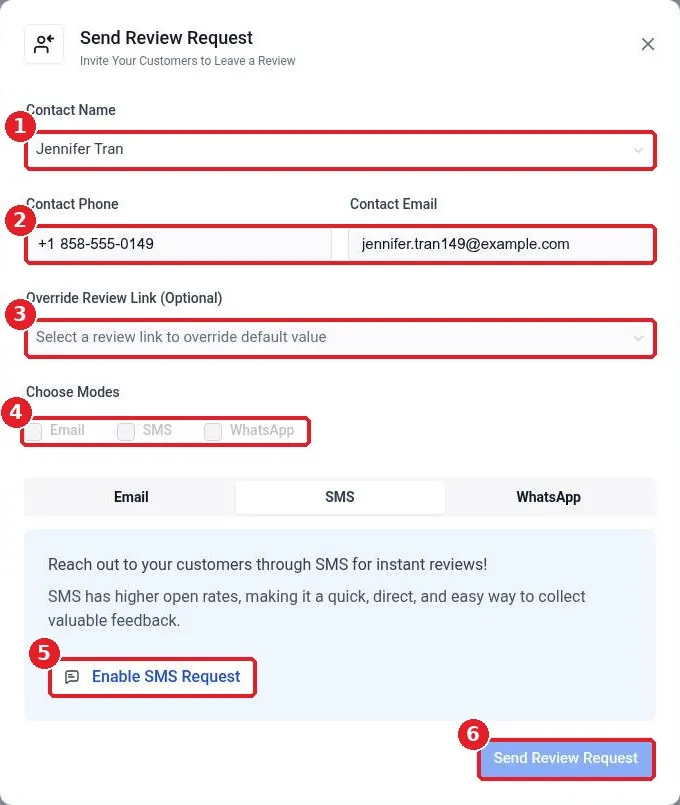
Click Reputation, then the Settings tab, and open SMS Requests (1). Switch the toggle on (2). Choose when the text goes out and whether to repeat it until the customer clicks (3). Pick the Default SMS sender number (4). The message template (5) includes your business name and review link, and you can edit it with the pencil icon. Do the same under Email Requests if you want to ask by email.
Step 2: Open Send Review Request
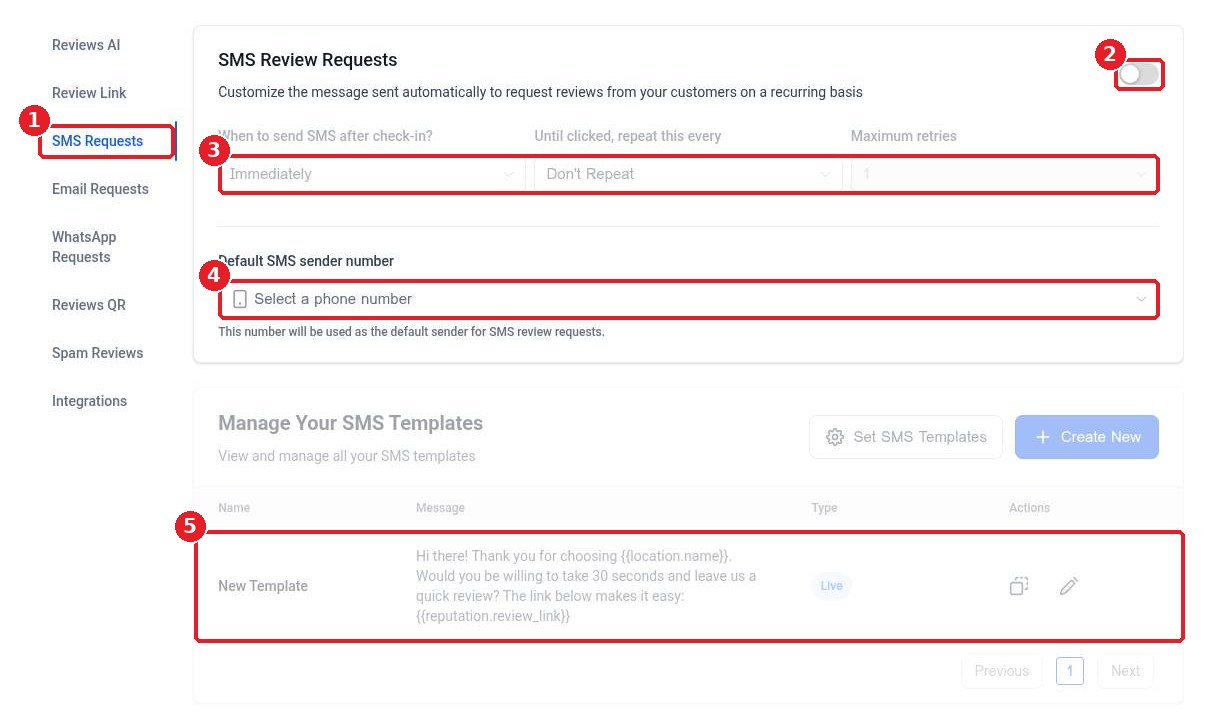
Click Reputation in the left menu (1). On the Overview tab, click Send Review Request (2) at the top right. New accounts also see a Get Started checklist with Send your 1st Review Request (3).
Step 3: Pick the customer and send
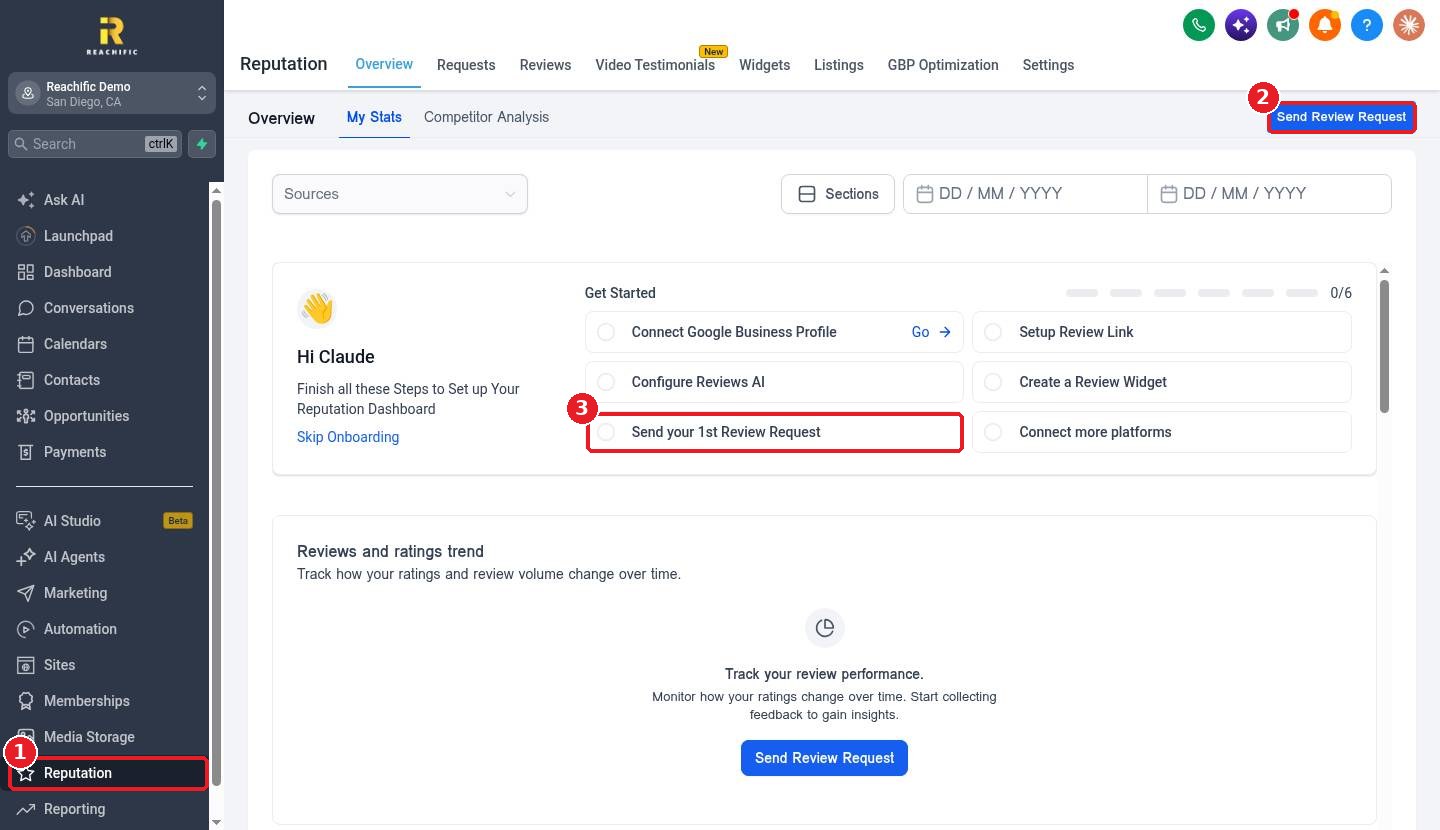
Search for the customer under Contact Name (1), or type a new name to create a contact. Their phone and email fill in (2). To send a different link this time, pick one under Override Review Link (3). Tick the modes you want under Choose Modes (4). If a mode is greyed out, it is not turned on yet; click Enable SMS Request or Enable Email Request (5) to set it up. Click Send Review Request (6).
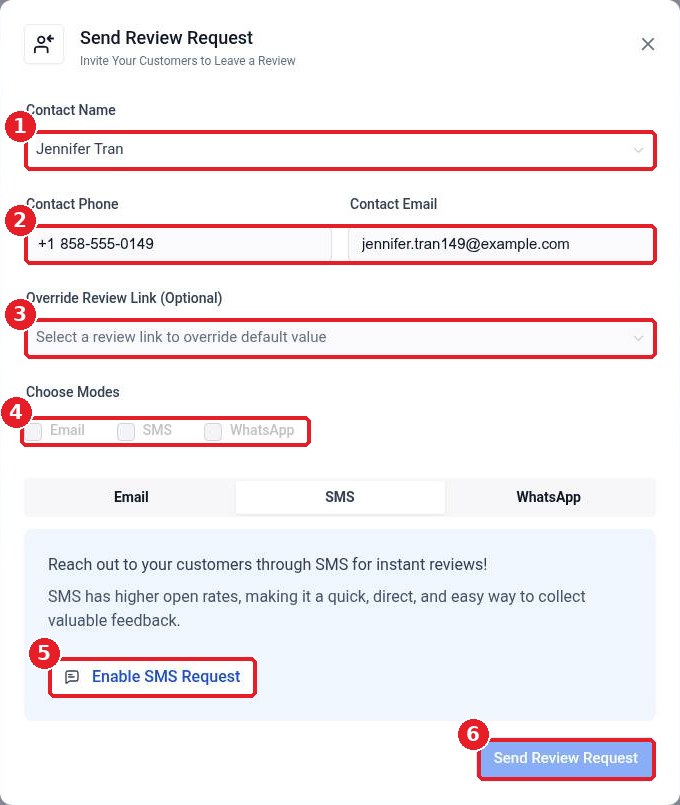
Track every request on the Requests tab in Reputation.
FAQ
Why are the Email and SMS boxes greyed out?
That mode is not turned on yet. Turn it on in Reputation > Settings > SMS Requests or Email Requests, then try again.
Can review requests go out automatically?
Yes. Use a workflow with the Send Review Request action, for example when a job is marked complete or an invoice is paid.
Can I ask for a review on a site other than Google?
Yes. Use Override Review Link to pick another review link for that request.
How often should I ask?
Once per job is enough. Use the repeat setting to send a gentle reminder only if the customer has not clicked.
Related articles
Still stuck? Submit a ticket and our team will help. Need faster answers? See our support plans.
