
How do I sell gift cards?
Quick answer: Go to Payments and open the Gift Cards tab. Click Create Gift Card, fill in the details, pick a design, choose the amounts customers can buy, then click Create Gift Card. On the card, click Sell to copy the checkout link or embed code for your website.
Before you start
- Connect a payment provider such as Stripe first so customers can pay. See how to connect Stripe.
- Decide your amounts, expiry date and terms, such as not redeemable for cash.
Step 1: Open Gift Cards
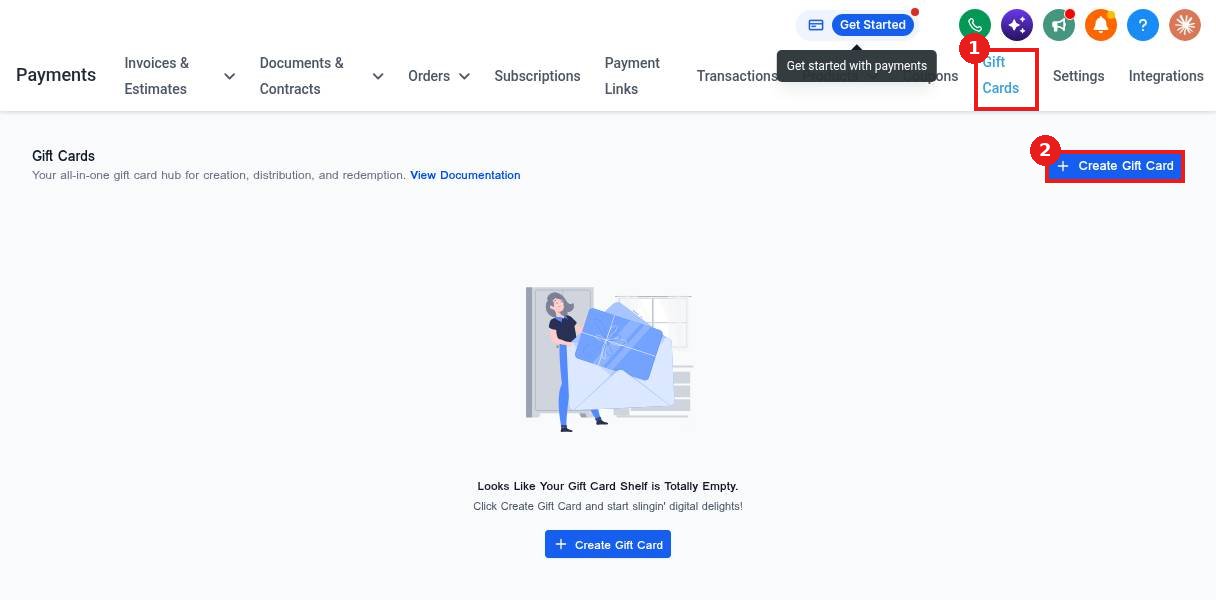
Click Payments in the left menu, then the Gift Cards tab (1). Click Create Gift Card (2).
Step 2: Enter the basic information
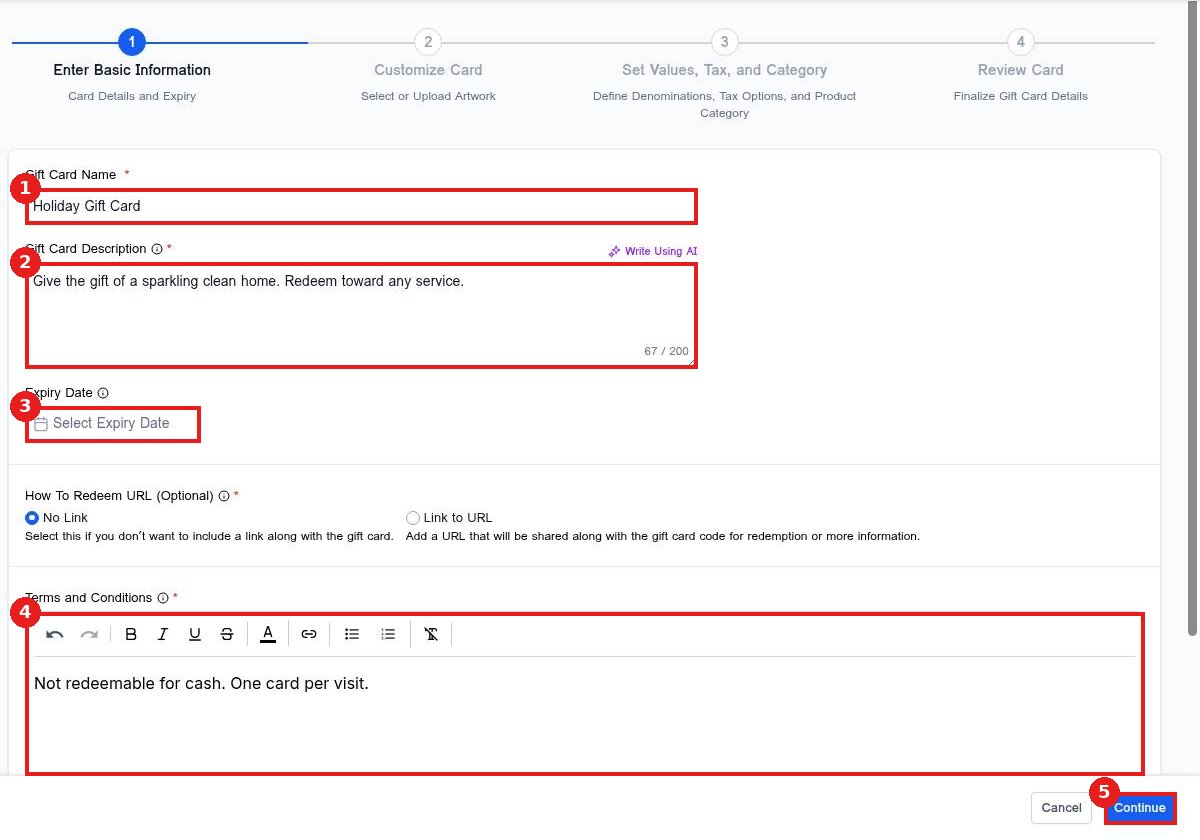
Type a Gift Card Name (1) and a short Gift Card Description (2). Pick an Expiry Date (3) if the card should expire, or leave it empty for never. Add your Terms and Conditions (4), then click Continue (5).
Step 3: Design the card
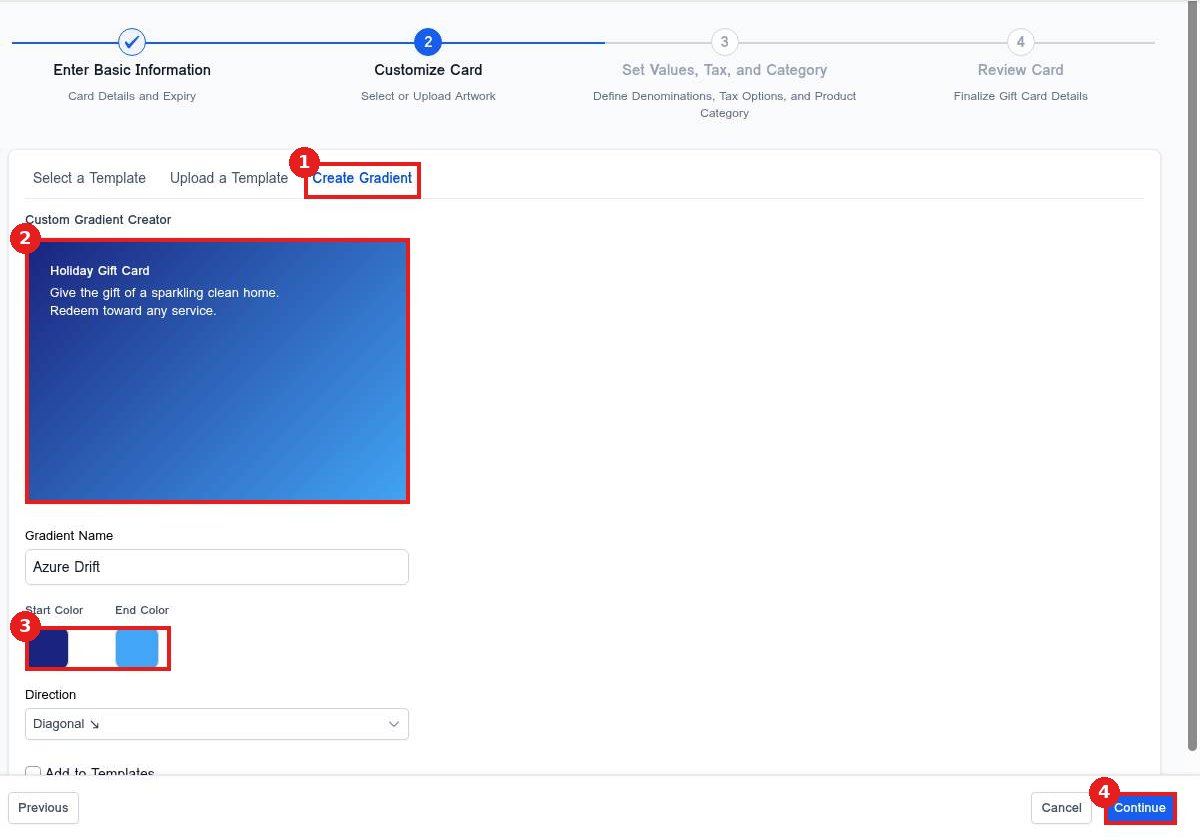
Choose Create Gradient (1) to build a color design, or use Upload a Template to add your own artwork. The preview (2) shows your card. Pick the colors (3) and click Continue (4).
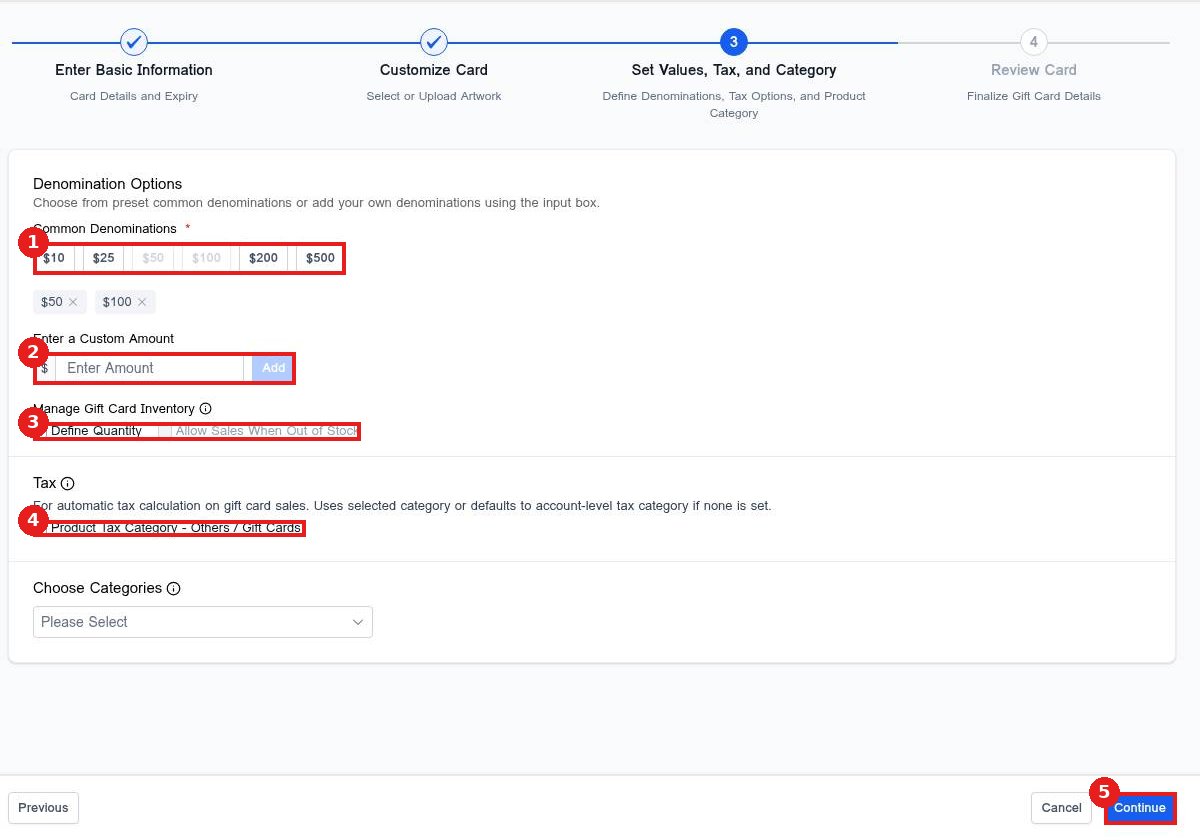
Step 4: Set the amounts
Click the amounts customers can buy under Common Denominations (1), or type your own in Enter a Custom Amount (2). Turn on Define Quantity (3) to limit how many you sell. Check the tax box (4) if gift card sales are taxed, then click Continue (5).
Step 5: Review and create
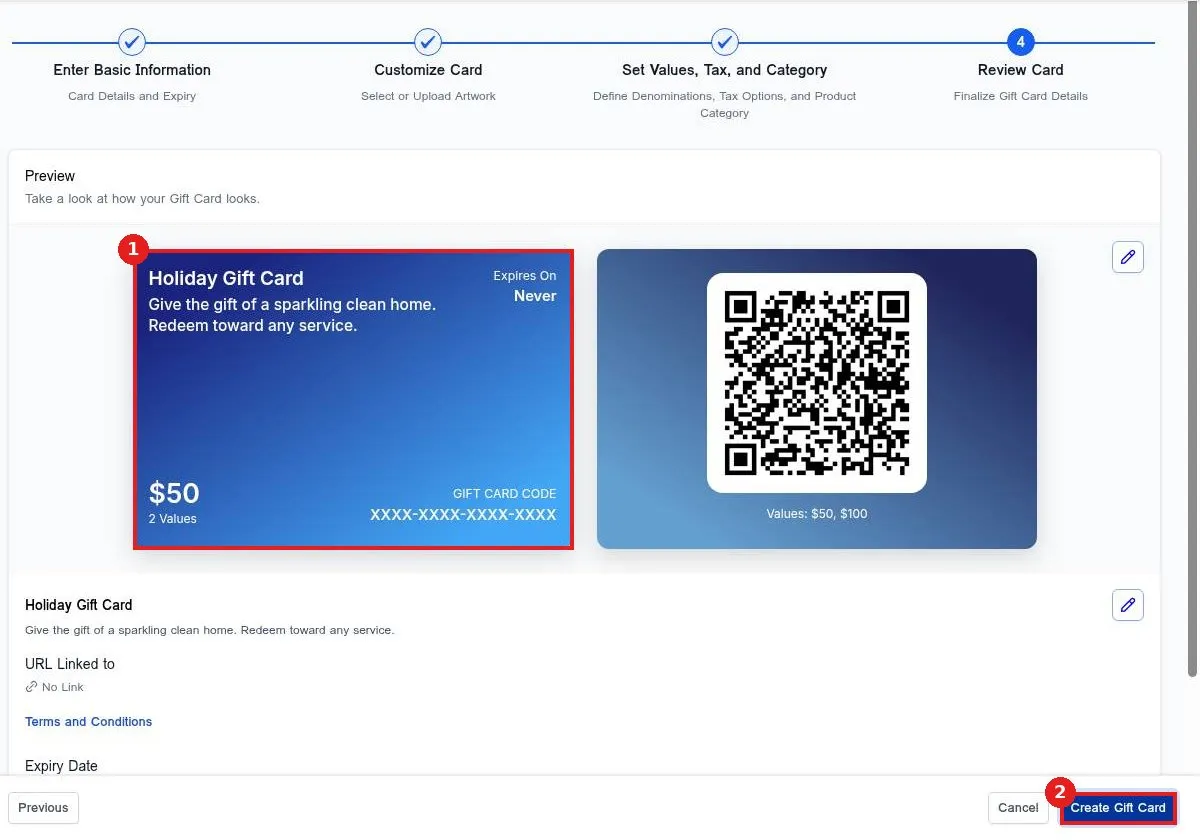
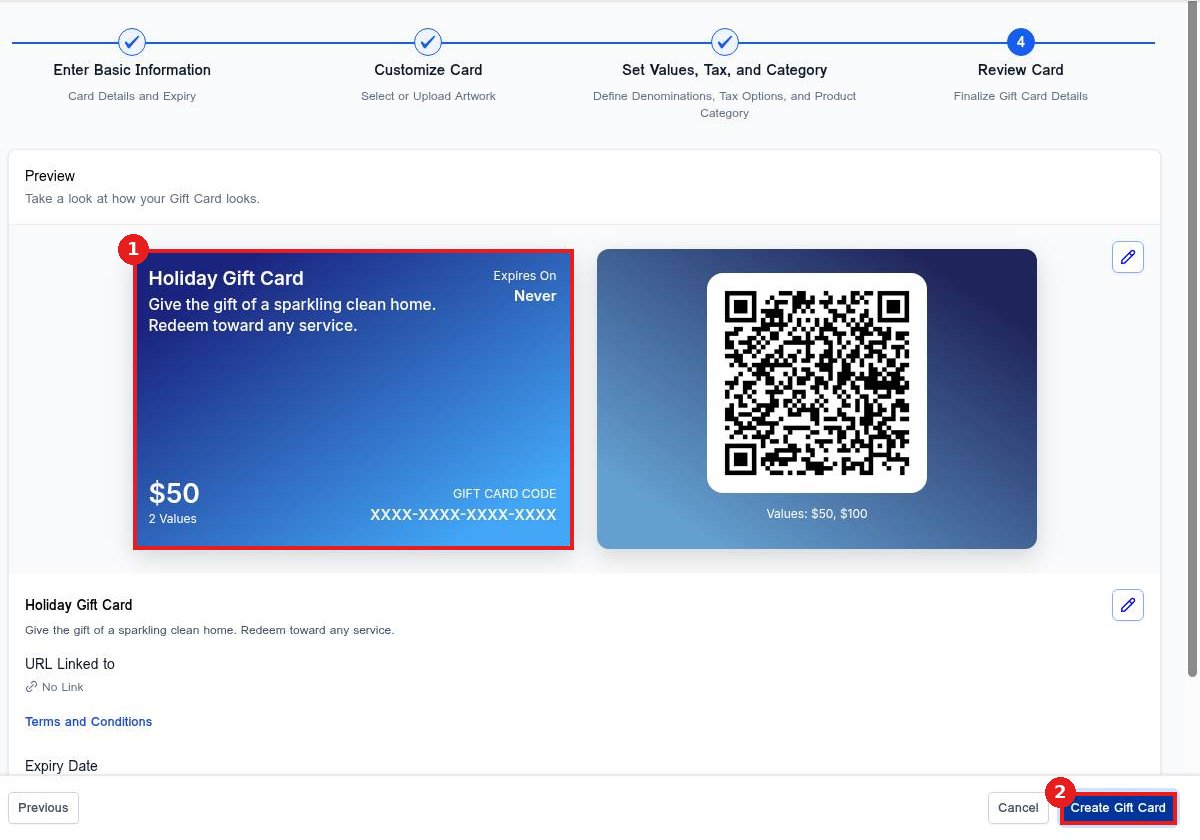
Check the preview (1). Click Create Gift Card (2). Your card now shows on the Gift Cards tab.
Step 6: Share it so customers can buy
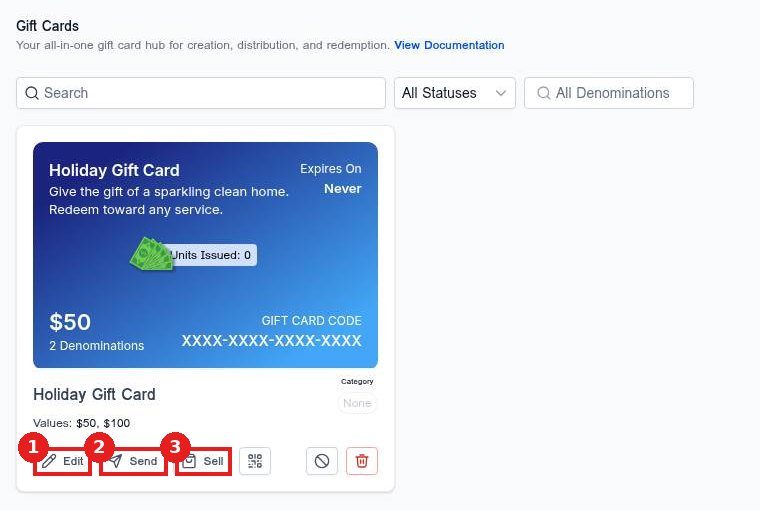
On the card, use Edit (1) to change it, Send (2) to email a card to someone, or Sell (3) to get your checkout link.
Step 7: Copy the link or embed code
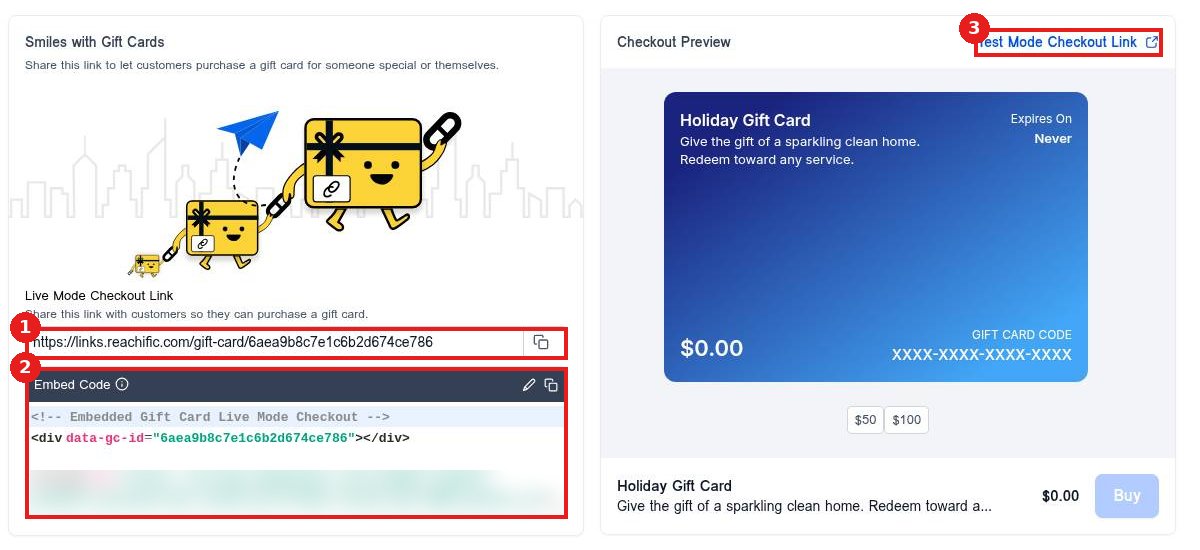
Copy the Live Mode Checkout Link (1) to share by text, email or social. Copy the Embed Code (2) to add a buy box to your website. Use Test Mode Checkout Link (3) to try a purchase without charging a card.
FAQ
How do customers buy a gift card?
They open your checkout link or the buy box on your website, pick an amount and pay. Each card gets its own gift card code.
Can I limit how many gift cards I sell?
Yes. Turn on Define Quantity in the amounts step and set how many are available.
Can I change a gift card after I create it?
Yes. Click Edit on the card to update its details, design or amounts.
Want us to handle it? Our team can set up gift cards, add them to your website and promote them for the holidays. Book a free strategy call and get a free quote.
Related articles
- How do I create a coupon code?
- How do I create a payment link?
- How do I connect Stripe to take payments?
Still stuck? Submit a ticket and our team will help. Need faster answers? See our support plans.
