
How do I create a payment link?
Quick answer: Go to Payments > Payment Links and click Create Link. Choose a product, pick your options, name the link, click Save, then use Copy / Send to share it with your customer.
Before you start
Add the product you want to sell first, with a price.
Connect a payment provider so customers can pay. See How do I connect Stripe to take payments?
Step 1: Start a new link
Click Payments in the left menu, then Payment Links in the top menu. Click Create Link or Create New Payment Link. Name the link in the box at the top, where it says New Link.
Step 2: Choose the product and options
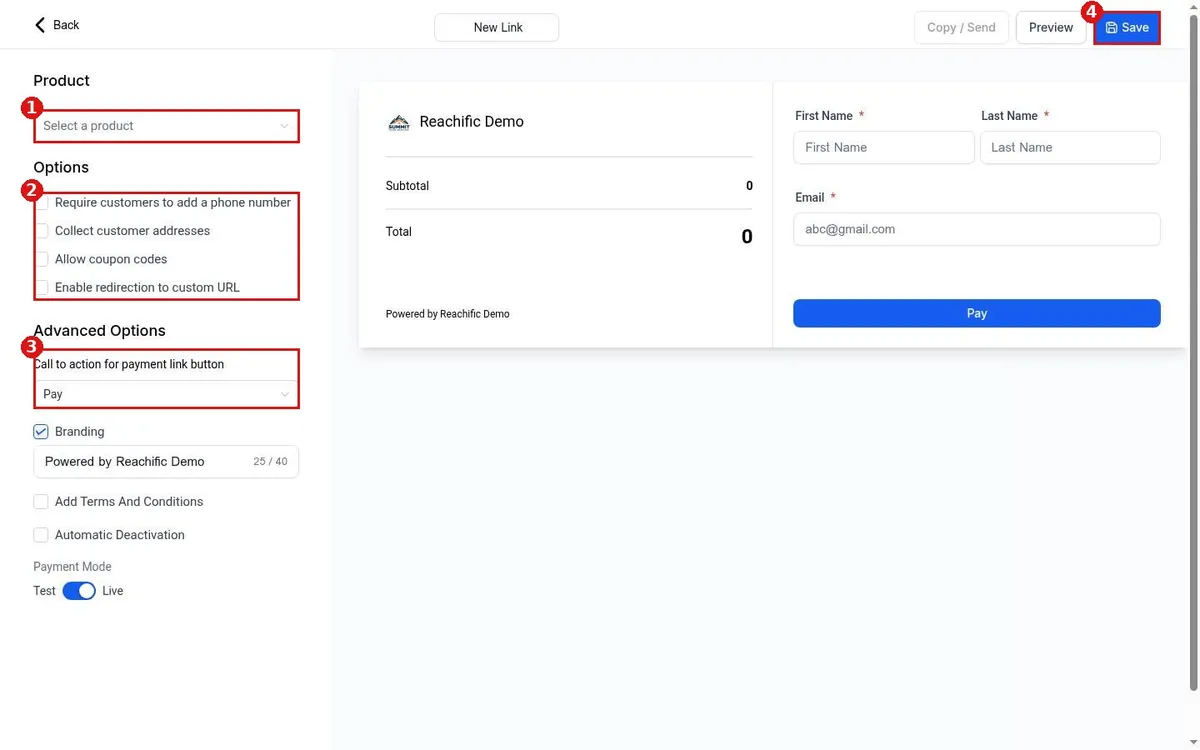
Under Product (1), click Select a product and pick what you are selling.
Under Options (2), tick what you need: Require customers to add a phone number, Collect customer addresses, Allow coupon codes or Enable redirection to custom URL.
Under Advanced Options (3), change the button text from Pay, edit the branding line, add terms and conditions, or set automatic deactivation.
Check the Payment Mode switch. Test lets you try the link without real money. Live takes real payments.
Click Save (4).
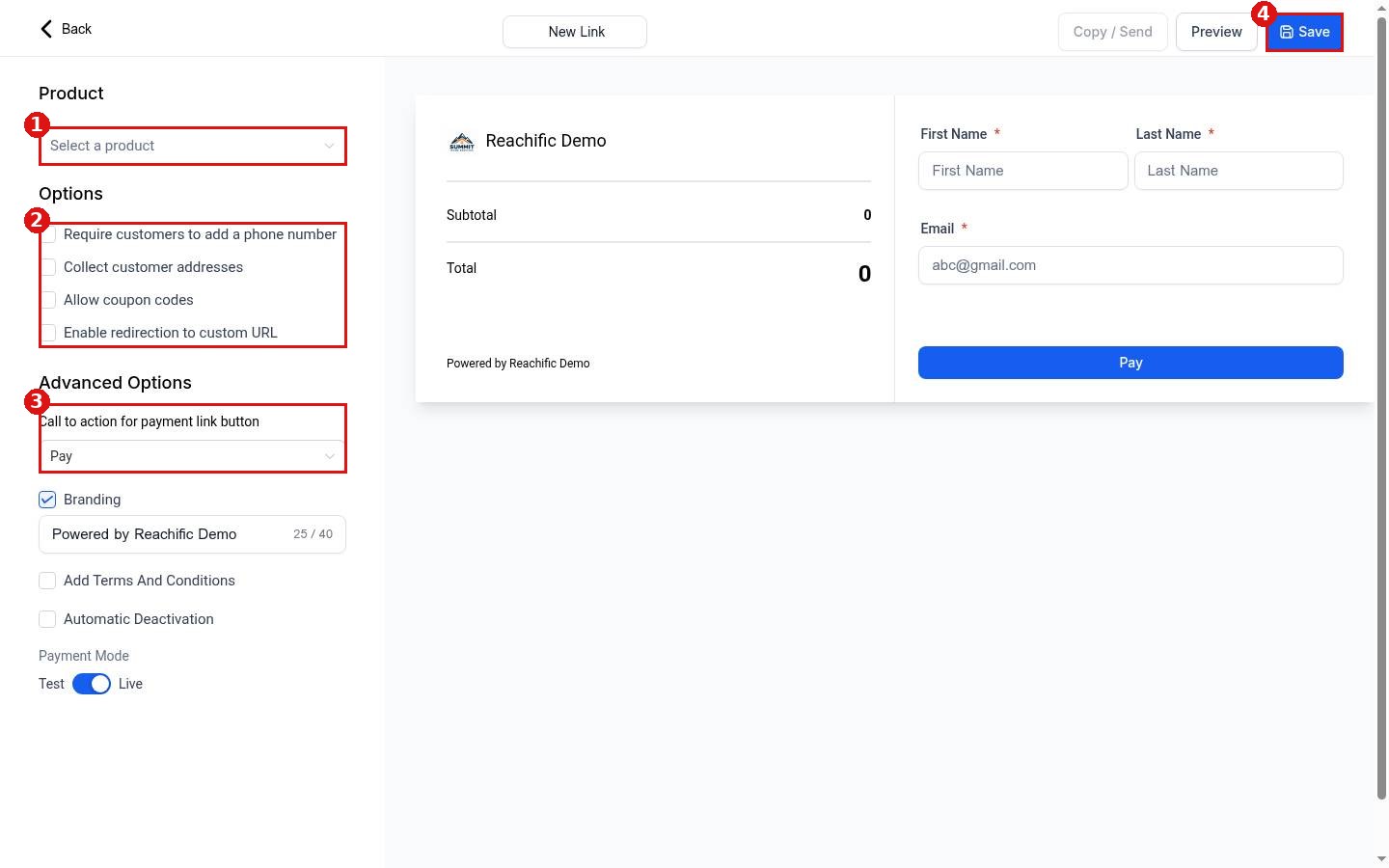
The preview on the right shows the page your customer sees, with name, email and the Pay button.
Step 3: Share the link
After you save, click Preview to see the page, or Copy / Send to copy the link and send it by text, email or your website.
FAQ
Can customers use a discount code on a payment link?
Yes. Tick Allow coupon codes. To make a code, see How do I create a coupon code?
Can I send customers to my own thank you page?
Yes. Tick Enable redirection to custom URL and add the page address.
Want us to handle it? Our team can set up payment links for your services and add them to your site and follow up messages. Book a free strategy call and get a free quote.
Related articles
Still stuck? Submit a ticket and our team will help. Need faster answers? See our support plans.
